一、画布基本定义类API
1、定义gojs在全局的简洁符号
var $ = go.GraphObject.make;
2、定义画布的基本属性
定义画布用于装载具体内容
在这里比较需要注意的是,go.Diagram隔壁的id是html里面放置画布的div的id。此时myDiagram就成为一个对象了。按照我的理解,接下来要做的事情就是声明可以绘制在画布上的节点(node)和流程线(link)模板(敲黑板:这里声明的只是模板而已,在之后还需要载入数据生成真正的实例)。
myDiagram = $(go.Diagram, "myDiagram",
{
initialContentAlignment: go.Spot.Center,
allowDrop: true,
"LinkDrawn": showLinkLabel,
"LinkRelinked": showLinkLabel,
"animationManager.duration": 600,
"undoManager.isEnabled": true,
allowZoom: true,
isReadOnly: false,
ismodelfied: false,
});
- 获取当前画布的json:myDiagram.model.toJson();
- 加载json刷新画布:myDiagram.model = go.Model.fromJson(model);
- 删除选中节点或线:myDiagram.commandHandler.deleteSelection();
- 用例获取选中的节点或线:myDiagram.selection
var nodeOrLinkList=myDiagram.selection;
nodeOrLinkList.each(function(nodeOrLink) {
console.log(nodeOrLink.data);
})
- 获取第一个选中的节点或线:myDiagram.selection.first();
- 获取画布所有节点对象:myDiagram.nodes
var nodes=myDiagram.nodes;
nodes.each(function (node) {
console.log(node.data.text);
})
二、画布元素属性定义类API:
1、定义单种节点
首先定义myDiagram的nodeTemplate,也就是节点模板:
myDiagram.nodeTemplate=$(go.Node,***)
myDiagram.nodeTemplate =
$(go.Node, "Horizontal",
{ selectionChanged: nodeSelectionChanged },
$(go.Panel, "Auto",
$(go.Shape,
{ fill: "#1F4963", stroke: null }
),
$(go.TextBlock,
{ font: "bold 13px Helvetica, bold Arial, sans-serif",
editable:true,
stroke: "white",
margin: 3 },
new go.Binding("text", "key")
)
)
);
2、定义多种节点(画布上有多种节点)
首先定义myDiagram的nodeTemplate,也就是节点模板:
myDiagram.nodeTemplateMap.add("A种节点",$(go.Node,***))
myDiagram.nodeTemplateMap.add("Start",
$(go.Node, "Spot",
$(go.Panel, "Auto",
$(go.Shape, "Circle", {
minSize: new go.Size(40, 40),
fill: "#79C900",
stroke: null
})
)
)
);
myDiagram.nodeTemplateMap.add("End",
$(go.Node, "Spot",
$(go.Panel, "Auto",
$(go.Shape, "Circle", {
minSize: new go.Size(40, 40),
fill: "#DC3C00",
stroke: null
})
)
)
);
var node = {};
node["text"] = "2222";
node["key"] = "33";
node["loc"] = "0 0";
node["category"] = "Start";
myDiagram.model.addNodeData(node);
4、定义线
myDiagram.linkTemplate=$(go.Link,***);
5、Picture(图片)
DEMO
diagram.add(
   $(go.Part,
      $(go.Picture, "/images/intro/100x65.png")
   ));
API
| 属性 | 描述 | 属性值 |
|---|
| width | 图片宽度 | number |
| height | 图片高度 | number |
| imageStretch | 图像拉伸 | go.GraphObject.Fill填充,go.GraphObject.None不处理,go.GraphObject.Uniform 确保显示所有图像,go.GraphObject.UniformToFill确保整个区域都被图像占据 |
| flip | 图片旋转 | go.GraphObject.None:不旋转;go.GraphObject.FlipHorizontal:沿着Y轴旋转180;go.GraphObject.FlipVertical:沿着X轴旋转180;go.GraphObject.FlipBoth:沿着X和Y均旋转180 |
6、TextBlock(文字)
DEMO
diagram.add(
    $(go.Part, "Vertical",
        $(go.TextBlock, { text: "a Text Block", stroke: "red" }),
        $(go.TextBlock, { text: "a Text Block", background: "lightblue" }),
    ));
API
| 属性 | 描述 | 属性值 |
|---|
| stroke | 文字颜色 | null为无边框,可填"#87CEFA","red"等 |
| background | 背景颜色 | null为无边框,可填"#87CEFA","red"等 |
| textAlign | 文本对齐 | 文字"center"居中left居左right居右和DIV一样 |
| alignment | 文本对齐 | go.Spot.Left居左go.Spot.Center居中go.Spot.Right居右和span一样 |
| verticalAlignment | 文本垂直位置 | top上面,Center中间,Bottom下面和DIV类似 |
| editable | 文本是否可编辑 | 默认true |
| font | 字体 | "bold 8pt Microsoft YaHei, Arial, sans-serif" |
| overflow | 文本超出范围的处理方式,设置文本范围后该属性才会生效 | go.TextBlock.OverflowEllipsis显示缩略符 go.TextBlock.OverflowClip 裁切 |
| isMultiline | 编辑时是否允许换行 | 默认true |
| maxLines | 设置文本显示的最大行数 | |
| minSize | 文本域最小范围,设置后才能控制换行和裁切 | |
| maxSize | 文本域最大 | |
| wrap | 换行 | go.TextBlock.None超出隐藏不换行go.TextBlock.WrapDesiredSize换行留空占位go.TextBlock.WrapFit换行不留占位空间 |
| filp | 翻转 | go.GraphObject.None不翻转, go.GraphObject.FlipHorizontal水平都翻转180度,go.GraphObject.FlipVertical垂直翻转180度,go.GraphObject.FlipBoth垂直和水平都翻转180度 |
7、图形形状
DEMO
  diagram.add(
    $(go.Part, "Horizontal",
      $(go.Shape, "Rectangle",        { width: 40, height: 60, margin: 4, fill: null }),
      $(go.Shape, "RoundedRectangle", { width: 40, height: 60, margin: 4, fill: null }),
      $(go.Shape, "Ellipse",          { width: 40, height: 60, margin: 4, fill: null }),
      $(go.Shape, "Diamond",          { width: 40, height: 60, margin: 4, fill: null }),
      $(go.Shape, "TriangleRight",    { width: 40, height: 60, margin: 4, fill: null }),
      $(go.Shape, "TriangleDown",     { width: 40, height: 60, margin: 4, fill: null }),
      $(go.Shape, "TriangleLeft",     { width: 40, height: 60, margin: 4, fill: null }),
      $(go.Shape, "TriangleUp",       { width: 40, height: 60, margin: 4, fill: null }),
      $(go.Shape, "MinusLine",        { width: 40, height: 60, margin: 4, fill: null }),
      $(go.Shape, "PlusLine",         { width: 40, height: 60, margin: 4, fill: null }),
      $(go.Shape, "XLine",            { width: 40, height: 60, margin: 4, fill: null })
    ));
API
| Shape属性描述 | Shape属性 |
|---|
| 矩形 | Rectangle |
| 圆角矩形 | RoundedRectangle |
| 椭圆 | Ellipse |
| 菱形 | Diamond |
| 三角形(向右) | TriangleRight |
| 三角形(向下) | TriangleDown |
| 三角形(向左) | TriangleLeft |
| 三角形(向上) | TriangleUp |
| 减号线 | MinusLine |
| 加号线 | PlusLine |
| x线 | XLine |
| 属性 | 描述 | 属性值 |
|---|
| stroke | 边框颜色 | null为无边框,可填"#87CEFA","red"等 |
| margin | 边框间距 | |
| visible | 设置是元素是否可见 | true为可见,false为不可见, |
| textAlign | 文本位置 | "center"居中 |
| editable | 文本是否可编辑 | true,false |
| font | 字体 | "bold 8pt Microsoft YaHei, Arial, sans-serif" |
| fill | 背景颜色 | 可填"#87CEFA","red"等 |
| alignment | 元素位置设置 | go.Spot.BottomLeft/左下go.Spot.BottomRight/右下go.Spot.TopLeft/左上go.Spot.TopRight/右上alignment:go.Spot.TopRight |
| isMultiline | 编辑时是否允许换行 | 默认true |
| maxLines | 设置文本显示的最大行数 | |
| minSize | 最小大小 | new go.Size(10, 16),控制了最大大小后,文本就会自动换行了 |
| maxSize | 最大大小 | |
8、面板
DEMO
diagram.add(
$(go.Part, go.Panel.Position,
{ background: "lightgray" },
$(go.TextBlock, "(100, 0)", { position: new go.Point(100, 0), background: "lightgreen" })
));
API
| 属性 | 布局名称 | 例子 | 描述 |
|---|
| Position | 位置面板 | $(go.Part, go.Panel.Position,// or "Position"...) | 每一个元素的位置是由GraphObject.position属性指定。若是没有指定位置时,元件被定位在(0,0)。全部位置都是面板本身的坐标系中,而不是在文件范围的坐标系。位置可能包括负坐标。 |
| Vertical | 垂直面板 | $(go.Part, go.Panel.Vertical,// or "Vertical"...) | 面板的全部面板元件的排列垂直从上到下。每一个元件得到其正常高度和任其正常的宽度,或者拉伸时的面板的宽度。若是元素的GraphObject.stretch有任何垂直伸展的部分,它被忽略。整个面板的宽度匹配最宽的对象。注意,在最后textBlock不设置GraphObject.width属性,使得GraphObject.stretch值是有效的。 |
| Horizontal | 横向面板 | $(go.Part, go.Panel.Horizontal,// or "Horizontal"...) | 像 Vertical Panels 一样,只是元素是水平排列的,而不是垂直排列的。元素永远不会水平拉伸,但可以垂直拉伸。因为元素永远不会水平拉伸,所以 GraphObject.Fill 的拉伸值与GraphObject.Vertical相同。请注意,两个面板中的最后一个元素都没有指定所需的GraphObject.height,因此GraphObject.stretch值可能有效。 |
| Auto | 自定义面板 | $(go.Part, go.Panel.Auto,// or "Auto"...) | |
| Spot | 二维坐标面板 | $(go.Part, go.Panel.Spot,// or "Spot"...) | 二维坐标来计算位置的面板 |
| Table | 表格面板 | $(go.Part, go.Panel.Table,// or "Table"...) | 表格布局的面板 |
| Viewbox | 视框面板 | $(go.Part, go.Panel.Viewbox,// or "Viewbox"...) | 仅包含一个元素,该元素经过重新调整以适合 Panel 的大小 |
| Grid | Grid面板 | $(go.Part, go.Panel.Grid,// or "Grid"...) | 类似Grid布局的面板 |
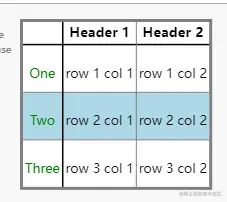
9、表格面板
DEMO
diagram.add(
$(go.Part, "Auto",
$(go.Shape, { fill: "white", stroke: "gray", strokeWidth: 3 }),
$(go.Panel, "Table",
{ padding: 1.5,
defaultRowSeparatorStroke: "gray",
defaultColumnSeparatorStroke: "gray",
defaultSeparatorPadding: new go.Margin(18, 0, 8, 0) },
$(go.TextBlock, "Header 1",
{ row: 0, column: 1, font: "bold 10pt sans-serif", margin: 2 }),
$(go.TextBlock, "Header 2",
{ row: 0, column: 2, font: "bold 10pt sans-serif", margin: 2 }),
$(go.RowColumnDefinition, { row: 0, separatorPadding: 0 }),
$(go.RowColumnDefinition,
{ row: 1, separatorStrokeWidth: 1.5, separatorStroke: "black" }),
$(go.RowColumnDefinition, { row: 2, background: 'lightblue' }),
$(go.RowColumnDefinition,
{ column: 1, separatorStrokeWidth: 1.5, separatorStroke: "black" }),
$(go.TextBlock, "One", { row: 1, column: 0, stroke: "green", margin: 2 }),
$(go.TextBlock, "row 1 col 1", { row: 1, column: 1, margin: 2 }),
$(go.TextBlock, "row 1 col 2", { row: 1, column: 2, margin: 2 }),
$(go.TextBlock, "Two", { row: 2, column: 0, stroke: "green", margin: 2 }),
$(go.TextBlock, "row 2 col 1", { row: 2, column: 1, margin: 2 }),
$(go.TextBlock, "row 2 col 2", { row: 2, column: 2, margin: 2 }),
$(go.TextBlock, "Three", { row: 3, column: 0, stroke: "green", margin: 2 }),
$(go.TextBlock, "row 3 col 1", { row: 3, column: 1, margin: 2 }),
$(go.TextBlock, "row 3 col 2", { row: 3, column: 2, margin: 2 })
)
));
API
10、笔刷(画笔)
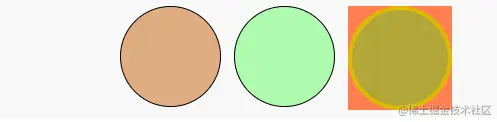
1. 实心画笔
diagram.layout = $(go.GridLayout);
diagram.add($(go.Part,
$(go.Shape, "Circle", {
fill: "#DFAD83"
})
));
diagram.add($(go.Part,
$(go.Shape, "Circle", {
fill: "rgba(0,255,0,.3)"
})
));
diagram.add($(go.Part,
$(go.Shape, "Circle", {
fill: "rgba(0,255,0,.3)",
stroke: '#DFBB00',
strokeWidth: 4,
background: 'coral'
})
));
2. 渐变画笔
diagram.add(
$(go.Part, "Table",
$(go.Shape, { row: 0, column: 0,
figure: "Rectangle", width: 100, height: 100, margin: 5,
fill: $(go.Brush, "Linear", {
0.0: "rgba(255, 0, 0, 1)",
0.15: "rgba(255, 255, 0, 1)",
0.30: "rgba(0, 255, 0, 1)",
0.50: "rgba(0, 255, 255, 1)",
0.65: "rgba(0, 0, 255, 1)",
0.80: "rgba(255, 0, 255, 1)",
1: "rgba(255, 0, 0, 1)"
})
}),
$(go.Shape, { row: 0, column: 1,
figure: "Rectangle", width: 100, height: 100, margin: 5,
fill: $(go.Brush, "Radial", {
0.0: "rgba(255, 0, 0, 1)",
0.15: "rgba(255, 255, 0, 1)",
0.30: "rgba(0, 255, 0, 1)",
0.50: "rgba(0, 255, 255, 1)",
0.65: "rgba(0, 0, 255, 1)",
0.80: "rgba(255, 0, 255, 1)",
1: "rgba(255, 0, 0, 1)"
})
})
));

3. 图案画笔
4. 画笔功能
11、图形和对象的尺寸
| 属性 | 属性值 | 属性说明 |
|---|
| DesiredSize | | |
| minSize | new go.Size(150, 10) | |
| maxSize | new go.Size(150, 10) | |