在Cypress中生成XML和HTML报告的7个简单步骤
本教程解释了在Cypress自动化框架中生成合并的XML和HTML报告的简单方法
当我们在进行自动化测试时,我们需要生成XML和HMTL报告,这是一个常见的需求。当涉及到Cypress时,它依赖于Mochawesome reporter。在这篇文章中,我将向你解释一个简单的方法,在你的Cypress端到端自动化框架中生成HTML和Junit XML报告。
如果你在互联网上看,有很多文章,但对于初学者来说,这是非常复杂的,因为涉及到一些复杂的问题。
本教程也回答了互联网上经常搜索到的问题
如何在Cypress中生成XML和HTML文件?
如何用cypress配置HTML和XML文件?
如何用Cypress整合HTML和XML文件?
如何在Cypress中使用mocha Junit reporter生成和合并Junit XML文件?
如何在Cypress端到端自动化框架中配置报告?
这篇文章还谈到了将Junit XML文件合并成一个文件。
让我们开始吧。
用截图生成XML和HTML报告,并在Cypress中合并所有XML文件
假设:
这里的假设是,你已经有了工作的Cypress框架,并且你正在寻找将Junit和HTML报告整合到你的Cypress中。
第1步:下载所需的npm包
我们需要下载一些npm包
npm install cypress-mochawesome-reporter junit-report-merger mocha-junit-reporter cypress-multi-reporters mocha
**cypress-multi-reporters**:这 个包是用来配置多个报告的,在我们的例子中是Junit报告和HTML报告。
**mocha-junit-reporter**:Mocha Junit Reporter为每个规格生成Junit XML文件。
**junit-report-merger**:由于Mocha Junit Reporter为每个规格生成一个JUnit XML文件,我们需要在最后将它们全部合并以创建一个XML文件。
**cypress-mochawesome-reporter**:这个包有助于生成HTML报告。
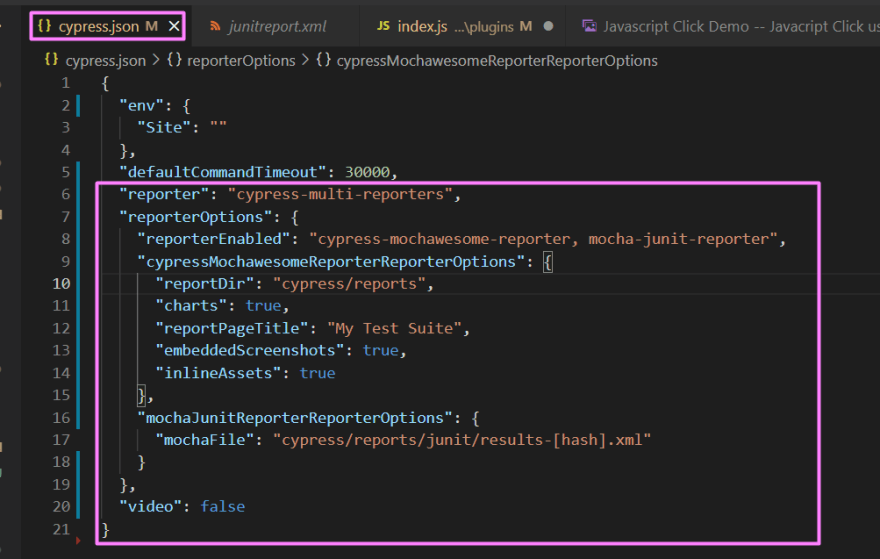
第2步:在 cypress.json 文件中配置报告器
导航到项目根目录> 打开 **cypress.json**
复制并粘贴以下代码:
**cypress.json**文件
JSON
"reporter": "cypress-multi-reporters",
  "reporterOptions": {
    "reporterEnabled": "cypress-mochawesome-reporter, mocha-junit-reporter",
    "cypressMochawesomeReporterReporterOptions": {
      "reportDir": "cypress/reports",
      "charts": true,
      "reportPageTitle": "My Test Suite",
      "embeddedScreenshots": true,
      "inlineAssets": true
    },
    "mochaJunitReporterReporterOptions": {
      "mochaFile": "cypress/reports/junit/results-[hash].xml"
    }
  },
  "video": false
屏幕截图
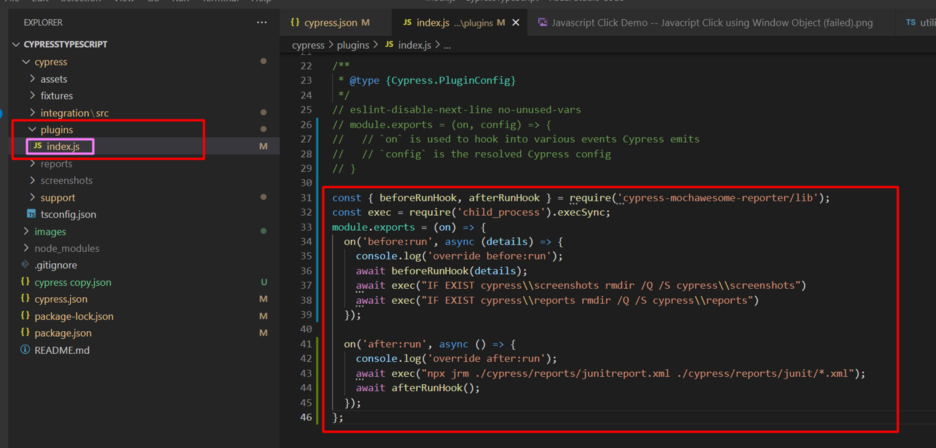
第3步:配置 **plugin/index.js**文件
从你的项目根文件夹 > 打开cypress 文件夹 > 打开plugin 文件夹 > 打开index.js 文件
复制并粘贴下面的代码:
JavaScript
//index.js inside plugin folder
const { beforeRunHook, afterRunHook } = require('cypress-mochawesome-reporter/lib');
const exec = require('child_process').execSync;
module.exports = (on) => {
  on('before:run', async (details) => {
    console.log('override before:run');
    await beforeRunHook(details);
    //If you are using other than Windows remove below two lines
    await exec("IF EXIST cypress\\screenshots rmdir /Q /S cypress\\screenshots")
    await exec("IF EXIST cypress\\reports rmdir /Q /S cypress\\reports")
  });
on('after:run', async () => {
    console.log('override after:run');
    //if you are using other than Windows remove below line (having await exec)
    await exec("npx jrm ./cypress/reports/junitreport.xml ./cypress/reports/junit/*.xml");
    await afterRunHook();
  });
};
屏幕截图
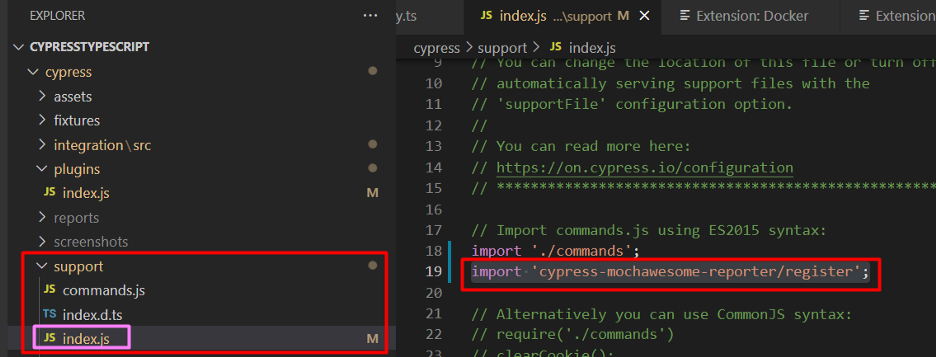
第四步:在support/index.js中添加一个条目
从你的项目根目录> 导航到 **cypress**文件夹 > 打开 **support**文件夹 > 打开 **index.js**文件
将下面的代码片段添加到 **index.js**
JavaScript
//index.js inside support folder
import 'cypress-mochawesome-reporter/register';
第5步:运行你的测试
用以下任一命令运行你的测试 **npx cypress run**命令。
或者,如果你已经有package.json脚本命令,使用它来运行你的规格。
第6步:查看HTML文件
完整生成的HTML文件位于以下位置
项目根文件夹 > cypress > reports > index.html
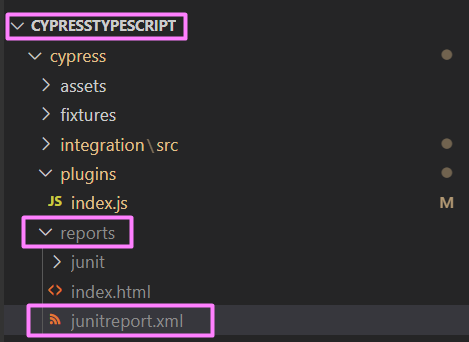
当你与CI/CD整合时,你可以使用这个XML文件,无论是Jenkins、Azure DevOps,还是其他任何工具。
希望你喜欢这个...