

今天,大多数前端应用程序都需要某种类型的搜索框,这有时是用户在你的页面上互动的第一个组件--以Airbnb、Uber或谷歌地图为例。创建一个搜索组件,不仅要能用,而且要有足够的功能来引导用户完成他们想要的任务,这对你的应用程序的用户体验至关重要。
Turnstone是一个新的库,使React开发者能够做到这一点。这个轻量级的库(12.2kB Gzip)带有自动完成、自动缓存、WAI-ARIA可访问性和其他功能,让你建立一个功能性和可访问的搜索组件。
Turnstone元素很容易使用各种CSS方法进行定制,如CSS模块或Tailwind CSS。在这篇文章中,我们将使用Turnstone和Tailwind创建一个应用程序,查询Marvel Comics API,搜索属于Marvel Cinematic Universe的人物。
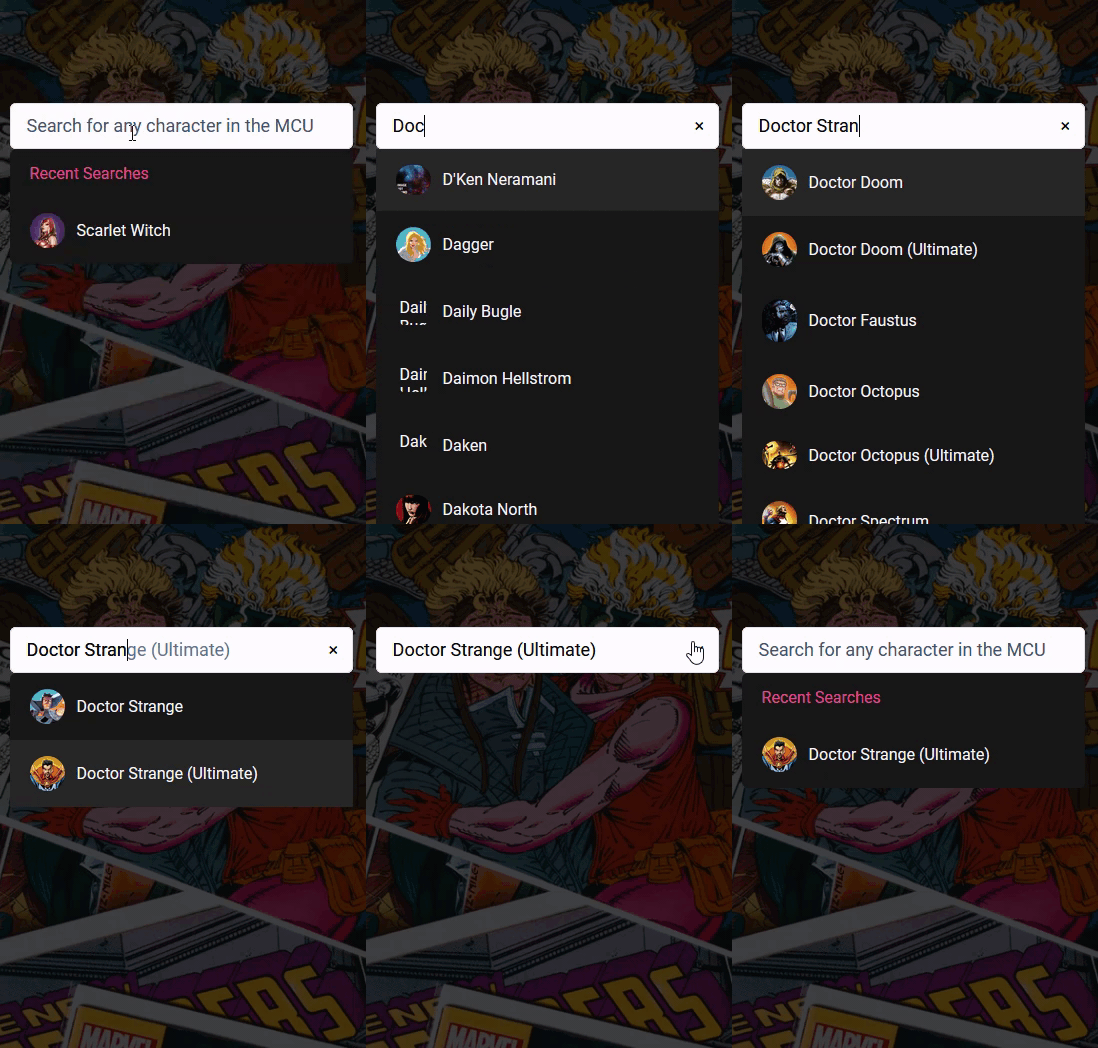
前提条件
要跟上本教程,你需要。
- 对React框架的基本了解
- 一个来自Marvel Comics API的API密钥
希望有Tailwind CSS知识,但不是必须的。
获得你的API密钥并添加推荐人网站
前往Marvel Developers网站,注册一个新的账户。然后导航到"我的开发者账户",在那里你会发现你的公共和私人API密钥。复制公共密钥以备不时之需。
在您的应用程序可以向该API发出请求之前,其域名必须包含在您的推荐人网站列表中。在同一页面,向下滚动到referrer sites部分,并添加你的应用程序的域名,即localhost 。你也可以使用星号* ,接受来自所有域名的请求,尽管这并不完全安全。
现在你就可以开始开发了!
转石的特点
Turnstone 组件接受各种属性,用于控制搜索框的不同部分。从组件的样式、搜索框查询的数据源、错误信息等都可以用适当的道具来配置。
让我们来看看我们在构建这个应用程序时将使用的一些重要的属性。
typeahead
类型。boolean
typeahead - aka autocomplete - 是一个应用程序预测用户正在输入的单词的其余部分的功能。默认情况下,这被设置为true 。
maxItems
类型。number
这个属性控制了在listbox 中显示的搜索结果的最大数量。
listbox
类型。object,array, 或function
listbox 指定如何响应用户的查询而呈现结果。这个属性控制数据的来源以及搜索类型--可以是startsWith ,也可以是contains 。
作为一个对象,listbox 查询一个单一的数据源是这样的。
const listbox = {
    displayField: 'characters',
    data: (query) =>
      fetch(`/api/characters?q=${query}`)
        .then(response => response.json()),
    searchType: 'startsWith',
}

return (
  <Turnstone listbox={listbox} />
)
data above是一个函数,其返回值应该是一个Promise,可以解析为一个数组的项目。这个函数以当前的 字符串为参数,并在每次字符串发生变化时重新运行--这就是为什么我们需要另一个叫做 的道具,稍后再谈这个。query debounceWait
如果作为一个数组使用,listbox 可以从多个来源收集数据。
const listbox = [
  {
    id: 'cities',
    name: 'Cities',
    ratio: 8,
    displayField: 'name',
    data: (query) =>
      fetch(`/api/cities?q=${encodeURIComponent(query)}`)
        .then(response => response.json()),
    searchType: 'startswith'
  },
  {
    id: 'airports',
    name: 'Airports',
    ratio: 2,
    displayField: 'name',
    data: (query) =>
      fetch(`/api/airports?q=${encodeURIComponent(query)}`)
        .then(response => response.json()),
    searchType: 'contains'
  }
]

return (
  <Turnstone listbox={listbox} />
)
在这种情况下,一个ratio 属性可以用来指定相对于maxItems ,占据listbox 的结果数量。这意味着,例如,如果maxItems 被设置为10,来自每个数据源的ratio 数量加起来应该是10。
styles
类型。object
一个对象,其键代表由Turnstone呈现的元素。每个对应的值是一个字符串,代表该元素的class 属性。
const styles = {
input: 'w-full h-12 border border-slate-300 py-2 pl-10',
  listbox: 'w-full bg-white sm:border sm:border-blue-300 sm:rounded text-left sm:mt-2 p-2 sm:drop-shadow-xl',
  groupHeading: 'cursor-default mt-2 mb-0.5 px-1.5 uppercase text-sm text-rose-300',
}

return (
  <Turnstone styles={styles} />
)
我们可以看到Tailwind是多么容易融入,使造型过程更容易。在文档中查看可用的Turnstone元素的列表。
debounceWait
类型。number
这个属性指定了用户完成输入后,在他们的查询被发送到fetch 函数之前的等待时间--以毫秒为单位。
defaultListbox
此属性与listbox 相同,但在搜索框处于焦点时显示,没有查询字符串。它通常被用来为最近的搜索创建一个listbox 。
const defaultListBox = {
  displayField: 'Recent Searches',
  data: () => Promise.resolve(JSON.parse(localStorage.getItem('recentSearches')) || [])
}

return (
  <Turnstone defaultListBox={defaultListBox} />
)
创建应用程序
打开你的终端,用以下命令创建一个新的React应用程序。
npx create-react-app turnstone-demo
安装完成后,导航到项目的目录。
cd turnstone-demo
并安装Turnstone和Tailwind CSS--以及它的同行依赖,PostCSS和Autoprefixer。
npm install -D turnstone tailwindcss postcss autoprefixer
让我们先为API密钥创建一个环境变量。在你的项目根部,创建一个.env 文件并存储API密钥
// .env
REACT_APP_MARVEL_APIKEY = 'your_apikey_here'
Create React App提供了对环境变量的支持,创建的环境变量带有所需的REACT_APP_ 前缀。然后可以在应用程序中以process.env.REACT_APP_MARVEL_APIKEY 的形式访问这个变量。
注意,记得将 .env 到你的 .gitignore 文件,这样你就不会把你的密钥暴露在公共资源库中。
图像背景
在项目演示中看到的底层图像背景是由以下CSS类创建的。
// App.css
.image-backdrop {
  background-image: linear-gradient(rgba(0, 0, 0, 0.7), rgba(0, 0, 0, 0.7)), url('../public/comic-backdrop.jpg');
  height: 100vh;
  width: 100%;
  background-size: cover;
  background-position: center;
  background-repeat: no-repeat;
}
将该类附加到public/index.html 中的body 标签上,你应该有一个图片背景,供搜索框放置在上面。
// public/index.html
<!DOCTYPE html>
<html lang="en">
  <head>
    <!-- markup -->
  </head>
  <body class="image-backdrop">
    <!-- more markup -->
    <div id="root"></div>
  </body>
</html>
初始化Tailwind
要初始化Tailwind的CSS,运行以下命令。
npx tailwindcss init -p
这将生成tailwind.config.js 和postcss.config.js 文件,这些文件被用来定制和扩展Tailwind的功能。
我们现在只需要配置模板路径。用下面的代码更新tailwind.config.js 。
// tailwind.config.js
module.exports = {
  content: ['./src/**/*.{js,jsx,ts,tsx}'],
  theme: {
    extend: {},
  },
  plugins: [],
}
接下来,使用@tailwind 指令将Tailwind层添加到index.css 。
// index.css
@tailwind base;
@tailwind components;
@tailwind utilities;
现在你可以开始用Tailwind的实用类来设计你的React应用程序的风格。让我们首先将SearchBox 组件定位在屏幕的顶部中心。
在src ,创建一个components 文件夹并存储SearchBox.js 文件。接下来,将这个组件导入到App.js ,并将下面的Tailwind类应用到父容器中。
// App.js
import SearchBox from './components/SearchBox'
import './App.css'

function App() {
  return (
    <div className='m-auto relative top-28 w-11/12 sm:w-6/12'>
      <SearchBox />
    </div>
  )
}
export default App
这就把搜索框定位在了页面的顶部中心。
使用Turnstone 组件
在我们开始配置搜索框的动态部分之前,给Turnstone 组件添加以下属性。
// SearchBox.js
import Turnstone from 'turnstone'

const SearchBox = () => {
  return (
    <Turnstone
      id='search'
      name='search'
      autoFocus={true}
      typeahead={true}
      clearButton={true}
      debounceWait={250}
      listboxIsImmutable={true}
      maxItems={6}
      noItemsMessage="We couldn't find any character that matches your search"
      placeholder='Search for any character in the MCU'
    />
  )
}
export default SearchBox
clearButton 每当用户在搜索框中输入一个字符,就会显示一个清除按钮。
autoFocus 设置为 ,使搜索框在页面加载时自动接收焦点。true
maxItems 设置为 中显示的最大搜索结果数为6。listbox
listboxIsImmutable 设置为 ,确保 的内容在查询之间不发生变化;也就是说,同一个查询不能返回不同的结果。true listbox
现在让我们继续讨论listbox 属性。
listbox
在listbox的data 属性中,我们向Comics API发出请求,在这个过程中附加了当前的查询字符串和你的API密钥。
// SearchBox.js
import Turnstone from 'turnstone'

const SearchBox = () => {
  const listbox = {
    displayField: 'characters',
    data: async (query) => {
      const res = await fetch(
        `https://gateway.marvel.com:443/v1/public/characters?nameStartsWith=${query}&apikey=${process.env.REACT_APP_MARVEL_APIKEY}`
      )
      const data = await res.json()
      return data.data.results
    },
    searchType: 'startsWith',
  }

  return (
    <Turnstone
      id='search'
      name='search'
      autoFocus={true}
      typeahead={true}
      clearButton={true}
      debounceWait={250}
      listboxIsImmutable={true}
      maxItems={6}
      noItemsMessage="We couldn't find any character that matches your search"
      placeholder='Search for any character in the MCU'
      listbox={listbox}
    />
  )
}
export default SearchBox
Marvel API有一个交互式文档页面,其中列出了所有可用的端点。在我们的例子中,我们向人物端点提出了请求:/v1/public/characters 。
可以添加额外的参数,如stories,events, 或nameStartsWith ,以获得不同的结果。我们还使用了nameStartsWith 参数,将其值设置为query 字符串。
这个函数的结果应该是一个对象,包含一个results 数组,其中包含所有名字以query 字符开头的Marvel字符。
// JSON result from API call. query="Doctor Strange"
{
  "code": 200,
  "status": "Ok",
  "copyright": "© 2022 MARVEL",
  "attributionText": "Data provided by Marvel. © 2022 MARVEL",
  "attributionHTML": "<a href=\"http://marvel.com\">Data provided by Marvel. © 2022 MARVEL</a>",
  "etag": "07a3a76164eec745484f34562db7ca7166c196cc",
  "data": {
    "offset": 0,
    "limit": 20,
    "total": 2,
    "count": 2,
    "results": [
      {
        "id": 1009282,
        "name": "Doctor Strange",
        "description": "",
        // ...
相关的数据位于data.results ,它是该函数的返回值。
在这一点上,应用程序功能正常。现在,我们可以继续用Tailwind和styles 属性来为Turnstone的元素设计样式。
用Tailwind为Turnstone 元素设置样式
正如前面所解释的,styles 对象中的键代表搜索组件的某个元素。我们可以对诸如listbox 、listbox 中的高亮项目、甚至自动完成文本的颜色等元素进行样式化,以创建一个更好看的搜索框。
// SearchBox.js
import Turnstone from 'turnstone'
import recentSearchesPlugin from 'turnstone-recent-searches'

const listbox = {
  // ...
}

const styles = {
  input: 'w-full border py-2 px-4 text-lg outline-none rounded-md',
  listbox: 'bg-neutral-900 w-full text-slate-50 rounded-md',
  highlightedItem: 'bg-neutral-800',
  query: 'text-oldsilver-800 placeholder:text-slate-600',
  typeahead: 'text-slate-500',
  clearButton:
    'absolute inset-y-0 text-lg right-0 w-10 inline-flex items-center justify-center bg-netural-700 hover:text-red-500',
  noItems: 'cursor-default text-center my-20',
  match: 'font-semibold',
  groupHeading: 'px-5 py-3 text-pink-500',
}

const SearchBox = () => {
  return (
    <Turnstone
      id='search'
      name='search'
      autoFocus={true}
      typeahead={true}
      clearButton={true}
      debounceWait={250}
      listboxIsImmutable={true}
      maxItems={6}
      noItemsMessage="We couldn't find any character that matches your search"
      placeholder='Search for any character in the MCU'
      listbox={listbox}
      styles={styles}
    />
  )
}

export default SearchBox

Item 组件道具
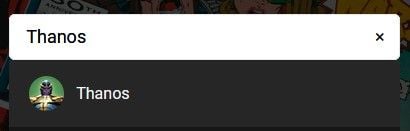
虽然我们可以通过引用styles 中的item 属性来样式listbox 中的项目,但Turnstone提供了组件属性,本质上允许对Turnstone元素进行额外的定制和格式化。
下面是我们如何使用它来在搜索结果中的人物名字旁边加入一个头像。
// SearchBox.js
import Turnstone from 'turnstone'

const listbox = {
    // ...
}

const styles = {
    // ...
}

const Item = ({ item }) => {
  /* thubmnails from the API are stored as partials therefore
    we have to concatenate the image path with its extension
  */
  const avatar = `${item.thumbnail.path}.${item.thumbnail.extension}`
  return (
    <div className='flex items-center cursor-pointer px-5 py-4'>
      <img
        width={35}
        height={35}
        src={avatar}
        alt={item.name}
        className='rounded-full object-cover mr-3'
      />
      <p>{item.name}</p>
    </div>
  )
}

const SearchBox = () => {
  return (
    <Turnstone
      id='search'
      name='search'
      autoFocus={true}
      typeahead={true}
      clearButton={true}
      debounceWait={250}
      listboxIsImmutable={true}
      maxItems={6}
      noItemsMessage="We couldn't find any character that matches your search"
      placeholder='Search for any character in the MCU'
      listbox={listbox}
      styles={styles}
      Item={Item}
    />
  )
}

export default SearchBox
最近搜索插件
为了获得额外的(1.7kB gzip),可以在Turnstone的插件道具中加入另一个叫turnstone-recent-searches 的包,以自动记录用户最近的搜索。
用下面的命令安装这个包。
npm install turnstone-recent-searches
并把它包括在plugins 的道具中,如是。
// SearchBox.js
import Turnstone from 'turnstone'
import recentSearchesPlugin from 'turnstone-recent-searches'

const styles = {
  input: 'w-full border py-2 px-4 text-lg outline-none rounded-md',
  listbox: 'bg-neutral-900 w-full text-slate-50 rounded-md',
  highlightedItem: 'bg-neutral-800',
  query: 'text-oldsilver-800 placeholder:text-slate-600',
  typeahead: 'text-slate-500',
  clearButton:
    'absolute inset-y-0 text-lg right-0 w-10 inline-flex items-center justify-center bg-netural-700 hover:text-red-500',
  noItems: 'cursor-default text-center my-20',
  match: 'font-semibold',
  groupHeading: 'px-5 py-3 text-pink-500',
}

const listbox = {
  displayField: 'characters',
  data: async (query) => {
    const res = await fetch(
      `https://gateway.marvel.com:443/v1/public/characters?nameStartsWith=${query}&apikey=${process.env.REACT_APP_MARVEL_APIKEY}`
    )
    const data = await res.json()
    return data.data.results
  },
  searchType: 'startsWith',
}

const Item = ({ item }) => {
  const avatar = `${item.thumbnail.path}.${item.thumbnail.extension}`
  return (
    <div className='flex items-center cursor-pointer px-5 py-4'>
      <img
        width={35}
        height={35}
        src={avatar}
        alt={item.name}
        className='rounded-full object-cover mr-3'
      />
      <p>{item.name}</p>
    </div>
  )
}

const SearchBox = () => {
  return (
    <Turnstone
      id='search'
      name='search'
      autoFocus={true}
      typeahead={true}
      clearButton={true}
      debounceWait={250}
      listboxIsImmutable={true}
      maxItems={6}
      noItemsMessage="We couldn't find any character that matches your search"
      placeholder='Search for any character in the MCU'
      listbox={listbox}
      styles={styles}
      Item={Item}
      plugins={[recentSearchesPlugin]}
    />
  )
}

export default SearchBox
这个功能同样重要,因为它为你的用户创造了一个更好的体验。

结论
自动完成搜索框在现代UI设计中很普遍,有一个React库可以帮助我们轻松实现它们,这很好。
Turnstone的文档在解释它的API设计方面做得很好,使它有一个渐进的学习曲线--当我尝试其他React自动完成库时,情况并非如此。要看Turnstone的更多实例,请查看Turnstone网站上的实例。
