ajax第三天
1.编辑图书管理数据
代码:
<!DOCTYPE html>
<html lang="en">
  <head>
    <meta charset="UTF-8" />
    <meta
      name="viewport"
      content="width=device-width, initial-scale=1.0,maximum-scale=1,minimum-scale=1,user-scalable=no"
    />
    <title>08-post案例</title>

    <style>
      body {
        height: 100vh;
        display: flex;
        justify-content: space-around;
      }
      .left {
        width: 1000px;
      }
      .right {
        flex: 1;
      }
      form {
        width: 90%;
        margin: 0 auto;
        background-color: #eee;
      }
      h3 {
        background-color: brown;
        color: #fff;
        padding: 10px;
      }
      input {
        display: block;
        width: 80%;
        margin: 10px auto;
        height: 50px;
        border-radius: 5px;
        font-size: 25px;
        color: #666;
      }
      * {
        margin: 0;
        padding: 0;
        box-sizing: border-box;
      }
      table {
        width: 800px;
        margin: 0 auto;
      }
      thead tr {
        background-color: blue;
        color: #fff;
        font-size: 20px;
      }
      tbody tr:nth-child(odd) {
        background-color: green;
        color: #fff;
        font-size: 18px;
      }
      tbody tr:nth-child(even) {
        background-color: peru;
        color: #fff;
        font-size: 18px;
      }
      td,
      th {
        padding: 10px;
      }
      input {
        width: 800px;
        display: block;
        margin: 30px auto;
        height: 100px;
        border-radius: 50px;
        border: none;
        background-color: skyblue;
        font-size: 40px;
        text-indent: 20px;
        color: #666;
        outline: none;
      }
    </style>
  </head>
  <body>
    <div class="left">
      <input type="text" class="keyword" />
      <table>
        <thead>
          <tr>
            <th>id</th>
            <th>书名</th>
            <th>作者</th>
            <th>出版社</th>
            <th>编辑</th>
          </tr>
        </thead>
        <tbody></tbody>
      </table>
    </div>
    <div class="right">
      <form>
        <h3>添加</h3>
        <input type="text" placeholder="书名" class="bookname" />
        <input type="text" placeholder="作者" class="author" />
        <input type="text" placeholder="出版社" class="publisher" />
        <input type="button" value="编辑" class="btedit" />
      </form>
    </div>
    <!-- 1 引入axios -->
    <script src="./lib/axios.js"></script>
    <script>
        const tbody = document.querySelector('tbody');
        let arr;
        let id; //被点击数据id
        // 书名
        const booknameValue = document.querySelector('.bookname');
        // 作者
        const authorValue = document.querySelector('.author');
        // 出版社
        const publisherValue = document.querySelector('.publisher');
        // 编辑按钮
        const btedit = document.querySelector('.btedit');
        // tbody标签点击绑定事件
        tbody.addEventListener('click',function(event){
          // 判断点击编辑按钮
            if(event.target.className === 'editbtn' ){
                const {index} =event.target.dataset;
                console.log(arr[index]);
                booknameValue.value =arr[index].bookname;
                authorValue.value =arr[index].author;
                publisherValue.value =arr[index].publisher;
                id=arr[index].id;
            }
        })

        btedit.addEventListener('click',function(){
            const data={
              id:id,
              bookname:booknameValue.value,
              author:authorValue.value,
              publisher:publisherValue.value,
              appkey:'wanshao1234'
            }

            axios({
              url:'http://www.itcbc.com:3006/api/updatebook',
              method:'put',
              data,
            }).then((result)=>{
              console.log(result);
              getData();
              booknameValue.value=''
              authorValue.value=''
              publisherValue.value=''
            })
        })


        getData();

        function getData(){

            axios({
                url: 'http://www.itcbc.com:3006/api/getbooks',
                method: 'get',
                params: {
                    appkey: 'wanshao1234',
          },
            }).then((result)=>{

              arr=result.data.data;
                const html = arr.map((value,index)=>{
                    return `
                    <tr>
                        <td>${value.id}</td>
                        <td>${value.bookname}</td>
                        <td>${value.author}</td>
                        <td>${value.publisher}</td>
                        <td><a class="editbtn" data-index="${index}" href="javascript:;" >编辑</a></td>
                    </tr>
                    `
                }).join('')
                tbody.innerHTML=html;
            })

        }
</script>
  </body>
</html>
总结:
- appkey:``相当于账户密码 只显示自己的数据
- 通过data-index=“${index}” e.target.dataset.index 获取下标进行操作
form表单
本质:负责数据采集,提交的功能 由三个部分组成:表单标签,表单域,表单按钮。(表单默认提交行为会导致页面跳转)
作用:如登录信息的采集,用户的详细信息。
表单的三个组成部分
网页中采集数据的表单由三个部分组成,分别是:表单标签、表单域、表单按钮。
表单标签 :HTML 的
就是表单标签,它是一个“容器”,用来将页面上指定的区域划定为表单区域:表单域:表单域提供了采集用户信息的渠道,常见的表单域有:input、textarea、select 等。
注意:每个表单域必须包含 name 属性,否则用户填写的信息无法被采集到!
表单按钮:当表单数据填写完毕后,用户点击表单按钮,会触发表单的提交操作,从而把采集到的数据提交给服务器。
注意:type="submit" 表示提交按钮的意思
type 属性的默认值就是 submit,因此 type="submit" 可以省略不写
<body>
    // 需要指定请求方式和 URL地址
    <form action="http://www.itcbc.com:3006/api/getbooks" method="get">
        <div>
            <label for="">用户</label>
            <input type="text" name="username">
        </div>
        <button>提交</button>
    </form>
</body>
通过Ajax提交表单数据
作用:可以防止表单默认提交行为导致的页面跳转问题,提高用户体验
特点:
- 1.监听表单提交事件
- 2.阻止默认提交行为
- 3.基于axios发起请求
- 4.指定请求方式,请求地址
- 5.指定请求体数据
总结:
-
1.旧方式提交数据 直接在form标签操作方式提交
-
2.旧方式 会刷新页面 调整页面情况,用户体验差
-
3.如果input不加name属性,数据就不会提交到后端
-
4.Ajax方法是异步 网络请求,这样用户体验好(一边使用功能,同时提交数据)
-
5.Ajax技术 是完全可以不给标签加name的,只是习惯下来的行业规范
serialize()函数
作用:是jQuery的一种函数,能够一次性获取表当中采集的数据
语法:$(“表单元素的选择器”).seroalize()
<!-- 引入JQ的js文件 -->
    <script src="./lib/jquery.js"></script>
    <script>
        const btn = document.querySelector(`button`)
        btn.addEventListener(`click`,function(){
            const data = $(`form`).serialize()
            console.log(data);
        })
    </script>
总结:
1.使用此函数,必须为每一个表单域添加name属性
2.是JQ封装的,使用要引入
3.结果是一个查询字符串结构
4.能获取隐藏域的值,不能得到禁用状态的值,不能得到文件域的信息
快速获取表单数据(自封装)
<script>
function getForm(query) {
            // JS内置对象处理表单数据把所有表单标签-name属性 要new
            //  form 对象,包含所有表单数据(input name属性)
            const form = new FormData(document.querySelector(query))
            // URL 处理url上的参数 转成get 参数格式 对象 要new
            const usp = new URLSearchParams()
            // forEach((值,键)) 固定写法 要对form遍历 出处理好的数据
            form.forEach((value,key)=>{
                // 这是url的一种方法 添加 追加
                usp.append(key,value)
            })

            // 也是url 一种方法 ,把数据转成url的参数格式
            const data = usp.toString()
            return data
        }
</script>
1.new FormData获取表单 name属性所有标签
2.new URLsearchparams 处理数据 转成get的字符串格式
3.usp.append(键,值) 添加数据
4.usp.toString()转换添加的数据
普通数据转URLsearch
<script>
        const form = new FormData(document.querySelector(`form`))
        // 直接把获取的数据 插进去 可以直接转换 之前那个是需要理解的底层原理
        const usp = new URLSearchParams(form)
        let data = usp.toString()
        console.log(data);
</script>
总结:
1.首先明白自封装底层原理
2.new URLSearchParams(传参)可以把获取的数据直接转换
post补充
post传递参数方式
1.对象类型(之前使用的方式)
2.字符串格式类型
<script>
        const btn = document.querySelector(`button`)
        btn.addEventListener(`click`,function(){
            axios({
                method:`post`,

       	url:`http://www.itcbc.com:3006/api/addbook`,
		data:`bookname=黄某的奇妙冒险&author=黄某&publisher=黄某魔法&appkey=HZD123`,
            }).then((result)=>{
                console.log(result);
            })
        })
</script>
axios简写
axios.get() / .post() / .delete() / .put()
<script>
        //写法1 get(URL)
        axios.get("http://www.itcbc.com:3006/api/getbooks?appkey=HZD123")
        .then((result)=>{
            console.log(result);
        })
        //写法2 get(URL,{params:参数})
        axios.get("http://www.itcbc.com:3006/api/getbooks?appkey=qiu123")
        .then((result)=>{
            console.log(result);
        })

        // 写法1 axios.post(url,参数(对象))
        axios.post("http://www.itcbc.com:3006/api/addbook?appkey=HZD123",{
            bookname:`黄某`,
            author:`黄某`,
            publisher:`黄某之家`,
            appkey:`xxx`
        }).then((result)=>{
            console.log(result);
        })

        let data = {
            bookname:`黄某`,
            author:`黄某`,
            publisher:`黄某之家`,
        }

        // 写法2 axios.post(url,参数(字符串))
        axios.post("http://www.itcbc.com:3006/api/addbook?appkey=xxx",`bookname=黄某&author=黄某&publisher=黄某之家&appkey=HZD123`
        ).then((result)=>{
            console.log(result);
        })
    </script>
总结:
1.get写法: axios.get(url);axios.get(url,{params:{a:1,b:2}})
2.post写法: axios.post(url,参数),参数可以是对象类型 也可以是字符串
FormData和文件上传
FormData
本质:是一个浏览器对象,用于管理表单数据。
作用:
.和JQ中serialize()函数作用一样,用于快速手机表单数据
上传文件的功能(上传文件 请求参数 给后端的参数肯定是formdata)
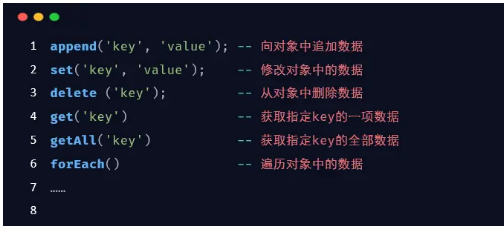<script>
function getForm(query) {
// JS内置对象处理表单数据把所有表单标签-name属性 要new
// form 对象,包含所有表单数据(input name属性)
const form = newFormData(document.querySelector(query))
// URL 处理url上的参数 转成get 参数格式 对象 要new
const usp = new URLSearchParams()
// forEach((值,键)) 固定写法 要对form遍历 出处理好的数据
form.forEach((value,key)=>{
// 这是url的一种方法 添加 追加
usp.append(key,value)
})
// 也是url 一种方法 ,把数据转成url的参数格式
const data = usp.toString()
return data
}
</script>
API用法

formdata和serialize区别
1.前者属于原生的代码,后者是JQ封装的方法
2.前者可以收集文件域二代值,后者不能
3.如果有文件上传,则必须使用formdata
4.得到的结果数据类型不同(了解)
文件上传
1.明确文件上传类型:image/* 指定图片
2.明确事件类型,change事件,上传图片触发函数
3.URL.createObjectURL()获取浏览器中图片文件地址
<body>
    <img src="" alt="">
    <!-- accept 指定文件上传类型 image/* video/* -->
    其他需要找文档
    <input type="file" accept="image/*">
</body>
<script>
    const inp = document.querySelector(`input`)
    const img = document.querySelector(`img`)
    // 使用change 事件 代表input内发生变化后(图片上传) 触发的事件
    inp.addEventListener(`change`,function(){
        const file = this.files[0]
        console.log(this.files);
        // 新代码 把浏览器内存中图片文件地址· 获取出来
        const src = URL.createObjectURL(file)
        img.src=src
    })
</script>
第二步
1.把图片上传服务器,根据接口文档、URL、请求类型、请求参数
2.运用FormData上传文件
3.使用FormData的appen方法
<script>
    const inp = document.querySelector(`input`)
    const img = document.querySelector(`img`)
    inp.addEventListener(`change`, function () {
        const file = this.files[0]
        const src = URL.createObjectURL(file)
        img.src = src

        // 现在把图片上传服务器 根据接口文档 url 请求类型 请求参数(重点)
        // formData 除了获取form表单数据 还能使用文件上传
        // 上传文件 请求参数 给后端的参数肯定是formdata类型
        const formdata = new FormData()

        // 接口要求 把文件追加到 formdata中
        formdata.append(`avatar`,file)

        axios({
            method:`post`,
            url:`http://www.itcbc.com:3006/api/formdata`,
            data:formdata
        }).then((result)=>{
            console.log(result);
        })

    })
</script>
总结:
需求:用户选择本地的图片上传
1.指定文件上传类型
2.给输入框绑定改变事件 图片上传触发行为
3.this.files 获取文件的数组
4.选择直接上传文件 还是现在网页显示图片来确定‘
5.把图片上传到服务器 axios
五、拦截器
作用: 当网络慢 页面如果没有相应状态 就要显示一个 加载中的友好提示,提升用户体验,防止用户一直点击
使用方法(在请求前):
1.添加请求拦截器
2.添加响应拦截器
<script>
        // 添加请求拦截器
        axios.interceptors.request.use(
            function (config) {
                // 在发送请求之前做些什么
                // console.log('发送前 拦截器 ');
                document.querySelector(`img`).style.display = `block`
                return config;
            },
            function (error) {
                // 对请求错误做些什么
                return Promise.reject(error);
            }
        );

        // 添加响应拦截器
        axios.interceptors.response.use(
            function (response) {
                document.querySelector('img').style.display = 'none';
                return response;
            },
            function (error) {
                // 超出 2xx 范围的状态码都会触发该函数。
                // 对响应错误做点什么
                return Promise.reject(error);
            }
        );
        const button = document.querySelector('button');
        button.addEventListener('click', function () {
            // 发送网络请求
            axios
                .get('http://www.itcbc.com:3006/api/getbooks?appkey=wanshao1234')
                .then((result) => {
                    console.log(result);
                });
        });
</script>
总结:
1.先了解如何添加拦截器,具体功能先别深究
2.拦截器写在发送请求前