一起养成写作习惯!这是我参与「掘金日新计划 · 4 月更文挑战」的第3天,点击查看活动详情。
1、console
HBuilderX中有2个重要的代码块,敲clog:可直接输出console.log();敲clogv:可输出console.log(": " + );,并且出现双光标,方便把变量名称和值同时打印出来
2、定时器
延迟两秒输出 log
methods: {
			click() {
				console.log("Hello")
				var timer = setTimeout(()=>{
						console.log("World")
					}, 2000)
			}
		}
周期性定时器,每隔 2s 输出
var timer = setInterval(()=>{
	console.log("World")
}, 2000)
3、网络请求
export default {
		data() {
			return {
				list:[]
			}
		},
		methods: {
			getHelloInfo() {
				uni.request({
					url:"http://127.0.0.1:8080/downloads/hello.json",
					success:(res)=>{
						this.list = res.data
						console.log(this.list)
					}
				})
			}
		},
		created() {
			this.getHelloInfo()
		}
	}
</script>
4、页面跳转
<template>
	<view>
		<button @click="click">跳转video页面</button>
	</view>
</template>

<script>
	export default {
		data() {
			return {

			}
		},
		methods: {
			click() {
				uni.redirectTo({
					url: "../video/video"
				})
			}
		},
		onUnload() {
			console.log("index页面关闭");
		}
	}
</script>

<style>
</style>
点击 button 会跳转 video 页面,同时关闭 index 页面
5、数据缓存
<template>
	<view>
		<button type="primary" @click="setName">存储姓名</button>
		<button type="primary" @click="getName">获取姓名</button>
		<button type="primary" @click="setSex">存储性别</button>
		<button type="primary" @click="getInfo">获取所有信息</button>
		<button type="primary" @click="removeName">移除姓名</button>
		<button type="primary" @click="removeInfo">移除所有数据</button>
	</view>
</template>

<script>
	export default {
		data() {
			return {

			}
		},
		methods: {
			setName(){
				uni.setStorage({
					key:'name',
					data:'张三',
					success() {
						console.log('success');
					}
				})
			},
			getName(){
				uni.getStorage({
					key:'name',
					success(res){
						console.log(res.data);
					}
				})
			},
			setSex(){
				uni.setStorage({
					key:'sex',
					data:'男',
					success() {
						console.log('success');
					}
				})
			},
			getInfo(){
				uni.getStorageInfo({
					success(res) {
						console.log(res.keys);
						console.log(res.currentSize);
						console.log(res.limitSize);
					}
				})
			},
			removeName(){
				uni.removeStorage({
					key:'name',
					success() {
						console.log('移除成功');
					}
				})
			},
			removeInfo(){
				uni.clearStorage()
			},
		}
	}
</script>

<style>
</style>
注意:多次存储相同 key 会覆盖之前的值
uni.setStorage 和 uni.setStorageSync的区别
以 Sync(同步)结尾的都是都是同步缓存,二者的区别是,异步不会阻塞当前任务,同步缓存直到同步方法处理完才能继续往下执行。
通俗点说,异步就是不管保没保存成功,程序都会继续往下执行。同步是等保存成功了,才会执行下面的代码。使用异步,性能会更好;而使用同步,数据会更安全。
6、图片
<template>
	<view>
		<button type="primary" @click="click">选择图片</button>
	</view>
</template>

<script>
	export default {
		data() {
			return {
			}
		},
		methods: {
			click(){
				uni.chooseImage({
					success(res) {
						console.log(res.tempFilePaths);
						uni.getImageInfo({
							src:res.tempFilePaths[0],
							success(img) {
								console.log(img.width);
								console.log(img.height);
							}
						})
					}
				})
			}
		}
	}
</script>

<style>
</style>
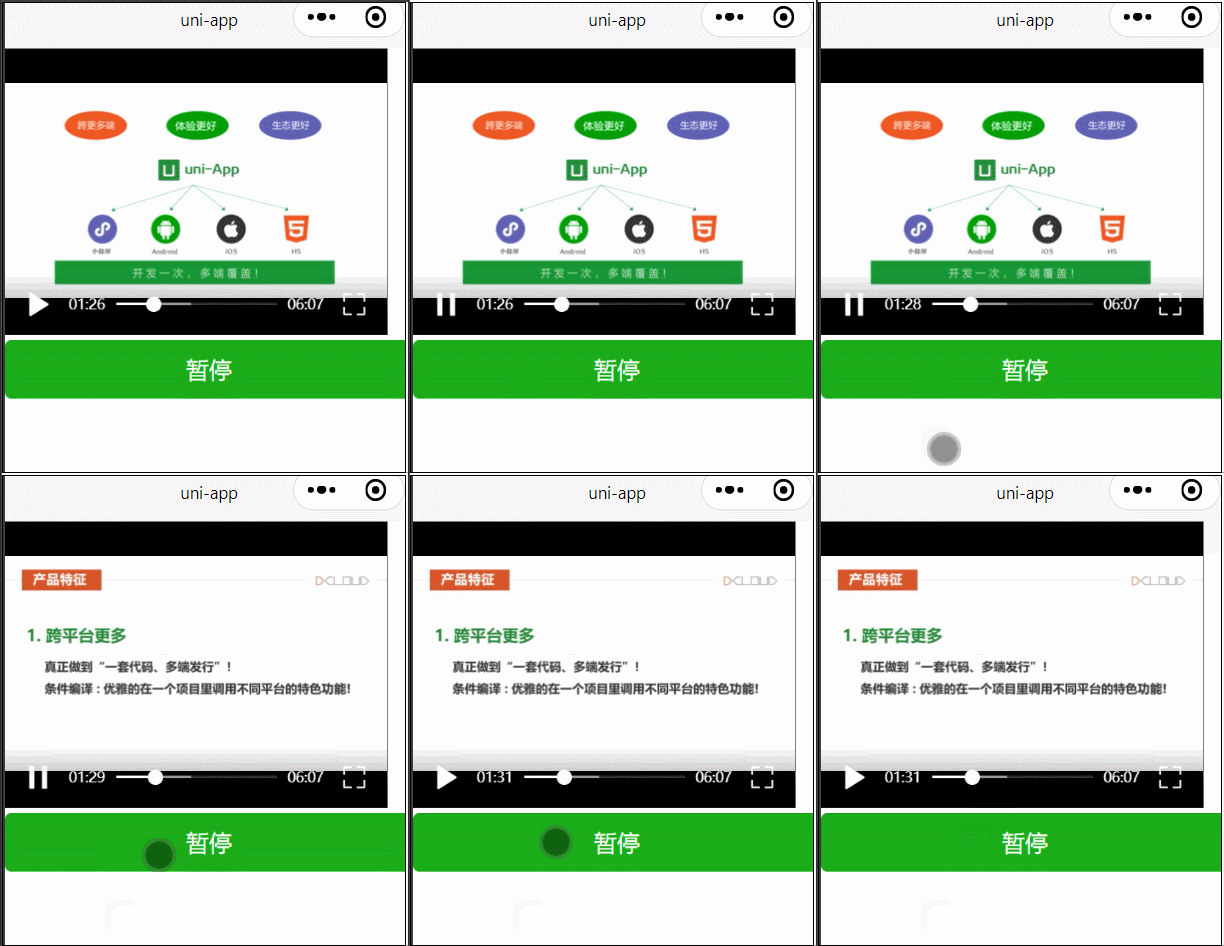
7、视频
<template>
	<view>
		<view class="">
			<video id="myVideo" :src="videoSrc"></video>
		</view>
		<button type="primary" @click="pause">暂停</button>
	</view>
</template>

<script>
	export default {
		data() {
			return {
				videoSrc : 'https://img.cdn.aliyun.dcloud.net.cn/guide/uniapp/%E7%AC%AC1%E8%AE%B2%EF%BC%88uni-app%E4%BA%A7%E5%93%81%E4%BB%8B%E7%BB%8D%EF%BC%89-%20DCloud%E5%AE%98%E6%96%B9%E8%A7%86%E9%A2%91%E6%95%99%E7%A8%8B@20181126-lite.m4v'
			}
		},
		methods: {
			pause() {
				this.videoContext.pause()
			}
		},
		onLoad() {
			this.videoContext = uni.createVideoContext('myVideo')
		}
	}
</script>

<style>
</style>