

桌面端 PWA 应用:
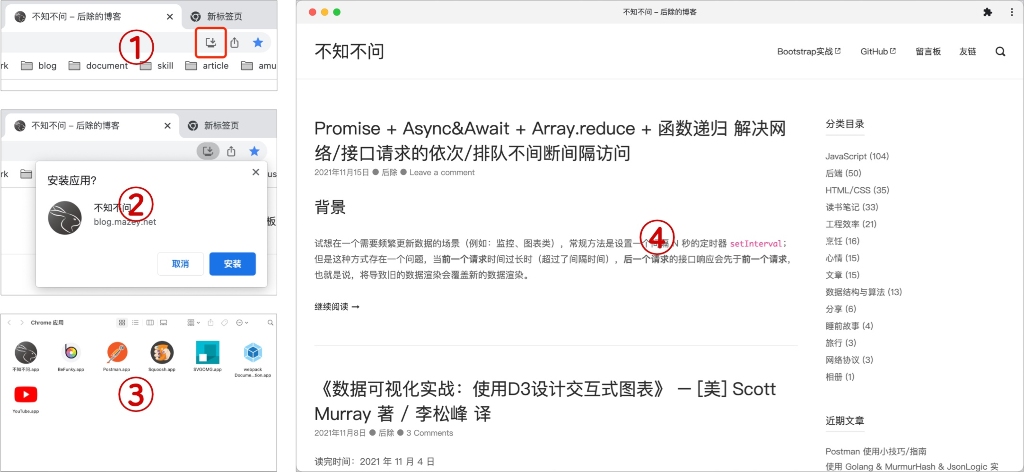
移动端添加到桌面:

1 什么是 PWA
PWA(Progressive Web App - 渐进式网页应用)是一种理念,由 Google Chrome 在 2015 年提出。PWA 它不是特指某一项技术,而是应用多项技术来改善用户体验的 Web App,其核心技术包括 Web App Manifest、Service Worker、Web Push 等,用户体验才是 PWA 的核心。
PWA 主要特点如下:
-
可靠 - 即使在网络不稳定甚至断网的环境下,也能瞬间加载并展现。
-
用户体验 - 快速响应,具有平滑的过渡动画及用户操作的反馈。
-
用户黏性 - 和 Native App 一样,可以被添加到桌面,能接受离线通知,具有沉浸式的用户体验。
PWA 本身强调渐进式(Progressive),可以从两个角度来理解渐进式,首先,PWA 还在不断进化,Service Worker、Web App Manifest、Device API 等标准每年都会有不小的进步;其次,标准的设计向下兼容,并且侵入性小,开发者使用新特性代价很小,只需要在原有站点上新增,让站点的用户体验渐进式的增强。相关技术基准线:What makes a good Progressive Web App?。
-
站点需要使用 HTTPS。
-
页面需要响应式,能够在平板和移动设备上都具有良好的浏览体验。
-
所有的 URL 在断网的情况下有内容展现,不会展现浏览器默认页面。
-
需要支持 Wep App Manifest,能被添加到桌面。
-
即使在 3G 网络下,页面加载要快,可交互时间要短。
-
在主流浏览器下都能正常展现。
-
动画要流畅,有用户操作反馈。
-
每个页面都有独立的 URL。
2 案例调研
2.1 米哈游 - 崩坏3

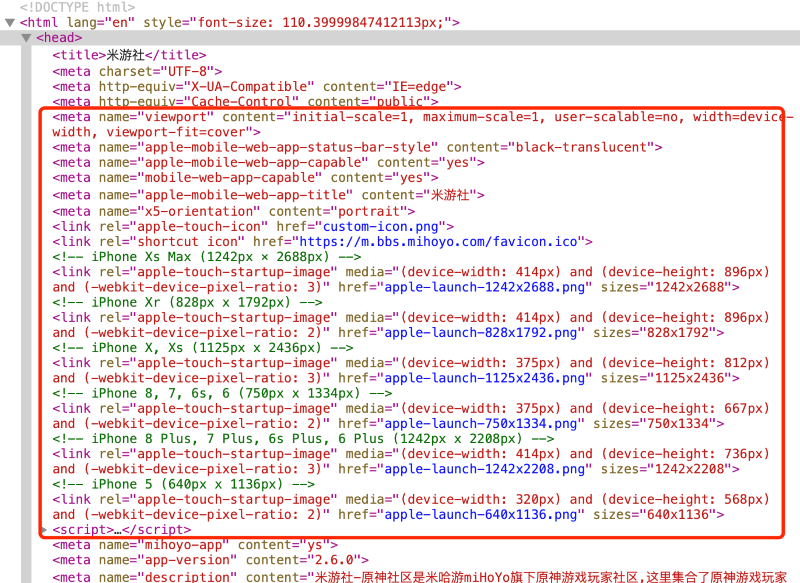
访问地址:bbs.mihoyo.com/bh3/
PWA:仅支持在 IOS 端添加到桌面。
2.2 阿里速卖通(AliExpress)

访问地址:m.aliexpress.com/
PWA:使用 Google Workbox(CDN)
-
支持添加到桌面,manifest。
-
支持缓存,Service Worker。
2.3 饿了么

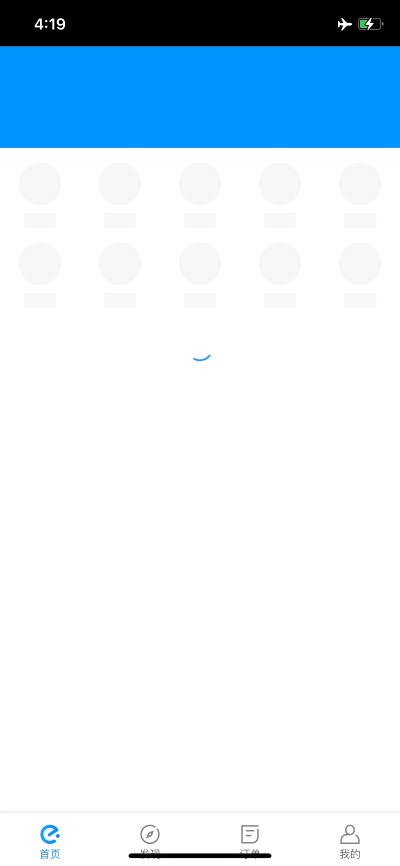
PWA:自研 - PWA 在饿了么的实践经验
-
支持添加到桌面,manifest。
-
支持缓存和离线访问,Service Worker。
2.4 Instagram
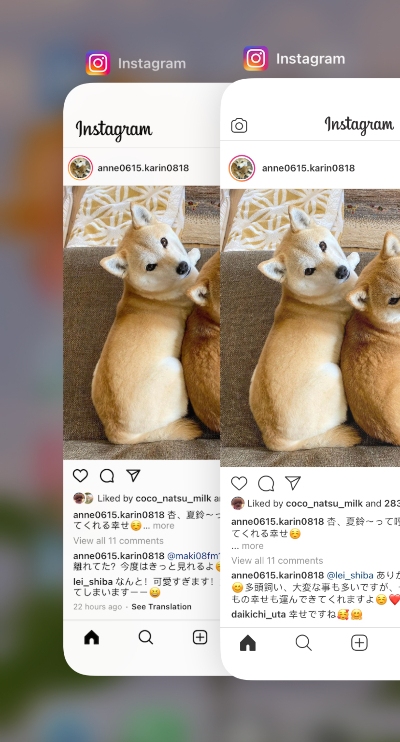
左边原生应用,右边 PWA
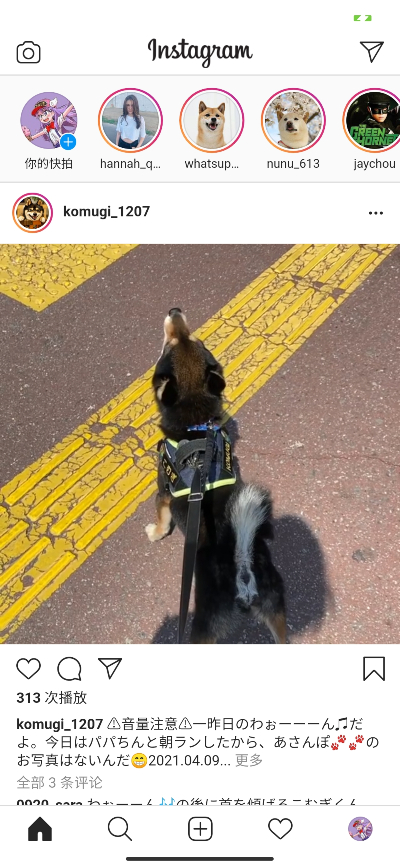
访问地址:www.instagram.com/
PWA:使用 Google Workbox
-
支持添加到桌面,manifest。
-
支持缓存,Service Worker。
2.5 Twitter
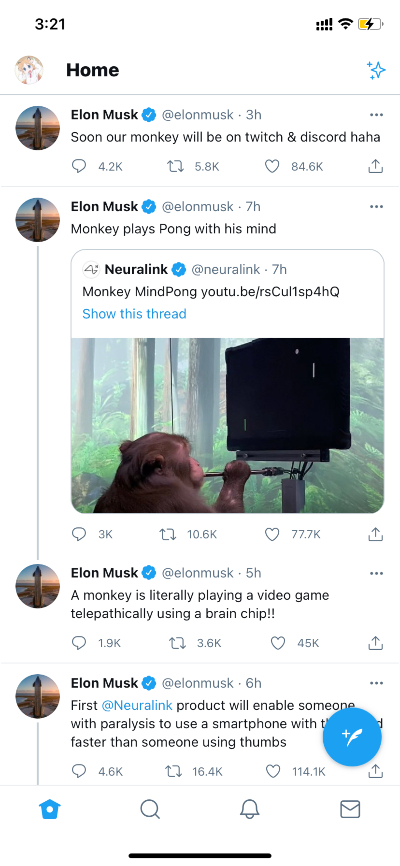
PWA:Twitter 自研 - How we built Twitter Lite
-
支持添加到桌面,manifest。
-
支持缓存和离线访问,Service Worker。
除了正常的静态资源以外,Twitter 把首页也缓存了下来。
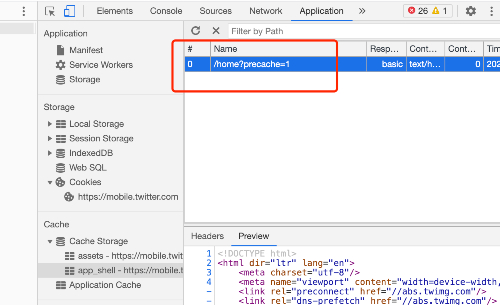
离线状态下有很好的用户体验,而不是显示默认的浏览器页面。

3 技术选型(Service Worker)
3.1 使用 Google Workbox 构建 Service Worker
3.1.1 什么是 Workbox
Workbox 是一组库,可以帮助开发者编写 Service Worker,通过 CacheStorage API 缓存资源。当一起使用 Service Worker 和 CacheStorage API 时,可以控制网站上使用的资源(HTML、CSS、JS、图像等)如何从网络或缓存中请求,甚至允许在离线时返回缓存的内容。
3.1.2 如何使用 Workbox
Workbox 是由许多 NPM 模块组成的。首先要从 NPM 中安装它,然后导入项目 Service Worker 所需的模块。Workbox 的主要特性之一是它的路由和缓存策略模块。
路由和缓存策略
Workbox 允许使用不同的缓存策略来管理 HTTP 请求的缓存。首先确定正在处理的请求是否符合条件,如果符合,则对其应用缓存策略。匹配是通过返回真值的回调函数进行的。缓存策略可以是 Workbox 的一种预定义策略,也可以创建自己的策略。如下是一个使用路由和缓存的基本 Service Worker。
import { registerRoute } from 'workbox-routing';

import {

NetworkFirst,

StaleWhileRevalidate,

CacheFirst,

} from 'workbox-strategies';

// Used for filtering matches based on status code, header, or both

import { CacheableResponsePlugin } from 'workbox-cacheable-response';

// Used to limit entries in cache, remove entries after a certain period of time

import { ExpirationPlugin } from 'workbox-expiration';

// Cache page navigations (html) with a Network First strategy

registerRoute(

// Check to see if the request is a navigation to a new page

({ request }) => request.mode === 'navigate',

// Use a Network First caching strategy

new NetworkFirst({

// Put all cached files in a cache named 'pages'

cacheName: 'pages',

plugins: [

// Ensure that only requests that result in a 200 status are cached

new CacheableResponsePlugin({

statuses: [200],

}),

],

}),

);

// Cache CSS, JS, and Web Worker requests with a Stale While Revalidate strategy

registerRoute(

// Check to see if the request's destination is style for stylesheets, script for JavaScript, or worker for web worker

({ request }) =>

request.destination === 'style' ||

request.destination === 'script' ||

request.destination === 'worker',

// Use a Stale While Revalidate caching strategy

new StaleWhileRevalidate({

// Put all cached files in a cache named 'assets'

cacheName: 'assets',

plugins: [

// Ensure that only requests that result in a 200 status are cached

new CacheableResponsePlugin({

statuses: [200],

}),

],

}),

);

// Cache images with a Cache First strategy

registerRoute(

// Check to see if the request's destination is style for an image

({ request }) => request.destination === 'image',

// Use a Cache First caching strategy

new CacheFirst({

// Put all cached files in a cache named 'images'

cacheName: 'images',

plugins: [

// Ensure that only requests that result in a 200 status are cached

new CacheableResponsePlugin({

statuses: [200],

}),

// Don't cache more than 50 items, and expire them after 30 days

new ExpirationPlugin({

maxEntries: 50,

maxAgeSeconds: 60 * 60 * 24 * 30, // 30 Days

}),

],

}),

);
这个 Service Worker 使用一个网络优先的策略来缓存导航请求(用于新的 HTML 页面),当它状态码为 200 时,该策略将缓存的页面存储在一个名为 pages 的缓存中。使用 Stale While Revalidate strategy 缓存 CSS、JavaScript 和 Web Worker,将缓存的资源存储在一个名为 assets 的缓存中。采用缓存优先的策略来缓存图像,将缓存的图像存储在名为 images 的缓存中,30 天过期,并且一次只允许 50 个。
预缓存
除了在发出请求时进行缓存(运行时缓存)之外,Workbox 还支持预缓存,即在安装 Service Worker 时缓存资源。有许多资源是非常适合预缓存的:Web 应用程序的起始 URL、离线回退页面以及关键的 JavaScript 和 CSS 文件。
使用一个支持预缓存清单注入的插件(webpack 或 rollup)来在新的 Service Worker 中使用预缓存。
import { precacheAndRoute } from 'workbox-precaching';

// Use with precache injection

precacheAndRoute(self.__WB_MANIFEST);
这个 Service Worker 将在安装时预缓存文件,替换 self.__WB_MANIFEST,其中包含在构建时注入到 Service Worker 中的资源。
离线回退
让 Web 应用在离线工作时感觉更健壮的常见模式是提供一个后退页面,而不是显示浏览器的默认错误页面。通过 Workbox 路由和预缓存,你可以在几行代码中设置这个模式。
import { precacheAndRoute, matchPrecache } from 'workbox-precaching';

import { setCatchHandler } from 'workbox-routing';

// Ensure your build step is configured to include /offline.html as part of your precache manifest.

precacheAndRoute(self.__WB_MANIFEST);

// Catch routing errors, like if the user is offline

setCatchHandler(async ({ event }) => {

// Return the precached offline page if a document is being requested

if (event.request.destination === 'document') {

return matchPrecache('/offline.html');

}

return Response.error();

});
如果用户处于离线状态,则返回缓存的离线页面的内容,而不是生成一个浏览器错误。
有了 Workbox,可以利用 Service Worker 的力量来提高性能,并给您的站点提供独立于网络的优秀的用户体验。
3.2 自研 Service Worker
自研 Service Worker 更加灵活、可控,但是因为需要考虑到各种兼容,研发成本较高。可以参考在线图书《PWA 应用实战》。
4 技术实践(Service Worker)
4.1 使用 CLI
安装 Workbox:
npm install workbox-cli -D

npx workbox --help
按照引导配置 workbox-config.js:
npx workbox wizard
根据配置生成 Service Worker 程序:
npx workbox generateSW workbox-config.js
由于实际静态资源是挂载在 CDN 上面,需要修改预渲染资源的前缀。
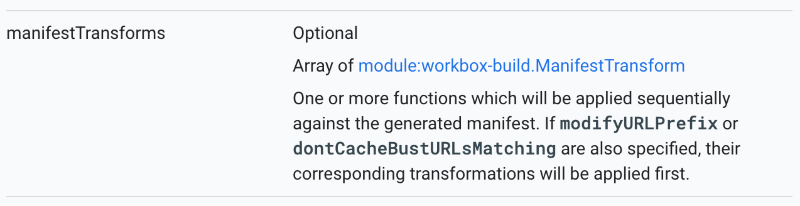
Workbox CLI - generateSW - Configuration
// A transformation that prepended the origin of a CDN for any URL starting with '/assets/' could be implemented as:

const cdnTransform = async (manifestEntries) => {

const manifest = manifestEntries.map(entry => {

const cdnOrigin = 'https://example.com';

if (entry.url.startsWith('/assets/')) {

entry.url = cdnOrigin + entry.url;

}

return entry;

});

return {manifest, warnings: []};

};
更多缓存配置可查阅官方文档。
4.2 使用 Webpack
安装:
npm install workbox-webpack-plugin --save-dev
Webpack 配置:
// Inside of webpack.config.js:

const WorkboxPlugin = require('workbox-webpack-plugin');

// Version info...

const id = `${page}-v${version}`;

module.exports = {

// Other webpack config...

plugins: [

// Other plugins...

// WIKI https://developers.google.com/web/tools/workbox/reference-docs/latest/module-workbox-webpack-plugin.GenerateSW#GenerateSW

new WorkboxPlugin.GenerateSW({

cacheId: `${id}-gsw`,

// Do not precache images

exclude: [/\.(?:png|jpg|jpeg|svg)$/, 'service-wroker.js'], // Page need refresh twice.

// target dir

swDest: `../dist/${page}/service-worker.js`,

skipWaiting: true,

clientsClaim: true,

// Define runtime caching rules.

// WIKI https://developers.google.com/web/tools/workbox/reference-docs/latest/module-workbox-build#.RuntimeCachingEntry

// Example https://gist.github.com/jeffposnick/fc761c06856fa10dbf93e62ce7c4bd57

runtimeCaching: [

// icon images

{

// Match any request that ends with .png, .jpg, .jpeg or .svg.

urlPattern: /^https:\/\/cdn.example.com\/platform/, // /\.(?:png|jpg|jpeg|svg)$/,

// Apply a cache-first strategy.

handler: 'CacheFirst',

options: {

// Use a custom cache name.

cacheName: `${id}-icon-images`,

// Only cache 50 images, and expire them after 30 days

expiration: {

maxEntries: 50

},

// Ensure that only requests that result in a 200 status are cached

cacheableResponse: {

statuses: [0, 200]

}

}

},

// note images & others

{

// Match any request that ends with .png, .jpg, .jpeg or .svg.

urlPattern: /^https:\/\/image.example.com/, // /\.(?:png|jpg|jpeg|svg)$/,

// Apply a cache-first strategy.

handler: 'CacheFirst',

options: {

// Use a custom cache name.

cacheName: `${id}-note-images`,

// Only cache 50 images, and expire them after 30 days

expiration: {

maxEntries: 50,

maxAgeSeconds: 60 * 60 * 24 * 30 // 30 Days

},

// Ensure that only requests that result in a 200 status are cached

cacheableResponse: {

statuses: [0, 200]

}

}

}

]

});

]

};
页面中触发 Service Work:
<script>

// Check that service workers are supported

if ('serviceWorker' in navigator) {

// Use the window load event to keep the page load performant

window.addEventListener('load', () => {

navigator.serviceWorker.register('/service-worker.js');

});

}

</script>
5 添加到桌面方案
5.1 manifest.json 配置
{

  "name": "不知不问",

  "short_name": "不知不问",

  "description": "yyds",

  "start_url": "/?entry_mode=standalone",

  "display": "standalone",

  "orientation": "portrait",

  "background_color": "#F3F3F3",

  "theme_color": "#F3F3F3",

  "icons": [

    {

      "src": "https://mazey.cn/fav/logo-dark-circle-32x32.png",

      "sizes": "32x32",

      "type": "image/png"

    },

    {

      "src": "https://mazey.cn/fav/logo-dark-circle-144x144.png",

      "sizes": "144x144",

      "type": "image/png"

    },

    {

      "src": "https://mazey.cn/fav/logo-dark-circle-152x152.png",

      "sizes": "152x152",

      "type": "image/png"

    },

    {

      "src": "https://mazey.cn/fav/logo-dark-circle-180x180.png",

      "sizes": "180x180",

      "type": "image/png"

    },

    {

      "src": "https://mazey.cn/fav/logo-dark-circle-192x192.png",

      "sizes": "192x192",

      "type": "image/png"

    },

    {

      "src": "https://mazey.cn/fav/logo-dark-circle-512x512.png",

      "sizes": "512x512",

      "type": "image/png"

    }

  ],

  "scope": "/"

}
5.2 <head> 配置
为网站配置开屏图片、状态栏等。
<!--Mazey's favicon begin-->

<link rel="shortcut icon" type="image/png" href="https://mazey.cn/fav/logo-dark-circle-transparent-144x144.png">

<link rel="icon" type="image/png" sizes="32x32" href="https://mazey.cn/fav/logo-dark-circle-transparent-32x32.png">

<link rel="apple-touch-icon" sizes="144x144" href="https://mazey.cn/fav/logo-dark-circle-144x144.png">

<link rel="apple-touch-icon" sizes="152x152" href="https://mazey.cn/fav/logo-dark-circle-152x152.png">

<link rel="apple-touch-icon" sizes="180x180" href="https://mazey.cn/fav/logo-dark-circle-180x180.png">

<link rel="apple-touch-icon" sizes="192x192" href="https://mazey.cn/fav/logo-dark-circle-192x192.png">

<link rel="apple-touch-icon" sizes="512x512" href="https://mazey.cn/fav/logo-dark-circle-512x512.png">

<!--Mazey's favicon end-->

<!--Mazey's pwa manifest.json-->

<link rel="manifest" href="/wp-content/themes/polestar/manifest.json">

<!-- 开机图片 - begin -->

<!-- iPhone Xs Max (1242px × 2688px) -->

<link rel="apple-touch-startup-image" media="(device-width: 414px) and (device-height: 896px) and (-webkit-device-pixel-ratio: 3)" href="https://i.mazey.net/asset/read/cat-lovers-1242x2688.jpg" sizes="1242x2688">

<!-- iPhone Xr (828px x 1792px) -->

<link rel="apple-touch-startup-image" media="(device-width: 414px) and (device-height: 896px) and (-webkit-device-pixel-ratio: 2)" href="https://i.mazey.net/asset/read/cat-lovers-828x1792.jpg" sizes="828x1792">

<!-- iPhone X, Xs (1125px x 2436px) -->

<link rel="apple-touch-startup-image" media="(device-width: 375px) and (device-height: 812px) and (-webkit-device-pixel-ratio: 3)" href="https://i.mazey.net/asset/read/cat-lovers-1125x2436.jpg" sizes="1125x2436">

<!-- iPhone 8, 7, 6s, 6 (750px x 1334px) -->

<link rel="apple-touch-startup-image" media="(device-width: 375px) and (device-height: 667px) and (-webkit-device-pixel-ratio: 2)" href="https://i.mazey.net/asset/read/cat-lovers-750x1334.jpg" sizes="750x1334">

<!-- iPhone 8 Plus, 7 Plus, 6s Plus, 6 Plus (1242px x 2208px) -->

<link rel="apple-touch-startup-image" media="(device-width: 414px) and (device-height: 736px) and (-webkit-device-pixel-ratio: 3)" href="https://i.mazey.net/asset/read/cat-lovers-1242x2208.jpg" sizes="1242x2208">

<!-- iPhone 5 (640px x 1136px) -->

<link rel="apple-touch-startup-image" media="(device-width: 320px) and (device-height: 568px) and (-webkit-device-pixel-ratio: 2)" href="https://i.mazey.net/asset/read/cat-lovers-640x1136.jpg" sizes="640x1136">

<!-- 开机图片 - end -->

<!-- Touch Bar区域显示的网站图标 -->

<link rel="mask-icon" href="https://mazey.cn/fav/logo-dark-circle.svg" color="#F3F3F3">

<!-- 主题色 = manifest.json theme_color -->

<meta name="theme-color" content="#F3F3F3">

<meta name="apple-mobile-web-app-capable" content="yes">

<!-- 状态栏颜色 default/black/black-translucent -->

<meta name="apple-mobile-web-app-status-bar-style" content="black-translucent">

<!-- 应用名 -->

<meta name="apple-mobile-web-app-title" content="不知不问">

<!-- 在Windows 8上,我们可以将网站固定在开始屏幕上,而且支持个性化自定义色块icon和背景图片。这个标签是用来定义色块的背景图的。色块图应该为144*144像素的png格式图片,背景透明。 -->

<meta name="msapplication-TileImage" content="https://mazey.cn/fav/logo-dark-circle-transparent-144x144.png">

<!-- 同前一个元数据msapplication-TileImage类似,这个功能是用来设置颜色值,个性化自定义色块(磁贴)icon -->

<meta name="msapplication-TileColor" content="#F3F3F3">
开屏图片尺寸总结:
| 屏幕尺寸 | 倍数 | 图片尺寸 |
| --- | --- | --- |
| 1024x1366(512x683) | x2 | 2048x2732 |
| 834x1194(417x597) | x2 | 1668x2388 |
| 768x1024(384x512) | x2 | 1536x2048 |
| 834x1112(417x556) | x2 | 1668x2224 |
| 810x1080 | x2 | 1620x2160 |
| 428x926(214x463) | x3 | 1284x2778 |
| 390x844 | x3 | 1170x2532 |
| 375x812 | x3 | 1125x2436 |
| 414x896 | x3 | 1242x2688 |
| 414x896 | x2 | 828x1792 |
| 414x736 | x3 | 1242x2208 |
| 375x667 | x2 | 750x1334 |
| 320x568 | x2 | 640x1136 |
版权声明
本博客所有的原创文章,作者皆保留版权。转载必须包含本声明,保持本文完整,并以超链接形式注明作者后除和本文原始地址:blog.mazey.net/2675.html
(完)

