PK创意闹新春,我正在参加「春节创意投稿大赛」,详情请看:春节创意投稿大赛
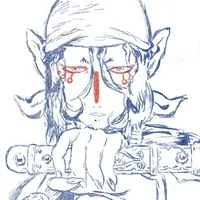
见到这个南山大王的家人们,2022都能『豹富』,吃的用的都给你送去!
构思
将一个图片或文字转成字符画输出,总共分三步👵🏻:
- 将图片或文字绘制在 canvas 上。
- 利用 getImageData 取出像素点亮度信息,存储。
- 将亮度信息映射到字符集,拼接字符串输出。
接口设计
文本和图片对于输入的要求是不同的。
inerface ImageOption {
    type: 'image';
    imageSrc: string;
    scale?: number;
    chartSet?: string[];
}
- imageSrc: 一个图片地址是必要的(网络资源考虑异步加载、异常处理)。
- scale: 缩放比例,与字符画输出的『清晰度』相关。取值大于1意味着对放大后的图片进行采样,输出的字符串较长,图像清晰。反之,输出的字符串短,图像模糊。
inerface TextOption {
    type: 'text';
    text: string;
    fontFamily?: string;
    fontWeight?: string|number;
    fontSize?: number;
    chartSet?: string[];
}
- text: 提供文本内容是必要的。
- fontFamily、fontWeight: 字体和字重可改变输出文本样式。
- fontSize: 字号,与字符画输出的『清晰度』相关。由于文本字号的感受更直观(用户无需考虑他想要的 30px 和内部实现 20px 的关系),因此这里不使用 scale 。
chartSet 在文本和图片中都可配置。这里可以理解为亮度([0, 1]区间)与实际输出字符的映射,比如:
[' ', '-', '@', '▊']将亮度[0, 0.25)区间映射到'▊',该单元视觉效果偏暗;将亮度(0.75, 1]区间映射到' ',该单元视觉效果偏亮。
调用方式应该足够简洁,考虑到图片的加载异常,函数返回 Promise。
ConsoleASCII({
    type: 'image',
    imageSrc: 'https://gimg2.baidu.com/image_search/src=http%3A%2F%2Fww1.sinaimg.cn%2Fmw690%2F006Twd0Dgy1gyi478eenpj30wi0s6gs0.jpg&refer=http%3A%2F%2Fwww.sina.com&app=2002&size=f9999,10000&q=a80&n=0&g=0n&fmt=jpeg?sec=1646042459&t=92afd341a0ffa107182bc2e51097bff5',
}).then(ca => {
    console.log(ca.toString());
});
在 async-awit 中只需添加 await 关键字,很优雅呢。
const ca = await ConsoleASCII({
    type: 'image',
    imageSrc: 'https://gimg2.baidu.com/image_search/src=http%3A%2F%2Fww1.sinaimg.cn%2Fmw690%2F006Twd0Dgy1gyi478eenpj30wi0s6gs0.jpg&refer=http%3A%2F%2Fwww.sina.com&app=2002&size=f9999,10000&q=a80&n=0&g=0n&fmt=jpeg?sec=1646042459&t=92afd341a0ffa107182bc2e51097bff5',
});
console.log(ca.toString());
1. canvas 绘制
- 创建 canvas
- 配置项缓存
- 字符集赋默认值 这些是通用的步骤,后面就需要区分图片和文本做不同的处理了。
class ConsoleASCII {
    canvas: HTMLCanvasElement;
    option: Option;
    chartSet: string[];

    constructor(option: Option) {
        this.canvas = document.createElement('canvas');
        this.option = {...option};
        this.chartSet = option.chartSet || [' ', '.', '-', '#', 'o', '@'];
        if (this.option.type === 'image') {
            this.#initImage()
        }
        else {
            this.#initText()
        }
        if (DEBUG) {
            document.body.appendChild(this.canvas);
        }
    }
    #initImage() {
    }
    #initText() {
    }
}
1.1 绘制图片
new Image()加载图片。注意,image.crossOrigin = 'Anonymous'表明期望获取跨域图片,仍需服务端跨域支持。- 图片资源准备完成后,按 scale 调整 canvas 宽高,绘制图片。
const {scale = 1, imageSrc} = this.option;

const image = new Image();
image.src = imageSrc;
image.crossOrigin = 'Anonymous';

image.onload = () => {
    const width = image.width * scale;
    const height = image.height * scale;
    this.canvas.width = width;
    this.canvas.height = height;
    const ctx = this.canvas.getContext('2d');
    ctx!.drawImage(image, 0, 0, width, height);
    // 开始采样
};
1.2 绘制文本
- 使用
measureText方法获取文本的宽度,以及由大小写字母宽度估计的文本高度。 - 调整 canvas 宽高适应文本,在白色背景绘制黑色文本。注意,由于 firefox 和 chrome 的 canvas 行高不同(bug),文本基线居中,绘制下沉0.5,确保行为一致。
const {
    fontFamily = '"Trebuchet MS", "Heiti TC", "微軟正黑體", "Arial Unicode MS", "Droid Fallback Sans", sans-serif',
    fontWeight = 'normal',
    fontSize = 30,
    text = 'hello world'
} = this.option;
const font = `${fontWeight} ${fontSize}px ${fontFamily}`;

const ctx = this.canvas.getContext('2d');
ctx!.font = font;
const {width: textWidth} = ctx!.measureText(text);
const textHeight = Math.max(
    ctx!.measureText('m').width,
    ctx!.measureText('\uFF37').width
);

this.canvas.width = textWidth;
this.canvas.height = textHeight;
ctx!.fillStyle = 'hsl(360, 100%, 100%)';
ctx!.fillRect(0, 0, this.canvas.width, this.canvas.height);
ctx!.font = font;
ctx!.fillStyle = 'hsl(360, 0%, 0%)';
ctx!.textBaseline = 'middle'
ctx!.fillText(text, 0, fontSize * .5);
Promise.resolve().then(() => {
    // 开始采样
});
2. 图像采样
- 确定采样单元大小,并创建相应大小的二维数组空间,并填充空值。
- 使用
getImageData获取像素点信息。 - 遍历像素点信息,在每个采样单元内按亮度聚合(RGB转HSL,取L维度),在二维数组指定空间写入。
getImageData 返回指定区域内从左上(0, 0)点遍历的像素信息(RGBA),比如
一个2*2的范围返回值是
[R00, G00, B00, A00, R01, G01, B01, A01, R10, G10, B10, A10, R11, G11, B11, A11]
写入前需将[0, 1]区间的亮度调整到与字符集索引对应的值上。另外,要做一次翻转,因为 HSL 颜色模型中,L从0到1是由暗变亮,与字符集的方向相反。
this.grid[gridY][gridX] = this.chartSet.length - 1 - Math.round(avgL * (this.chartSet.length - 1));
- 遍历输出
toString() {
    let str = '';
    let row = 0;
    this.grid.forEach(list => {
        list.forEach(value => {
            str += this.chartSet[value];
        })
        str += '\n';
    });
    return str;
}
到这里,南山大王的字符画已经出现在控制台了,是否该结束了?
还没有,因为这不够『抠』。假设字符集长度为4,那么索引0-3只需要占用两个二进制位,用一个由两位二进制组成的数组存储可以充分利用内存。
4. 点阵读写器
定型数组是 ArrayBuffer 的一种类型视图,可以理解为由特定数值类型组成的数组。
| 类型 | 单个元素值的范围 | 大小(bytes) | 描述 |
|---|---|---|---|
| Int8 | -128 to 127 | 1 | 8 位二进制有符号整数 |
| Uint8 | 0 to 255 | 1 | 8 位无符号整数 |
| Int16 | -32768 to 32767 | 2 | 16 位二进制有符号整数 |
| Uint16 | 0 to 65535 | 2 | 16 位无符号整数 |
| Int32 | -2147483648 to 2147483647 | 4 | 32 位二进制有符号整数 |
| Uint32 | 0 to 4294967295 | 4 | 32 位二进制无符号整数 |
这一定程度上满足了我们的需求。不过我们的字符集可能还不到127,用Int8也会浪费一定的资源。因此,使用 Uint8 定型数组,将未使用的二进制位借给后面的存储单元看起来可行。
这里使用 Uint8 的原因:
当前存储索引不存在负数。
字符集索引偏小(很少配置一个超过256的字符集),使用最小单元Uint8降低对单个存储单元的读写频率。
代码实现如下:
function dec2bin(dec: number, length = 8){
    return `${new Array(length).fill('0').join('')}${(dec >>> 0).toString(2)}`.slice(-length);
}
function bin2dec(bin: string){
    return parseInt(bin, 2);
}
class GridArray {
    row: number;
    col: number;
    length: number;
    buffer: Uint8Array;
    constructor(row = 1, col = 1, length = 1) {
        this.row = Math.max(Math.floor(row), 1);
        this.col = Math.max(Math.floor(col), 1);
        this.length = length;
        this.buffer = new Uint8Array(Math.ceil(row * col * length / 8));
    }
    forEach(cb: (value: number, x: number, y: number) => unknown){
        this.buffer.reduce((pre, item, index) => {
            const binStr = `${pre}${dec2bin(item)}`;
            for (let i = 0; i * this.length < binStr.length; i++) {
                const point = this.offsetToPoint({count: index, i: i * this.length});
                if (point.x > this.col - 1 || point.y > this.row - 1) {
                    break;
                }
                if ((i + 1) * this.length > binStr.length) {
                    return binStr.slice(i * this.length);
                }
                cb(bin2dec(binStr.slice(i * this.length, (i + 1) * this.length)), point.x, point.y);
            }
            return '';
        }, '');
    }
    pointToOffset(point: {x: number, y: number}) { // 起始点
        const index = (point.y * this.col + point.x) * this.length;
        return {
            count: Math.floor(index / 8),
            i: index % 8
        }
    }
    offsetToPoint(offset: {count: number, i: number}) {
        const index = Math.floor((offset.count * 8 + offset.i) / this.length);
        return {
            y: Math.floor(index / this.col),
            x: index % this.col
        }
    }
    toString() {
        let str = '';
        let row = 0;
        this.forEach((value, x, y) => {
            if (y !== row) {
                str += '\n';
                row = y
            }
            str += value;
        });
        return str;
    }
    setPoint(point: {x: number, y: number}, value: number) {
        const offset = this.pointToOffset(point);
        let targetCut = dec2bin(value, this.length);
        let orginBin = '';
        for (let i = offset.count; i < this.buffer.length; i++) {
            orginBin += dec2bin(this.buffer[i]);
            if (orginBin.length >= offset.i + this.length) {
                break;
            }
        }
        let targetBin = '';
        for (let i = 0 ; i < orginBin.length; i++) {
            if (i < offset.i || i >= offset.i + this.length) {
                targetBin += orginBin[i];
            }
            else {
                targetBin += targetCut[i - offset.i];
            }
            if (i % 8 === 7) {
                this.buffer[Math.floor(i / 8) + offset.count] = bin2dec(targetBin.slice(i - 7, i+1));
            }
        }

    }
    getPoint(point: {x: number, y: number}) {
        const offset = this.pointToOffset(point);
        let bin = ''
        for (let i = offset.count; i < this.buffer.length; i++) {
            bin += dec2bin(this.buffer[i]);
            if (bin.length >= offset.i + this.length) {
                break;
            }
        }
        return bin2dec(bin.slice(offset.i * this.length, (offset.i + 1) * this.length));
    }
}
到这里我们可以根据点阵的行、列数、数据的字长,灵活申请足够的存储空间。
好像还差点什么。。。
5. 效果不清晰?
5.1 字符集太少
上图配置了[' ', '.', '-', '#', 'o', '@']六个字符组成的字符集。增加字符数量,细化亮度的展示可以获得更好的效果。
5.2 黑白滤镜算法
前面提及使用了HSL模型的L维度作为明暗指标,常见的黑白滤镜算法还有:
- 均值:
(R + G + B) / (3 * 255) - 加权平均:
(0.299 * R + 0.587 * G + 0.114 * B) / 255(权重与人类对三色的敏感程度相关,也存在个体差异)
哪一种算法的视觉效果更好就见仁见智了。
是否还能更『清晰』一点? 我们觉得模糊,是因为一些中间的灰度表达不够明显。处理数据使整体向上(1)、下(0)限偏移,更增加图像的对比度试试。
经过处理后,图像明暗对比更明显了😄
小贴士
当输出字符被迫换行时,字符画将失去视觉效果,需要手动调整控制台字号。
- Windows: ctrl + 鼠标滚轮
- Mac: command + 【+】或【-】