

URL Launcher是一个Flutter插件,它允许您的应用程序启动网络浏览器、地图应用程序、拨号器应用程序、邮件应用程序等。URL Launcher插件通过创建意图来打开使用不同URL方案的应用程序。
在这篇文章中,我们将建立一个简单的项目来演示如何使用URL Launcher插件来打开一个网页浏览器和拨号器、邮件和地图应用程序。
前提条件
在完成本教程之前,你必须有以下设置。
- 任何安装了Flutter SDK的IDE(如Android Studio、VSCode)。
- Dart和Flutter的基本知识
本教程用Flutter v2.5.1和Android Studio v3.5进行了验证。
所以,一切都准备好了,让我们开始吧。
项目设置
通过在终端运行以下命令创建一个新的Flutter项目。
$ flutter create url_launcher_example
接下来,我们需要将url_launcher 插件作为一个依赖项添加到我们的项目中。你可以通过在你的终端运行以下命令来做到这一点。
$ flutter pub add url_launcher
因此,url_launcher 插件将被作为依赖关系添加到我们的pubspec.yaml 文件中。
接下来,我们需要建立我们应用程序的用户界面。复制并粘贴下面的代码到你的main.dart 文件中。
import 'package:flutter/material.dart';
import 'package:url_launcher_example/custom_button.dart';
import 'package:url_launcher/url_launcher.dart';
void main() {
  runApp(const MyApp());
}
class MyApp extends StatelessWidget {
  const MyApp({Key? key}) : super(key: key);
  @override
  Widget build(BuildContext context) {
    return MaterialApp(
      title: 'Flutter Demo',
      debugShowCheckedModeBanner: false,
      theme: ThemeData(
        primarySwatch: Colors.blue,
      ),
      home: const MyHomePage(),
    );
  }
}
class MyHomePage extends StatelessWidget {
  const MyHomePage({Key? key}) : super(key: key);
  @override
  Widget build(BuildContext context) {
    return Scaffold(
        backgroundColor: const Color(0xFF3E1F92),
        body: SafeArea(
          child: Padding(
            padding: const EdgeInsets.all(20.0),
            child: Column(
              mainAxisAlignment: MainAxisAlignment.start,
              crossAxisAlignment: CrossAxisAlignment.start,
              children: [
                const Text('Get in touch',
                    style: TextStyle(
                        color: Colors.white,
                        fontSize: 30.0,
                        fontWeight: FontWeight.bold)),
                const SizedBox(height: 10.0),
                const Text(
                    "We'd love to hear from you. Our friendly team is always here to chat.",
                    style: TextStyle(
                        color: Color(0xFFA895D1),
                        fontSize: 15.0,
                        fontWeight: FontWeight.normal)),
                const SizedBox(height: 30.0),
                TextButton(
                  onPressed: () {
                    //logic  goes here
                  },
                  style: TextButton.styleFrom(
                    padding: const EdgeInsets.all(15),
                  ),
                  child: Row(
                    mainAxisSize: MainAxisSize.min,
                    children: const [
                      Icon(Icons.phone, color: Color(0xFFED92A2)),
                      SizedBox(width: 20.0),
                      Text('+0123 4567 8910',
                          style: TextStyle(
                              color: Color(0xFFA294C2),
                              fontSize: 16.0,
                              fontWeight: FontWeight.w500)),
                    ],
                  ),
                ),
                TextButton(
                  onPressed: () {
                    //logic  goes here
                  },
                  style: TextButton.styleFrom(
                    padding: const EdgeInsets.all(15),
                  ),
                  child: Row(
                    mainAxisSize: MainAxisSize.min,
                    children: const [
                      Icon(Icons.sms, color: Color(0xFFED92A2)),
                      SizedBox(width: 20.0),
                      Text('+0123 4567 8910',
                          style: TextStyle(
                              color: Color(0xFFA294C2),
                              fontSize: 16.0,
                              fontWeight: FontWeight.w500)),
                    ],
                  ),
                ),
                TextButton(
                  onPressed: () {
                    //logic  goes here
                  },
                  style: TextButton.styleFrom(
                    padding: const EdgeInsets.all(15),
                  ),
                  child: Row(
                    mainAxisSize: MainAxisSize.min,
                    children: const [
                      Icon(Icons.mail, color: Color(0xFFED92A2)),
                      SizedBox(width: 20.0),
                      Text('example@logrocket.com',
                          style: TextStyle(
                              color: Color(0xFFA294C2),
                              fontSize: 16.0,
                              fontWeight: FontWeight.w500)),
                    ],
                  ),
                ),
                TextButton(
                  onPressed: () {
                    //logic  goes here
                  },
                  style: TextButton.styleFrom(
                    padding: const EdgeInsets.all(15),
                  ),
                  child: Row(
                    mainAxisSize: MainAxisSize.min,
                    children: const [
                      Icon(Icons.location_pin, color: Color(0xFFED92A2)),
                      SizedBox(width: 20.0),
                      Text('87 Summer St., Boston, MA 02110',
                          style: TextStyle(
                              color: Color(0xFFA294C2),
                              fontSize: 16.0,
                              fontWeight: FontWeight.w500)),
                    ],
                  ),
                ),
                TextButton(
                  onPressed: () {
                    //logic  goes here
                  },
                  style: TextButton.styleFrom(
                    padding: const EdgeInsets.all(15),
                  ),
                  child: Row(
                    mainAxisSize: MainAxisSize.min,
                    children: const [
                      Icon(Icons.language, color: Color(0xFFED92A2)),
                      SizedBox(width: 20.0),
                      Text('blog.logrocket.com',
                          style: TextStyle(
                              color: Color(0xFFA294C2),
                              fontSize: 16.0,
                              fontWeight: FontWeight.w500)),
                    ],
                  ),
                ),
              ],
            ),
          ),
        ));
  }
}
现在我们已经为我们的应用程序创建了一个基本的用户界面,我们可以在模拟器或物理设备上运行该代码。当执行完成后,你的设备或模拟器应该显示一个类似这样的屏幕。
URL启动器的异步函数
URL Launcher插件提供了两个异步函数:canLaunch 和launch 。canLaunch 函数返回一个布尔值,表示设备是否可以处理某个URL方案。例如,如果一个设备没有安装电子邮件应用程序,它将无法使用mailto 方案启动一个URL。
另一方面,launch 函数需要一个String 作为参数,作为URL;它解析给定的URL字符串并将其传递给底层平台进行处理。launch 函数还有其他命名的可选参数,可用于改变Android和iOS平台上的特定设置,其中一些参数如下。
- 仅限安卓的设置。
forceWebView- 如果设置为null或false,则在设备的默认浏览器中打开URL;否则,在WebView中启动URLenableJavaScript- 如果设置为true,则在WebView中启用JavaScript。enableDomStorage- 当该值设置为true,WebView启用DOM存储。
- 仅限iOS的设置。
forceSafariVC- 如果设置为true,会在Safari视图控制器中打开URL;否则,会使用设备的默认处理程序statusBarBrightness- 收集一个枚举值,可以是Brightness.dark,也可以是Brightness.light,以设置iOS设备上打开链接后应用程序的状态栏亮度。
现在我们了解了URL Launcher插件的工作原理和它所提供的功能,让我们看看一些例子,看看我们如何在我们的应用程序中实现它。
用URL Launcher启动一个网页
下面的代码是不言自明的;注意到我们使用canLaunch 函数来检查设备是否可以启动一个特定的URL方案,然后再调用launch 函数。
TextButton(
  onPressed: () async {
      const url = 'https://blog.logrocket.com';
      if(await canLaunch(url)){
        await launch(url);
      }else {
        throw 'Could not launch $url';
      }
    },
    child: const CustomWidget(
      icon: Icons.language,
      label: 'Open a URL',
    ),
),
在你的设备上运行该代码,并在我们的原始用户界面上点击打开URL卡来启动网页。
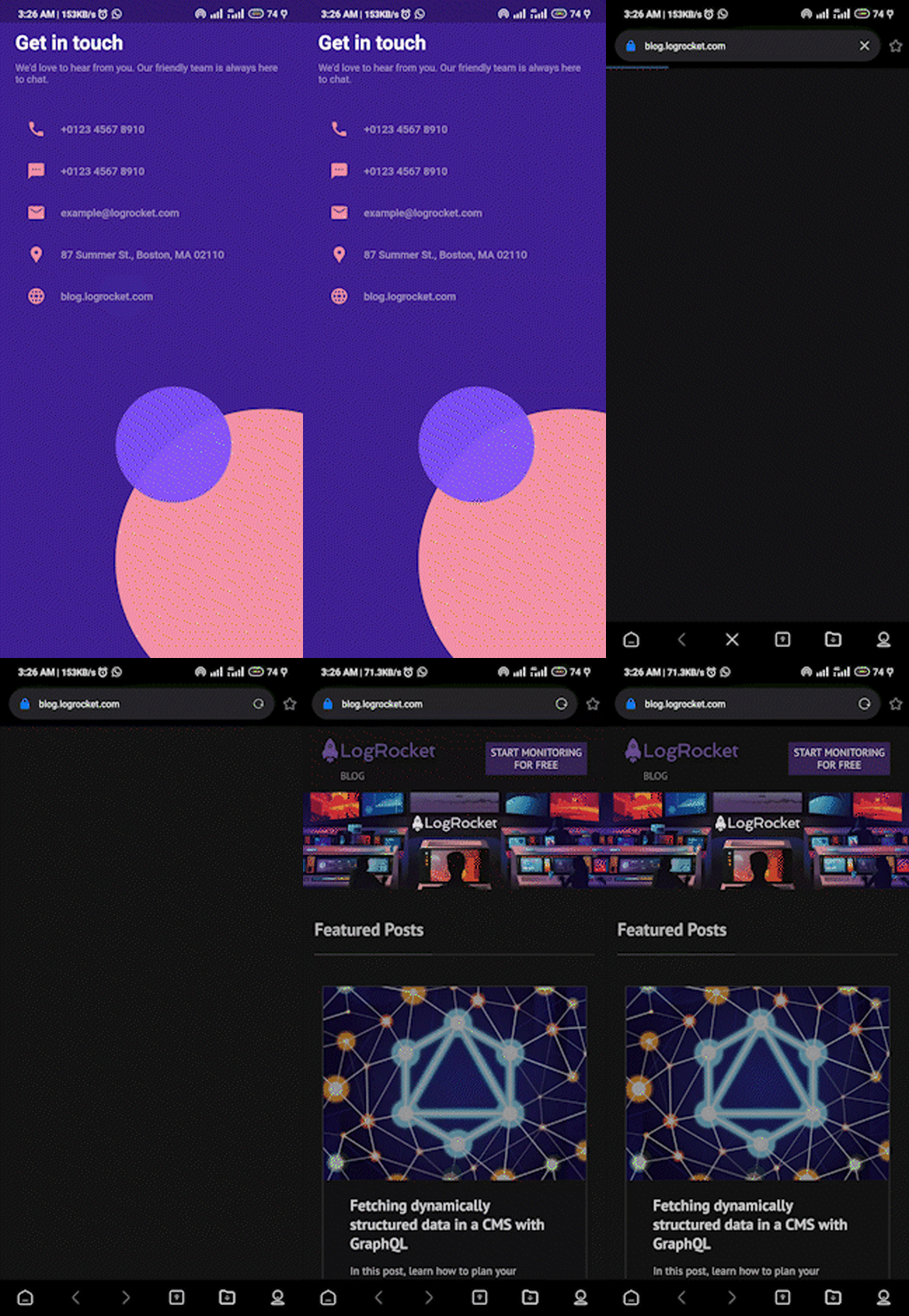
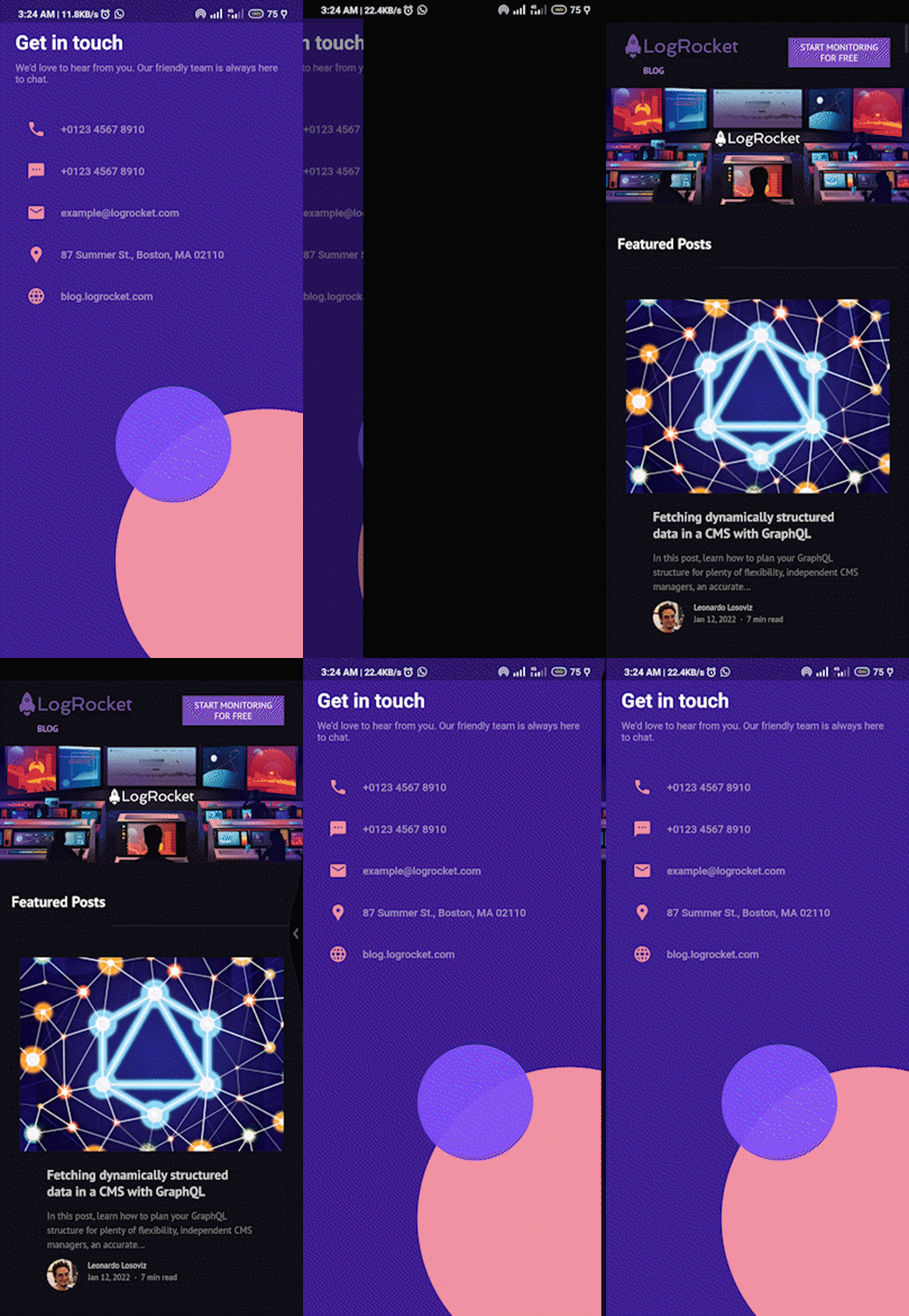
在我们希望浏览器被嵌入到我们的应用程序中的情况下,我们将forceWebView 设置为true 。
TextButton(
   onPressed: () async {
      const url = 'https://blog.logrocket.com';
      if(await canLaunch(url)){
        await launch(url, forceWebView = true);  //forceWebView is true now
      }else {
        throw 'Could not launch $url';
      }
    },
...//
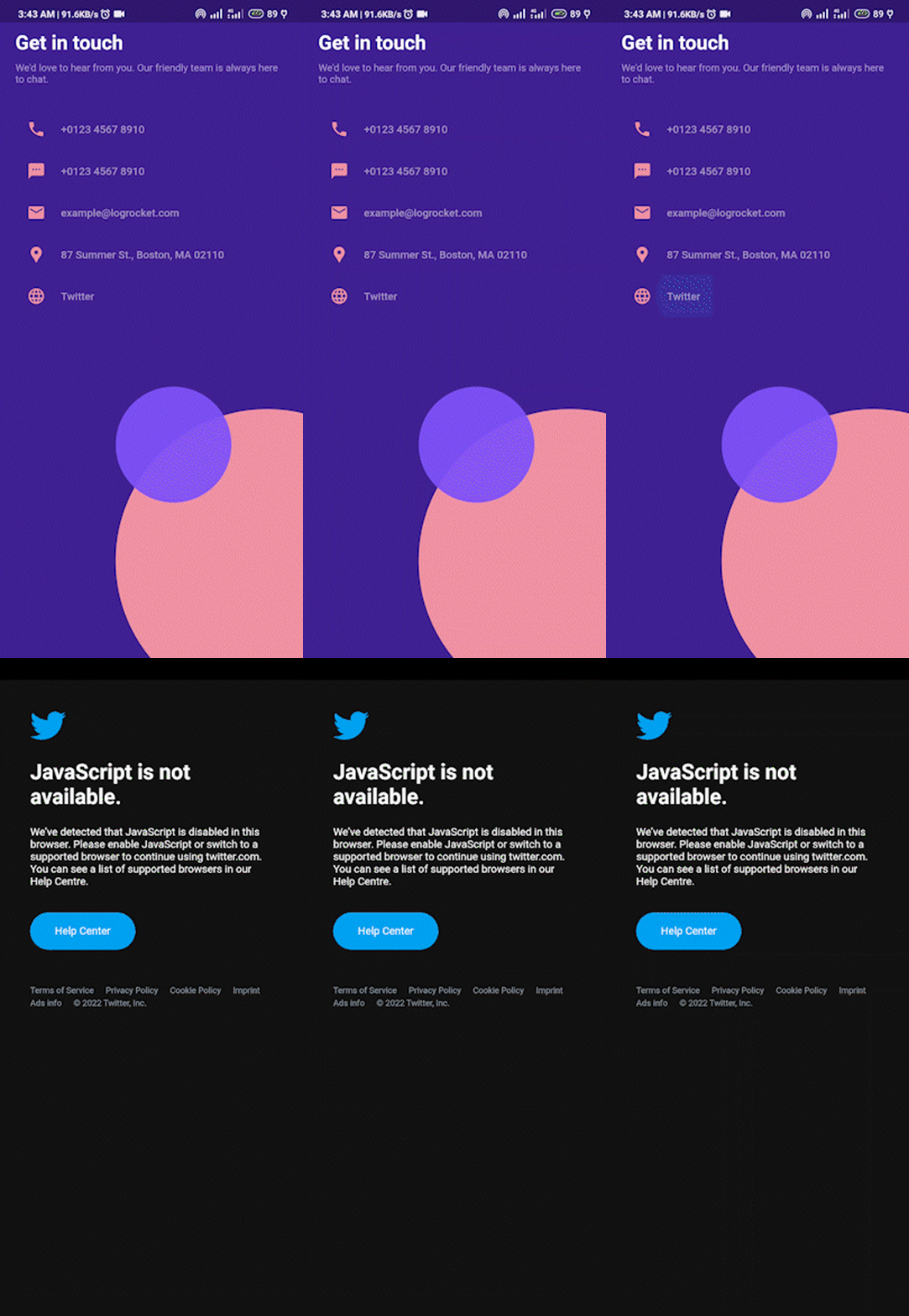
我们可以选择在网站上禁用JavaScript,以提高我们的浏览速度和在线活动;然而,这也有一个缺点,即如果我们将enableJavaScript 设为false ,你可能无法访问网站的某些功能。考虑到Twitter的官方网站,它在很大程度上依赖于JavaScript。
TextButton(
   onPressed: () async {
      const url = 'https://www.twitter.com';  //Twitter's URL
      if(await canLaunch(url)){
        await launch(
          url,
          forceWebView = true,       //enables WebView
          enableJavaScript = false  //disables JavaScript
        );
      }else {
        throw 'Could not launch $url';
      }
    },
...//
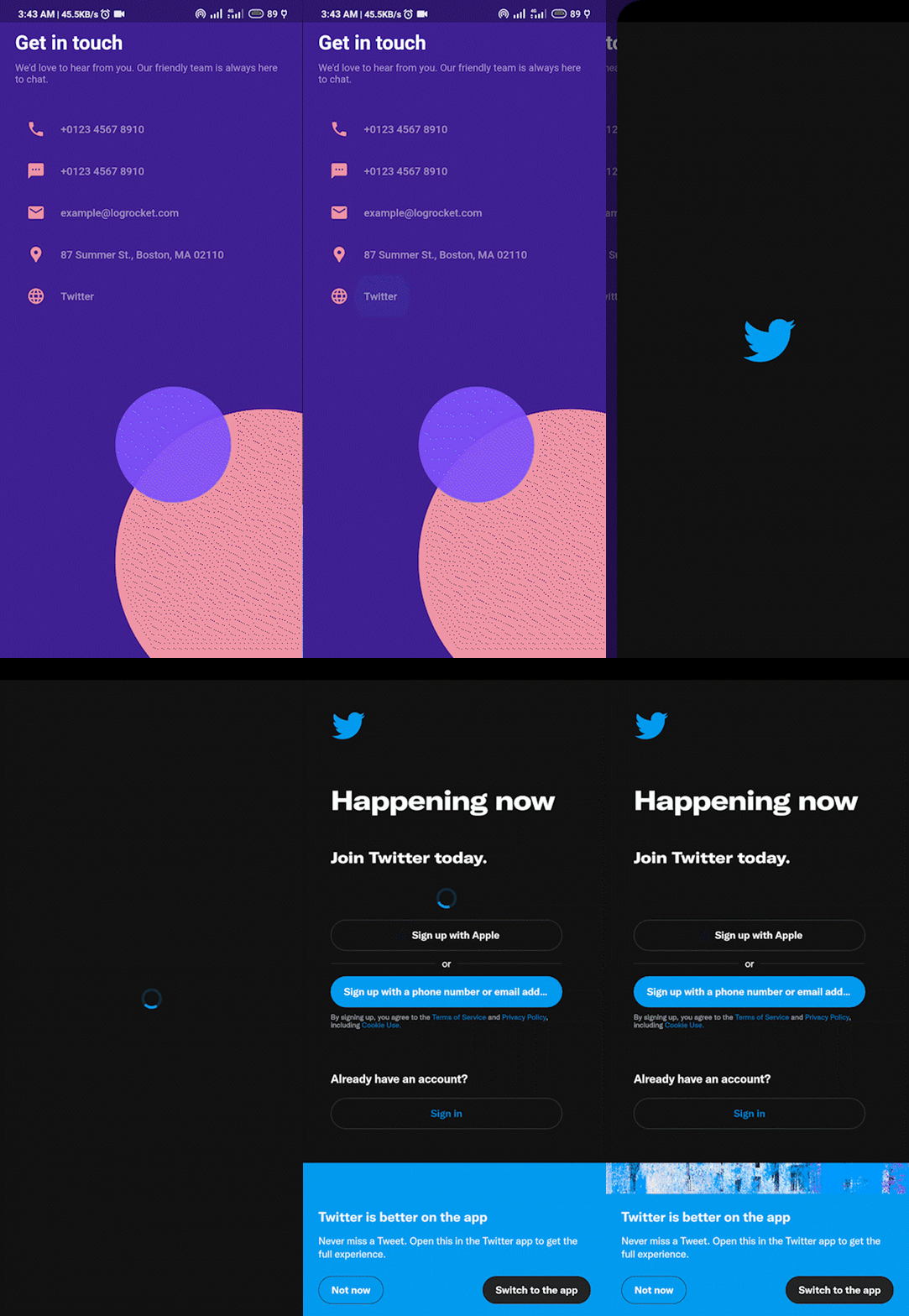
在启用JavaScript的情况下enableJavaScript = true ,我们会得到以下结果。
启动一个电话拨号器应用程序
为了启动一个电话,我们使用tel: URL方案,后面是一个电话号码,如下图代码所示。
TextButton(
  onPressed: () async {
    String telephoneNumber = '+2347012345678';
    String telephoneUrl = "tel:$telephoneNumber";
    if (await canLaunch(telephoneUrl)) {
      await launch(telephoneUrl);
    } else {
      throw "Error occured trying to call that number.";
    }
    child: const CustomWidget(
      icon: Icons.call,
      label: 'Call a phone\nnumber',
    ),
),
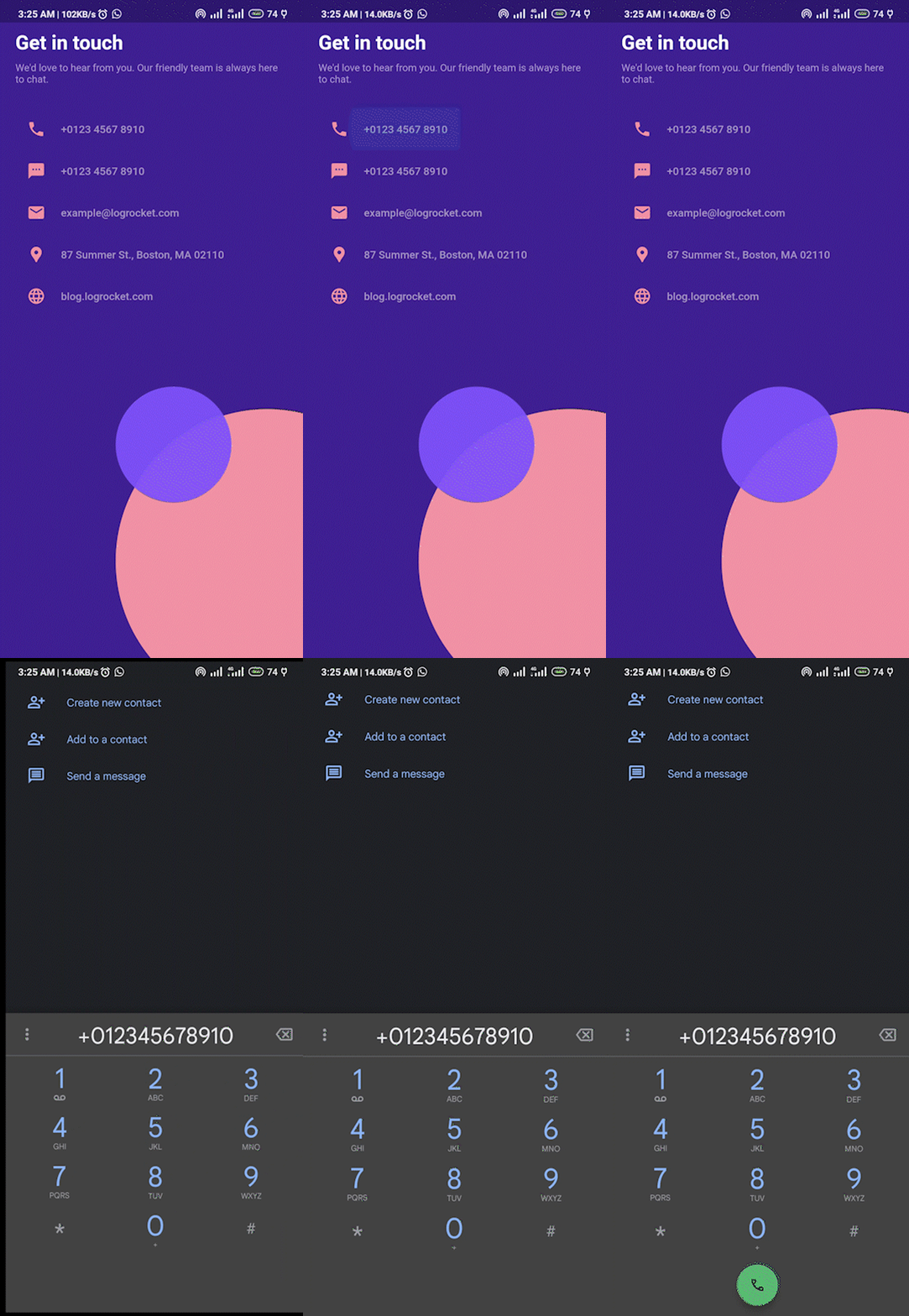
启动一个短信应用程序
为了发送一条短信,我们使用sms: URL方案和类似于上面的实现。
TextButton(
  onPressed: () async {
    String telephoneNumber = '+2347012345678';
    String smsUrl = "sms:$telephoneNumber";
    if (await canLaunch(smsUrl)) {
        await launch(smsUrl);
    } else {
        throw "Error occured trying to send a message that number.";
    }
    child: const CustomWidget(
      icon: Icons.textsms,
      label: 'Send an SMS',
    ),
),
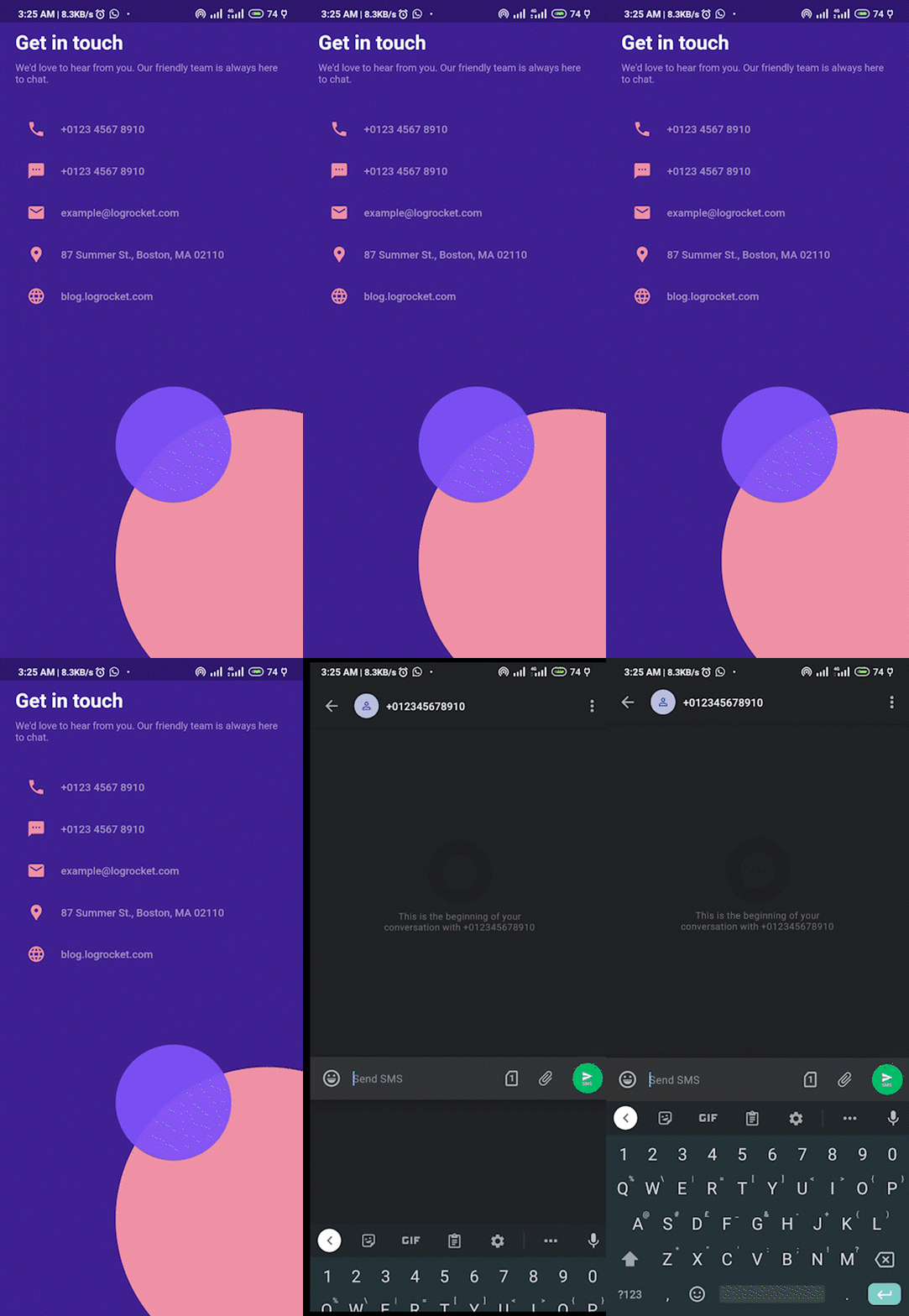
启动一个邮件应用程序
要发送电子邮件,我们需要将收件人的电子邮件地址、主题行、我们的电子邮件正文以及mailto: URL方案传递给emailUrl widget,此外还有mailto: URL方案。见下文。
TextButton(
    onPressed: () async {
    String email = 'this.is.tijani@gmail.com';
    String subject = 'This is a test email';
    String body = 'This is a test email body';

    String emailUrl = "mailto:$email?subject=$subject&body=$body";

    if (await canLaunch(emailUrl)) {
      await launch(emailUrl);
    } else {
      throw "Error occured sending an email";
    }
  },
  child: const CustomWidget(
    icon: Icons.forward_to_inbox,
    label: 'Send an email',
  ),
),
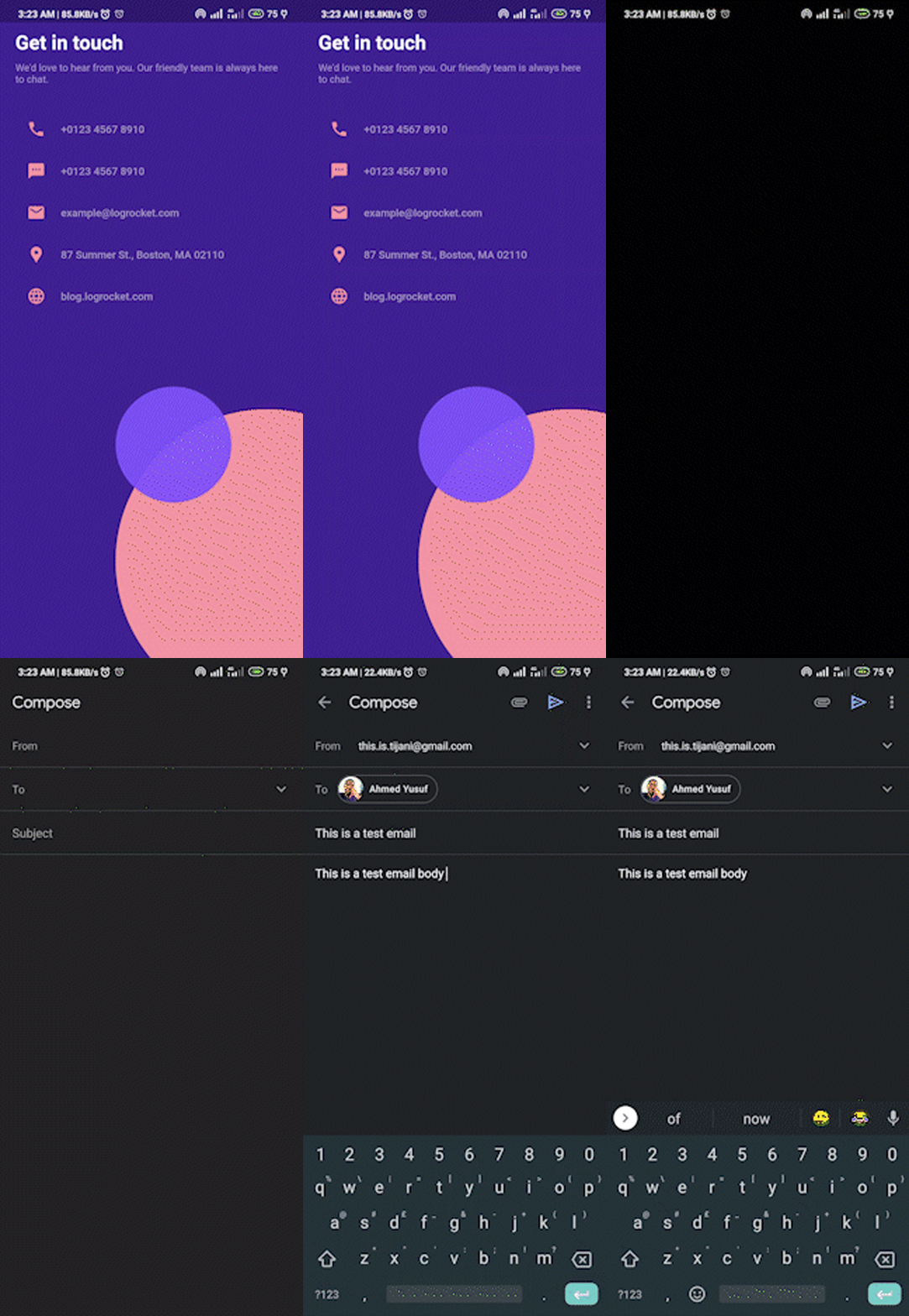
启动地图
要在地图上查看一个地点,我们需要将该地点的latitude 和longitude 值与geo: URL方案一起传给mapUrl 。
TextButton(
  onPressed: () async {
    const String lat = "42.3540";
    const String lng = "71.0586";
    const String mapUrl = "geo:$lat,$lng";
    if (await canLaunch(mapUrl)) {
      await launch(mapUrl);
    } else {
      throw "Couldn't launch Map";
    }
  },
  child: const CustomWidget(
    icon: Icons.near_me,
    label: 'Check location',
  ),
),
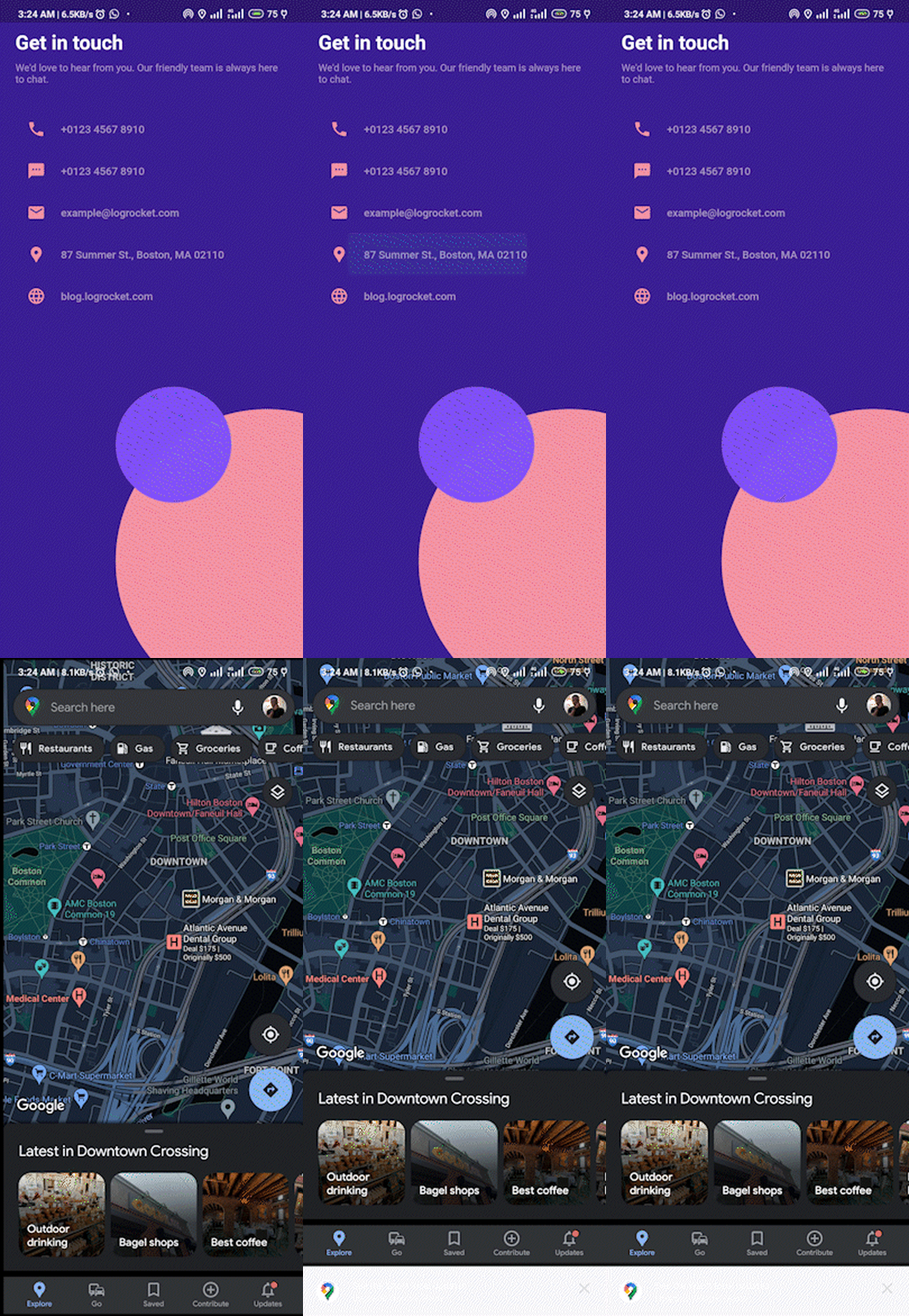
总结
当你需要从你的应用程序与其他应用程序对接时,URL Launcher插件是非常方便的。我们已经了解了URL Launcher插件的使用情况以及如何实现该插件以适应每个使用情况。
这个项目的完整代码可以在GitHub上找到。谢谢你的阅读。
