- 原文地址:What’s New In Vue 3?
- 原文作者:Timi Omoyeni
- 译文出自:掘金翻译计划
快速摘要 ↬ Vue 3 带来了诸多有趣的新特性并对现有的一些特性进行了变更,其目的是让我们在使用框架开发时更加容易且可维护。在本文中,我们将了解其中的一些新特性及如何使用它们。同时也会了解这些变更与原有特性的差别。
随着Vue 3 的发布,开发者们最好从Vue 2升级,因为它提供了一点新特性,这些新特性对于构建易阅读、可维护的组件以及改进Vue中构建应用程序的方式而言非常有帮助。我们将在本文中研究其中的一些新特性。
在本指南结束时,读者将:
- 了解
provide / inject及使用方式。 - 基本理解 Teleport 及使用方式。
- 了解片段(Fragments)及使用方式。
- 了解对 Global Vue API 所作的变更。
- 了解对 Events API所作的变更。
本文的目标读者是那些对 Vue 2.x 有适当理解的人。您能在 GitHub 中找到示例使用的全部代码。
provide / inject
在 Vue 2.x 中,我们可以用 props 来简单地从父组件直接向子组件传递数据(string、arrays、objects,等等)。但在开发过程中,我们遇到需要将数据从父组件传递到深度嵌套的组件的情况,此时使用 props 是很麻烦的。这致使了对 Vuex Store,Event Hub的使用,让我们来看一个简单的应用:
值得注意的是 Vue 2.2.0 也提供了 provide / inject 但不推荐在一般的应用程序代码中使用。
# parentComponent.vue

<template>
  <div class="home">
    <img alt="Vue logo" src="../assets/logo.png" />
    <HelloWorld msg="Vue 3 is liveeeee!" :color="color" />
    <select name="color" id="color" v-model="color">
      <option value="" disabled selected> Select a color</option>
      <option :value="color" v-for="(color, index) in colors" :key="index">{{
        color
      }}</option></select
    >
  </div>
</template>
<script>
  import HelloWorld from "@/components/HelloWorld.vue";
  export default {
    name: "Home",
    components: {
      HelloWorld,
    },
    data() {
      return {
        color: "",
        colors: ["red", "blue", "green"],
      };
    },
  };
</script>
# childComponent.vue

<template>
  <div class="hello">
    <h1>{{ msg }}</h1>
    <color-selector :color="color"></color-selector>
  </div>
</template>
<script>
  import colorSelector from "@/components/colorComponent.vue";
  export default {
    name: "HelloWorld",
    components: {
      colorSelector,
    },
    props: {
      msg: String,
      color: String,
    },
  };
</script>
<!-- Add "scoped" attribute to limit CSS to this component only -->
<style scoped>
  h3 {
    margin: 40px 0 0;
  }
  ul {
    list-style-type: none;
    padding: 0;
  }
  li {
    display: inline-block;
    margin: 0 10px;
  }
  a {
    color: #42b983;
  }
</style>
# colorComponent.vue

<template>
  <p :class="[color]">This is an example of deeply nested props!</p>
</template>
<script>
  export default {
    props: {
      color: String,
    },
  };
</script>
<style>
  .blue {
    color: blue;
  }
  .red {
    color: red;
  }
  .green {
    color: green;
  }
</style>
本例中,有一个包含颜色列表的下拉菜单的着陆页,我们将选择的 color 传递到 childComponent.vue 作为 prop 。这个子组件还有一个 msg prop ,它接收一个要显示在 template 部分中的文本。最后,这个子组件也有一个子组件(colorComponent.vue),它接受来自父组件的 color prop 用于决定该组件中文本样式的类。这是一个通过所有组件传递数据的示例。
但在 Vue 3 中,我们可以使用新的 Provide 和 inject 对,以更简洁、轻便的方式实现这一点。顾名思义,我们使用provide 作为一个函数或者对象来使数据可以从父组件传递到它的任何嵌套组件,无论被传递的组件嵌套得有多深。当传递硬编码值时,我们使用对象形式的 provide 选项。
# parentComponent.vue

<template>
  <div class="home">
    <img alt="Vue logo" src="../assets/logo.png" />
    <HelloWorld msg="Vue 3 is liveeeee!" :color="color" />
    <select name="color" id="color" v-model="color">
      <option value="" disabled selected> Select a color</option>
      <option :value="color" v-for="(color, index) in colors" :key="index">{{
        color
      }}</option></select
    >
  </div>
</template>
<script>
  import HelloWorld from "@/components/HelloWorld.vue";
  export default {
    name: "Home",
    components: {
      HelloWorld,
    },
    data() {
      return {
        colors: ["red", "blue", "green"],
      };
    },
    provide: {
      color: 'blue'
    }
  };
</script>
但对于需要 provide 一些组件的实例property的情况时,我们使用函数形式。
# parentComponent.vue

<template>
  <div class="home">
    <img alt="Vue logo" src="../assets/logo.png" />
    <HelloWorld msg="Vue 3 is liveeeee!" />
    <select name="color" id="color" v-model="selectedColor">
      <option value="" disabled selected> Select a color</option>
      <option :value="color" v-for="(color, index) in colors" :key="index">{{
        color
      }}</option></select
    >
  </div>
</template>
<script>
  import HelloWorld from "@/components/HelloWorld.vue";
  export default {
    name: "Home",
    components: {
      HelloWorld,
    },
    data() {
      return {
        selectedColor: "blue",
        colors: ["red", "blue", "green"],
      };
    },
    provide() {
      return {
        color: this.selectedColor,
      };
    },
  };
</script>
因为我们不再需要 childComponent.vue 和 colorComponent.vue 中的 color props 了,故我们要处理掉它。使用 provide 的好处是父组件不需要知道哪个组件需要它提供的property。
欲在本例中需要数据的组件中使用这些provide的property,我们这样做:
# colorComponent.vue

<template>
  <p :class="[color]">This is an example of deeply nested props!</p>
</template>
<script>
  export default {
    inject: ["color"],
  };
</script>
<style>
  .blue {
    color: blue;
  }
  .red {
    color: red;
  }
  .green {
    color: green;
  }
</style>
这里我们使用了 inject ,它接受组件所需的变量数组。在本例中,我们只需要 color property,所以我们只传递了它。之后,我们可以像我们使用props一样使用 color 。
我们可能会注意到,如果我们尝试使用下拉菜单选择一个新 color , colorComponent.vue 中的 color 不会更新。这是因为在默认情况下 provide 选项提供的properties不是响应式的。为了解决这一问题,我们采用了computed 方法 。
# parentComponent.vue

<template>
  <div class="home">
    <img alt="Vue logo" src="../assets/logo.png" />
    <HelloWorld msg="Vue 3 is liveeeee!" />
    <select name="color" id="color" v-model="selectedColor">
      <option value="" disabled selected> Select a color</option>
      <option :value="color" v-for="(color, index) in colors" :key="index">{{
        color
      }}</option></select
    >
  </div>
</template>
<script>
  import HelloWorld from "@/components/HelloWorld.vue";
  import { computed } from "vue";
  export default {
    name: "Home",
    components: {
      HelloWorld,
    },
    data() {
      return {
        selectedColor: "",
        todos: ["Feed a cat", "Buy tickets"],
        colors: ["red", "blue", "green"],
      };
    },
    provide() {
      return {
        color: computed(() => this.selectedColor),
      };
    },
  };
</script>
这里,我们导入 computed 并传递 selectedColor 这样 color 就可以是响应式的了并且可以在用户选择不同颜色时更新。当您将一个变量传递给 computed 方法时,它返回一个具有 value 的对象。所以在这个例子中,我们要将 colorComponent.vue 修改如下:
# colorComponent.vue

<template>
  <p :class="[color.value]">This is an example of deeply nested props!</p>
</template>
<script>
  export default {
    inject: ["color"],
  };
</script>
<style>
  .blue {
    color: blue;
  }
  .red {
    color: red;
  }
  .green {
    color: green;
  }
</style>
这里,在我们使用 computed 方法将 color 变为响应式后,我们改变 color 为 color.value 。此时,每当父组件中的selectedColor 改变时,该组件中文本(即p标签)的 class 就会发生变化 。
Teleport
在某些情况下,我们创建组件并把它们按逻辑放在应用的某位置,但是我们打算在另一个位置展示它们。一个常见的例子是用来显示和覆盖整个屏幕的modal或弹出窗口。虽然我们可以在这些元素上利用CSS的 position 属性来搞出一个解决方案,但在 Vue 3 里,我们也可以使用 Teleport 。
Teleport 允许我们将组件从它在文件中的原位置取出。从Vue应用默认挂载的 #app 容器中取出,然后移动到正在使用的页面上的任何现有元素。一个极好的例子是使用 Teleport 将header组件从 #app div 内部移动到 header 。值得注意的是,您只能 Teleport 到 Vue DOM 之外的元素。

Teleport 组件接受决定该组件行为的两个属性,即:
to这个属性接受一个类名、一个id、一个元素或一个 data-* 属性。我们也可以通过:to而不是to来动态地改变 Teleport 组件以使这个值动态化。:disabled这个属性接受一个Boolean值并可用于切换元素或组件上的 Teleport 功能。这对于动态地改变元素的位置非常好用。
使用 Teleport 的一个理想例子是:
# index.html**

<!DOCTYPE html>
<html lang="en">
<head>
    <meta charset="utf-8" />
    <meta http-equiv="X-UA-Compatible" content="IE=edge" />
    <meta name="viewport" content="width=device-width,initial-scale=1.0" />
    <link rel="icon" href="<%= BASE_URL %>favicon.ico" />
    <title>
        <%= htmlWebpackPlugin.options.title %>
    </title>
</head>
<!-- add container to teleport to -->
<header class="header"></header>
<body>
    <noscript>
      <strong
        >We're sorry but <%= htmlWebpackPlugin.options.title %> doesn't work
        properly without JavaScript enabled. Please enable it to
        continue.</strong
      >
    </noscript>
    <div id="app"></div>
    <!-- built files will be auto injected -->
</body>
</html>
在您的Vue应用的默认 index.html 文件中,我们添加了一个 header 元素,因为我们想要将header组件 Teleport 到这里。我们还为此元素添加了一个类,以便我们的 Teleport 组件样式化及轻松引用。
# Header.vue**

<template>
  <teleport to="header">
    <h1 class="logo">Vue 3 🥳</h1>
    <nav>
      <router-link to="/">Home</router-link>
    </nav>
  </teleport>
</template>
<script>
  export default {
    name: "app-header",
  };
</script>
<style>
  .header {
    display: flex;
    align-items: center;
    justify-content: center;
  }
  .logo {
    margin-right: 20px;
  }
</style>
这里,我们创建了 header 组件并添加了一个 logo ,该 logo带有指向应用主页的链接。我们还添加了 Teleport 组件并给 to 属性赋值 header 因为我们希望 Teleport 组件在此元素中呈现。最后我们把这个组件导入到我们的app中:
# App.vue

<template>
  <router-view />
  <app-header></app-header>
</template>
<script>
  import appHeader from "@/components/Header.vue";
  export default {
    components: {
      appHeader,
    },
  };
</script>
在此文件内,我们导入了 header 组件并将其放在了 template 中,这样它就在我们的应用中可见。
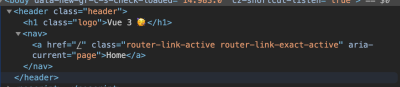
此时如果我们审核应用元素,我们会注意到 header 组件在 header 元素中:
Fragments
在 Vue 2.x 中,文件的 template 里不可能有多个根元素,于是开发者们将所有元素包裹在一个元素中作为解决方案。虽然这看起来不像是一个严重的问题,但在某些情况下,开发者们希望在没有容器包裹这些元素的情况下渲染组件,可他们别无选择。
在 Vue 3 中,引入了一个名为 Fragments 的新特性,该特性允许开发者在根 template 中包含多个元素。对于 Vue 2.x ,一个输入框容器组件大概长这样:
# inputComponent.vue

<template>
  <div>
    <label :for="label">label</label>
    <input :type="type" :id="label" :name="label" />
  </div>
</template>
<script>
  export default {
    name: "inputField",
    props: {
      label: {
        type: String,
        required: true,
      },
      type: {
        type: String,
        required: true,
      },
    },
  };
</script>
<style></style>
这里,我们有一个简单的表单元素组件,它接受两个props,label 和 type ,并且这个组件的模板内容被包括在一个 div 内。当然这不是一个必要的问题,如果您想让 label 和 input 直接在 form 元素中的话。在 Vue 3 中,开发者们能够轻松地重写此组件,就像这样:
# inputComponent.vue

<template class="testingss">
  <label :for="label">{{ label }}</label>
  <input :type="type" :id="label" :name="label" />
</template>
对于单个根节点,Attributes 始终属于根节点,它们也称为 Non-Prop Attributes。它们是传递给组件的事件或attribute,但这些组件并没有相应 props 或 emits 定义的 attribute 。此类 attributes 常见的示例有 class 和 id 。然而,需要显式地定义多个根节点组件中的哪些元素应当继承attribute。
这里是上面 inputComponent.vue 的含义:
- 当向该组件添加
class时,必须指定哪个元素应当继承class否则该attribute无效。
<template>
  <div class="home">
    <div>
      <input-component
        class="awesome__class"
        label="name"
        type="text"
      ></input-component>
    </div>
  </div>
</template>
<style>
  .awesome__class {
    border: 1px solid red;
  }
</style>
当您这样做却没有定义 attributes 应被谁继承时,您会在控制台中得到这个警告:

border 样式对该组件没有影响:

- 为解决这个问题,添加一个
v-bind="$attrs"在您想要继承attribute的元素上:
<template>
  <label :for="label" v-bind="$attrs">{{ label }}</label>
  <input :type="type" :id="label" :name="label" />
</template>
这里,我们告诉 Vue 我们想要让 label 元素继承attribute,这意味着我们希望 awesome__class 类应用到 label 元素上。现在,如果我们在浏览器中审核元素,我们会看到该 class 现在已经被添加到了 label 上了,因此标签周围现在有一个边框。

Global API
Vue.component 或 Vue.use 在Vue应用的 main.js 文件中并不少见。这种类型的方法被称为 Global APIs (全局 API ),在 Vue 2.x 中存在不少。这种方法的挑战之一是它不可能将某些功能隔离到应用中的一个实例(如果您的应用中存在多个实例)而不影响其他,因为它们都挂载在Vue上。笔者指如下:
Vue.directive('focus', {
  inserted: el => el.focus()
})

Vue.mixin({
  /* ... */
})

const app1 = new Vue({ el: '#app-1' })
const app2 = new Vue({ el: '#app-2' })
对于如上的代码,不可能声明 Vue 指令 与 app1 关联而 Mixin 与 app2 关联。反而,它们在两个app中都可用。
Vue 3 提供了一个新的 Global API ,试图通过引入 createApp 来解决这类问题。该方法返回一个Vue应用的新实例。应用实例暴露了当前 global APIs 的一个子集。借助这个,所有从Vue 2.x 变化而来的 APIs (component、mixin、directive、use 等) 现在都将被移动到单独的应用实例中。现在,您的 Vue 应用的每个实例都可以拥有其独特的功能,而不会影响到其他现有实例。
现在,上述代码可以重写为:
const app1 = createApp({})
const app2 = createApp({})
app1.directive('focus', {
    inserted: el => el.focus()
})
app2.mixin({
    /* ... */
})
然而,创建您想在所有实例中共享的功能是可能的,这可以通过使用 工厂函数 来实现。
Events API
除了使用 Vuex Store,开发者在非父子关系的组件间传递数据的最常用方法是使用 Event Bus。这种方法最常用的原因之一是因为它极其容易起步:
# eventBus.js

const eventBus = new Vue()

export default eventBus;
在这之后,下一件事就是将这个文件导入 main.js 以使它在我们的应用中全局可用,或将其导入您需要它的文件中:
# main.js

import eventBus from 'eventBus'
Vue.prototype.$eventBus = eventBus
现在,您可以发送事件并像这样监听已发送的事件:
this.$eventBus.$on('say-hello', alertMe)
this.$eventBus.$emit('pass-message', 'Event Bus says Hi')
有诸多 Vue 代码库都充满了这样的代码。但是在 Vue 3 中,这是不可能的,因为 $on、$off 以及 $once 都被移除了,但是 $emit 依旧可用,因为子组件需要它以向父组件发送事件。代替之选是使用 provide / inject 或者推荐的第三方库。
结论
在本文中,我们讨论了如何使用 provide / inject 对来将数据从父组件传递到深度嵌套的子组件中。我们亦了解了如何将组件从应用中的某处重新定位和转移到另一处。我们了解的另一件事是多个根节点组件,以及如何确保继承 attributes 以使其正常工作。最后,我们还了解了 Events API 和 Global API 的更改。
更多资源
- “[JavaScript Factory Functions with ES6+](medium.com/javascript-… factory function is any,keyword%2C it's a factory function),” Eric Elliott, Medium
- “Using Event Bus to Share Props Between Vue Components,” Kingsley Silas, CSS-Tricks
- Using Multiple Teleports On The Same Target, Vue.js Docs
- Non-Prop Attributes, Vue.js Docs
- Working With Reactivity, Vue.js Docs
teleport, Vue.js Docs- Fragments, Vue.js Docs
- 2.x Syntax, Vue.js Docs