

第二章:
两种布局样式的切换 线性布局--环形布局
继承UICollectionViewLayout的瀑布流
第一章中我们已经实现了滚动的布局,这里我们再加一个环形布局,实现两种布局的切换.
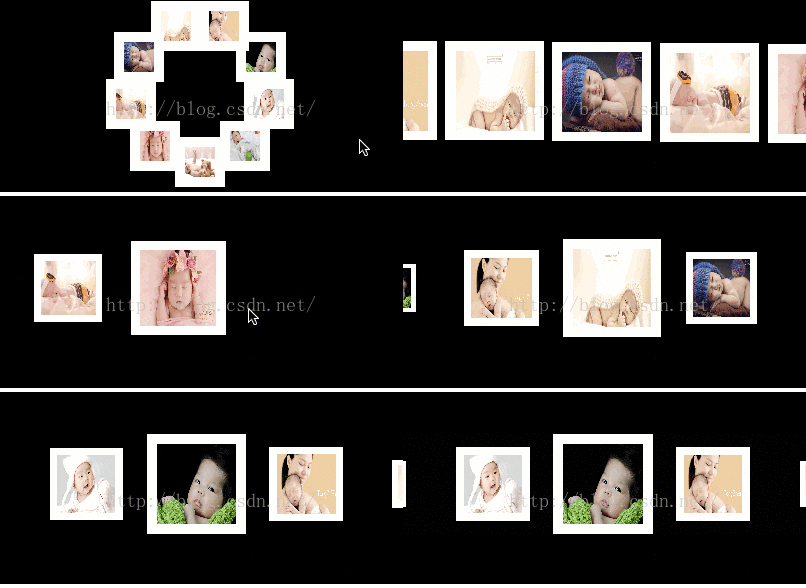
效果如下图所示:
1.首先我们要创建一个继承UICollectionViewLayout的瀑布流
2.实现以下方法.
#import "WJCircleLayout.h"
@interface WJCircleLayout ()
//布局属性
@property(nonatomic,strong)NSMutableArray *attrsArray;
@end
@implementation WJCircleLayout
-(NSMutableArray *)attrsArray
{
if (!_attrsArray) {
_attrsArray = [NSMutableArray array];
}
return _attrsArray;
}
-(void)prepareLayout
{
[super prepareLayout];
//刷新布局之前,把以前的布局清掉
[self.attrsArray removeAllObjects];
//cell的总个数
NSInteger count = [self.collectionView numberOfItemsInSection:0];
for (int i = 0; i < count; i++) {
//创建LayoutAttributes
NSIndexPath *indexPath = [NSIndexPath indexPathForItem:i inSection:0];
UICollectionViewLayoutAttributes *attrs = [UICollectionViewLayoutAttributes layoutAttributesForCellWithIndexPath:indexPath];
attrs.size = CGSizeMake(50, 50);
*****attrs. *center = CGPointMake *( *arc4random_uniform *( *300 *), *arc4random_uniform *( *300 ));
//添加LayoutAttributes
[_attrsArray addObject:attrs];
}
}
- (NSArray *)layoutAttributesForElementsInRect:(CGRect)rect
{
return self.attrsArray;
}
@end
运行得到以下效果:


经分析,我们可以发现,通过用中心点来计算圆环比较方便,实现代码如下:
-(void)prepareLayout
{
[super prepareLayout];
//刷新布局之前,把以前的布局清掉
[self.attrsArray removeAllObjects];
//cell的总个数
NSInteger count = [self.collectionView numberOfItemsInSection:0];
//圆的半径
CGFloat radius = 70 ;
//圆的位置
CGFloat circleX = self *. *collectionView *. *frame *. *size *. *width ** *0.5 ;
****CGFloat circleY = self *. *collectionView *. *frame *. *size *. *height ** *0.5 ;
for (int i = 0; i < count; i++) {
//创建LayoutAttributes
NSIndexPath *indexPath = [NSIndexPath indexPathForItem:i inSection:0];
UICollectionViewLayoutAttributes *attrs = [UICollectionViewLayoutAttributes layoutAttributesForCellWithIndexPath:indexPath];
attrs.size = CGSizeMake(50, 50);
//因为布局是圆形,所以用中心点比较方便,这里我们先随便给个值看效果
// attrs.center = CGPointMake(arc4random_uniform(300), arc4random_uniform(300));
****// 平分角度 *i
****CGFloat *angle = ( *2 ** *M_PI /count )*i;
****CGFloat *centerX = circleX +radius* *sin (angle);
****CGFloat *centerY = circleY +radius* *cos (angle);
*****attrs. *center = CGPointMake (centerX, centerY);
****
//添加LayoutAttributes
[_attrsArray addObject:attrs];
}
}
再次运行,就可以得到圆环效果
想要实现布局的变化,只需要改一个布局即可,这里我们添加一个touchBegan方法
-(void)touchesBegan:(NSSet<UITouch *> *)touches withEvent:(UIEvent *)event
{
[self.collectionView setCollectionViewLayout:[[WJLineLayout alloc]init] animated:YES];
}
此时直接运行,点击屏幕会崩溃,我们看崩溃错误信息如下:
reason: 'no UICollectionViewLayoutAttributes instance for -layoutAttributesForItemAtIndexPath: <NSIndexPath: 0xc000000000c00016> {length = 2, path = 0 - 6}’
这个错误信息说明,你要是换布局的话,还要实现-layoutAttributesForItemAtIndexPath: 方法
因为是继承UICollectionViewLayout,(WJCircleLayout : UICollectionViewLayout)所以需要实现方法
//这个方法需要返回indexPath位置对于cell的布局属性(切换布局)//这个方法需要返回indexPath位置对于cell的布局属性(切换布局)
- (nullable UICollectionViewLayoutAttributes *)layoutAttributesForItemAtIndexPath:(NSIndexPath *)indexPath
{
//cell的总个数
NSInteger count = [self.collectionView numberOfItemsInSection:0];
//圆的半径
CGFloat radius = 70;
//圆的位置
CGFloat circleX = self.collectionView.frame.size.width *0.5;
CGFloat circleY = self.collectionView.frame.size.height *0.5;
UICollectionViewLayoutAttributes *attrs = [UICollectionViewLayoutAttributes layoutAttributesForCellWithIndexPath:indexPath];
CGFloat angle = (2*M_PI/count )*indexPath.item;
CGFloat centerX = circleX +radius*sin(angle);
CGFloat centerY = circleY +radius*cos(angle);
attrs.center = CGPointMake(centerX, centerY);
//添加LayoutAttributes
[_attrsArray addObject:attrs];
return attrs;
}
运行我们可以看到效果如下
但是我们发现layoutAttributesForItemAtIndexPath方法和prepareLayout方法里面有重复的代码,下面我们对这些重复的代码做下优化:
-(void)prepareLayout
{
[super prepareLayout];
//刷新布局之前,把以前的布局清掉
[self.attrsArray removeAllObjects];
//cell的总个数
NSInteger count = [self.collectionView numberOfItemsInSection:0];
for (int i = 0; i < count; i++) {
//创建LayoutAttributes
NSIndexPath *indexPath = [NSIndexPath indexPathForItem:i inSection:0];
// 遍历所有的 indexPath
****UICollectionViewLayoutAttributes *attrs = [ self ****layoutAttributesForItemAtIndexPath :indexPath];
[_attrsArray addObject:attrs];
}
}
将touchBegan做些修改
-(void)touchesBegan:(NSSet<UITouch *> *)touches withEvent:(UIEvent *)event
{
WJLineLayout *layout =[[WJLineLayout alloc]init];
layout.itemSize =CGSizeMake(100, 100);
[self.collectionView setCollectionViewLayout:layout animated:YES];
}
运行就得到我们希望的效果了
但是这样还不够完美,我们想实现点击的时候可以实现两种布局的来回切换,我们只需要在touchesBegan方法中加上以下判断即可
if ([self.collectionView.collectionViewLayout isKindOfClass:[WJLineLayout class]]) {
[self.collectionView setCollectionViewLayout:[[WJCircleLayout alloc]init] animated:YES];
}
else
{
WJLineLayout *layout =[[WJLineLayout alloc]init];
layout.itemSize =CGSizeMake(100, 100);
[self.collectionView setCollectionViewLayout:layout animated:YES];
}


再次运行,即可实现来回切换的效果

这里,我们想再额外加一个小功能,点击环形的cell的时候删掉一个,最后一个保留在中间,实现代码如下:
#pragma mark -<UICollectionViewDelegate>
-(void)collectionView:(UICollectionView *)collectionView didSelectItemAtIndexPath:(NSIndexPath *)indexPath
{
//这里要确保cell和数据源都删掉
[self.imageNamesArr removeObjectAtIndex:indexPath.item];
[self.collectionView deleteItemsAtIndexPaths:@[indexPath]];
}
运行结果如下:
但是我们发现,当只有一个的时候,应该是居中才符合,这里只需要在layoutAttributesForItemAtIndexPath方法中做一个判断即可
if (count ==1) {
attrs.center =CGPointMake(circleX, circleY);
}
else
{
CGFloat angle = (2*M_PI/count )*indexPath.item;
CGFloat centerX = circleX +radius*sin(angle);
CGFloat centerY = circleY +radius*cos(angle);
attrs.center = CGPointMake(centerX, centerY);
}

运行得到我们所需要的结果了:

demo下载地址是同一个连接.github.com/AllisonWang…
