这是我参与11月更文挑战的第27天,活动详情查看:2021最后一次更文挑战
文章目录
在Android应用中,经常需要手势滑动操作,比如上下滑动,或左右方向滑动,处理手势滑动通常有两种方法:一种是单独实现 setOnTouchListener监听器,另一种是构建手势探测器。
方法一:OnTouchListener
就是在要实现滑动的View中,实现OnTouchListener监听事件,然后判断 KeyDown 和 KeyUp 直接的位置距离来判断滑动方向,核心实现代码如下:
public class TestActivity extends AppCompatActivity {

    @Override
    protected void onCreate(Bundle savedInstanceState) {
        super.onCreate(savedInstanceState);
        setContentView(R.layout.activity_test);
    }

    private float downX;
    private float downY;

    @Override
    public boolean onTouchEvent(MotionEvent event) {
        switch (event.getAction()) {
            case MotionEvent.ACTION_DOWN:
                Log.d("Motion", "ACTION_DOWN->" + event.getX() + "," + event.getY());
                downX = event.getX();
                downY = event.getY();
                Log.d("Motion", "downX:" + downX + "," + "downY:" + downY);
                break;
            case MotionEvent.ACTION_UP:
                Log.d("Motion", "ACTION_UP->" + event.getX() + "," + event.getY());
                if (event.getX() - downX > 60) {
                    Log.d("Motion", "从左至右滑动");
                }
                if (downX - event.getX() > 60) {
                    Log.d("Motion", "从右至左滑动");
                }

                if (downY - event.getY() > 60) {
                    Log.d("Motion", "从下至上滑动");
                }

                if (event.getY() - downY > 60) {
                    Log.d("Motion", "从上至下滑动");
                }
                break;
            case MotionEvent.ACTION_MOVE:
                Log.d("Motion", "ACTION_MOVE->" + event.getX() + "," + event.getY());
                break;
        }
        return false;
    }
}
观察日志
D/Motion: ACTION_DOWN->486.0,1015.0
D/Motion: downX:486.0,downY:1015.0
D/Motion: ACTION_MOVE->485.0,1015.69604
......
D/Motion: ACTION_UP->496.0,1479.0
D/Motion: 从上至下滑动
方法二:构建手势探测器。
GestureDetector 这个类对外提供了两个接口和一个外部类
接口:OnGestureListener,OnDoubleTapListener
类:SimpleOnGestureListener
OnGestureListener
首先来看接口:OnGestureListener
如果我们写一个类并 implements OnGestureListener后的代码:
public class Gesturelistener implements GestureDetector.OnGestureListener {
    @Override
    public boolean onDown(MotionEvent e) {
        //用户按下屏幕就会触发;
        return false;
    }

    @Override
    public void onShowPress(MotionEvent e) {
        //如果是按下的时间超过瞬间,而且在按下的时候没有松开或者是拖动的,那么onShowPress就会执行
    }

    @Override
    public boolean onSingleTapUp(MotionEvent e) {
        //一次单独的轻击抬起操作,也就是轻击一下屏幕,立刻抬起来,才会有这个触发
        //如果除了Down以外还有其它操作,那就不再算是Single操作了,所以也就不会触发这个事件
        return false;
    }

    @Override
    public boolean onScroll(MotionEvent e1, MotionEvent e2, float distanceX, float distanceY) {
        //在屏幕上拖动事件。无论是用手拖动view,或者是以抛的动作滚动,都会多次触发,这个方法
        return false;
    }

    @Override
    public void onLongPress(MotionEvent e) {
        //长按触摸屏,超过一定时长,就会触发这个事件
    }

    @Override
    public boolean onFling(MotionEvent e1, MotionEvent e2, float velocityX, float velocityY) {
        //滑屏,用户按下触摸屏、快速移动后松开
        //由1个MotionEvent ACTION_DOWN, 多个ACTION_MOVE, 1个ACTION_UP触发
        return false;
    }
}
在实际使用 GestureDetector 需要四步:
1、创建OnGestureListener监听函数:
可以使用构造实例:
GestureDetector.OnGestureListener listener = new GestureDetector.OnGestureListener(){
};
也可以像刚才的代码一样构造类:
public class Gesturelistener implements GestureDetector.OnGestureListener {
}
2、创建 GestureDetector 实例 mGestureDetector:
构造函数有以下三种
GestureDetector gestureDetector = new GestureDetector(GestureDetector.OnGestureListener listener);
GestureDetector gestureDetector = new GestureDetector(Context context,GestureDetector.OnGestureListener listener);
GestureDetector gestureDetector = new GestureDetector(Context context,GestureDetector.SimpleOnGestureListener listener);
3、onTouch(View v, MotionEvent event) 中拦截:
public boolean onTouch(View v, MotionEvent event) {
	return mGestureDetector.onTouchEvent(event);
}
4、控件绑定
TextView tv = findViewById(R.id.tv);
tv.setOnTouchListener(this);
我们来具体看个例子:
我们在布局中放一个 TextView 在它上边进行手势操作
<?xml version="1.0" encoding="utf-8"?>
<RelativeLayout xmlns:android="http://schemas.android.com/apk/res/android"
    android:layout_width="match_parent"
    android:layout_height="match_parent">

    <TextView
        android:id="@+id/tv"
        android:layout_width="fill_parent"
        android:layout_height="fill_parent"
        android:layout_margin="50dip"
        android:background="#ff00ff"
        android:text="Hello World" />

</RelativeLayout>
然后按照刚才说的步骤使用 GestureDetector
public class TestActivity extends AppCompatActivity implements View.OnTouchListener {
    private GestureDetector mGestureDetector;

    @Override
    protected void onCreate(Bundle savedInstanceState) {
        super.onCreate(savedInstanceState);
        setContentView(R.layout.activity_test);

        mGestureDetector = new GestureDetector(this,new gestureListener());

        TextView tv = findViewById(R.id.tv);
        tv.setOnTouchListener(this);
        tv.setFocusable(true);
        tv.setClickable(true);
        tv.setLongClickable(true);
    }


    /*
     * 在onTouch()方法中,我们调用GestureDetector的onTouchEvent()方法,将捕捉到的MotionEvent交给GestureDetector
     * 来分析是否有合适的callback函数来处理用户的手势
     */
    @Override
    public boolean onTouch(View v, MotionEvent event) {
        return mGestureDetector.onTouchEvent(event);
    }

    private class gestureListener implements GestureDetector.OnGestureListener {

        //用户轻触触摸屏,由1个MotionEvent ACTION_DOWN触发
        public boolean onDown(MotionEvent e) {
            Log.i("MyGesture", "onDown");
            Toast.makeText(TestActivity.this, "onDown", Toast.LENGTH_SHORT).show();
            return false;
        }

        /*
         * 用户轻触触摸屏,尚未松开或拖动,由一个1个MotionEvent ACTION_DOWN触发
         * 注意和onDown()的区别,强调的是没有松开或者拖动的状态
         *
         * 而onDown也是由一个MotionEventACTION_DOWN触发的,但是他没有任何限制,
         * 也就是说当用户点击的时候,首先MotionEventACTION_DOWN,onDown就会执行,
         * 如果在按下的瞬间没有松开或者是拖动的时候onShowPress就会执行,如果是按下的时间超过瞬间
         * (这块我也不太清楚瞬间的时间差是多少,一般情况下都会执行onShowPress),拖动了,就不执行onShowPress。
         */
        public void onShowPress(MotionEvent e) {
            Log.i("MyGesture", "onShowPress");
            Toast.makeText(TestActivity.this, "onShowPress", Toast.LENGTH_SHORT).show();
        }

        // 用户(轻触触摸屏后)松开,由一个1个MotionEvent ACTION_UP触发
        ///轻击一下屏幕,立刻抬起来,才会有这个触发
        //从名子也可以看出,一次单独的轻击抬起操作,当然,如果除了Down以外还有其它操作,那就不再算是Single操作了,所以这个事件 就不再响应
        public boolean onSingleTapUp(MotionEvent e) {
            Log.i("MyGesture", "onSingleTapUp");
            Toast.makeText(TestActivity.this, "onSingleTapUp", Toast.LENGTH_SHORT).show();
            return true;
        }

        // 用户按下触摸屏,并拖动,由1个MotionEvent ACTION_DOWN, 多个ACTION_MOVE触发
        public boolean onScroll(MotionEvent e1, MotionEvent e2,
                                float distanceX, float distanceY) {
            Log.i("MyGesture22", "onScroll:" + (e2.getX() - e1.getX()) + "   " + distanceX);
            Toast.makeText(TestActivity.this, "onScroll", Toast.LENGTH_LONG).show();

            return true;
        }

        // 用户长按触摸屏,由多个MotionEvent ACTION_DOWN触发
        public void onLongPress(MotionEvent e) {
            Log.i("MyGesture", "onLongPress");
            Toast.makeText(TestActivity.this, "onLongPress", Toast.LENGTH_LONG).show();
        }

        // 用户按下触摸屏、快速移动后松开,由1个MotionEvent ACTION_DOWN, 多个ACTION_MOVE, 1个ACTION_UP触发
        public boolean onFling(MotionEvent e1, MotionEvent e2, float velocityX,
                               float velocityY) {
            Log.i("MyGesture", "onFling");
            Toast.makeText(TestActivity.this, "onFling", Toast.LENGTH_LONG).show();
            return true;
        }
    }
}
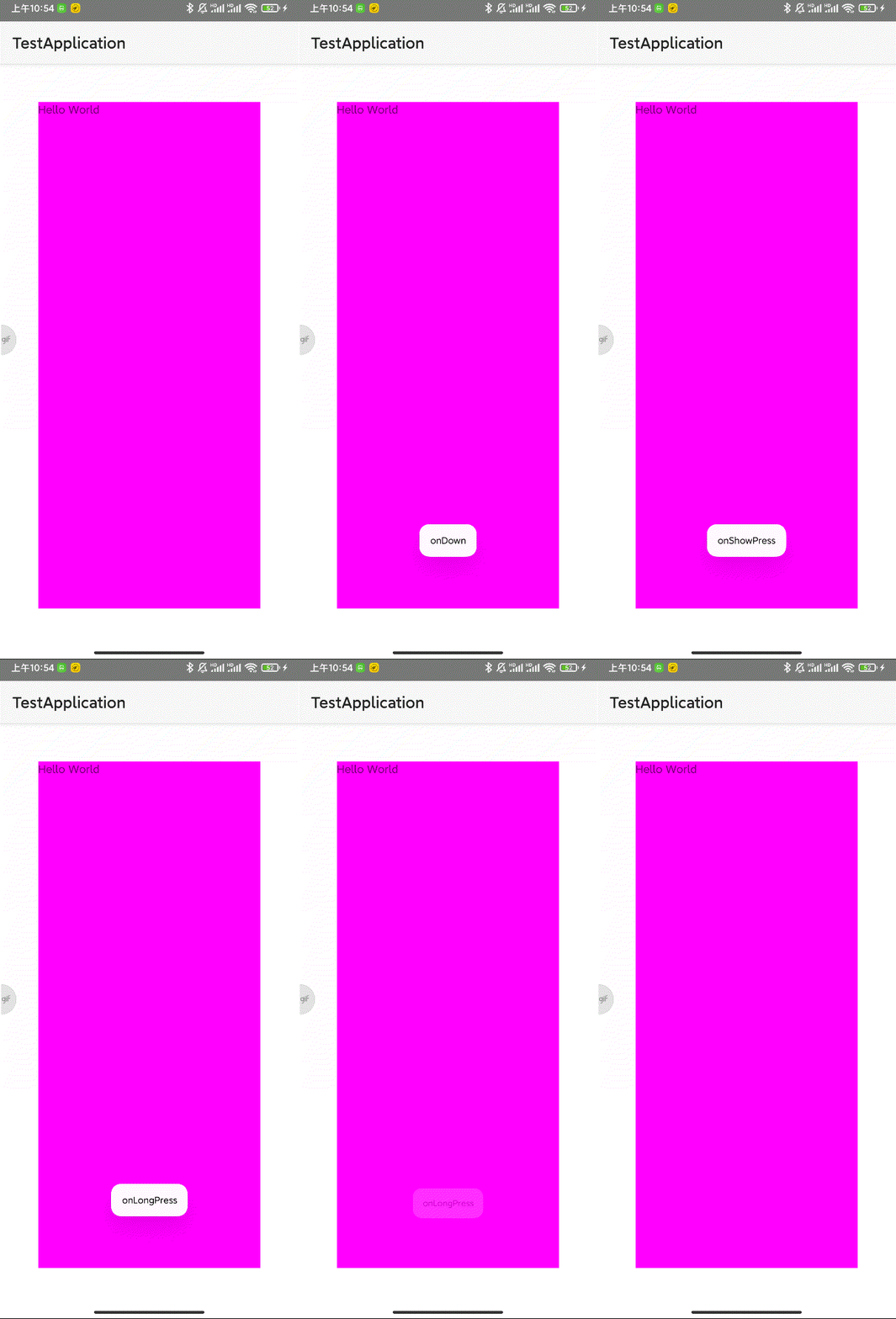
运行程序:
OnDoubleTapListener
如果我们写一个类并 implements OnDoubleTapListener后的代码:
public class Gesturelistener implements GestureDetector.OnDoubleTapListener {
    @Override
    public boolean onSingleTapConfirmed(MotionEvent e) {
        //单击事件,用来判定该次点击是SingleTap而不是DoubleTap
        //如果连续点击两次就是DoubleTap手势
        //如果只点击一次,系统等待一段时间后没有收到第二次点击则判定该次点击为SingleTap而不是DoubleTap,
        //然后触发SingleTapConfirmed事件
        return false;
    }

    @Override
    public boolean onDoubleTap(MotionEvent e) {
        //双击事件
        return false;
    }

    @Override
    public boolean onDoubleTapEvent(MotionEvent e) {
        //双击间隔中发生的动作。
        //指触发onDoubleTap以后,在双击之间发生的其它动作,包含down、up和move事件;
        return false;
    }
}
需要注意:要想使用OnDoubleTapListener的几个函数,就必须先实现OnGestureListener。
使用方法和刚才的接口类似。我们在上一个例子的基础上,再添加一个双击监听类,实现如下:
public class TestActivity extends AppCompatActivity implements View.OnTouchListener {
    private GestureDetector mGestureDetector;

    @Override
    protected void onCreate(Bundle savedInstanceState) {
        super.onCreate(savedInstanceState);
        setContentView(R.layout.activity_test);

        mGestureDetector = new GestureDetector(this,new gestureListener());
        mGestureDetector.setOnDoubleTapListener(new doubleTapListener());
        ......
    }
    ......
    //OnDoubleTapListener监听
    private class doubleTapListener implements GestureDetector.OnDoubleTapListener{

        public boolean onSingleTapConfirmed(MotionEvent e) {
            Log.i("MyGesture", "onSingleTapConfirmed");
            Toast.makeText(TestActivity.this, "onSingleTapConfirmed", Toast.LENGTH_LONG).show();
            return true;
        }

        public boolean onDoubleTap(MotionEvent e) {
            Log.i("MyGesture", "onDoubleTap");
            Toast.makeText(TestActivity.this, "onDoubleTap", Toast.LENGTH_LONG).show();
            return true;
        }

        public boolean onDoubleTapEvent(MotionEvent e) {
            Log.i("MyGesture", "onDoubleTapEvent");
            Toast.makeText(TestActivity.this, "onDoubleTapEvent", Toast.LENGTH_LONG).show();
            return true;
        }
    };
}
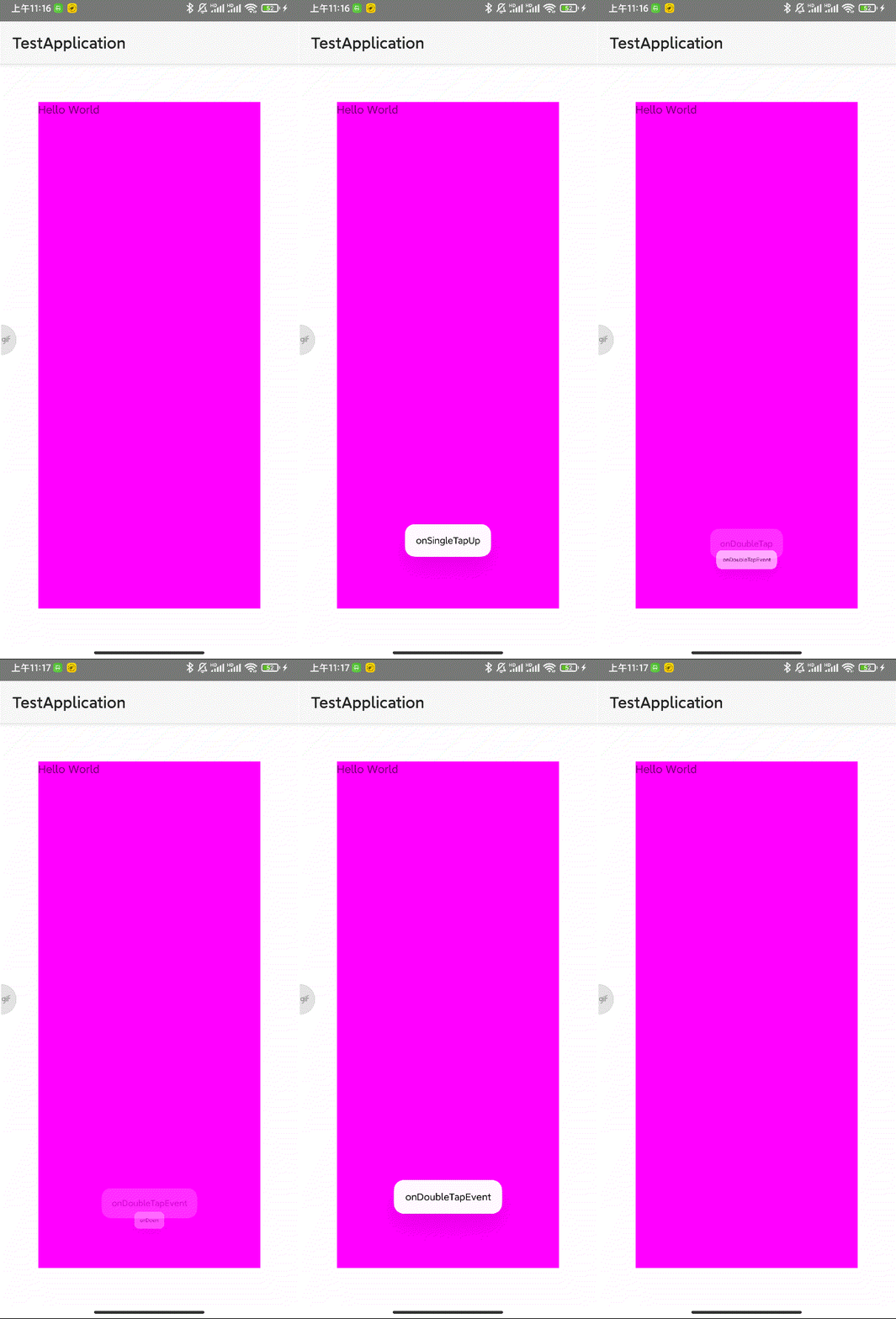
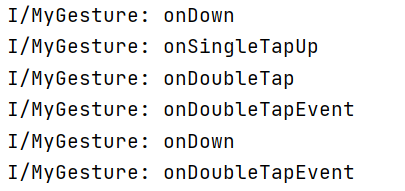
运行程序,我们双击一次
Log 日志:
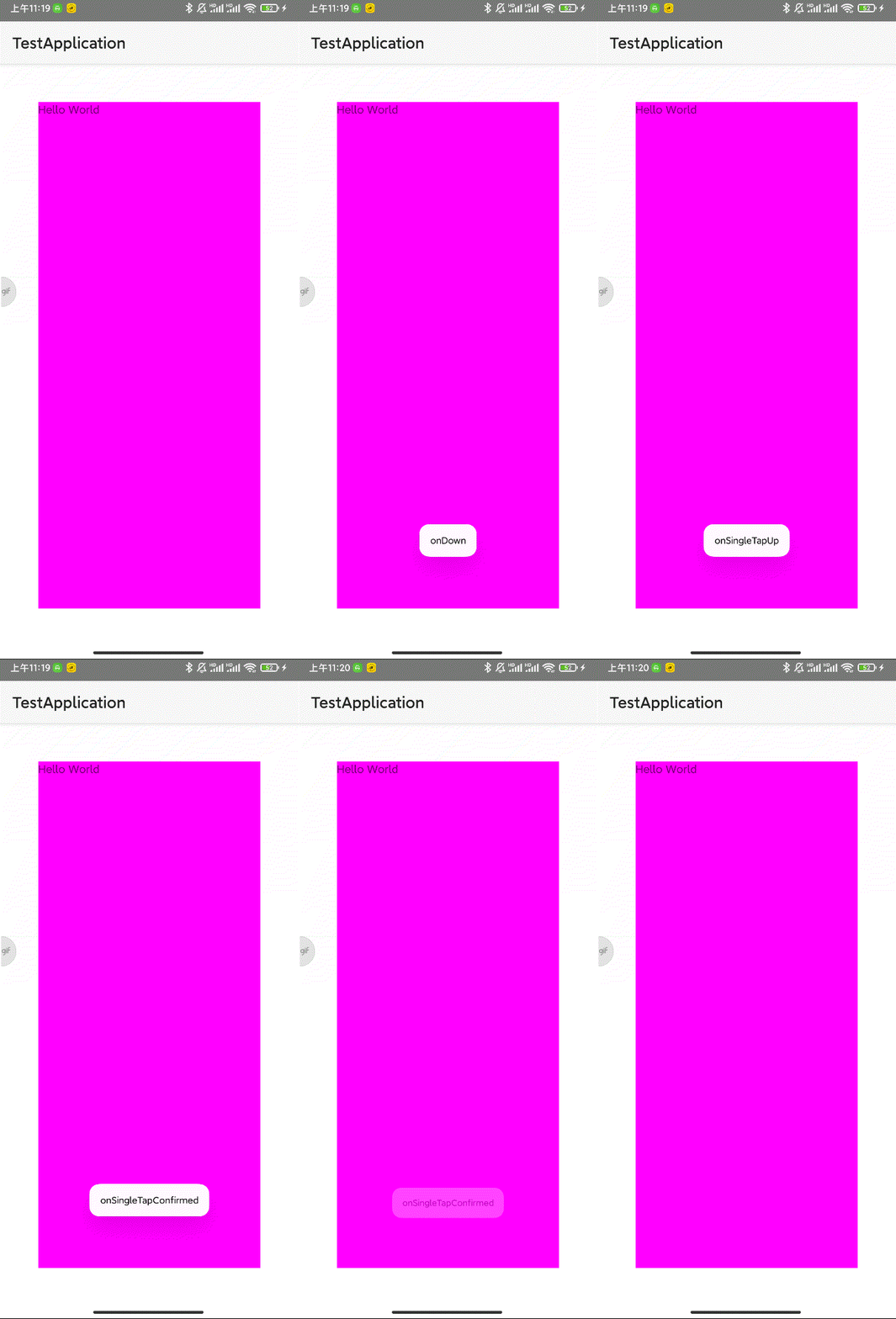
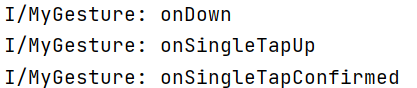
我们单击一次:
Log日志:
SimpleOnGestureListener类
它与前两个不同的是:
1、这是一个类,在它基础上新建类的话,要用 extends 派生而不是用 implements 继承
2、OnGestureListener 和 OnDoubleTapListener 接口里的函数都是强制必须重写的,即使用不到也要重写出来一个空函数,但在SimpleOnGestureListener类的实例或派生类中不必如此,可以根据情况,用到哪个函数就重写哪个函数,因为SimpleOnGestureListener类本身已经实现了这两个接口的所有函数,只是里面全是空的而已。
下面利用 SimpleOnGestureListener 类来重新实现上面的几个效果,代码如下:
public class TestActivity extends AppCompatActivity implements View.OnTouchListener {
    private GestureDetector mGestureDetector;

    @Override
    protected void onCreate(Bundle savedInstanceState) {
        super.onCreate(savedInstanceState);
        setContentView(R.layout.activity_test);

        mGestureDetector = new GestureDetector(this, new gestureListener());

        TextView tv = findViewById(R.id.tv);
        tv.setOnTouchListener(this);
        tv.setFocusable(true);
        tv.setClickable(true);
        tv.setLongClickable(true);
    }

    /*
     * 在onTouch()方法中,我们调用GestureDetector的onTouchEvent()方法,将捕捉到的MotionEvent交给GestureDetector
     * 来分析是否有合适的callback函数来处理用户的手势
     */
    @Override
    public boolean onTouch(View v, MotionEvent event) {
        return mGestureDetector.onTouchEvent(event);
    }

    private class gestureListener extends GestureDetector.SimpleOnGestureListener {

        /*****OnGestureListener的函数*****/
        public boolean onDown(MotionEvent e) {
            Log.i("MyGesture", "onDown");
            Toast.makeText(TestActivity.this, "onDown", Toast.LENGTH_SHORT)
                    .show();
            return false;
        }

        public void onShowPress(MotionEvent e) {
            Log.i("MyGesture", "onShowPress");
            Toast.makeText(TestActivity.this, "onShowPress", Toast.LENGTH_SHORT)
                    .show();
        }

        public boolean onSingleTapUp(MotionEvent e) {
            Log.i("MyGesture", "onSingleTapUp");
            Toast.makeText(TestActivity.this, "onSingleTapUp",
                    Toast.LENGTH_SHORT).show();
            return true;
        }

        public boolean onScroll(MotionEvent e1, MotionEvent e2,
                                float distanceX, float distanceY) {
            Log.i("MyGesture", "onScroll:" + (e2.getX() - e1.getX()) + "   "
                    + distanceX);
            Toast.makeText(TestActivity.this, "onScroll", Toast.LENGTH_LONG)
                    .show();

            return true;
        }

        public void onLongPress(MotionEvent e) {
            Log.i("MyGesture", "onLongPress");
            Toast.makeText(TestActivity.this, "onLongPress", Toast.LENGTH_LONG)
                    .show();
        }

        public boolean onFling(MotionEvent e1, MotionEvent e2, float velocityX,
                               float velocityY) {
            Log.i("MyGesture", "onFling");
            Toast.makeText(TestActivity.this, "onFling", Toast.LENGTH_LONG)
                    .show();
            return true;
        }

        /*****OnDoubleTapListener的函数*****/
        public boolean onSingleTapConfirmed(MotionEvent e) {
            Log.i("MyGesture", "onSingleTapConfirmed");
            Toast.makeText(TestActivity.this, "onSingleTapConfirmed",
                    Toast.LENGTH_LONG).show();
            return true;
        }

        public boolean onDoubleTap(MotionEvent e) {
            Log.i("MyGesture", "onDoubleTap");
            Toast.makeText(TestActivity.this, "onDoubleTap", Toast.LENGTH_LONG)
                    .show();
            return true;
        }

        public boolean onDoubleTapEvent(MotionEvent e) {
            Log.i("MyGesture", "onDoubleTapEvent");
            Toast.makeText(TestActivity.this, "onDoubleTapEvent",
                    Toast.LENGTH_LONG).show();
            return true;
        }
    }
}
应用:识别向左滑还是向右滑
我们利用OnFling函数来识别当前用户是在向左滑还是向右滑。首先看下这个函数:
public boolean onFling(MotionEvent e1, MotionEvent e2, float velocityX,
                               float velocityY) {
	参数解释:
	e1:第1个ACTION_DOWN MotionEvent
	e2:最后一个ACTION_MOVE MotionEvent
	velocityX:X轴上的移动速度,像素/秒
	velocityY:Y轴上的移动速度,像素/秒
}
思路:当用户向左滑动距离超过 100px,且滑动速度超过 100 px/s 时,即判断为向左滑动;向右同理。代码如下:
public class TestActivity extends AppCompatActivity implements View.OnTouchListener {
    private GestureDetector mGestureDetector;

    @Override
    protected void onCreate(Bundle savedInstanceState) {
        super.onCreate(savedInstanceState);
        setContentView(R.layout.activity_test);

        mGestureDetector = new GestureDetector(this, new gestureListener());

        TextView tv = findViewById(R.id.tv);
        tv.setOnTouchListener(this);
        tv.setFocusable(true);
        tv.setClickable(true);
        tv.setLongClickable(true);
    }

    /*
     * 在onTouch()方法中,我们调用GestureDetector的onTouchEvent()方法,将捕捉到的MotionEvent交给GestureDetector
     * 来分析是否有合适的callback函数来处理用户的手势
     */
    @Override
    public boolean onTouch(View v, MotionEvent event) {
        return mGestureDetector.onTouchEvent(event);
    }

    private class gestureListener extends GestureDetector.SimpleOnGestureListener {

        /*****OnGestureListener的函数*****/
        final int FLING_MIN_DISTANCE = 100, FLING_MIN_VELOCITY = 200;

        // 触发条件 :
        // X轴的坐标位移大于FLING_MIN_DISTANCE,且移动速度大于FLING_MIN_VELOCITY个像素/秒
        public boolean onFling(MotionEvent e1, MotionEvent e2, float velocityX,
                               float velocityY) {

            if (e1.getX() - e2.getX() > FLING_MIN_DISTANCE
                    && Math.abs(velocityX) > FLING_MIN_VELOCITY) {
                // Fling left
                Log.i("MyGesture", "Fling left");
                Toast.makeText(TestActivity.this, "Fling Left", Toast.LENGTH_SHORT).show();
            } else if (e2.getX() - e1.getX() > FLING_MIN_DISTANCE
                    && Math.abs(velocityX) > FLING_MIN_VELOCITY) {
                // Fling right
                Log.i("MyGesture", "Fling right");
                Toast.makeText(TestActivity.this, "Fling Right", Toast.LENGTH_SHORT).show();
            }
            return true;
        }
    }
}
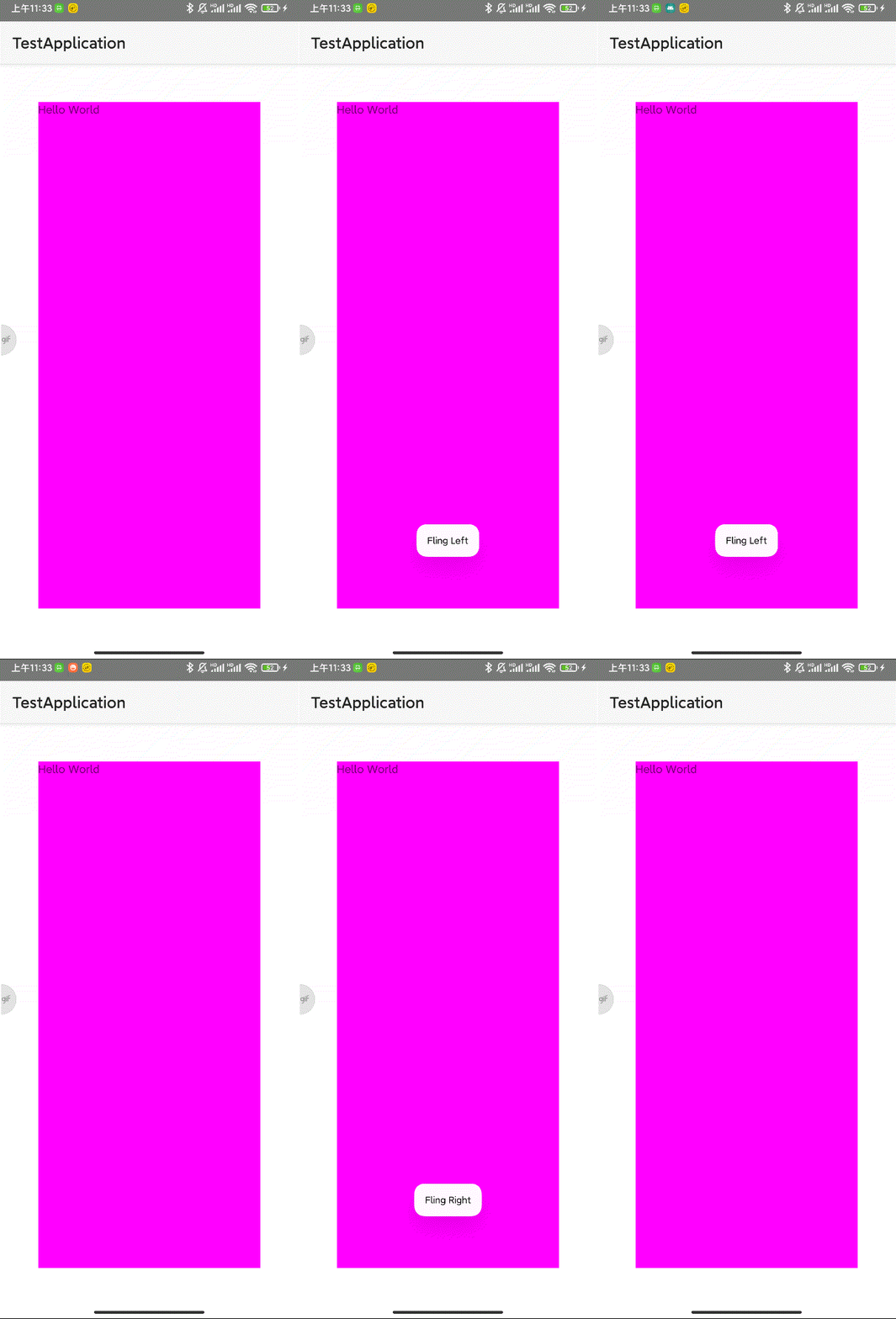
运行程序后,我们分别向左和向右滑动一次:
参考:
用户手势检测-GestureDetector使用详解