

文章目录
代码片段设置
因为我启用了esline挺严格的,所以编辑器自带的console最后会添加“;”,导致检查错误。
文件》首选项》用户片段》新建片段(如果之前就有设置,就在之前的改就行)

这里边还包含vue文件的模板
{
  // Place your 全局 snippets here. Each snippet is defined under a snippet name and has a scope, prefix, body and
  // description. Add comma separated ids of the languages where the snippet is applicable in the scope field. If scope
  // is left empty or omitted, the snippet gets applied to all languages. The prefix is what is
  // used to trigger the snippet and the body will be expanded and inserted. Possible variables are:
  // $1, $2 for tab stops, $0 for the final cursor position, and ${1:label}, ${2:another} for placeholders.
  // Placeholders with the same ids are connected.
  // Example:
  // "Print to console": {
  // 	"scope": "javascript,typescript",
  // 	"prefix": "log",
  // 	"body": [
  // 		"console.log('$1');",
  // 		"$2"
  // 	],
  // 	"description": "Log output to console"
  // }
  "c": { // vue-template 为快捷键的名字
    // "scope": "vue-html",     //这里可以设置作用域,只能在`<template>`里面显示 。不过我这个片段不需要设置
    "prefix": "c",
    "body": [
      "console.log('$1')"
    ],
    "description": "your build code"
  },
  "vue-template": { // vue-template 为快捷键的名字
    // "scope": "vue-html",     //这里可以设置作用域,只能在`<template>`里面显示 。不过我这个片段不需要设置
    "prefix": "vue-template",
    "body": [
      "<template>",
      "  <h1>Template</h1>",
      "</template>",
      "",
      "<script>",
      "export default {",
      "  name:'$1',",
      "  data () {",
      "    return {",
      "      ",
      "    }",
      "  },",
      "  props: {",
      "    prop: {",
      "      type: String,",
      "      required: false",
      "    }",
      "  },",
      "  components: {",
      "    ",
      "  },",
      "  computed: {",
      "    ",
      "  },",
      "  watch: {",
      "    ",
      "  },",
      "  methods: {",
      "  // type your function",
      "    ",
      "  },",
      "  created () {",
      "    ",
      "  },",
      "  mounted () {",
      "    ",
      "  },",
      "  updated () {",
      "    ",
      "  },",
      "  filters: {",
      "    ",
      "  }",
      "}",
      "</script>",
      "",
      "<style scoped lang='less'>",
      "",
      "</style>",
      "",
    ],
    "description": "your build code"
  }
}
插件安装
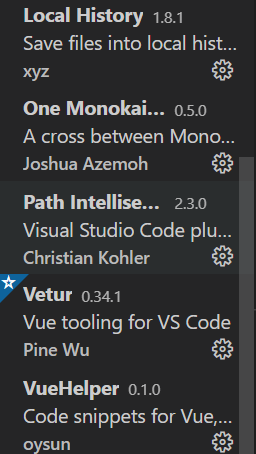
其中有汉化包,代码提示,git,历史记录插件,格式化插件
全局设置
文件》首选项》设置
path-intellisense设置不知道为啥不起作用,很费解有知道的同学可以留言告诉我一下大家一起进步
{
  // vscode默认启用了根据文件类型自动设置tabsize的选项
  "editor.detectIndentation": false,
  // 重新设定tabsize
  "editor.tabSize": 2,
  // #每次保存的时候自动格式化
  "editor.formatOnSave": true,
  // #每次保存的时候将代码按eslint格式进行修复,vscode es6语法检测配置
  "editor.codeActionsOnSave": {
    "source.fixAll.eslint": true
  },
  // "eslint.autoFixOnSave": true,
  "explorer.confirmDragAndDrop": false,
  //  #让函数(名)和后面的括号之间加个空格
  "javascript.format.insertSpaceBeforeFunctionParenthesis": true,
  // #这个按用户自身习惯选择
  "vetur.format.defaultFormatter.html": "js-beautify-html",
  // #让vue中的js按编辑器自带的ts格式进行格式化
  "vetur.format.defaultFormatter.js": "vscode-typescript",
  "vetur.format.defaultFormatterOptions": {
    "js-beautify-html": {
      "wrap_attributes": "force-aligned"
    },
    "prettyhtml": {
      "printWidth": 100,
      "singleQuote": false,
      "wrapAttributes": false,
      "sortAttributes": false
    }
  },
  /*  prettier的配置 */
  // "prettier.printWidth": 100, // 超过最大值换行
  "prettier.tabWidth": 2, // 缩进字节数
  "prettier.useTabs": false, // false缩进不使用tab,使用空格
  "prettier.semi": true, // true句尾添加分号
  "prettier.singleQuote": true, // true使用单引号代替双引号
  "prettier.proseWrap": "preserve", // 默认值。因为使用了一些折行敏感型的渲染器(如GitHub comment)而按照markdown文本样式进行折行
  "prettier.arrowParens": "avoid", //  (x) => {} 箭头函数参数只有一个时是否要有小括号。avoid:省略括号
  "prettier.bracketSpacing": true, // 在对象,数组括号与文字之间加空格 "{ foo: bar }"
  "prettier.disableLanguages": [
    "vue"
  ], // 不格式化vue文件,vue文件的格式化单独设置
  "prettier.endOfLine": "auto", // 结尾是 \n \r \n\r auto
  "prettier.eslintIntegration": false, //不让prettier使用eslint的代码格式进行校验
  "prettier.htmlWhitespaceSensitivity": "ignore",
  "prettier.ignorePath": ".prettierignore", // 不使用prettier格式化的文件填写在项目的.prettierignore文件中
  "prettier.jsxBracketSameLine": false, // 在jsx中把'>' 是否单独放一行
  "prettier.jsxSingleQuote": false, // 在jsx中使用单引号代替双引号
  "prettier.parser": "babylon", // 格式化的解析器,默认是babylon
  "prettier.requireConfig": false, // Require a 'prettierconfig' to format prettier
  "prettier.stylelintIntegration": false, //不让prettier使用stylelint的代码格式进行校验
  "prettier.trailingComma": "es5", // 在对象或数组最后一个元素后面是否加逗号(在ES5中加尾逗号)
  "prettier.tslintIntegration": false, // 不让prettier使用tslint的代码格式进行校验
  // ===========以下4个是控制保存时自动格式化的,并且以4格缩进================
  "editor.tabCompletion": "on",
  // ===========以下是根据自己需求配置的============================
  "editor.suggest.snippetsPreventQuickSuggestions": true, //自动补全的
  "editor.quickSuggestionsDelay": 10, // 控制延迟多少毫秒后将显示快速建议
  "explorer.confirmDelete": true, // 自动补全
  // 控制编辑器是否应该在左括号后自动插入右括号
  "editor.autoClosingBrackets": "always",
  "editor.formatOnType": true, // 控制编辑器是否应在键入后自动设置行的格式
  "editor.fontLigatures": false, // 启用字体连字
  "[json]": {},
  "workbench.sideBar.location": "left",
  "editor.wordWrap": "on", // 控制折行方式。可以选择: - “off” (禁用折行), - “on” (视区折行), - “wordWrapColumn”(在“editor.wordWrapColumn”处折行)或 - “bounded”(在视区与“editor.wordWrapColumn”两者的较小者处折行)。
  // 两个选择器中是否换行
  "editor.parameterHints": true,
  "editor.quickSuggestions": {
    "other": true,
    "comments": true,
    "strings": true
  },
  "git.confirmSync": true, // *** 这个是提示空格的点点
  "typescript.format.insertSpaceAfterSemicolonInForStatements": false,
  "search.exclude": {
    "**/node_modules": true,
    "**/bower_components": true,
    "**/dist": true
  },
  "emmet.includeLanguages": {
    "vue-html": "html",
    "vue": "html",
    "javascript": "javascriptreact",
    "wxml": "html"
  },
  "auto-close-tag.activationOnLanguage": [
    "xml",
    "php",
    "blade",
    "ejs",
    "jinja",
    "javascript",
    "javascriptreact",
    "typescript",
    "typescriptreact",
    "plaintext",
    "markdown",
    "vue",
    "liquid",
    "erb",
    "lang-cfml",
    "cfml",
    "HTML (Eex)"
  ],
  "eslint.options": {
    "extensions": [
      ".js",
      ".vue"
    ]
  },
  "vsintellicode.modify.editor.suggestSelection": "automaticallyOverrodeDefaultValue",
  "launch": {},
  //-------- 路径补全 ----------
  "path-intellisense.mappings": {
    "@": "${workspaceRoot}/src"
  },
  "path-intellisense.autoSlashAfterDirectory": true, //自动添加/
  "path-intellisense.extensionOnImport": false, //添加扩展名
  "path-intellisense.showHiddenFiles": true, //显示隐藏文件
  //-------- 文件配置 --------
  "files.trimTrailingWhitespace": false, // 启用后,将在保存文件时剪裁尾随空格。
  "files.autoSave": "off", //自动保存
  "files.exclude": {
    "**/.classpath": true,
    "**/.project": true,
    "**/.settings": true,
    "**/.factorypath": true
  },
  //-------- 窗口设置 --------
  "window.openFilesInNewWindow": "on", // 启用后,将在新窗口中打开文件,而不是重复使用现有实例。
}