小知识,大挑战!本文正在参与“程序员必备小知识”创作活动。
> 在本教程中,我们将介绍如何在 Flutter 应用程序中显示应用程序通知。我们将通过添加[overlay_support](https://pub.dev/packages/overlay_support)包开始
overlay_support: ^1.0.0
要使用 Overlay 功能,我们必须将 Material 应用程序包装在`OverlaySupport`小部件中。
class MyApp extends StatelessWidget { @override Widget build(BuildContext context) { return OverlaySupport( child: MaterialApp( title: 'Flutter Demo', home: Scaffold(), ), ); } }
我们将显示对通知覆盖的修改。图书馆还可以做更多的吐司,你可以进入。我们将涵盖:

1.  自动关闭的基本通知
1.  修复了带有关闭按钮的通知
1.  消息样式自定义通知

我们将在脚手架的 FloatingActionButton 中的 onPressed 回调中编写所有代码,因此也进行设置。
Widget build(BuildContext context) { return OverlaySupport( .. home: Scaffold( floatingActionButton: FloatingActionButton( onPressed: () { // notification code will go here }, ) ), ); }
## 基本通知

我们将从基本通知开始。带有一些文本的紫色通知
showSimpleNotification( Text("Subscribe to FilledStacks"), background: Colors.purple, );
## 修复了带有关闭按钮的通知
为了在不自动关闭的情况下保留通知,我们设置`autoDismiss`为 false。我们不希望通知一直停留在那里,因此我们将构建一个尾随按钮,用户可以点击以关闭它。
showSimpleNotification( Text("Subscribe to FilledStacks"), background: Colors.purple, autoDismiss: false, trailing: Builder(builder: (context) { return FlatButton( textColor: Colors.yellow, onPressed: () { OverlaySupportEntry.of(context).dismiss(); }, child: Text('Dismiss')); }), );
## 自定义通知
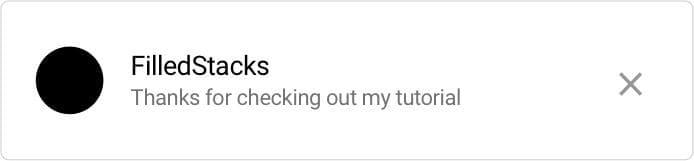
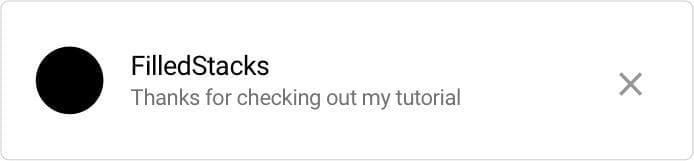
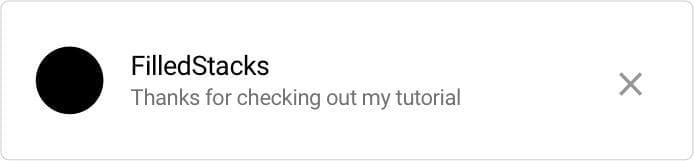
要显示一些自定义 UI,您可以使用该`showOverlayNotification`功能。它需要一个构建器作为第一个位置参数。我们将返回一个带有一些边距的 Card,我们将把卡片的内容包装在一个 SafeArea 中,因为它会显示在屏幕顶部,凹口可能会干扰。通知的内容将是具有所有属性集的基本 ListTile。
showOverlayNotification((context) { return Card( margin: const EdgeInsets.symmetric(horizontal: 4), child: SafeArea( child: ListTile( leading: SizedBox.fromSize( size: const Size(40, 40), child: ClipOval( child: Container( color: Colors.black, ))), title: Text('FilledStacks'), subtitle: Text('Thanks for checking out my tutorial'), trailing: IconButton( icon: Icon(Icons.close), onPressed: () { OverlaySupportEntry.of(context).dismiss(); }), ), ), ); }, duration: Duration(milliseconds: 4000));
如果您有多个消息要显示,您可以构建一个通知小部件,您可以传入标题和消息。