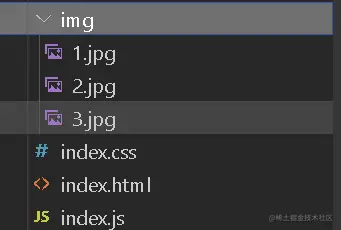
目录结构
HTML代码
<html lang="en">

<head>
    <meta charset="UTF-8">
    <meta http-equiv="X-UA-Compatible" content="IE=edge">
    <meta name="viewport" content="width=device-width, initial-scale=1.0">
    <title>Document</title>
    <link href="./index.css" rel="stylesheet">

</head>

<body>
    <div class="wrap">
        <!-- 把图片放进一个盒子里 设置相对定位 -->
        <div class="imgList">
            <img src="./img/1.jpg" alt="">
            <img src="./img/2.jpg" alt="">
            <img src="./img/3.jpg" alt="">
        </div>
        <!-- 缩略图 -->
        <div class="smallImg">
            <img src="./img/1.jpg" alt="">
            <img src="./img/2.jpg" alt="">
            <img src="./img/3.jpg" alt="">
        </div>
        <!-- 左右方向按键 -->
        <div class="fx">
            <div class="left"> < </div>
            <div class="right">></div>
        </div>
</body>

</html>
<script src="./index.js"></script>
CSS代码
  padding: 0;
  margin: 0;
}
.wrap {
    overflow: hidden;
  width: 1000px;
  position: relative;
  margin: 0 auto;
}
.imgList {

  display: flex;
  position: relative;
  left: 0;
  transition: 0.5s ease;
}
.imgList img {
  width: 1000px;
  height: 100%;
}

.smallImg {
  position: absolute;
  top: 80%;
  left: 30%;
}
.smallImg img {
  width: 100px;
  height: 100%;
  filter: brightness(120%);
}
.smallImg img:first-child{
    filter: grayscale(90%);
}

.fx{
    width: 1000px;
    display: flex;
    justify-content: space-between;
    position: absolute;
    top: 40%;
}
.left, .right{
    width: 50px;
    height: 70px;
    line-height: 70px;
    background-color: rgba(0, 0, 0,.5);
    text-align: center;
    color: white;
}
js代码
let rightBtn = document.querySelector('.right')
let imgList = document.querySelector('.imgList')

let index = 0
// clone第一个图片放置最后 实现无缝连接
let cloneImg = imgList.firstElementChild.cloneNode()
imgList.appendChild(cloneImg)
// 右按钮
rightBtn.onclick = function () {
    Rbtn()
}
// 左按钮
leftBtn.onclick = function () {
    if (index === 0) {
        index = 3
        imgList.style.transition = 'none'
        imgList.style.left = index * -1000 + 'px'
        // 定时器设为0 那么他会在上面的代码执行后立即执行
        setTimeout(() => {
            index--
            imgList.style.transition = '.5s ease'
            imgList.style.left = index * -1000 + 'px'
            lvj(index)
        }, 0);
    } else {
        index--
        lvj(index)
        imgList.style.left = index * -1000 + 'px'
    }
}
// 给缩略图的小图片设置点击事件 实现点击切换
let smallImg = document.querySelectorAll('.smallImg img')
for (let i = 0; i < smallImg.length; i++) {
    smallImg[i].onclick = function () {
        index = i
        imgList.style.transition = '.5s ease'
        imgList.style.left = index * -1000 + 'px'
        lvj(index)
    }
}
// 右点击事件 自动切换也调用此函数
function Rbtn () {
    index++
    // 当切换到克隆的那张图片时
    if (index === 3) {
        imgList.style.left = index * -1000 + 'px'
        lvj(index)
        // 在0.5s切换成功后 清除transition 立马把index设置成第一张图片(下标0)
        setTimeout(() => {
            index = 0
            imgList.style.transition = 'none'
            imgList.style.left = index * -1000 + 'px'
        }, 500);
    }
    imgList.style.transition = '.5s ease'
    imgList.style.left = index * -1000 + 'px'
    lvj(index)
}
// 缩略图滤镜函数
function lvj (index) {
    if (index === 3) index = 0
    for (let i = 0; i < smallImg.length; i++) {
        smallImg[i].style.filter = 'brightness(120%)'
    }
    smallImg[index].style.filter = 'grayscale(90%)'
}

setInterval(Rbtn, 1000);