Echart是我们前端常用的数据可视化框架,它是一个纯 Javascript 的图表库,兼容当前绝大部分浏览器(IE8/9/10/11,Chrome,Firefox,Safari等),底层依赖轻量级的 Canvas 类库 ZRender,提供直观,生动,可交互,可高度个性化定制的数据可视化图表。
Echart提供了常规的折线图,柱状图,散点图,饼图,K线图,用于统计的盒形图,用于地理数据可视化的地图,热力图,线图,用于关系数据可视化的关系图,treemap,多维数据可视化的平行坐标,还有用于 BI 的漏斗图,仪表盘,并且支持图与图之间的混搭。
这么多的知识点,怎么可能一下就记住呢?反正我是不能,除了工作之中要经常使用掌握它之外,还得多查查它的文档,遇到问题多查查资料,问问百度大神什么滴,好了,不再啰嗦了,我把一些经常用到,但是容易忽略、或者忘记的知识点记录了下来(或许对于经常用它的同学,可能会觉得没什么),方便自己和大家查阅,如果您发现有什么不对的地方,也欢迎提出来。记录的知识点可能大多直接用的截图红框标识,我没有使用文字一点点描述,如果有时间,我会慢慢补充完整,下面进入正题。
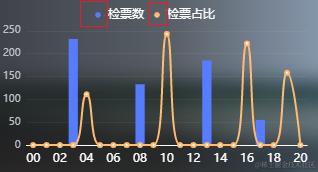
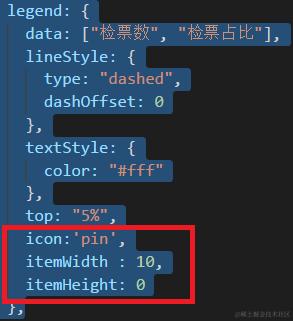
1、设置图例legend文字前icon为小圆点
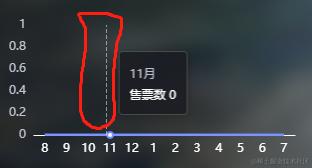
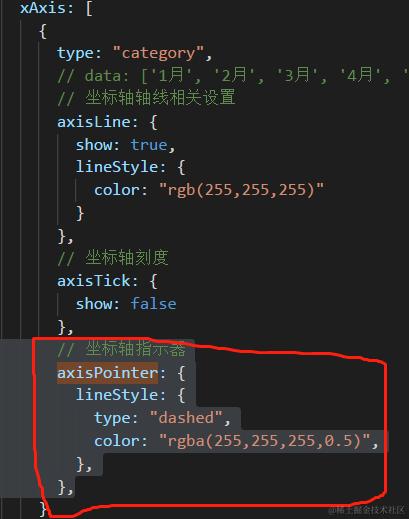
2、设置x 轴上坐标轴指示器虚线显示
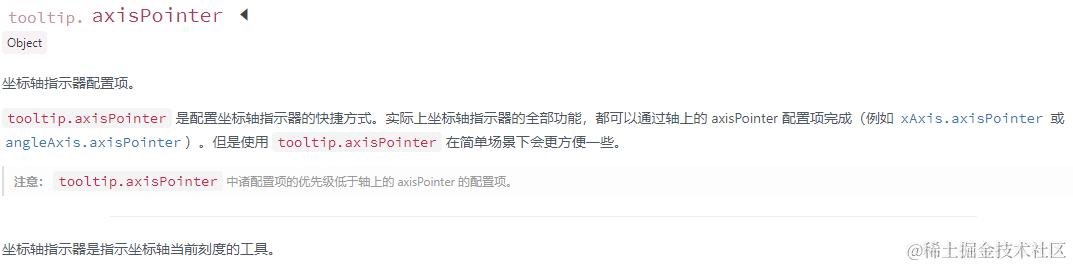
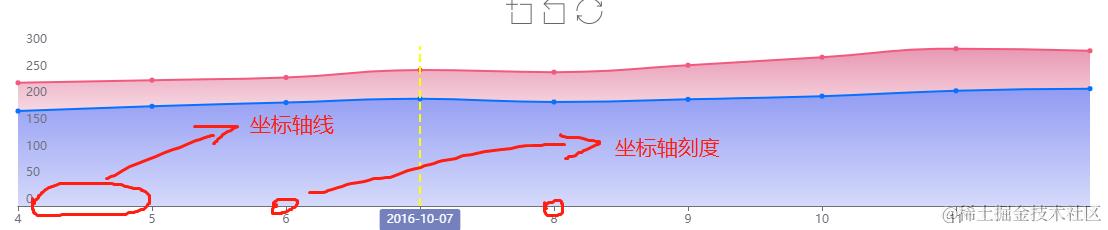
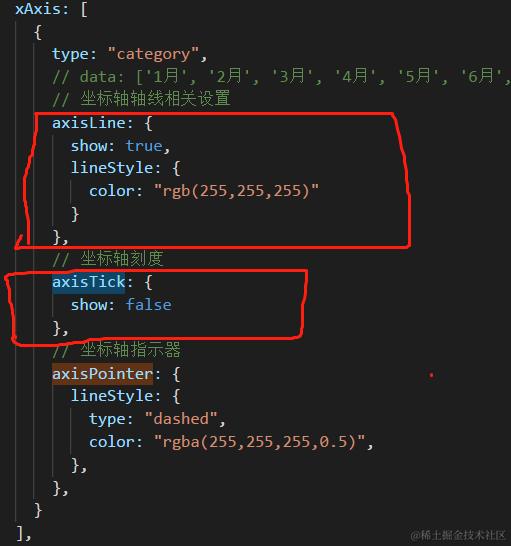
3、设置x 轴上坐标轴线axisLine样式、坐标轴刻度axisTick
4、设置坐标轴在 grid 区域中的分隔线(yAxis. splitLine)
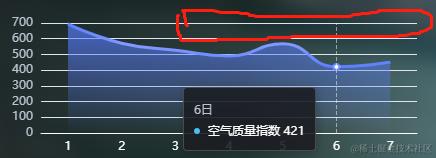
yAxis: {
  axisLabel: {
    color: "#bdc2d0",
  },
  splitLine: {
    show: true, // 设为false去除网格线
  },
},
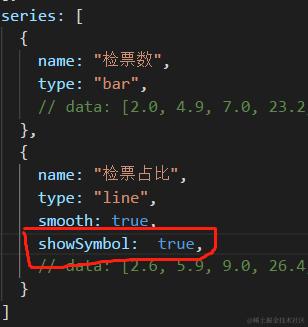
5、设置折线图上的标记symbol是否显示(showSymbol)
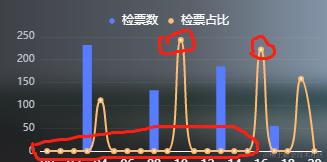
showSymbol :是否显示symbol, 如果值为false 则只有在 tooltip hover 的时候显示。
6、自定义提示框tootip
效果图:
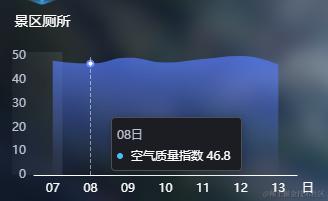
代码:
tooltip: {

  trigger: "axis",

  backgroundColor: "rgba(27,29,34,0.9)",

  borderColor: "rgba(79,79,79,1)",

  axisPointer: {

    lineStyle: {

      type: "dashed",

      color: "rgba(255,255,255,0.5)",

    },

  },
  formatter: (data) => {

    // console.log('--------formatter----------')

    // console.log(this.moduleTabIndex)

    // console.log(JSON.stringify(data))

    let unit = "";

    switch (this.moduleTabIndex) {

      case 0:

        unit = "时";

        break;

      case 1:

        unit = "日";

        break;

      case 2:

        unit = "日";

        break;

      case 3:

        unit = "月";

        break;

    }
    let temp = `<div class="tooltip-wrapper"><h4 class="tooltip-label mr5"> ${data[0].name}${unit}</h4>`;

    data.forEach((its) => {

      temp += `

      <div class="row">

        <span class="col tooltip-icon" style="background:${

          its.color

        }"></span>

        <span class="col tooltip-name">${its.seriesName}</span>

        <span class="col tooltip-value">${parseFloat(

          its.value

        ).toLocaleString()}</span>

      </div>

      `;

    });

    return temp + "</div>";

  },

},
// 自定义tooltip结构样式

.tooltip-wrapper {

  font-size: 12px;

  .tooltip-label {

    color: #fff;

    font-weight: normal;

  }

  .row {

    overflow: hidden;

    line-height: 24px;

    height: 24px;

    .col{

      float: left;

      color: #fff;

    }

    .tooltip-icon {

      width: 6px;

      height: 6px;

      border-radius: 3px;

      margin-top:10px;

      margin-right: 5px;;

    }

    .tooltip-name {

      margin-right: 12px;

    }

    .tooltip-value {

      float: right;

      text-align: right;

    }

  }

}
7、ECharts为轴线(Y轴/X轴)上每一个数据添加单位
yAxis : [

   {

      type : 'value',

      max:100,  //Y轴最大值 不写的话自动调节

      axisLabel:{formatter:'{value} %'}

   }

]
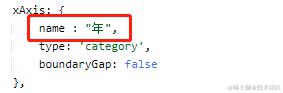
8、ECharts如何在轴线(Y轴/X轴)末尾添加单位
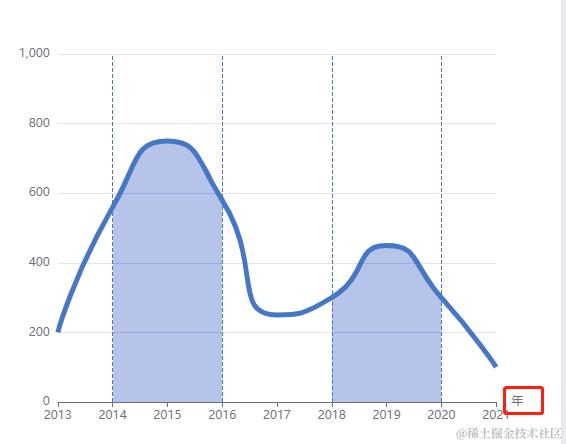
在xAxis和yAxis中添加name即可
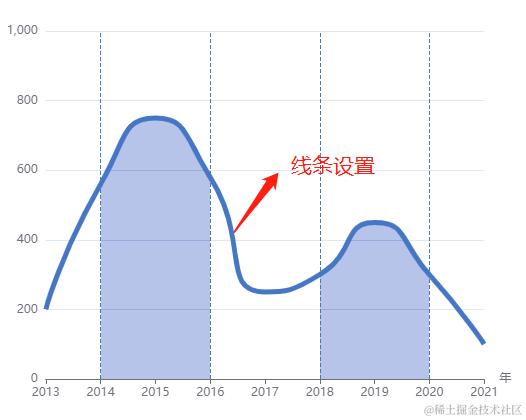
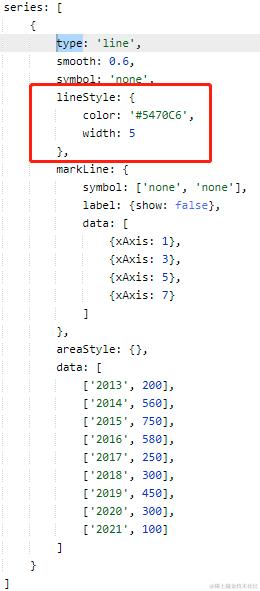
9、设置折线图线条样式
10、设置图表标线markLine
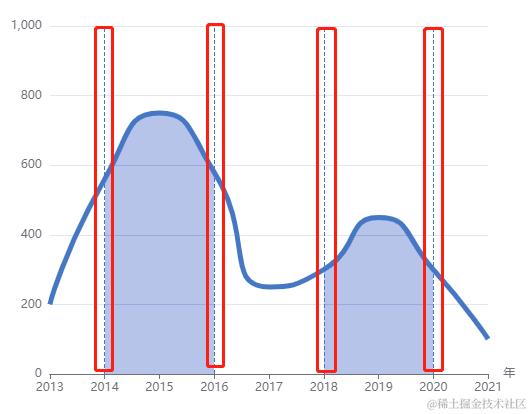
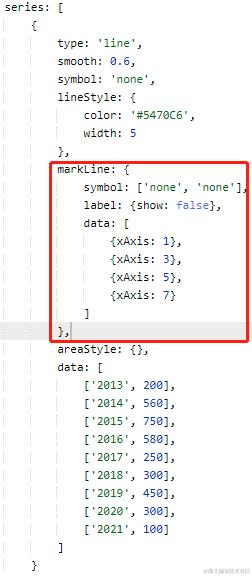
markLine: {

  symbol: ['none', 'none'],

  label: {show: false},

  data: [

    {xAxis: 1},

    {xAxis: 3},

    {xAxis: 5},

    {xAxis: 7}

  ]

},
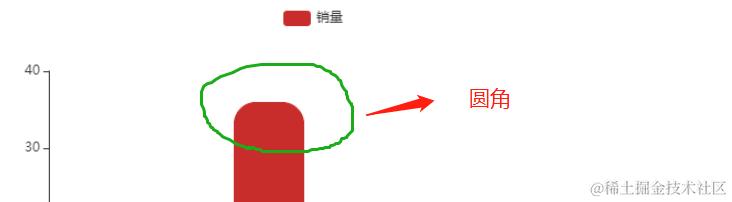
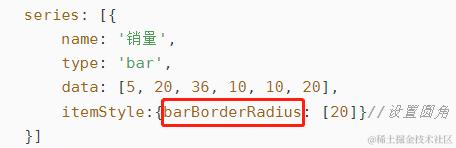
11、设置柱状图为圆角
12、设置柱状图颜色透明渐变
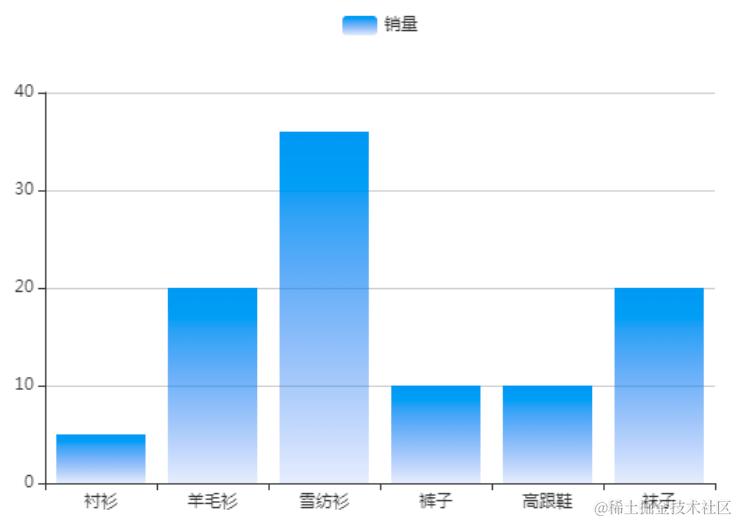
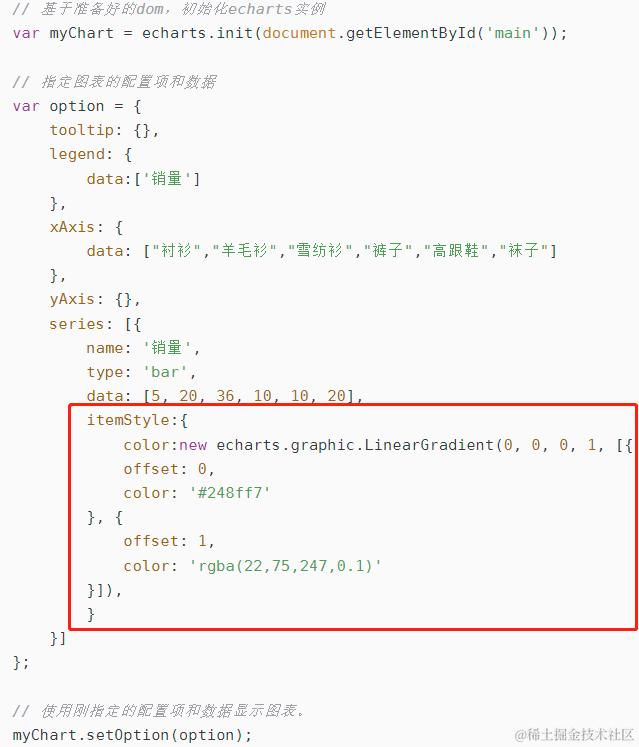
关键代码:
itemStyle: {

  color: new echarts.graphic.LinearGradient(0, 0, 0, 1, [{

    offset: 0,

    color: '#248ff7'

  }, {

    offset: 1,

    color: 'rgba(22,75,247,0.1)'

  }]),

}
ECharts color属性设置(RGB,透明度,线性渐变,径向渐变,纹理填充),上方代码也可这样写:
itemStyle: {

  // 线性渐变,前四个参数分别是 x0, y0, x2, y2, 范围从 0 - 1,相当于在图形包围盒中的百分比,如果 globalCoord 为 `true`,则该四个值是绝对的像素位置

  color: {

    type: 'linear',

    x: 0,

    y: 0,

    x2: 0,

    y2: 1,

    colorStops: [{

      offset: 0, color: 'red' // 0% 处的颜色

    }, {

      offset: 1, color: 'blue' // 100% 处的颜色

    }],

    global: false // 缺省为 false

  }

}
13、使用series.itemStyle.color给柱状图设置不同的柱体颜色
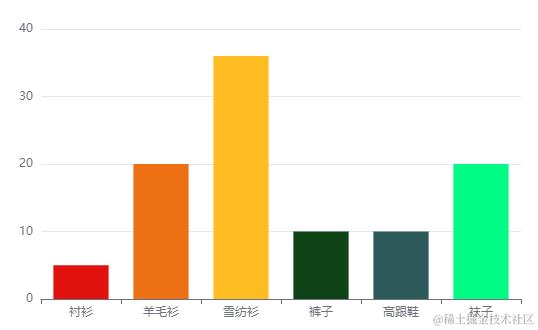
var myChart = echarts.init(document.getElementById('main'));

// 指定图表的配置项和数据

var option = {

  // title: {

  //   text: '第一个 ECharts 实例'

  // },

  tooltip: {},

  // legend: {

  //   data: ['销量']

  // },
  xAxis: {

    data: ["衬衫", "羊毛衫", "雪纺衫", "裤子", "高跟鞋", "袜子"]

  },

  yAxis: {

  },
  series: [{

    name: '销量',

    type: 'bar',

    data: [5, 20, 36, 10, 10, 20],

    itemStyle: {

      color: function (params) {

        var colorlist = ['#DA251D', '#E67716', '#FBC300', '#11440f', '#32585a', '#00ff77'];

        return colorlist[params.dataIndex];

      }

    }

  }]

};
myChart.setOption(option);
同理,要设置折线颜色只需要series数组对象里面设置type修改为 'line',设置lineStyle的color即可,设置小圆点颜色只需要设置itemStyle的颜色即可。
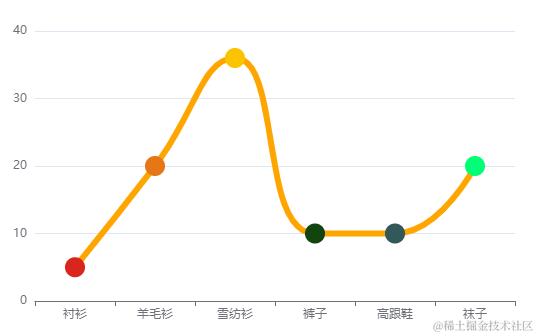
var myChart = echarts.init(document.getElementById('main'));

// 指定图表的配置项和数据

var option = {

  // title: {

  //   text: '第一个 ECharts 实例'

  // },

  tooltip: {},

  // legend: {

  //   data: ['销量']

  // },

  xAxis: {

    data: ["衬衫", "羊毛衫", "雪纺衫", "裤子", "高跟鞋", "袜子"]

  },
  yAxis: {

  },

  series: [{

    name: '销量',

    type: 'line',

    data: [5, 20, 36, 10, 10, 20],

    smooth:true, // 折点是圆弧状的

    showSymbol: true, // 是否显示线条上的点

    symbol: 'circle',  // 折点设定为实心点

    symbolSize: 20,   // 线条上实心点的大小

    hoverAnimation: false,

    itemStyle: {

      normal: {

        // 线条上实心点颜色

        color: function (params) {

          var colorlist = ['#DA251D', '#E67716', '#FBC300', '#11440f', '#32585a', '#00ff77'];

          return colorlist[params.dataIndex];

        },

        // //  线条样式设置

        // lineStyle: {

        //   color: "orange",  // 线条宽度

        //   width : 6  // 线条颜色

        // }

      }

    },

    //  线条样式设置

    lineStyle: {

      color: "orange",  // 线条宽度

      width : 6  // 线条颜色

    }

  }]

};

myChart.setOption(option);
注意:这里的lineStyle写在这两个地方都能生效
14、X轴、Y轴label文字过长的几种处理方式
晚些补充上
15、Echarts绘制横向柱状图(圆角、无坐标轴)
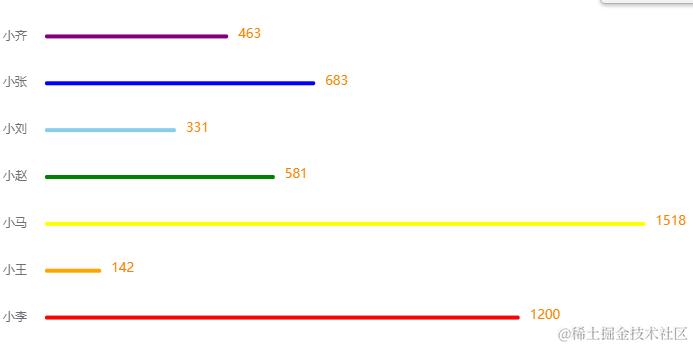
关键点:
纵向柱状图:xAxis.type='category',yAxis.type='value'

横向柱状图:xAxis.type='value',yAxis.type='category'
var myChart = echarts.init(document.getElementById('main'));

//初始化数据

var categoryList = ['小李', '小王', '小马', '小赵', '小刘', '小张', '小齐'];

var barList = [1200, 142, 1518, 581, 331, 683, 463];
var option = {

  tooltip: {

    trigger: 'axis',

    axisPointer: {

      type: 'shadow'

    }

  },

  grid: {

    left: '3%',

    right: '4%',

    bottom: '3%',

    containLabel: true

  },
  xAxis: {

    type: 'value',

    // 坐标轴轴线

    axisLine: {

      show: true

    },

    // 坐标轴刻度

    axisTick: {

      show: false

    },

    // 坐标轴上数据

    axisLabel: {

      show: false

    },

    // 坐标轴在grid区域中的分隔线

    splitLine: { show: false },

  },
  yAxis: {

    type: 'category',

    data: categoryList,

    splitLine: { show: false },

    axisLine: {

      show: false

    },

    axisTick: {

      show: false

    },

    offset: 10,

    nameTextStyle: {

      fontSize: 15

    }

  },
  series: [

    {

      name: '数量',

      type: 'bar',

      data: barList,

      barWidth: 4,

      barGap: 10,

      smooth: true,

      label: {

        normal: {

          show: true,

          position: 'right',

          offset: [5, -2],

          textStyle: {

            color: '#F68300',

            fontSize: 13

          }

        }

      },

      itemStyle: {

        emphasis: {

          barBorderRadius: 7

        },

        normal: {

          barBorderRadius: 7,

          // color: new echarts.graphic.LinearGradient(

          //   0, 0, 1, 0,

          //   [

          //     { offset: 0, color: '#3977E6' },

          //     { offset: 1, color: '#37BBF8' }

          //   ]

          // )

          color: function (params) {

            let colorList = ['red', 'orange', 'yellow', 'green', 'skyBlue', 'blue', 'purple'];

            return colorList[params.dataIndex];

          }

        }

      }

    }

  ]

};

myChart.setOption(option);
16、设置X轴单位并且在轴线右下方
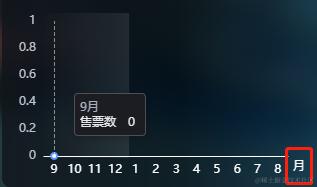
关键点:
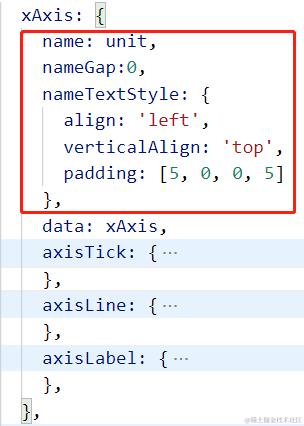
name: '月',

nameGap:0,

nameTextStyle: {

  align: 'left',

  verticalAlign: 'top',

  padding: [5, 0, 0, 5]

},
17、设置折线图在柱状图上方显示
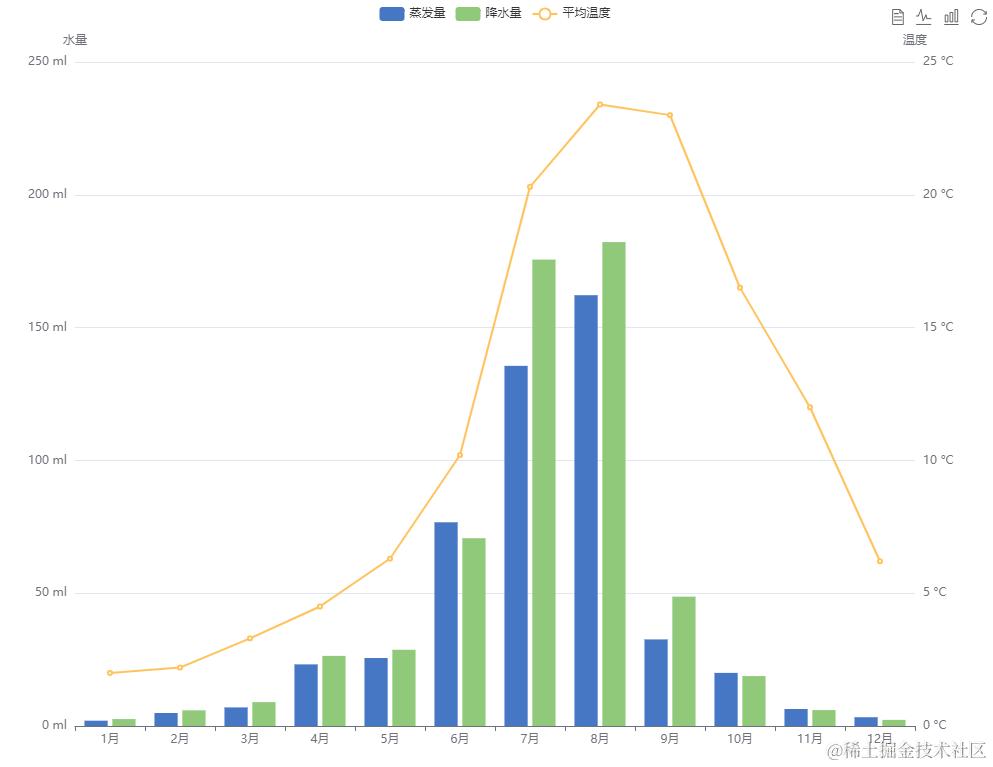
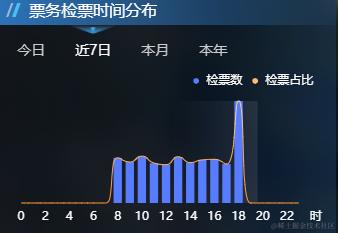
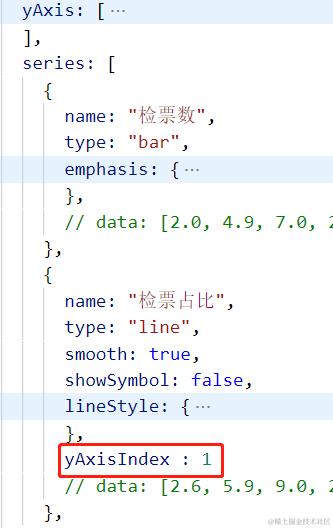
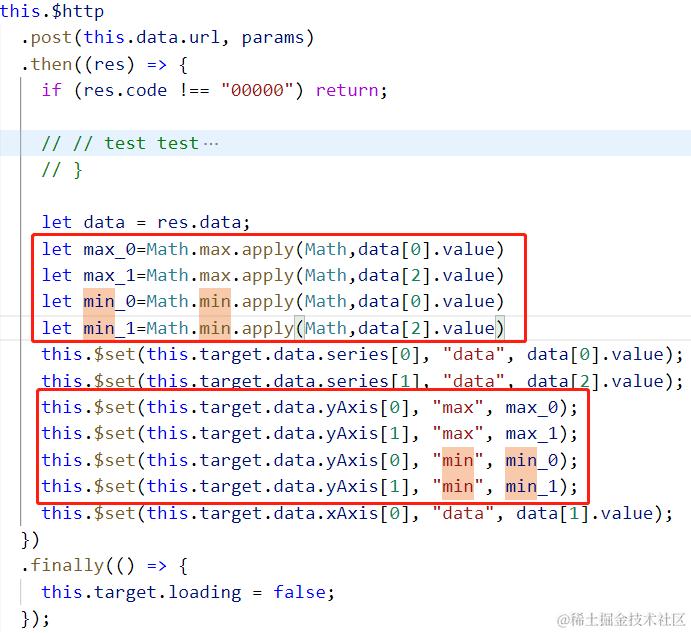
只需在series里面的折线对象上设置yAxisIndex,并且同时在yAxis的折线对象上设置好min、max值。这里的yAxisIndex和max值必须同时设置才能保证在任何数据下生效。max的值可以通过 Math.max.apply(Math,arr) 获取,最小值可以通过Math.min.apply(Math,arr) 获取。
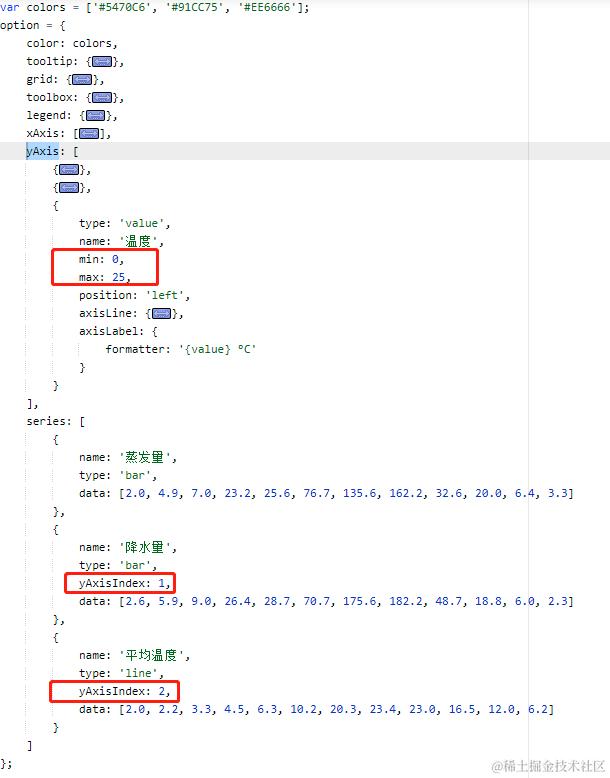
实际项目:
18、dataZoom 设置滚动条
现象:横向柱状图数据过多,数据拥挤
解决办法:设置dataZoom, 查看更多,点击这里
{
    tooltip : {},
    dataZoom : [
        {
            type: "slider",  // slider表示这里的是滑动条型数据区域缩放组件,如果是inside,表示内置型数据区域缩放组件
            yAxisIndex: 0, // 控制y轴滚动对象,[0] 可简写为0
            zoomLock: true, // 是否锁定选择区域(或叫做数据窗口)的大小,如果设置为 `true` 则锁定选择区域的大小,也就是说,只能平移,不能缩放
            width: 10, // dataZoom-slider 组件的宽度。竖直布局默认 30,水平布局默认自适应
            right: 10, // dataZoom-slider组件离容器右侧的距离, 值可以是像 `20` 这样的具体像素值,可以是像 '20%' 这样相对于容器宽度的百分比。
            top: 0, // dataZoom-slider组件离容器上侧的距离。
            bottom: 0, // dataZoom-slider组件离容器底侧的距离。
            startValue: 0, // 数据窗口范围的起始数值, 0代表数组索引值,第1条数据
            endValue: 9, // 数据窗口范围的结束数值, 9代表数组索引值,第10条数据
            handleSize: 0, // 两边手柄尺寸
            showDetail: false, // 拖拽时是否显示滚动条两侧的文字,默认为true
        },
    ]
}
19、象形柱图 pictorialBar
简介
象形柱图是可以设置各种具象图形元素(如图片、[SVG PathData](http://www.w3.org/TR/SVG/paths.html#PathData) 等)的柱状图。往往用在信息图中。用于有至少一个类目轴或时间轴的[直角坐标系](https://echarts.apache.org/zh/option.html#grid)上。
应用场景
1、适用场景
象形柱图和柱形图的使用方法一致,主要用于多个分类间的数据(大小、数值)的对比,可以用来显示一段时间内的数据变化或显示各项之间的比较情况,柱形图简单直观,易于比较各组数据之间的差别。
2、不适用场景
象形柱图不适合用于表达趋势的数据,这种数据更适合用折线图或者面积图,也不适合用于表达占比的数据,这种数据更适合用于饼图。
更多的使用方法和特性可以查看官方文档:
echarts.apache.org/zh/option.h…
以下提供几个应用示例:
1)、类似电容量的UI效果
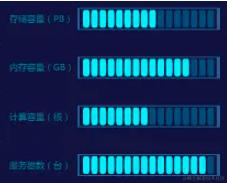
var category = ['服务器数(台)', '计算容量(核)', '内存容量(GB)', '存储容量(PB)'];

var barData = [60, 30, 52, 34, 90];

var lineData = [63, 63, 63, 63, 100]


// console.log(barData)

var option = {

backgroundColor: '#0d073d',//背景色

grid: [{//图形的位置

left: '10',

bottom: '20',

top: 3,

right: 30

}],

xAxis: {

},

yAxis: {

data: category,

show: true,

axisLabel: {

inside: true,

verticalAlign: 'middle',

lineHeight: 150,

color: '#4488bc',

fontSize: 8

},

axisLine: {

show: false//不展示刻度

}

},

series: [

{ // 外边框

name: '',

type: 'pictorialBar',//echarts图的类型

symbol: 'reat',//内部类型(方块,圆,svg,base64图片)

barWidth: '3%',

barMaxWidth: '10%',

symbolOffset: [70, 0],//柱子的位置

symbolSize: [640, 20],//size,单个symbol的大小

itemStyle: {

normal: {

color: '#3f559c'

}

},

z: -180,//图层值

symbolRepeat: null,//是否重复symbol

data: [1, 1, 1, 1],

barGap: 10,//柱子的“粗细”

barCategoryGap: 0,

animationEasing: 'elasticOut',

},

{ // 内边框

name: '',

type: 'pictorialBar',

symbol: 'reat',

barWidth: '3%',

barMaxWidth: '20%',

symbolOffset: [72, 0],

symbolSize: [640, 18],

itemStyle: {

normal: {

color: '#0d073d'

}

},

z: -20,

data: [1, 1, 1, 1],

barGap: 45,

barCategoryGap: 0,

animationEasing: 'elasticOut',

},

{ // 下层块

name: '',

type: 'pictorialBar',

symbol: 'roundRect',

barWidth: '3%',

barMaxWidth: '20%',

symbolOffset: [75, 0],

itemStyle: {

normal: {

color: '#1F4683'

}

},

z: -11,

symbolRepeat: true,

symbolSize: [6, 16],

data: lineData,

barGap: 50,

barCategoryGap: 0,

animationEasing: 'elasticOut',

},

{ // 上层块

name: '', // blue bar

type: 'pictorialBar',

symbol: 'roundRect',

barWidth: '3%',

barMaxWidth: 100,

symbolOffset: [75, 0],

itemStyle: {

normal: {

barMaxWidth: '20%',

barBorderRadius: 100,

color: '#6DE8FA',

}

},

symbolRepeat: true,

symbolSize: [6, 16],

symbolClip: true,

data: barData,

},

],

}
2)、立体柱状图
立体圆柱:
示例:
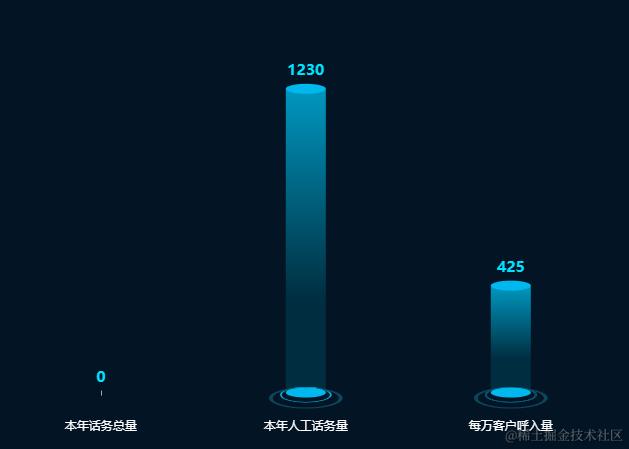
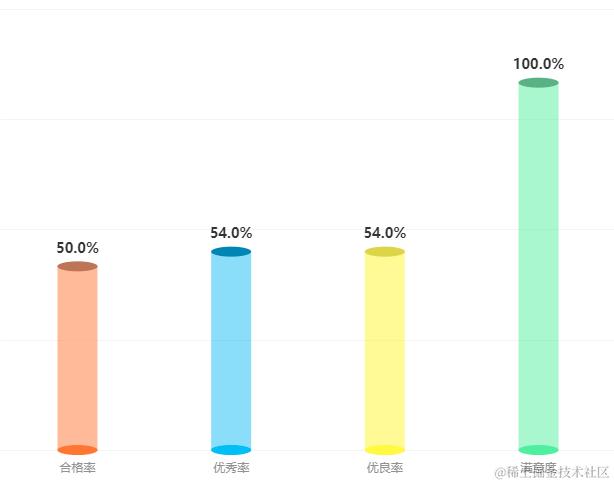
立体方柱:
示例:
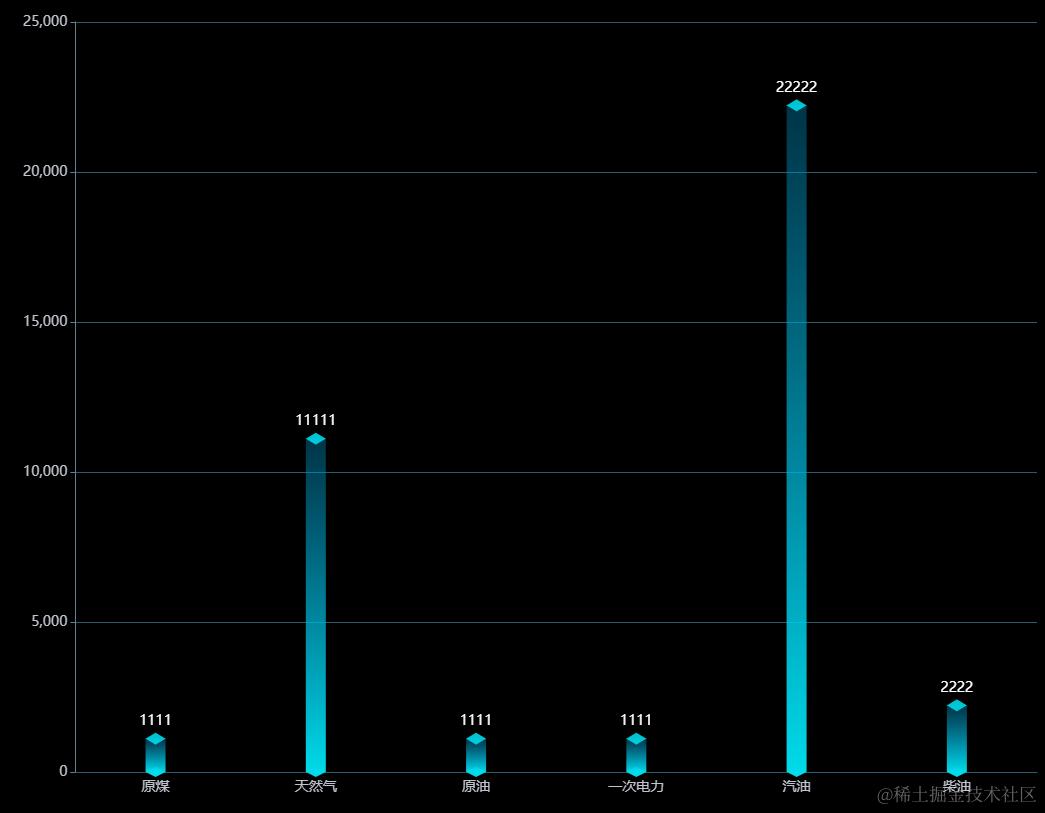
设置圆柱和圆柱或者其他样式,可通过series-pictorialBar. symbol实现,
以下是官方文档关于symbol的解释:
symbol:图形类型。

ECharts 提供的标记类型包括

'circle', 'rect', 'roundRect', 'triangle', 'diamond', 'pin', 'arrow', 'none'

可以通过 'image://url' 设置为图片,其中 URL 为图片的链接,或者 dataURI。

URL 为图片链接例如:

'image://http://xxx.xxx.xxx/a/b.png'

URL 为 dataURI 例如:

'image://data:image/gif;base64,R0lGODlhEAAQAMQAAOR...'

可以通过 'path://' 将图标设置为任意的矢量路径。这种方式相比于使用图片的方式,不用担心因为缩放而产生锯齿或模糊,而且可以设置为任意颜色。路径图形会自适应调整为合适的大小。路径的格式参见 [SVG PathData](http://www.w3.org/TR/SVG/paths.html#PathData)。可以从 Adobe Illustrator 等工具编辑导出。

例如:

'path://M30.9,53.2C16.8,53.2,5.3,41.7,5.3,27.6S16.8,2,30...'
3)、底部带波纹的柱状图
实际项目:
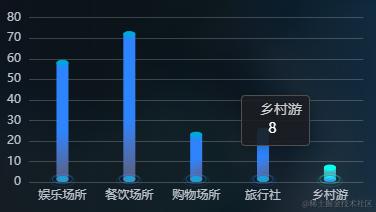
import cssVars from "@/assets/scss/vars.scss";

series: [

{

type: "bar",

barGap: "50%",

barWidth: 12, //设置柱条宽度

data: [],

itemStyle: {

color: new echarts.graphic.LinearGradient(0, 0.6, 1, 1, [

{

offset: 0,

color: cssVars["chart-bar-color" + 1 + "-start"],

},

{

offset: 1,

color: cssVars["chart-bar-color" + 1 + "-end"],

},

]),

borderRadius: [3, 3, 3, 3],

},

//选中状态的渐变色

emphasis: {

itemStyle: {

color: new echarts.graphic.LinearGradient(0, 0, 0, 1, [

{

offset: 0,

color: cssVars["chart-bar-color" + 2 + "-start"],

},

{

offset: 1,

color: cssVars["chart-bar-color" + 2 + "-end"],

},

]),

},

},

},
{

name: "柱顶部", //柱顶部

type: "pictorialBar",

showContent: false,

emphasis: {

//选中状态的渐变色

itemStyle: {

color: new echarts.graphic.LinearGradient(0, 0, 0, 1, [

{

offset: 0,

color: cssVars["chart-bar-color" + 2 + "-start"],

},

{

offset: 1,

color: cssVars["chart-bar-color" + 2 + "-start"],

},

]),

},

},
},

// tooltip:{//不显示数据提示

// show: false,

// },

symbolSize: [12, 6],

symbolOffset: [0, -1],

z: 4,

symbolPosition: "end",

data: [166,159,358,299,53],

},

{

name: "柱底部", //柱底部

type: "pictorialBar",

symbolSize: [12, 6], //x调整柱底部圆大小,y调整圆的扁平作用

symbolOffset: [0, 0],

z: 3,

emphasis: {

//选中状态的渐变色

itemStyle: {

color: new echarts.graphic.LinearGradient(0, 0, 0, 1, [

{

offset: 0,

color: cssVars["chart-bar-color" + 2 + "-start"],

},

{

offset: 1,

color: cssVars["chart-bar-color" + 1 + "-start"],

},

]),

},

},

itemStyle: {

color: "#34b3f8af",

},

data: [1,1,1,1,1],

},

{

name: '柱底部圈',

type: 'pictorialBar',

symbolSize: [20, 9],

symbolOffset: [0, 5],

z: 10,

data:circleStyle,

emphasis: {

//选中状态的渐变色

itemStyle: {

borderColor: new echarts.graphic.LinearGradient(0, 0, 0, 1, [

{

offset: 0,

color: cssVars["chart-bar-color" + 2 + "-start"],

},

{

offset: 1,

color: cssVars["chart-bar-color" + 2 + "-start"],

},

]),

},

},

},
{

name: '柱底部圈',

type: 'pictorialBar',

symbolSize: [25, 12],

symbolOffset: [0, 8],

itemStyle: {

opacity: 0.3

},

z: 9,

emphasis: {

//选中状态的渐变色

itemStyle: {

borderColor: new echarts.graphic.LinearGradient(0, 0, 0, 1, [

{

offset: 0,

color: cssVars["chart-bar-color" + 2 + "-start"],

},

{

offset: 1,

color: cssVars["chart-bar-color" + 2 + "-start"],

},

]),

},

},
},

data: [{"value":1,"itemStyle":{"color":"rgba(0,0,0,0)","borderColor":"#4F76FF","borderWidth":10}},{"value":1,"itemStyle":{"color":"rgba(0,0,0,0)","borderColor":"#4F76FF","borderWidth":10}},{"value":1,"itemStyle":{"color":"rgba(0,0,0,0)","borderColor":"#4F76FF","borderWidth":10}},{"value":1,"itemStyle":{"color":"rgba(0,0,0,0)","borderColor":"#4F76FF","borderWidth":10}},{"value":1,"itemStyle":{"color":"rgba(0,0,0,0)","borderColor":"#4F76FF","borderWidth":10}}],

},

],