

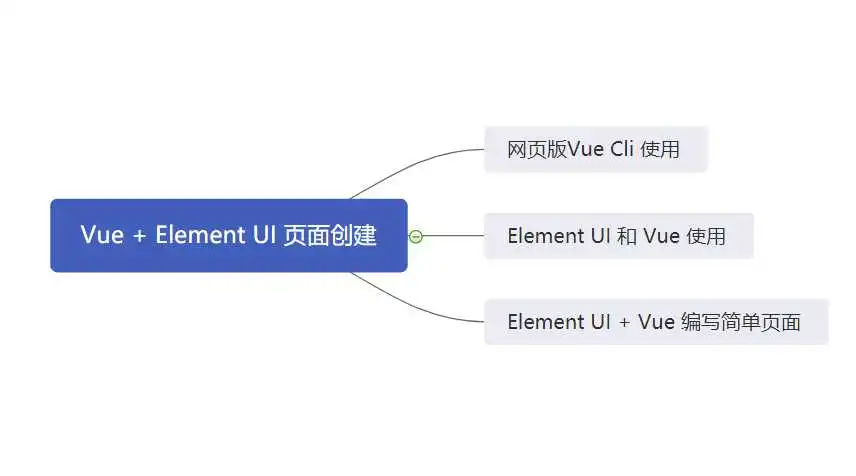
本篇将会着重讲解关于Vue和Element UI 相关的内容
思维导图
网页版Vue Cli 基本使用
这里使用Vue Cli 进行基本的使用
安装
npm install -g @vue/cli
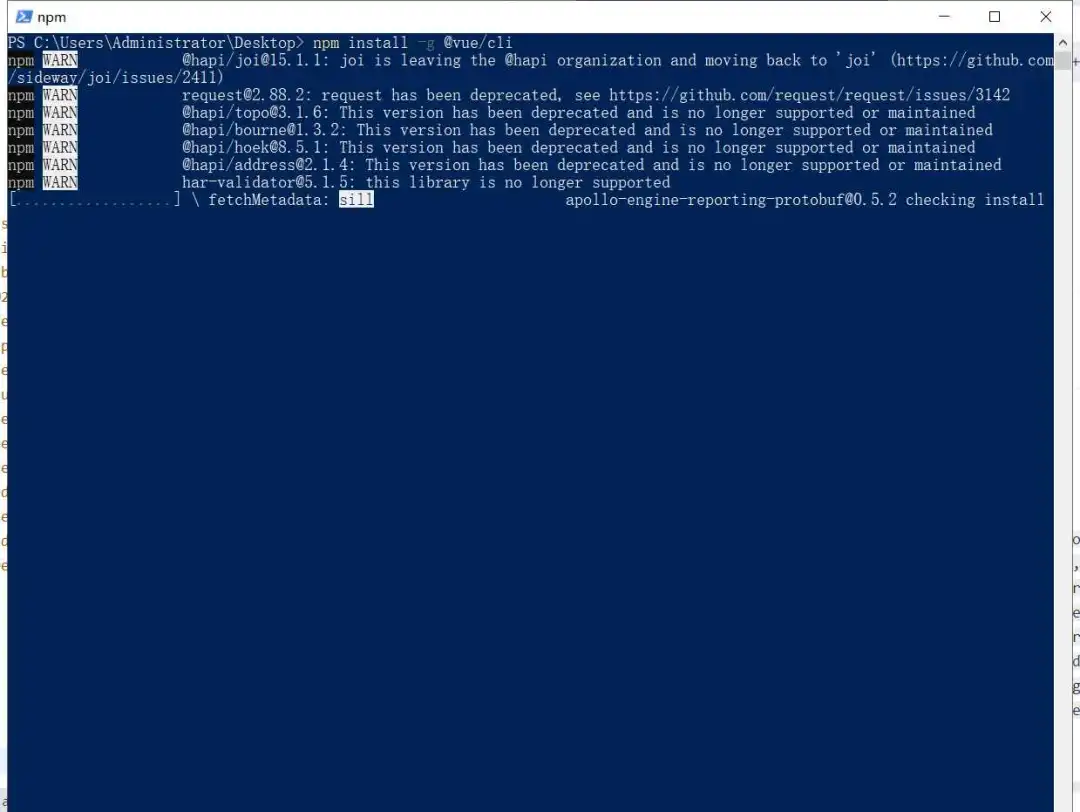
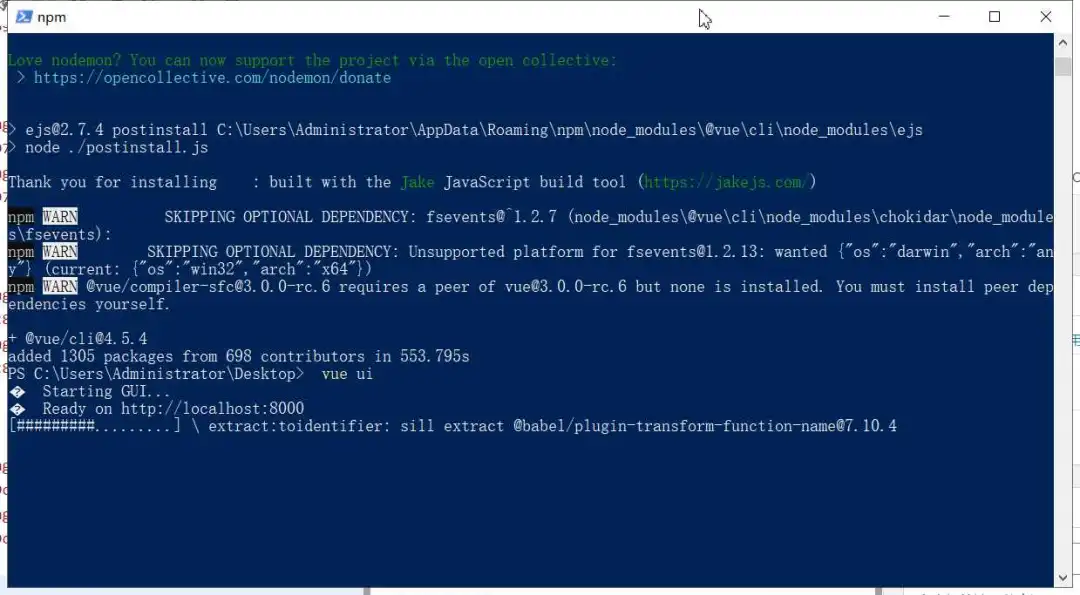
安装的界面如下
PS C:UsersAdministratorDesktop> npm install -g @vue/clinpm WARN deprecated @hapi/joi@15.1.1: joi is leaving the @hapi organization and moving back to 'joi' (https://github.com/sideway/joi/issues/2411)npm WARN deprecated request@2.88.2: request has been deprecated, see https://github.com/request/request/issues/3142npm WARN deprecated @hapi/topo@3.1.6: This version has been deprecated and is no longer supported or maintainednpm WARN deprecated @hapi/bourne@1.3.2: This version has been deprecated and is no longer supported or maintainednpm WARN deprecated @hapi/hoek@8.5.1: This version has been deprecated and is no longer supported or maintainednpm WARN deprecated @hapi/address@2.1.4: This version has been deprecated and is no longer supported or maintainednpm WARN deprecated har-validator@5.1.5: this library is no longer supported[..................] / loadDep:sha.js: sill resolveWithNewModule apollo-env@0.6.5 checking installable status
检查版本是否正确
vue -V
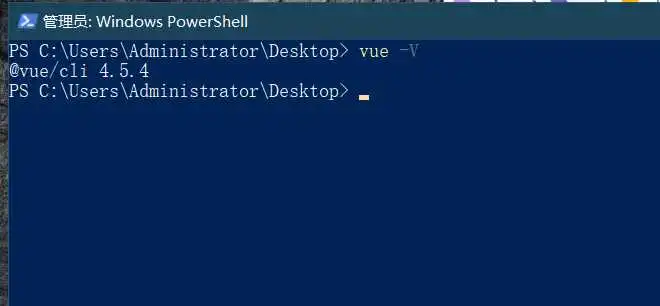
这里安装完成。
打开网页版vue-cli
进入Vue页面
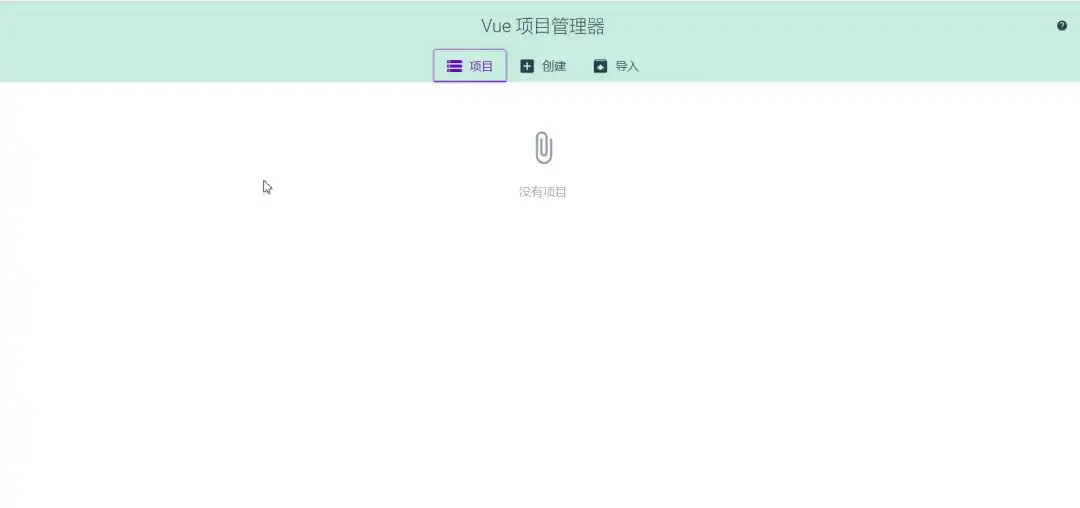
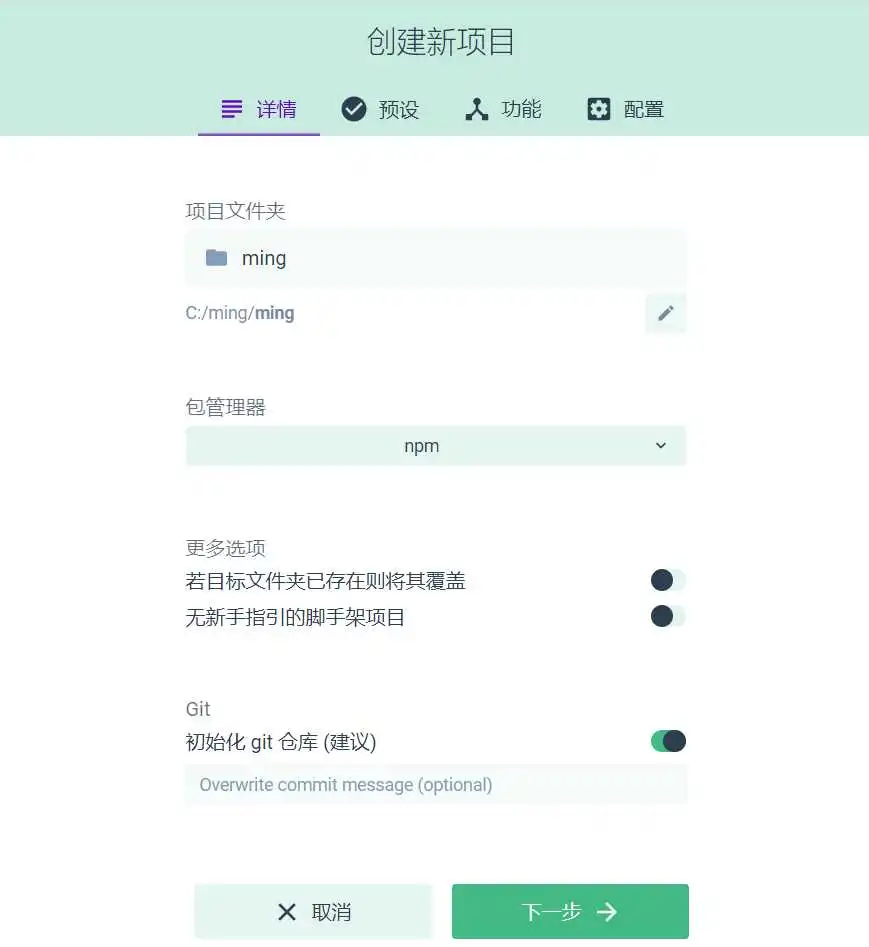
选择目录
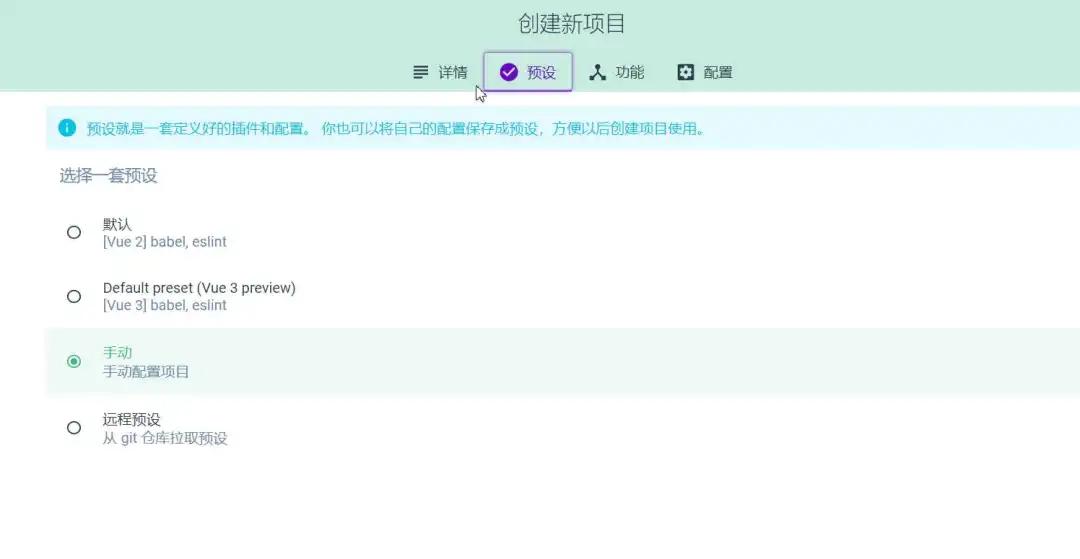
选择预设
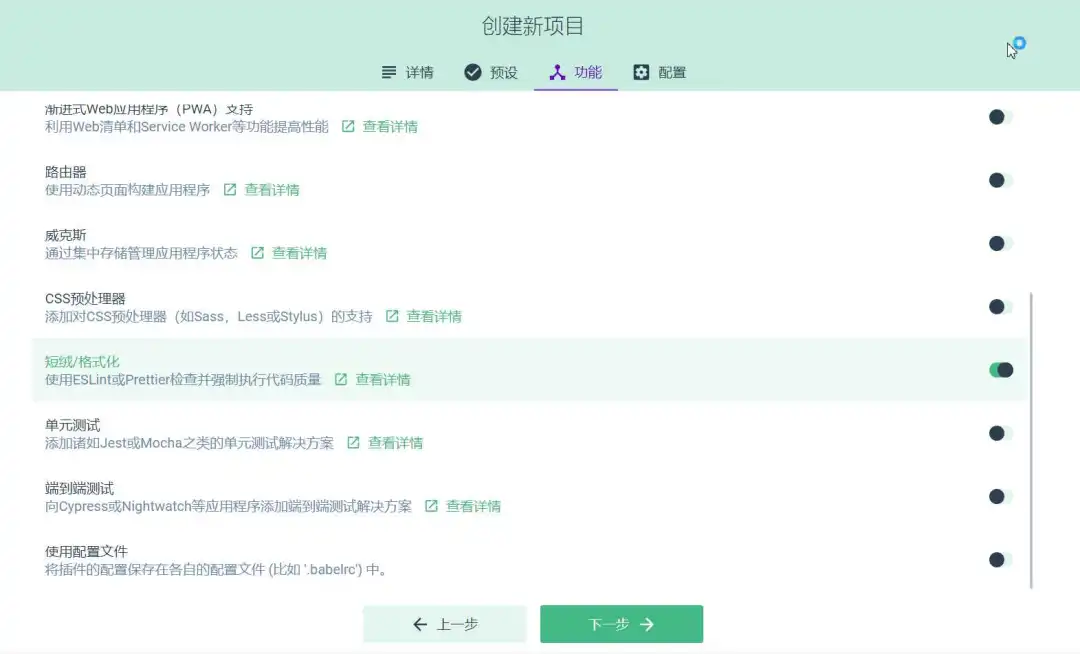
选择功能
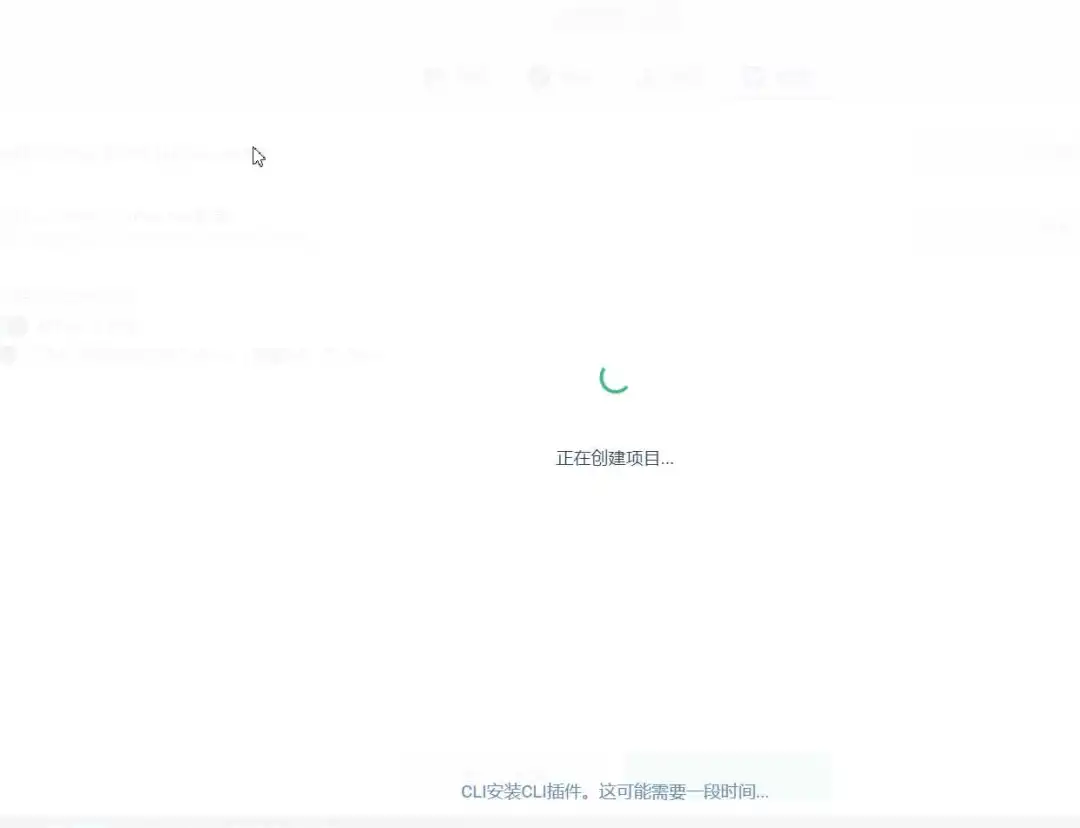
创建项目
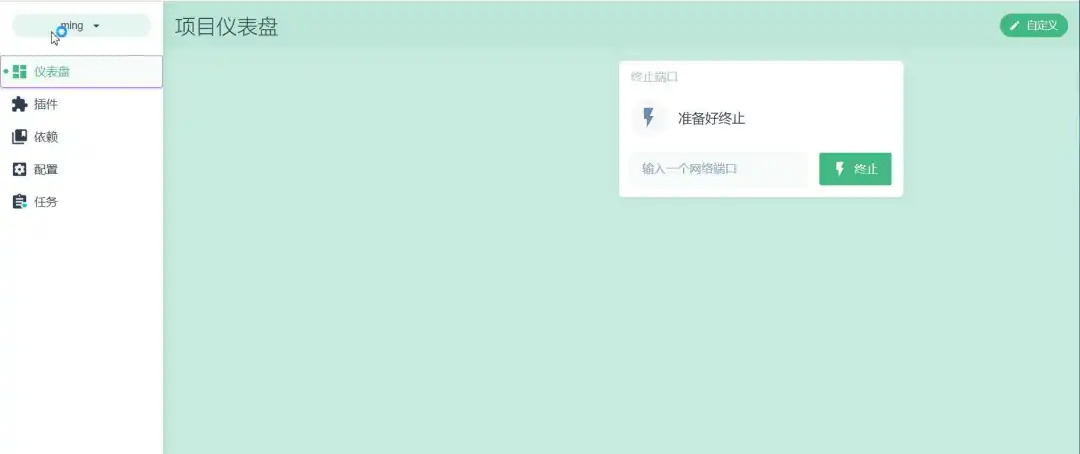
项目创建完成
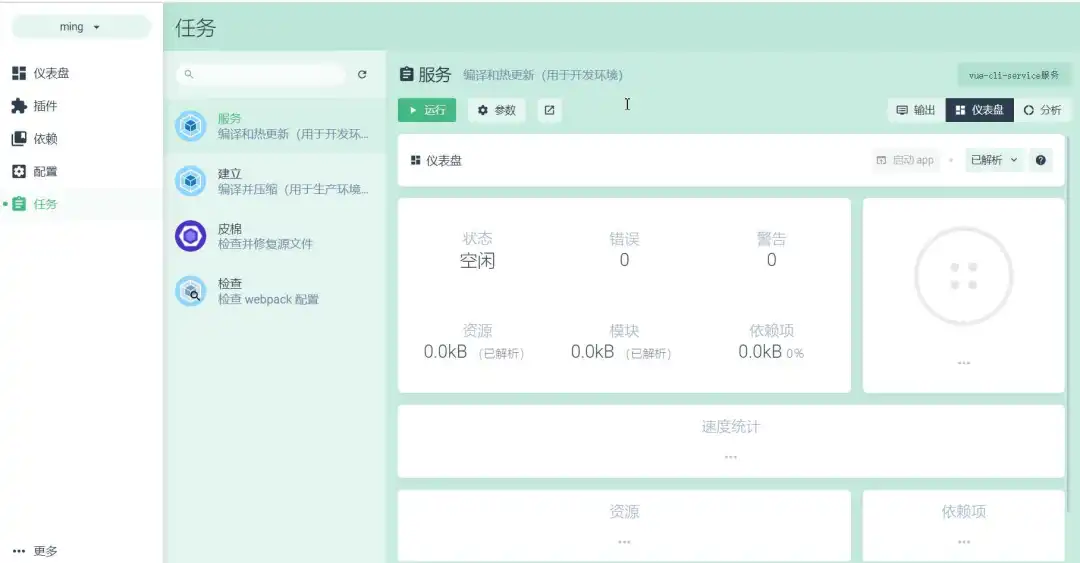
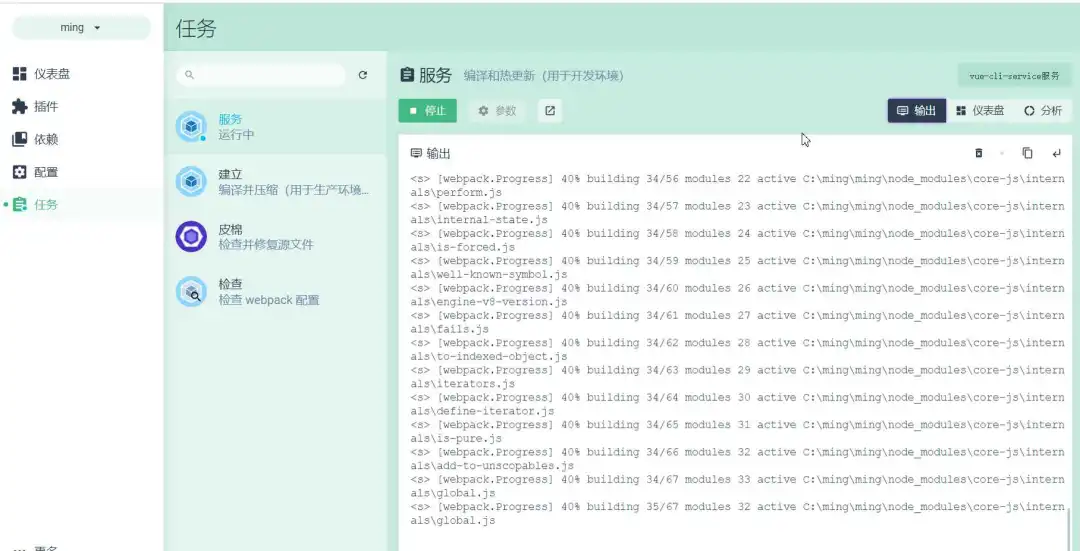
启动程序并运行
安装Element UI
npm i element-ui -S
这里就可以看到已经安装完成。
体验Element UI
main.js 如下
import Vue from 'vue'import App from './App.vue'import router from './router'import store from './store'import Element from 'element-ui'import 'element-ui/lib/theme-chalk/index.css'Vue.use(Element)Vue.config.productionTip = falsenew Vue({ router, store, render: h => h(App)}).$mount('#app')
about.vue 如下
<template> <div class="about"> <i class="el-icon-edit"></i> <i class="el-icon-share"></i> <i class="el-icon-delete"></i> <el-button type="primary" icon="el-icon-search">搜索</el-button> </div></template>
router.js 如下
import Vue from 'vue'import VueRouter from 'vue-router'import Home from '../views/Home.vue'Vue.use(VueRouter) const routes = [ { path: '/', name: 'Home', component: Home }, { path: '/login', name: 'Login', component: () => import(/* webpackChunkName: "about" */ '../views/Login.vue') }, { path: '/about', name: 'About', // route level code-splitting // this generates a separate chunk (about.[hash].js) for this route // which is lazy-loaded when the route is visited. component: () => import(/* webpackChunkName: "about" */ '../views/About.vue') }]const router = new VueRouter({ mode: 'history', base: process.env.BASE_URL, routes})export default router
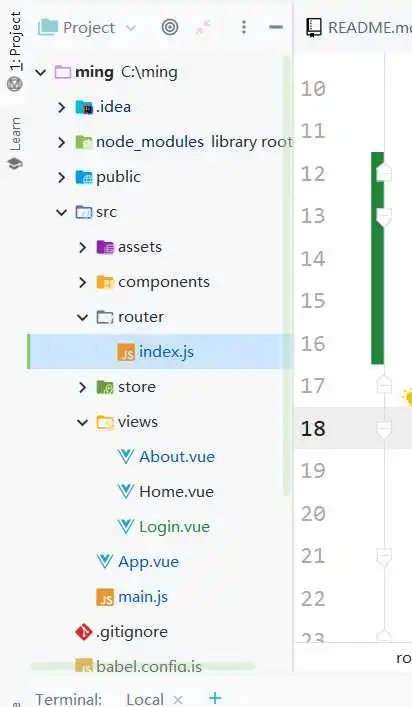
文件目录如下
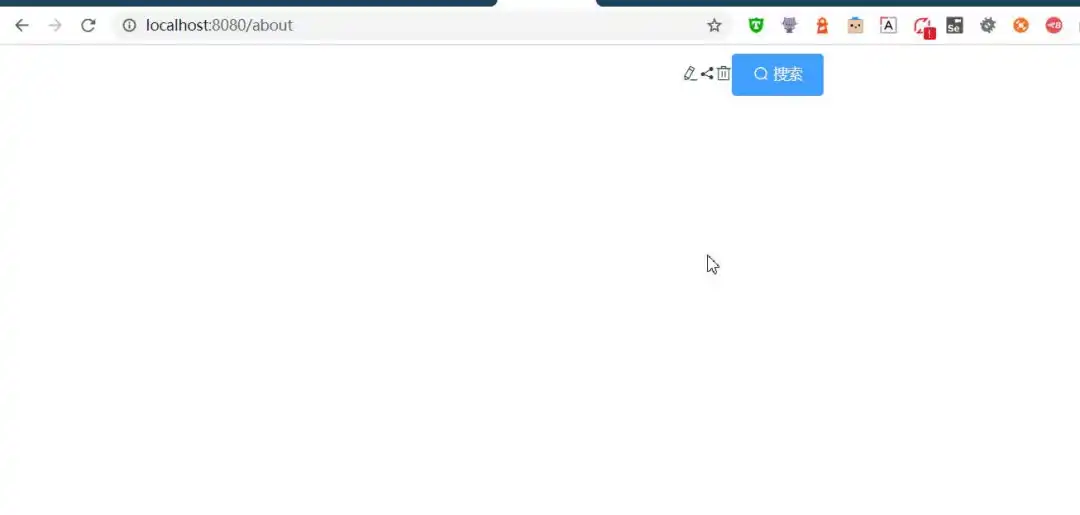
访问效果如下
总结
以上简单的完成了一个Element UI 的页面的创建
