Python程序分发
Python是一个脚本语言,程序运行时需要依赖Python解释器,并且要安装相应的依赖库。对于我这种Python用户来说自然不是什么大问题,一个pip就完事了。但是如果是分发给其他windows用户,尤其是不熟悉Python的人来说,这样实在太麻烦。因此最好的办法是连同python解释器和python程序打包在一起,通过inno setup一次安装解决问题。
嵌入式Python处理
此嵌入式不是硬件的嵌入式,而是Python官方提供的免安装版解释器,可以从这里下载所需的版本:Python for Windows。
注意要下载embeddable的版本,不然无法用于制作安装程序。
下载完免安装版本后解压即可,然后从这里下载pip的get-pip.py放入解压的目录中,用cmd执行:
python.exe get-pip.py
安装完会在根目录下生成Scripts子目录,用于存储安装后生成的exe:
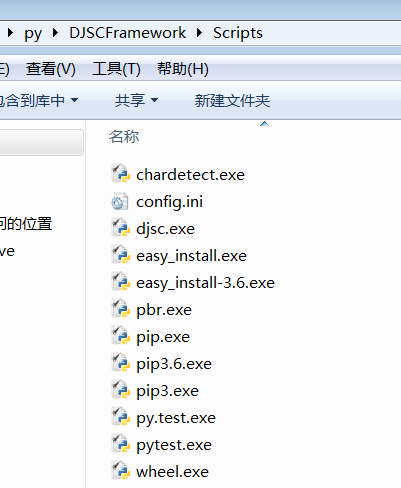
安装完pip就可以安装所需的依赖库和主程序了,以我的同人志爬虫框架为例子,安装完后会在Scripts生成djsc.exe(见上图)。这样程序就部署完毕了。
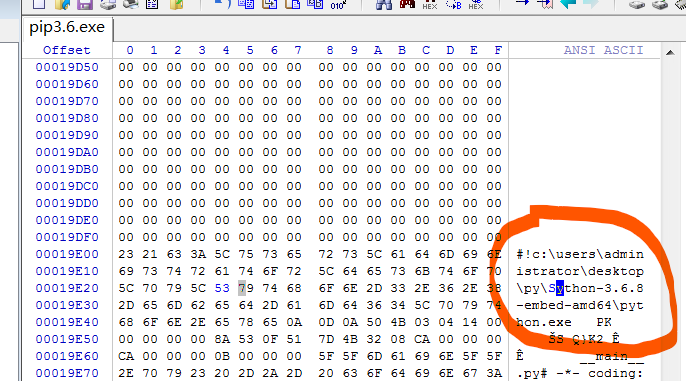
但是目前的python整合包尚不能用于分发,因为pip在安装这些会生成exe的程序时会把python解释器的路径写死在这些exe中,需要手动删除那些绝对路径的内容,只保留python.exe:

制作Windows安装程序
在删除解释器的绝对路径之后,就可以用inno setup创建安装包,我建议用inno setup的QuickStart Pack,会自动安装Inno Script Studio,体验很好。下面是我的脚本文件(djscf.iss):
; Script generated by the Inno Script Studio Wizard.
; SEE THE DOCUMENTATION FOR DETAILS ON CREATING INNO SETUP SCRIPT FILES!

#define MyAppName "DJSCF"
#define MyAppVersion "0.0.3.2"
#define MyAppPublisher "Hochikong"
#define MyAppURL "https://github.com/Hochikong/DoujinshiCollectorFramework"
#define MyAppExeName "Scripts\djsc.exe"

[Setup]
; NOTE: The value of AppId uniquely identifies this application.
; Do not use the same AppId value in installers for other applications.
; (To generate a new GUID, click Tools | Generate GUID inside the IDE.)
AppId={{53AC6536-1651-4A86-AB6B-69583B96FA78}
AppName={#MyAppName}
AppVersion={#MyAppVersion}
;AppVerName={#MyAppName} {#MyAppVersion}
AppPublisher={#MyAppPublisher}
AppPublisherURL={#MyAppURL}
AppSupportURL={#MyAppURL}
AppUpdatesURL={#MyAppURL}
DefaultDirName={pf}\{#MyAppName}
DefaultGroupName={#MyAppName}
AllowNoIcons=yes
LicenseFile=C:\Users\ckhoi\Desktop\DJSCFramework\LICENSE.txt
InfoAfterFile=C:\Users\ckhoi\Desktop\DJSCFramework\README.txt
OutputDir=C:\Users\ckhoi\Desktop
OutputBaseFilename=djscForWindows-v0.0.3.2-setup
Compression=lzma
SolidCompression=yes

[Code]
function NeedsAddPath(Param: string): boolean;
var
  OrigPath: string;
begin
  if not RegQueryStringValue(HKEY_LOCAL_MACHINE,
    'SYSTEM\CurrentControlSet\Control\Session Manager\Environment',
    'Path', OrigPath)
  then begin
    Result := True;
    exit;
  end;
  { look for the path with leading and trailing semicolon }
  { Pos() returns 0 if not found }
  Result := Pos(';' + Param + ';', ';' + OrigPath + ';') = 0;
end;

[Languages]
Name: "english"; MessagesFile: "compiler:Default.isl"
Name: "chinesesimplified"; MessagesFile: "compiler:Languages\ChineseSimplified.isl"

[Tasks]
Name: "desktopicon"; Description: "{cm:CreateDesktopIcon}"; GroupDescription: "{cm:AdditionalIcons}"; Flags: unchecked
Name: "quicklaunchicon"; Description: "{cm:CreateQuickLaunchIcon}"; GroupDescription: "{cm:AdditionalIcons}"; Flags: unchecked; OnlyBelowVersion: 0,6.1

[Files]
Source: "C:\Users\ckhoi\Desktop\DJSCFramework\*"; DestDir: "{app}"; Flags: ignoreversion recursesubdirs createallsubdirs
; NOTE: Don't use "Flags: ignoreversion" on any shared system files

[Icons]
Name: "{group}\{#MyAppName}"; Filename: "{app}\{#MyAppExeName}"
Name: "{group}\{cm:ProgramOnTheWeb,{#MyAppName}}"; Filename: "{#MyAppURL}"
Name: "{group}\{cm:UninstallProgram,{#MyAppName}}"; Filename: "{uninstallexe}"
Name: "{group}\打开配置文件"; Filename: "{app}\Scripts\config.ini"
Name: "{commondesktop}\{#MyAppName}"; Filename: "{app}\{#MyAppExeName}"; Tasks: desktopicon
Name: "{userappdata}\Microsoft\Internet Explorer\Quick Launch\{#MyAppName}"; Filename: "{app}\{#MyAppExeName}"; Tasks: quicklaunchicon

[Setup]
AlwaysRestart = yes

[Run]
Filename: "{app}\{#MyAppExeName}"; Description: "{cm:LaunchProgram,{#StringChange(MyAppName, '&', '&&')}}"; Flags: nowait postinstall skipifsilent

[Registry]
Root: "HKLM";Subkey: "SYSTEM\CurrentControlSet\Control\Session Manager\Environment";ValueType: expandsz;ValueName: "Path";ValueData: "{olddata};{app}";Check: NeedsAddPath('{app}')
其中最重要的几点如下:
-
#define MyAppExeName "Scripts\djsc.exe"在用ISS的向导程序创建脚本时会让你填写主程序的路径,如下图:
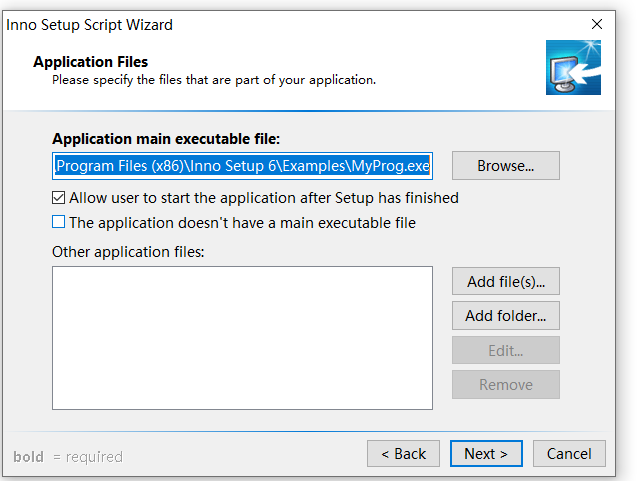
但是我们的exe是在嵌入式python目录的子目录Scripts中,如果在向导中直接设置主程序为djsc.exe并没有修改上面的脚本的话,就会导致封包出来的安装程序在安装完会把djsc.exe从Scripts目录中提取到根目录并为它生成开始菜单快捷方式。
为了解决这个问题最好的办法是直接修改MyAppExeName,前面加上子目录。
-
[Code]
function NeedsAddPath(Param: string): boolean;
var
  OrigPath: string;
begin
  if not RegQueryStringValue(HKEY_LOCAL_MACHINE,
    'SYSTEM\CurrentControlSet\Control\Session Manager\Environment',
    'Path', OrigPath)
  then begin
    Result := True;
    exit;
  end;
  { look for the path with leading and trailing semicolon }
  { Pos() returns 0 if not found }
  Result := Pos(';' + Param + ';', ';' + OrigPath + ';') = 0;
end;

[Registry]
Root: "HKLM";Subkey: "SYSTEM\CurrentControlSet\Control\Session Manager\Environment";ValueType: expandsz;ValueName: "Path";ValueData: "{olddata};{app}";Check: NeedsAddPath('{app}')
上面的代码是用于安装时在PATH中写入安装路径,安装路径即'{app}'。把安装路径写入Path就可以直接在cmd中调用python。但是用户在安装完并不能直接使用,还需要下面的代码。
-
[Setup]
AlwaysRestart = yes
上面的代码可以让用户选择是否重启计算机,重启后就可以正常使用djsc.exe了。
-
Name: "{group}\打开配置文件"; Filename: "{app}\Scripts\config.ini"这个代码可以把配置文件的快捷方式一并加入开始菜单,免得用户手动打开目录编辑。
结语
通过上面的实践,就可以把python程序和解释器、依赖库一并打包分发给非专业用户,尤其是pyqt程序。如果依赖库使用了numpy等库,pyinstaller经常会打包失败,但是这样打包成安装包就提高了用户的使用体验。但这个方法会把python.exe添加到PATH中,如果后面用户需要自行安装另一个python,可能需要修改生成的exe的解释器为另一个名字,如pyi.exe,然后创建python.exe的符号链接或者直接把python.exe改成pyi.exe,这样就不会影响用户自行安装的解释器。