Linux环境可以看这篇: Linux下Docker的安装
安装
开启 Hyper-V
打开程序和功能,选中启动或关闭Windows功能
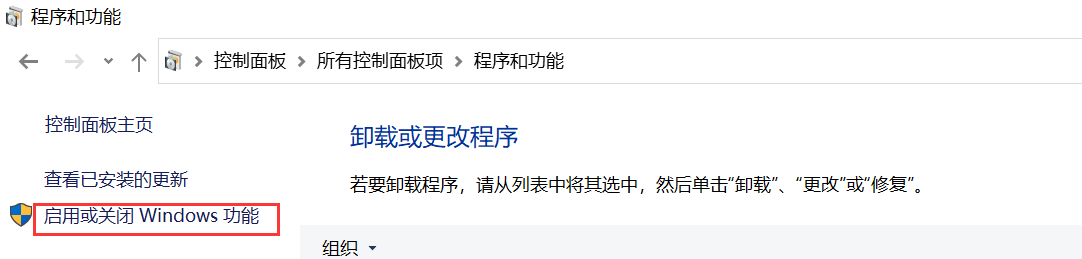
勾选Hyper-V
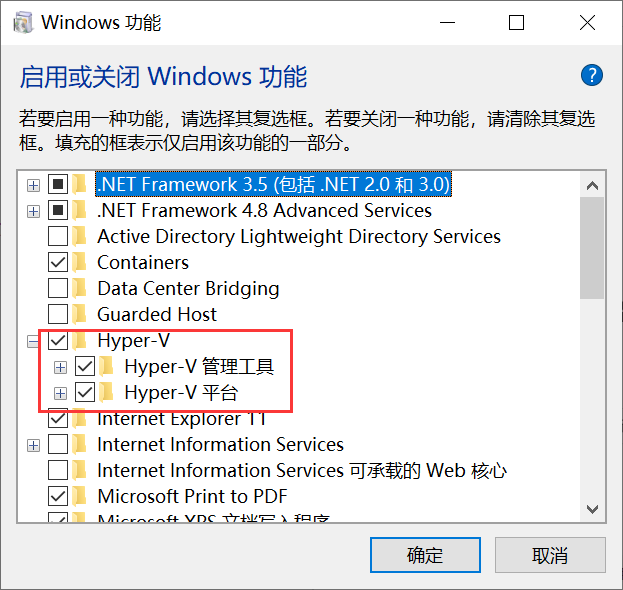
点击确定
运行安装包
方法1:从官网下载安装包
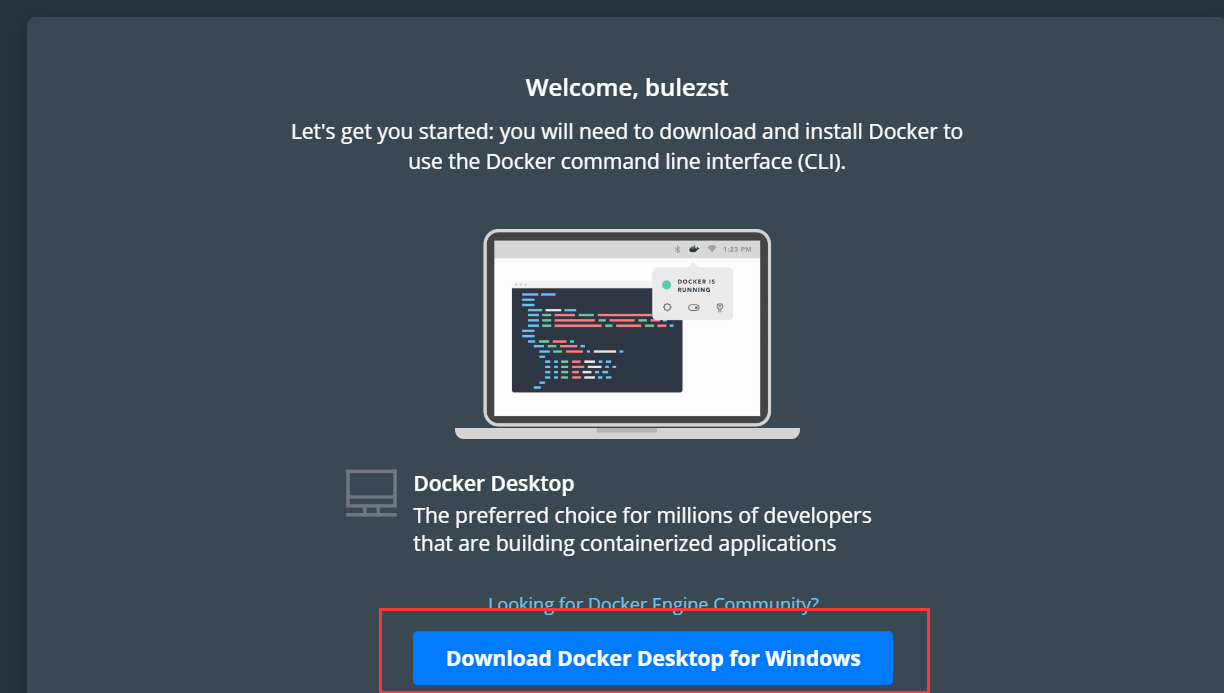
点击链接 (hub.docker.com/?overlay=on…) ,然后点击下图中的按钮“Download Docker Desktop for Windows”
方法2:直链下载
从官网下载安装包貌似需要首先注册账号,但可以直接通过这个链接下载安装包 (download.docker.com/win/stable/…),这个安装包其实本质上也是官网的。
安装包下载好后直接安装即可,安装过程没什么需要说的。
安装好后,运行Docker(在Windows搜索中输入Docker,如下图所示),之后便可在命令行中使用docker的相关命令了。
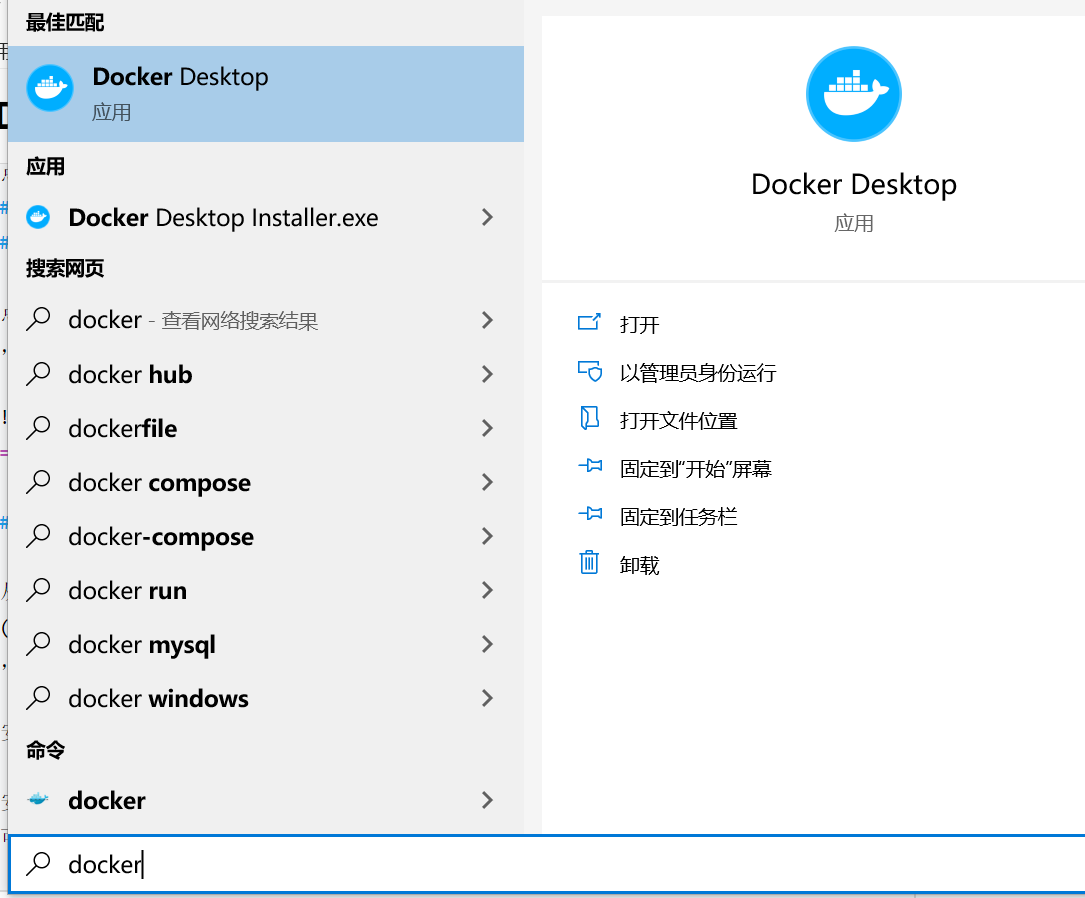
输入命令docker run hello-world,显示如下结果即为安装成功。
PS C:\WINDOWS\system32>  docker run hello-world

Hello from Docker!
This message shows that your installation appears to be working correctly.

To generate this message, Docker took the following steps:
 1. The Docker client contacted the Docker daemon.
 2. The Docker daemon pulled the "hello-world" image from the Docker Hub.
    (amd64)
 3. The Docker daemon created a new container from that image which runs the
    executable that produces the output you are currently reading.
 4. The Docker daemon streamed that output to the Docker client, which sent it
    to your terminal.

To try something more ambitious, you can run an Ubuntu container with:
 $ docker run -it ubuntu bash

Share images, automate workflows, and more with a free Docker ID:
 https://hub.docker.com/

For more examples and ideas, visit:
 https://docs.docker.com/get-started/
加速
Docker的镜像从Docker Hub上下载,使用国内的网络会比较慢,因此需要配置加速链接。
docker的配置文件的默认路径为:C:\Users\用户名.docker\daemon.json
打开配置文件,用如下内容替换整个配置文件,保存。之后重启Docker,即可。Docker的重启可通过右击任务栏的Docker图标(如下图),之后选中Restart。
{
  "registry-mirrors": [
    "https://registry.docker-cn.com",
    "https://dockerhub.azk8s.cn",
    "https://reg-mirror.qiniu.com",
    "http://hub-mirror.c.163.com",
    "https://docker.mirrors.ustc.edu.cn"
  ],
  "insecure-registries": [],
  "debug": true,
  "experimental": false
}

修改镜像保存位置
Docker的镜像默认保存在C盘,但可以进行修改。
右击任务栏Docker小图标,之后选中Setting。
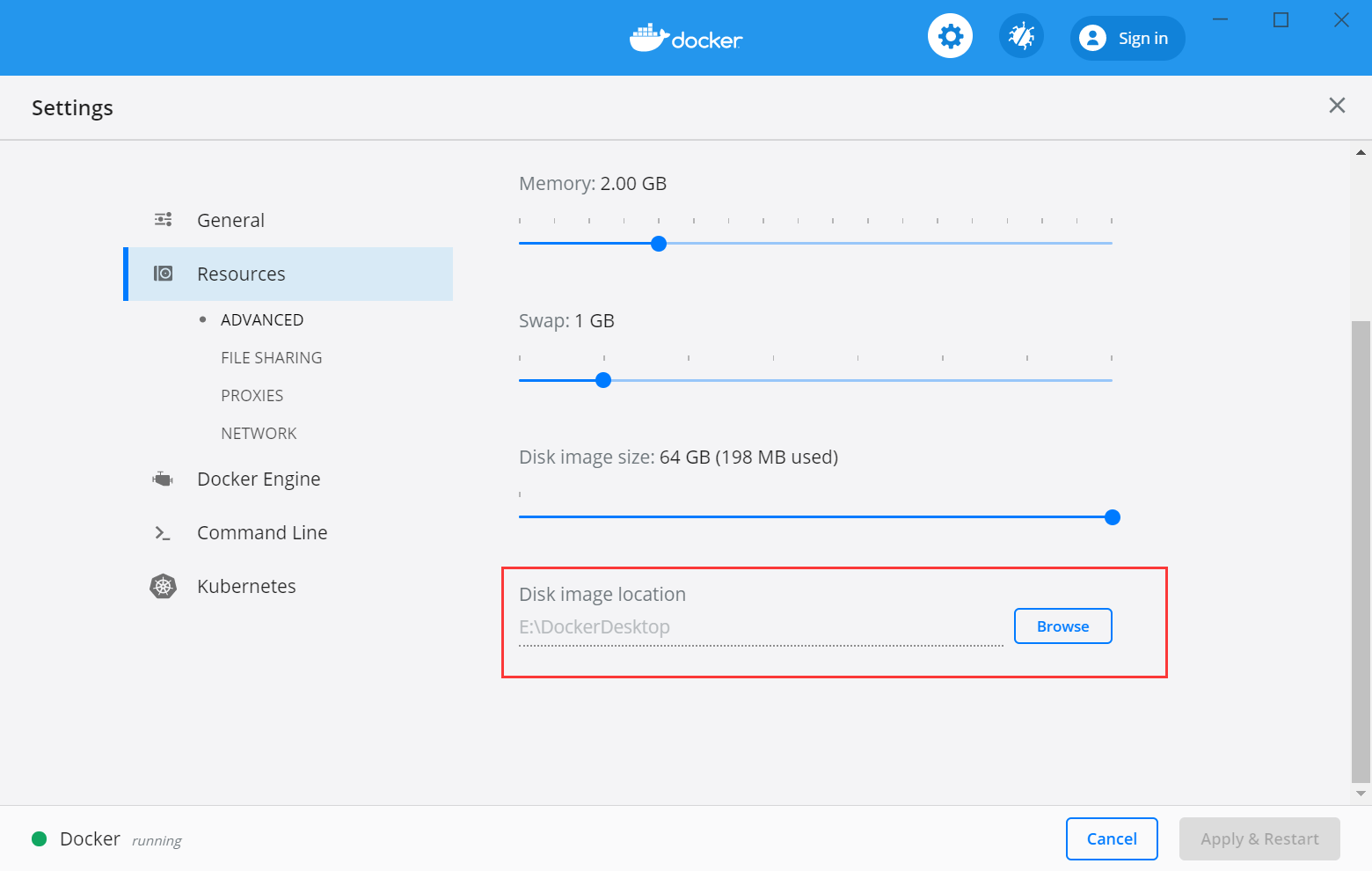
在如下界面中可以对镜像保存路径进行修改。