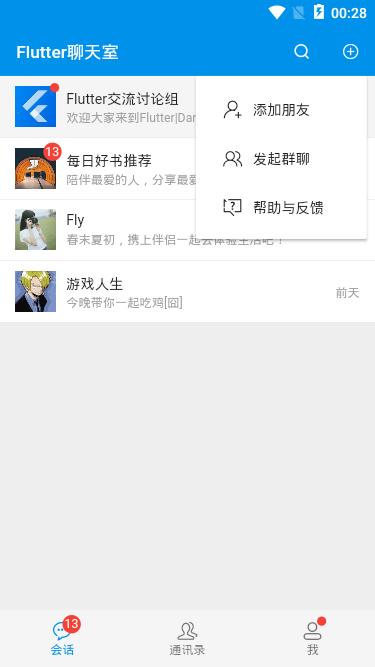
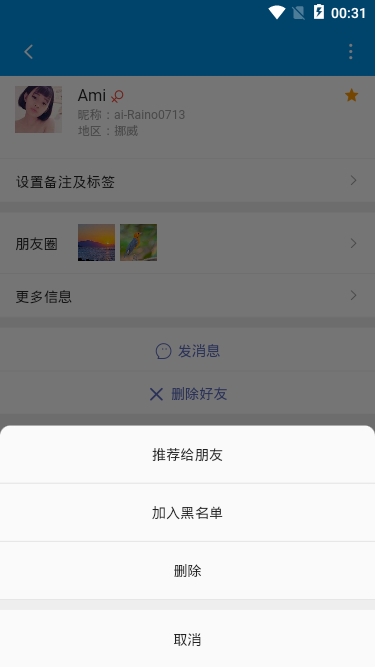
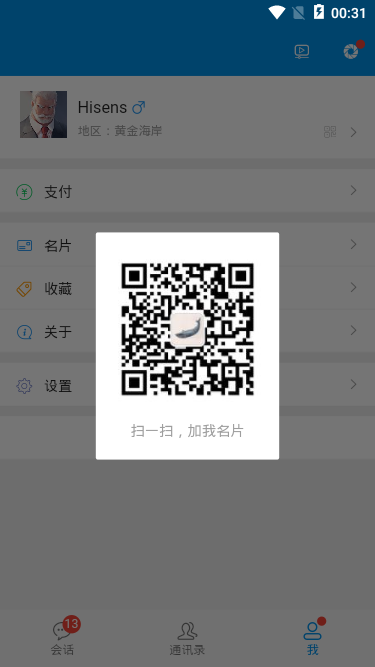
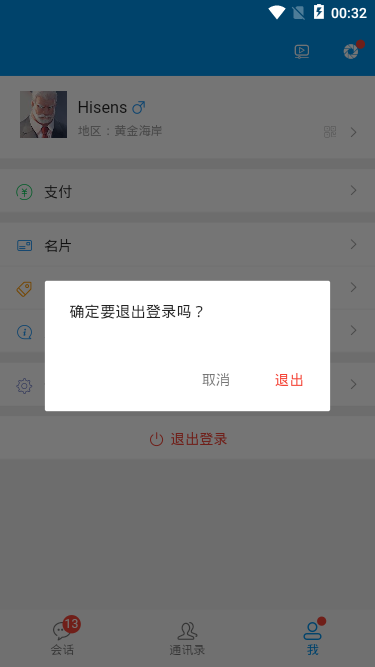
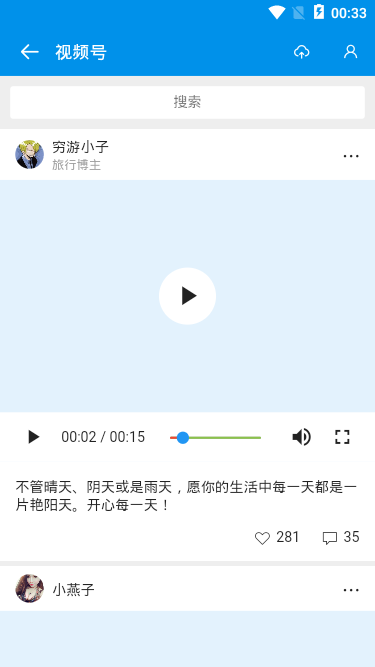
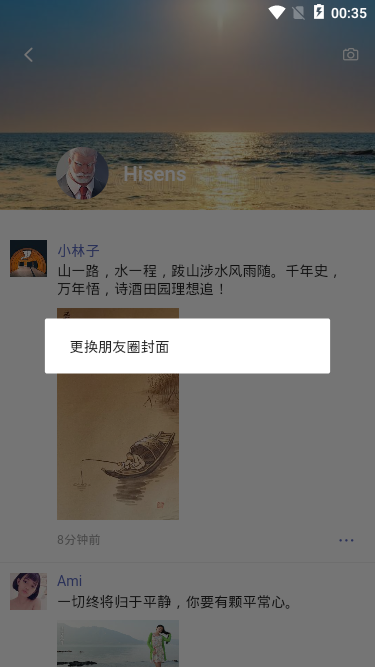
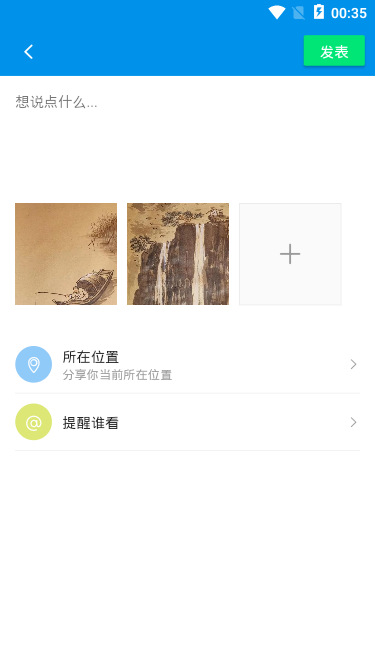
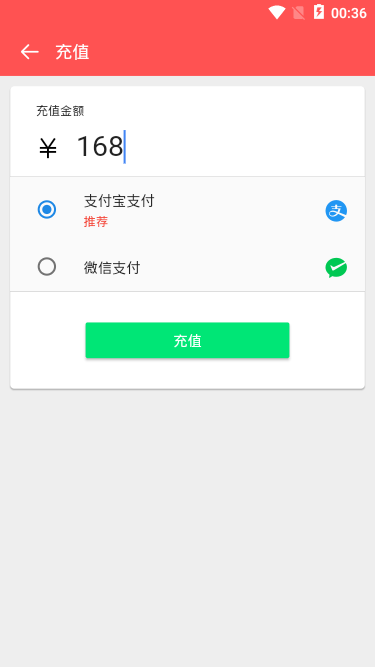
鉴于最近Flutter跨平台技术比较火,作为前端开发有必要去学习下,今天给大家分享的是基于flutter+dart+image_picker+photo_view等技术开发仿微信界面聊天应用实战项目案例。
一、技术框架
- 编码/技术:Vscode + Flutter 1.12.13/Dart 2.7.0
- 视频组件:chewie: ^0.9.7
- 图片/拍照:image_picker: ^0.6.6+1
- 图片预览组件:photo_view: ^0.9.2
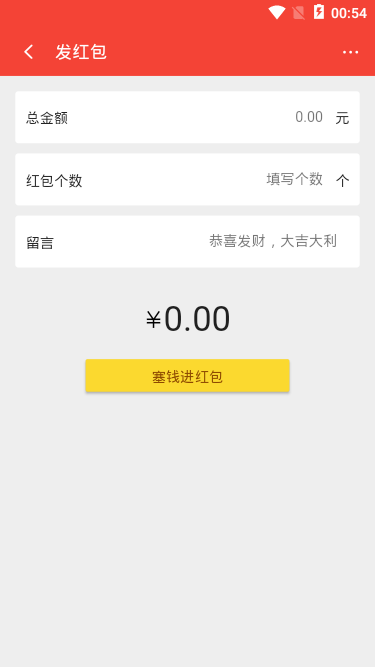
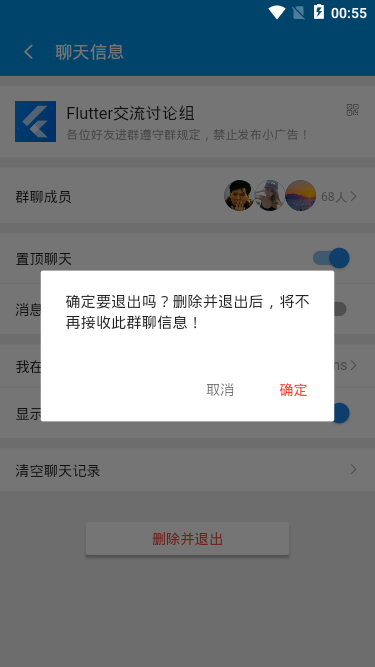
- 弹窗组件:SimpleDialog/AlertDialog/SnackBar(flutter封装自定义)
- 本地存储:shared_preferences: ^0.5.7+1
- 字体图标:阿里iconfont字体图标库
二、flutter主入口页面main.dart
/**
 * @tpl Flutter入口页面 | Q:282310962
 */

import 'package:flutter/material.dart';

// 引入公共样式
import 'styles/common.dart';

// 引入底部Tabbar页面导航
import 'components/tabbar.dart';

// 引入地址路由
import 'router/routes.dart';

void main() => runApp(MyApp());

class MyApp extends StatelessWidget {
  @override
  Widget build(BuildContext context) {
    return MaterialApp(
      title: 'Flutter App',
      debugShowCheckedModeBanner: false,
      theme: ThemeData(
        primaryColor: GStyle.appbarColor,
      ),
      home: TabBarPage(),
      onGenerateRoute: onGenerateRoute,
    );
  }
}
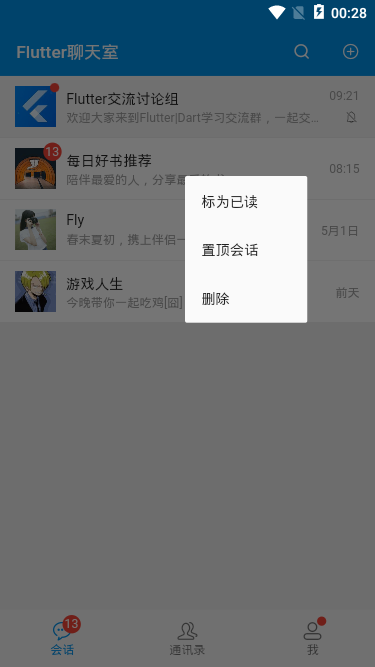
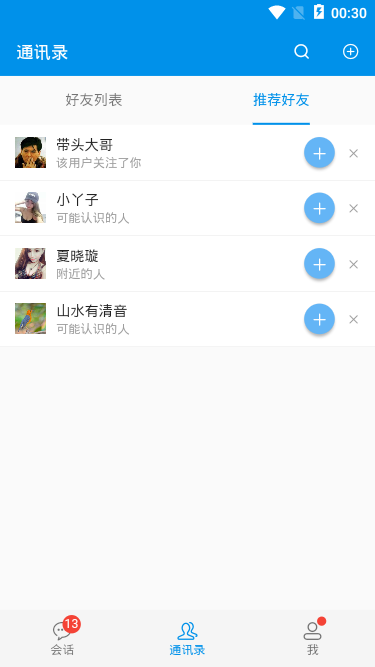
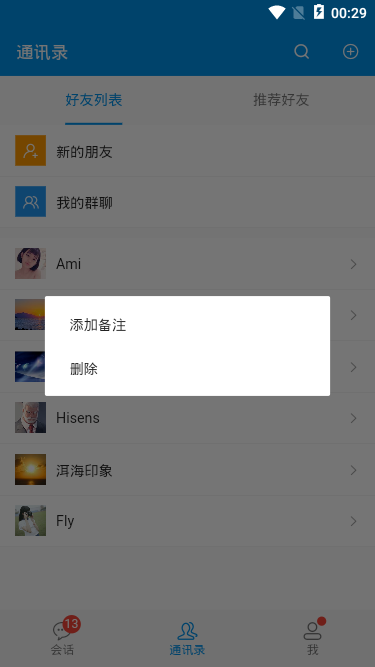
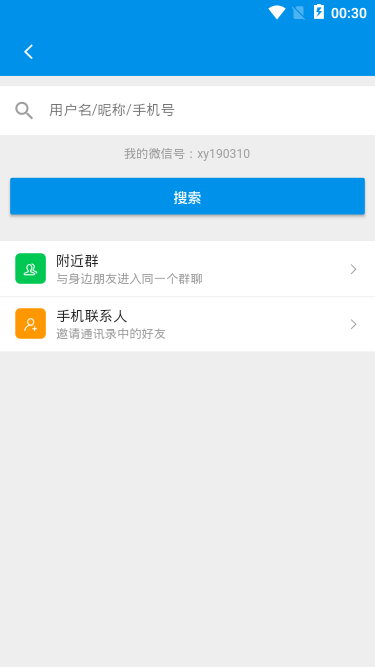

三、flutter顶部沉浸式状态条+底部tabbar
至于在flutter中如何实现顶部透明状态栏(去掉状态栏黑色半透明背景),去掉右上角banner,详细介绍可以去看这篇文章
四、flutter图标Icon及自定义IconData组件
flutter中自带图标使用非常简单 Icon(Icons.search)
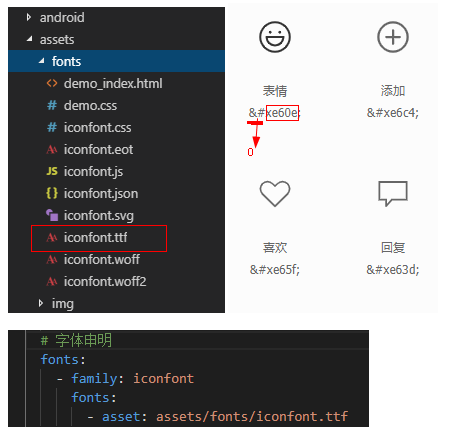
可是如果想要自定义图标,如使用阿里图标iconfont如何实现,这时就需要用到IconData来实现自定义图标了。Icon(IconData(0xe60e, fontFamily:'iconfont'), size:24.0)
使用IconData需要先下载阿里图标库字体文件,然后在pubspec.yaml中引入字体
class GStyle {
    // __ 自定义图标
    static iconfont(int codePoint, {double size = 16.0, Color color}) {
        return Icon(
            IconData(codePoint, fontFamily: 'iconfont', matchTextDirection: true),
            size: size,
            color: color,
        );
    }
}
如上代码就实现了自定义字体图标,可自定义颜色、字体大小;
GStyle.iconfont(0xe60e, color: Colors.orange, size: 17.0)五、flutter实现圆点数字/红点提醒
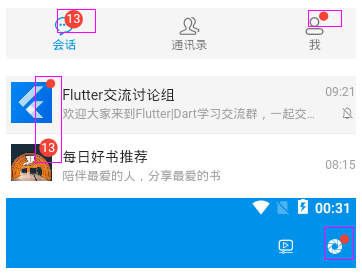
在app中,类似如下红点提醒很常见,平时微信中就有见到,可以flutter没有提供这种组件,只能自定义实现了。
class GStyle {
    // 消息红点
    static badge(int count, {Color color = Colors.red, bool isdot = false, double height = 18.0, double width = 18.0}) {
        final _num = count > 99 ? '···' : count;
        return Container(
            alignment: Alignment.center, height: !isdot ? height : height/2, width: !isdot ? width : width/2,
            decoration: BoxDecoration(color: color, borderRadius: BorderRadius.circular(100.0)),
            child: !isdot ? Text('$_num', style: TextStyle(color: Colors.white, fontSize: 12.0)) : null
        );
    }
}调用非常简单:支持自定义红点大小、颜色,默认数字超过99就...显示;GStyle.badge(0, isdot:true)GStyle.badge(13)GStyle.badge(168, color: Colors.green, height: 17.0, width: 17.0)
六、flutter中实现自定义弹窗模式
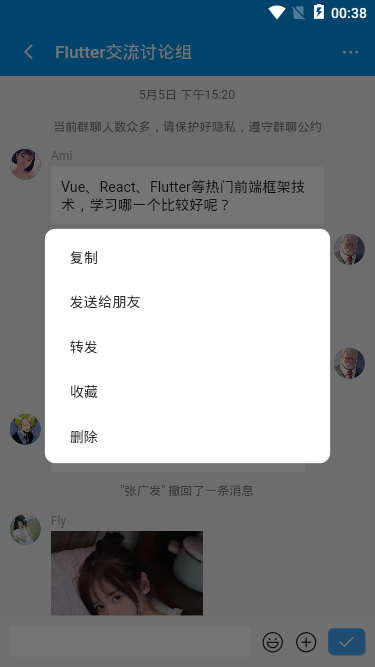
- flutter中实现长按,并在长按位置弹出菜单
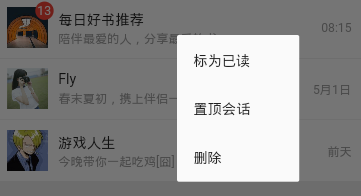
通过InkWell组件提供的onTapDown事件获取长按坐标点
InkWell(
    splashColor: Colors.grey[200],
    child: Container(...),
    onTapDown: (TapDownDetails details) {
        _globalPositionX = details.globalPosition.dx;
        _globalPositionY = details.globalPosition.dy;
    },
    onLongPress: () {
        _showPopupMenu(context);
    },
),
// 长按弹窗
double _globalPositionX = 0.0; //长按位置的横坐标
double _globalPositionY = 0.0; //长按位置的纵坐标
void _showPopupMenu(BuildContext context) {
// 确定点击位置在左侧还是右侧
bool isLeft = _globalPositionX > MediaQuery.of(context).size.width/2 ? false : true;
// 确定点击位置在上半屏幕还是下半屏幕
bool isTop = _globalPositionY > MediaQuery.of(context).size.height/2 ? false : true;
showDialog(
context: context,
builder: (context) {
return Stack(
children: <Widget>[
Positioned(
top: isTop ? _globalPositionY : _globalPositionY - 200.0,
left: isLeft ? _globalPositionX : _globalPositionX - 120.0,
width: 120.0,
child: Material(
...
),
)
],
);
}
);
}- flutter去掉AlertDialog弹窗大小限制
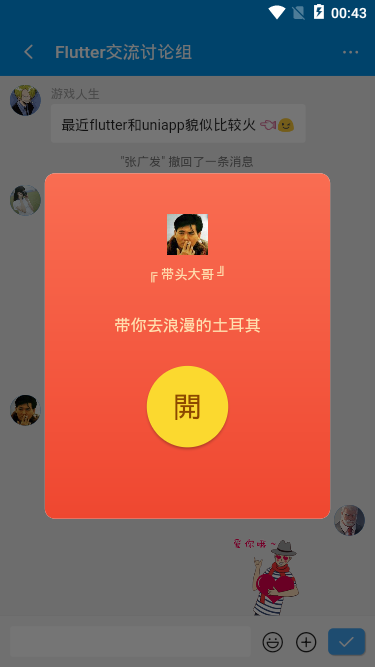
通过SizedBox和无限制容器UnconstrainedBox组件配合实现,如下:
void _showCardPopup(BuildContext context) {
    showDialog(
      context: context,
      builder: (context) {
        return UnconstrainedBox(
          constrainedAxis: Axis.vertical,
          child: SizedBox(
            width: 260,
            child: AlertDialog(
              content: Container(
                ...
              ),
              elevation: 0,
              contentPadding: EdgeInsets.symmetric(horizontal: 10.0, vertical: 20.0),
            ),
          ),
        );
      }
    );
}
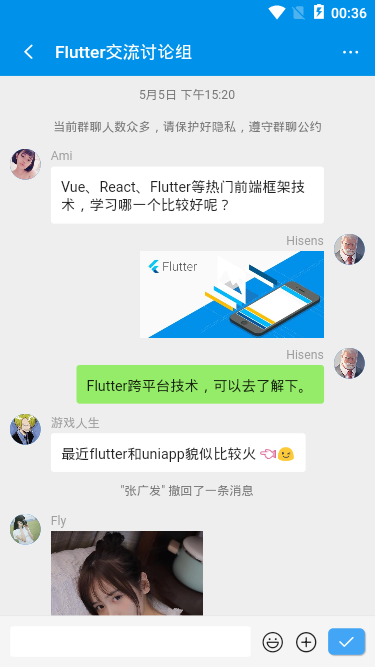
七、flutter聊天页面实现
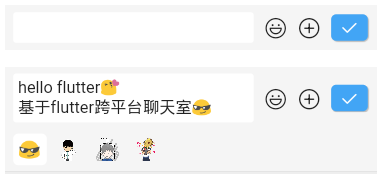
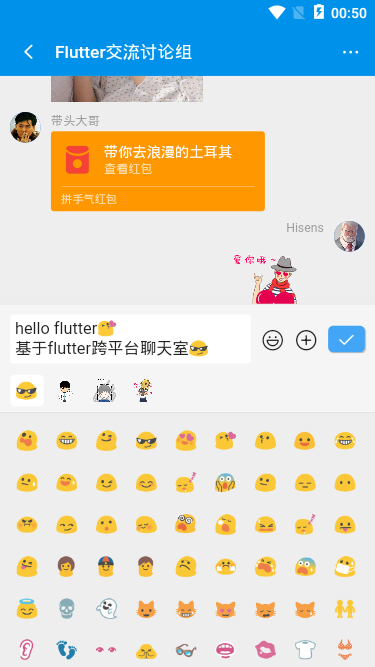
flutter中TextField文本框提供的maxLines属性可实现多行/换行文本,不过默认会有个高度,
可在外层加个容器限制最小高度,然后设置 maxLines: null、 keyboardType: TextInputType.multiline,
Container(
    margin: GStyle.margin(10.0),
    decoration: BoxDecoration(color: Colors.white, borderRadius: BorderRadius.circular(3.0)),
    constraints: BoxConstraints(minHeight: 30.0, maxHeight: 150.0),
    child: TextField(
        maxLines: null,
        keyboardType: TextInputType.multiline,
        decoration: InputDecoration(
          hintStyle: TextStyle(fontSize: 14.0),
          isDense: true,
          contentPadding: EdgeInsets.all(5.0),
          border: OutlineInputBorder(borderSide: BorderSide.none)
        ),
        controller: _textEditingController,
        focusNode: _focusNode,
        onChanged: (val) {
          setState(() {
            editorLastCursor = _textEditingController.selection.baseOffset;
          });
        },
        onTap: () {handleEditorTaped();},
    ),
),
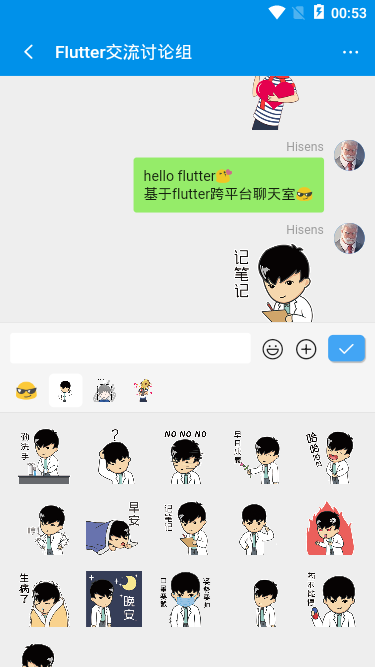
flutter实现进入聊天页面,聊天消息滚动到最底部
ScrollController _msgController = new ScrollController();
...
ListView(
    controller: _msgController,
    padding: EdgeInsets.all(10.0),
    children: renderMsgTpl(),
)

// 滚动消息至聊天底部
void scrollMsgBottom() {
    timer = Timer(Duration(milliseconds: 100), () => _msgController.jumpTo(_msgController.position.maxScrollExtent));
}
Okay,基于Flutter/Dart开发仿微信界面应用app聊天实例就介绍到这里,后续会继续分享更多实例项目,希望大家能喜欢!💪💪