

长按二维码进行保存图片
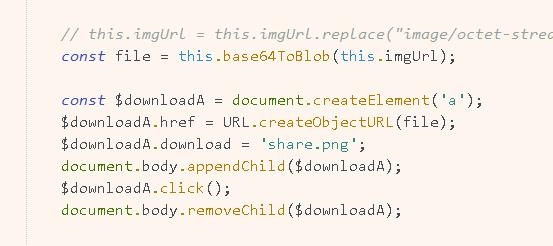
简介的办法是将 生成的二维码
base64格式的 进行转换成blob格式 创建一个标签
一年开发经验写出的
下面是我半年工作经验写出的
<template>
	<div>
		<van-nav-bar title="邀请好友" left-arrow @click-left="this.$baseJs.backPage" />
		<div class="shareBox">
			<!-- <img src="/static/shareBg.jpg" alt class="bg" /> -->
			<img src="/static/share1.jpg" alt class="bg" />
			<div class="BtnBox">
				<p>我的邀请码:{{inviteCode}}</p>
				<div class="btn" @click="toInviteCode">发送我的邀请</div>
			</div>

			<!-- <img src="/static/u3.png" alt class="shareText" /> -->
		</div>
		<div class="creat-img" ref="box" v-show="imgShow">
			<!-- <img src="/static/20191109224025.png" alt="分享背景图" /> -->
			<img src="/static/share2.jpg" alt="分享背景图" />
			<div id="qrcode" ref="qrCodeDiv"></div>
			<div class="inviteCode">
				<p>我的邀请码:{{inviteCode}}</p>
			</div>
		</div>
		<div class="creatBox" v-show="show">
			<!-- <img :src="imgUrl" class="creatImg" /> -->
			<img src="/static/share2.jpg" alt="分享背景图" class="creatImg" />
			<!-- <div class="creatBox" > -->
			<van-icon name="clear" @click="show=false" />
			<div class="share-img" @touchstart="loop" @touchend="endLoop">
				<p>长按保存图片分享</p>
				<img :src="imgUrl" alt="分享图片" />
			</div>
		</div>
	</div>
</template>

<script>
	// 引入第三方库
	import QRCode from "qrcodejs2"; //合成二维码
	import html2canvas from "html2canvas"; //html元素转为图片


	export default {
		components: {},
		name: "",
		data() {
			return {
				show: false,
				shareButtons: [{
						text: "微信好友",
						nativeshare: "wechatFriend",
						m_share: "wx",
						src: require("@/assets/icons/u11.png")
					},
					{
						text: "朋友圈",
						nativeshare: "wechatTimeline",
						m_share: "wxline",
						src: require("@/assets/icons/u12.png")
					}
				],
				inviteCode: JSON.parse(localStorage.getItem("user")).inviteCode,
				imgUrl: "",
				imgShow: false,
				Loop: null //是否长按
			};
		},
		computed: {},
		watch: {},
		methods: {
			toInviteCode() {
				this.show = true;
				this.imgShow = true;
				setTimeout(() => {
					html2canvas(this.$refs.box).then(canvas => {
						// this.imgUrl = URL.createObjectURL(
						//   this.base64ToBlob(canvas.toDataURL())
						// );
						// 图片地址
						this.imgUrl = canvas.toDataURL("image/png").replace("image/png", "image/octet-stream");
						// this.imgShow = false;
						this.imgShow = !this.imgShow;

					});
				}, 100);
			},
			loop() {
				clearTimeout(this.Loop); //再次清空定时器,防止重复注册定时器
				this.Loop = setTimeout(function() {
					console.log("长按了");

					var mycanvas = this.imgUrl;
					// var img = mycanvas.toDataURL("image/png").replace("image/png", "image/octet-stream");
					// 下载
					// window.location.href = mycanvas
					this.savePic();
					this.imgShow = false;
					this.show = true

					// 网址中打开图片   废弃
					// var open = window.open('about:blank', 'image from canvas');
					// open.document.write("<img src='" + mycanvas + "' alt='from canvas' />")
					// window.location.href = open
				}.bind(this), 1000);
			},
			savePic() {
				//找到canvas标签
				var Url = document.getElementById('qrcode').getElementsByTagName('canvas');
				// // 创建一个a标签节点
				// let a = document.createElement("a")
				// //设置a标签的href属性(将canvas变成png图片)
				// // a.href = myCanvas[0].toDataURL('image/png').replace('image/png', 'image/octet-stream')
				// a.href= window.URL.createObjectURL(this.imgUrl)
				// // link.download = fileName
				// console.log(a.href)
				// //设置下载文件的名字
				// a.download = "ewm.jpg"
				// //点击
				// a.click()
				// // 弹出提示
				// // this.$message({message:'亲,正在进行下载保存',type:'warning'})

				var blob = new Blob([''], {
					type: 'application/octet-stream'
				});
				var url = window.URL.createObjectURL(blob);
				var a = document.createElement('a');
				a.href = this.imgUrl;
				a.download = this.imgUrl.replace(/(.*\/)*([^.]+.*)/ig, "$2").split("?")[0];
				var e = document.createEvent('MouseEvents');
				e.initMouseEvent('click', true, false, window, 0, 0, 0, 0, 0, false, false, false, false, 0, null);
				a.dispatchEvent(e);
				window.URL.revokeObjectURL(url);
			},
			endLoop() {
				clearTimeout(this.Loop); //再次清空定时器,防止重复注册定时器
			},
			//base64转blob
			base64ToBlob(code) {
				let parts = code.split(";base64,");
				let contentType = parts[0].split(":")[1];
				let raw = window.atob(parts[1]);
				let rawLength = raw.length;

				let uInt8Array = new Uint8Array(rawLength);

				for (let i = 0; i < rawLength; ++i) {
					uInt8Array[i] = raw.charCodeAt(i);
				}
				return new Blob([uInt8Array], {
					type: contentType
				});
			}
		},
		props: "",
		created() {
			let that = this;
			that.$nextTick(function() {
				new QRCode(this.$refs.qrCodeDiv, {
					text: `${window.location.protocol}//${window.location.host}/#/register?code=${this.inviteCode}`,
					width: 80,
					height: 80,
					colorDark: "#333333", //二维码颜色
					colorLight: "#ffffff", //二维码背景色
					correctLevel: QRCode.CorrectLevel.L //容错率,L/M/H
				});

			});
		},
		mounted() {},
		beforeCreate() {},
		beforeMount() {},
		beforeUpdate() {},
		updated() {},
		beforeDestroy() {},
		destroyed() {},
		activated() {}
	};
</script>
<style lang='less' scoped>
	//@import url(); 引入公共css类
	.shareBox {
		position: relative;

		.bg {
			width: 100%;
			display: block;
			margin-top: 20px;
		}

		.BtnBox {
			position: absolute;
			width: 100%;
			top: 305px;
			text-align: center;

			p {
				font-style: normal;
				font-size: 16px;
				/* color: #ffffff; */
				line-height: 28px;
			}

			.btn {
				margin: 35px auto;
				width: 60%;
				height: 50px;
				background-color: #529BEF;
				border-radius: 20px;
				color: #FFFFFF;
				font-size: 20px;
				line-height: 50px;
			}
		}

		.shareText {
			position: absolute;
			top: 690px;
			width: 200px;
			left: 50%;
			margin-left: -100px;
		}
	}

	.shareImg {
		width: 60px;
	}

	.creatBox {
		position: fixed;
		width: 100vw;
		height: 100vh;
		top: 0;
		left: 0;
		background: rgba(0, 0, 0, 0.7);
		z-index: 100;
		text-align: center;

		.creatImg {
			position: absolute;
			top: 0;
			left: 0;
			width: 100%;
			height: 100%;
			opacity: 0;
		}

		.van-icon {
			position: absolute;
			top: 40px;
			right: 40px;
			font-size: 30px;
			color: #fff;
		}

		.share-img {
			position: absolute;
			top: 100px;
			width: 100%;
		}

		p {
			padding: 20px;
			// padding-top: 100px;
			color: #fff;
			font-size: 16px;
			text-align: center;
		}

		img {
			width: 80%;
		}
	}

	.creat-img {
		position: fixed;
		top: 0;
		left: 0;
		z-index: 0;
		width: 100%;

		img {
			width: 100%;
			height: auto;
		}

		.inviteCode {
			position: absolute;
			bottom: 100px;
			left: 0;
			width: 100%;
			color: #fff;
			font-size: 14px;
			text-align: center;
		}

		#qrcode {
			position: absolute;
			bottom: 10px;
			left: 50%;
			margin-left: -40px;
			width: 80px;
			height: 80px;
			text-align: center;
		}

		// opacity: 0;
	}
</style>
