

程序功能
在某个位置对未来的自己或他人写下一段话,在未来的某个时间回到这个位置时,时间胶囊便会打开。
github地址
项目部分截图
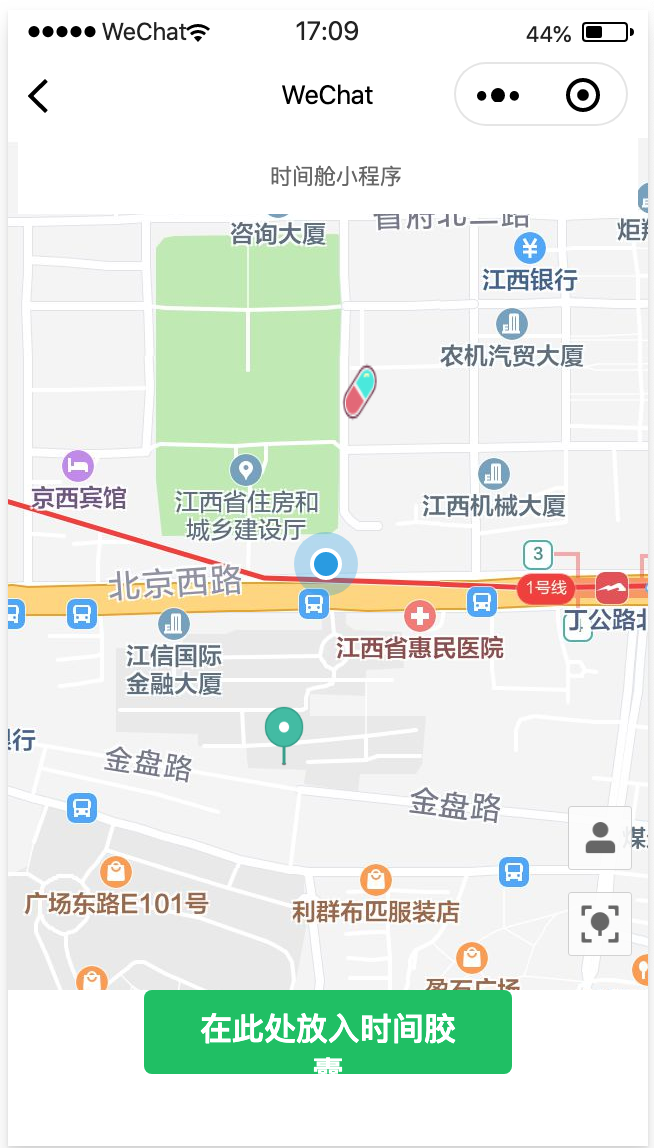
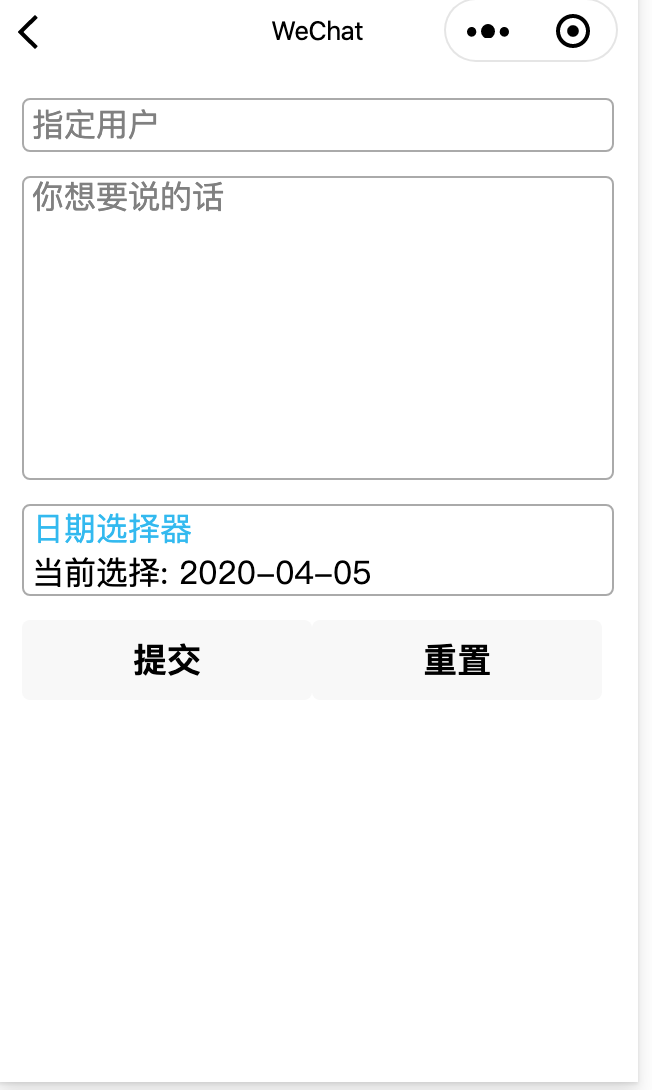
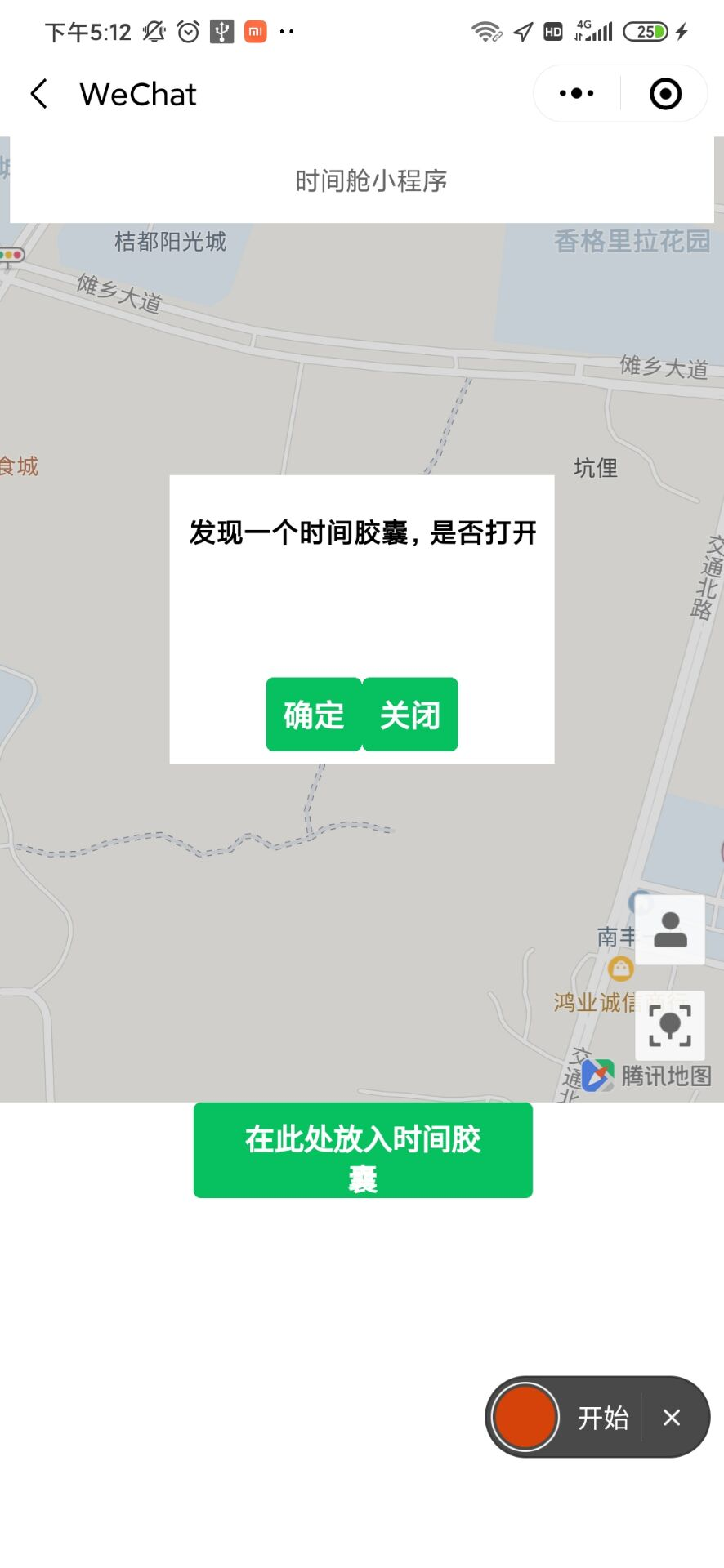
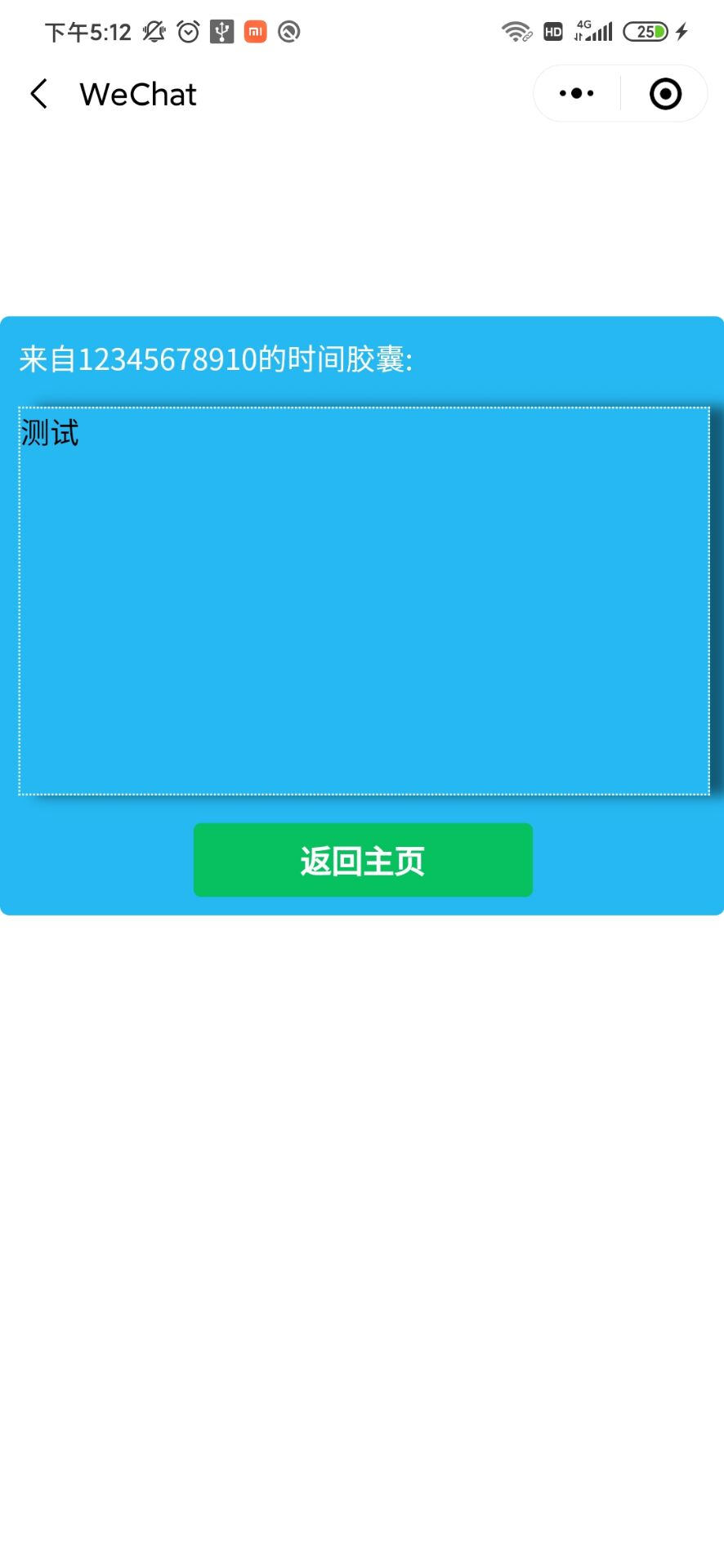
功能介绍
用户在地图上选定一个位置,在这个位置上面放入一个时间胶囊,指定可以触发的用户,触发的时间,当被指定的用户到达这个位置且达到这些要求时,时间胶囊就会被打开。
主页地图
地图使用的是微信小程序的地图组件
使用地图前先在app.json 中加入如下代码用来获取用户位置授权
  "permission": {
    "scope.userLocation": {
        "desc": "你的位置信息将用于小程序位置接口的效果展示"
    }
}
地图代码
<!-- index.wxml --><view class="map-box"> <!-- 地图组件 --> <map id="myMap" latitude='{{latitude}}' longitude="{{longitude}}" markers="{{clickMark}}" markers="{{markers}}" bindtap="clickMap" show-location> <!-- 标题 --> <cover-view class='top-tips'> <cover-view class='top-text'>时间舱小程序</cover-view> </cover-view> <!-- 提示信息 --> <cover-view class="mask {{isShow}}"> <cover-view class='toast'> <cover-view class='toast-text'>{{toast}}</cover-view> <button class="Mask_btn" type="primary" bindtap="closeMask"> 确定 </button> </cover-view> </cover-view> <!-- 触发胶囊提示 --> <cover-view class="mask {{isOpen}}"> <cover-view class='toast'> <cover-view class='toast-text'>{{toast}}</cover-view> <cover-view class="Mask_Button"> <button class="Mask_btn1" type="primary" bindtap="toCapsule"> 确定 </button> <button class="Mask_btn2" type="primary" bindtap="closeCapsule"> 关闭 </button> </cover-view> </cover-view> </cover-view> <!-- 控件 --> <cover-image class='map-icon map-icon_user' src='/assets/icon/icon-user.png' bindtap='toUser' /> <cover-image class='map-icon map-icon_reset' src='/assets/icon/reset.png' bindtap='toReset' /> </map> <button class="put_btn" type="primary" bindtap="putIn"> 在此处放入时间胶囊 </button> </view>在 onLoad 中去获取当前用户的位置
/*生命周期函数--监听页面加载*/ onLoad: function (options) { // 展示loading wx.showLoading({ title: '加载中', }) // 获取位置信息 wx.getLocation({ success: (res) => { let longitude = res.longitude; let latitude = res.latitude; this.setData({ longitude, latitude }) // console.log(this.data.longitude, this.data.latitude) } }) wx.hideLoading(); //隐藏loading },在 onShow 中 刷新胶囊显示
onShow: function () { // console.log('show') // 将Storage中的markers取来用 let markers = wx.getStorageSync('markers'); // 将日期转换成Date形式 let date = new Date(util.formatDate(new Date())) // 获取当前日期 let dateTime = date.getTime(date) console.log(dateTime) // 判断过期胶囊,将过期胶囊删除 markers.map((item, index) => { let itemDate = new Date(item.date) let itemTime = itemDate.getTime(itemDate) console.log(itemTime) if (dateTime > itemTime) { markers.splice(index, 1) } }) // 将StorageSync中的markers取出来,给到data中的markers if (markers != '') { // let markers = wx.getStorageSync('markers'); this.setData({ markers }); } wx.setStorageSync('markers', markers) }当点击地图或加入胶囊的时候 需要在地图上显示选择的位置和胶囊的位置
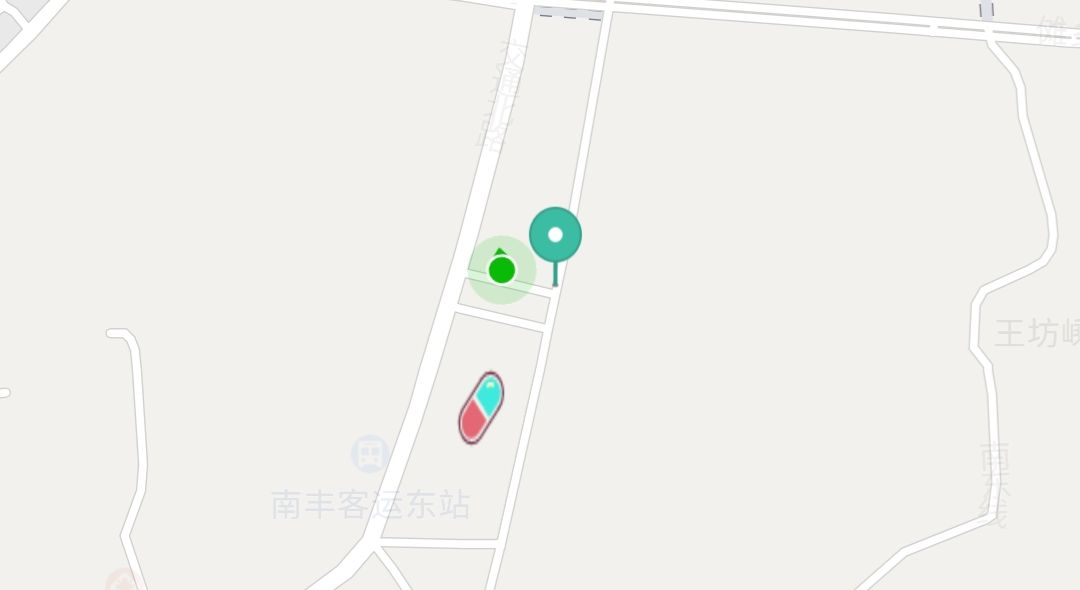
选择位置icon 和 胶囊icon 都需要放入 markers 数组中显示
这里 位置选择 使用map组件的方法 bindtap="clickMap"
clickMap: function (e) { var clickMark = { "id": -1, "iconPath": "/assets/icon/point_in_map.png", "callout": {}, "latitude": e.detail.latitude, "longitude": e.detail.longitude, "width": 20, "height": 30 } // 将clickMark 保存到 StorageSync 中 方便之后使用 wx.setStorageSync('clickMark', clickMark); let markers = this.data.markers markers.map((item, index) => { // 地图上只能存在一个选中 if (item.id == -1) { markers.splice(index, 1) return } }) // 将这个clickMark放到markers数组 第一个 this.setData({ markers: [clickMark, ...markers] }) }复位方法

toReset() { //复位后调整缩放比,提升体验 this.mapCtx.moveToLocation(); this.setData({ scale: 18 }) }添加时间胶囊
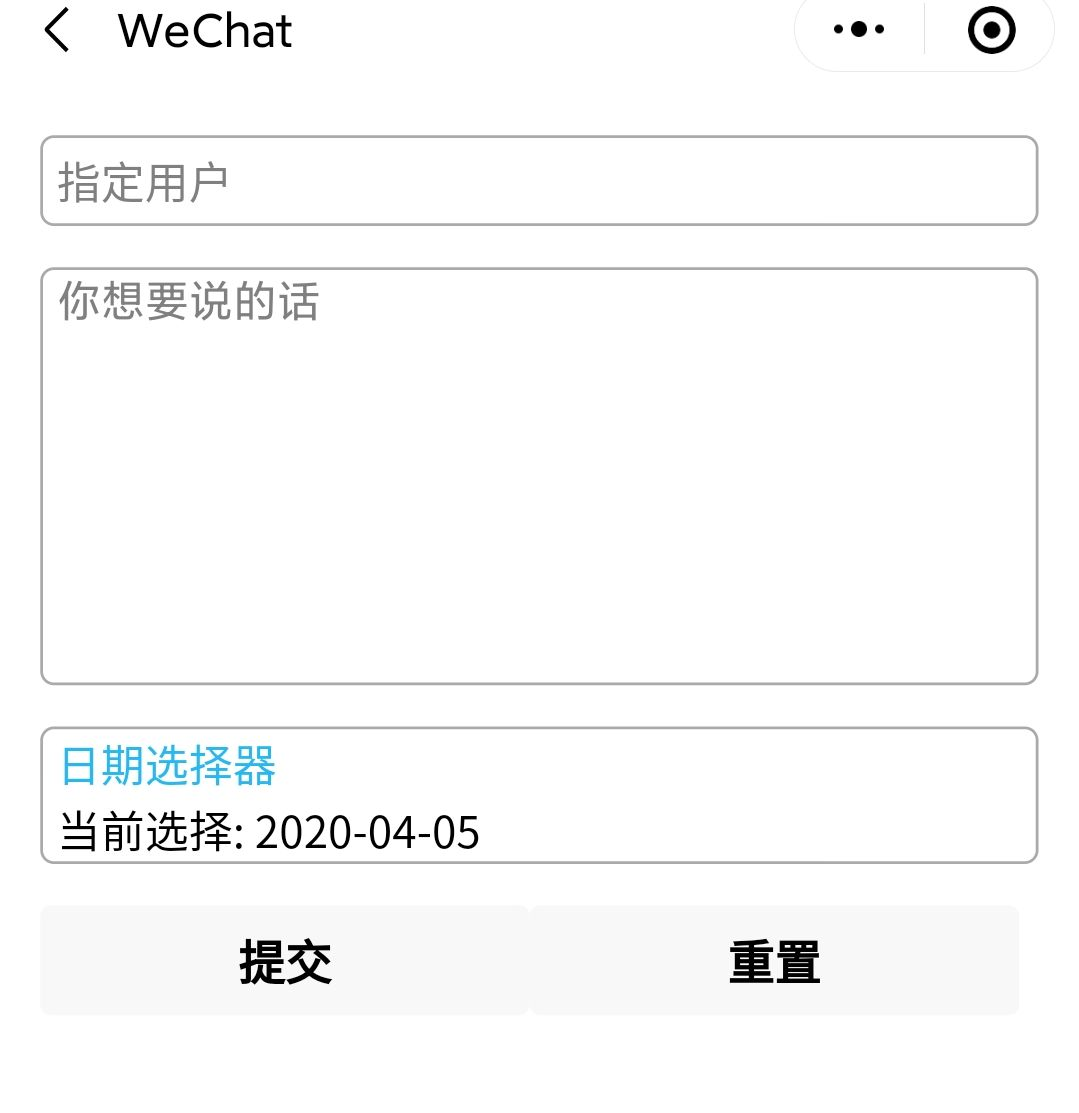
<view id="put-box"> <form bindsubmit="formSubmit" bindreset="formReset"> <!-- 时间胶囊指定接受用户 --> <input class="username" name="username" maxlength="11" placeholder="指定用户" /> <!-- 记录要告诉某人的话 --> <textarea class="text" placeholder="你想要说的话" name="textarea" /> <!-- 选择什么时候被打开 --> <view class="section"> <view class="section__title">日期选择器</view> <!-- 时间选择组件 --> <picker name="date" mode="date" value="{{date}}" start="{{date}}" bindchange="bindDateChange"> <view class="picker">当前选择: {{date}}</view> </picker> </view> <view class="btn-area"> <button formType="submit">提交</button> <!-- 将所有选项初始化 --> <button formType="reset">重置</button> </view> </form></view>当填好信息提交后,地图就会收到markers中被添加进了新的胶囊
formSubmit(e) { // console.log(e) // 获取到data中的clickMark let clickMark = this.data.clickMark // 修改clickMark中的一些值 clickMark.username = e.detail.value.username clickMark.text = e.detail.value.textarea clickMark.date = e.detail.value.date clickMark.id = this.data.markers.length clickMark.iconPath = '../../assets/icon/jiaonang.png' clickMark.fromUsername = wx.getStorageSync('username') // 将这个胶囊加入到markers数组 中 this.setData({ markers: [clickMark, ...this.data.markers] }) // console.log(this.data.markers) // 重新在 Storage 保存markers wx.setStorageSync('markers', this.data.markers); // 跳回首页 wx.navigateTo({ url: '/pages/index/index', }) }触发时间部分
首先在 index.js 中开启实时定位
onReady: function (e) { const that = this // 使用 wx.createMapContext 获取 map 上下文 this.mapCtx = wx.createMapContext('myMap') // 获取当前日期 const date = util.formatDate(new Date()) // 获取当前日期 // 获取当前登录的用户 if (wx.getStorageSync('username') != '') { const username = wx.getStorageSync('username') this.setData({ username }) } this.setData({ date }) // 开始前后台实时定位 wx.startLocationUpdateBackground({ success(res) { console.log('开启后台定位', res) }, fail(res) { console.log('开启后台定位失败', res) } }) // 实时定位 wx.onLocationChange(function (res) { console.log('location change', res) that.openCapsule(res) // console.log(Object.prototype.toString.call(that.openCapsule)) }) }openCapsule 方法 来判断胶囊是否能被开启
// 能否开启时间胶囊 openCapsule: function (res) { const markers = this.data.markers const that = this markers.map(item => { if (that.hasCapsule(res, item) && item.username == that.data.username && item.date == that.data.date) { that.setData({ isOpen: '', CapsuleId: item.id, toast: '发现一个时间胶囊,是否打开?' }) // 如果检测到附近有,就关闭实时定位监控 wx.stopLocationUpdate() } }) }hasCapsule 判断附近是否存在胶囊
hasCapsule(res, item) { if (res.longitude - item.longitude < 0.001 && res.latitude - item.latitude < 0.001) { return true } else { return false } }