1、简介
- Table控件具有控制宽度和位置的表格控件
2、构造函数
Table({
  Key key,
  this.children = const <TableRow>[],
  this.columnWidths,
  this.defaultColumnWidth = const FlexColumnWidth(1.0),
  this.textDirection,
  this.border,
  this.defaultVerticalAlignment = TableCellVerticalAlignment.top,
  this.textBaseline,
})
- children:子控件集合
- columnWidths:表格的宽度
- defaultColumnWidth:默认表格的宽度
- top:顶部
- middle:垂直居中
- bottom:底部
- baseline:文本baseline对齐
- fill:充满整个单元
- textDirection:文字的对齐方式
- border:表格的边框
- defaultVerticalAlignment:默认的表格位置对齐方式
- textBaseline:文字baseline类型
- alphabetic:对齐字符底部的水平线
- ideographic:对齐表意字符的水平线
3、例子
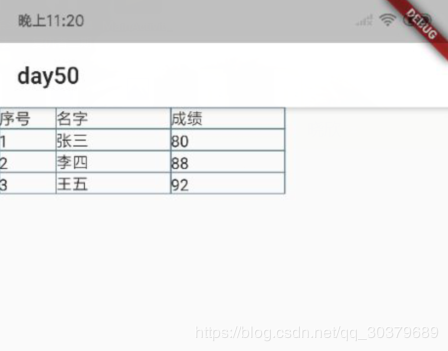
将文字居底对齐的表格
Widget _buildColumn() {
    return Table(
        textDirection: TextDirection.ltr,
        textBaseline: TextBaseline.alphabetic,
        defaultColumnWidth: FixedColumnWidth(80.0),
        defaultVerticalAlignment: TableCellVerticalAlignment.bottom,
        border:
            TableBorder.all(color: Colors.blueGrey, style: BorderStyle.solid),
        columnWidths: {
          0: FixedColumnWidth(50.0),
          1: FixedColumnWidth(100.0),
          2: FixedColumnWidth(100.0),
        },
        children: <TableRow>[
          TableRow(children: [
            Text("序号"),
            Text("名字"),
            Text("成绩"),
          ]),
          TableRow(children: [
            Text("1"),
            Text("张三"),
            Text("80"),
          ]),
          TableRow(children: [
            Text("2"),
            Text("李四"),
            Text("88"),
          ]),
          TableRow(children: [
            Text("3"),
            Text("王五"),
            Text("92"),
          ])
        ]);
}