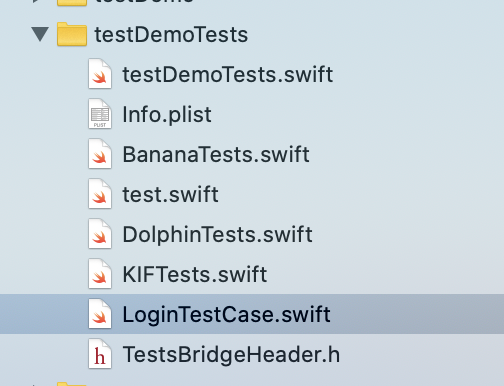
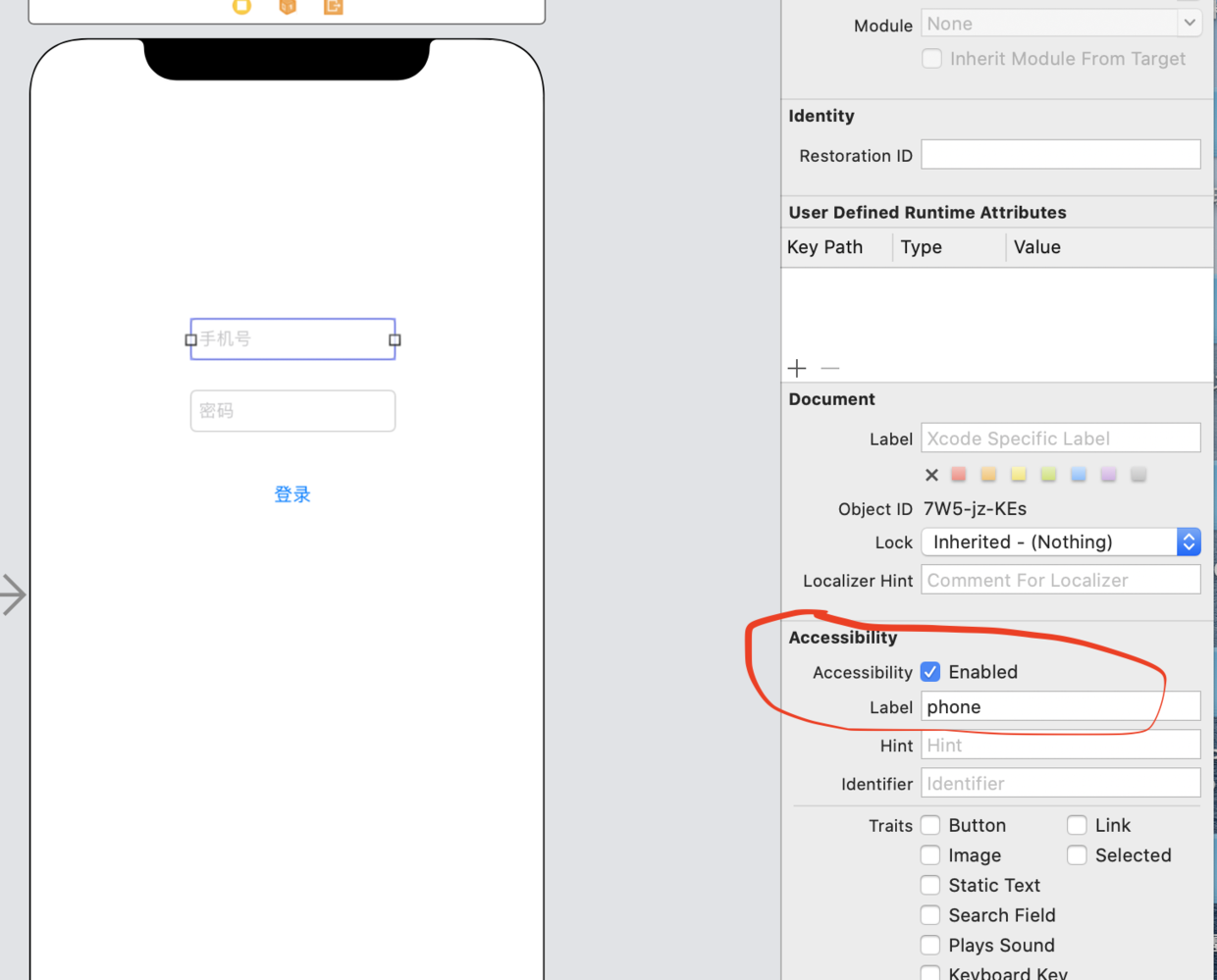
platform :ios, '9.0'source'https://mirrors.tuna.tsinghua.edu.cn/git/CocoaPods/Specs.git'
target "testDemo"do# Normal libraries
use_frameworks!
end
def testing_pods
pod 'Quick'
pod 'Nimble'
end
target 'testDemoTests'do
use_frameworks!
pod 'KIF', :configurations => ['Debug']
testing_pods
end
target 'testDemoUITests'do
use_frameworks!
testing_pods
end
import KIF

@testable import testDemo
class LoginTestCase: KIFTestCase {
    override func beforeAll() {
    }

    func tester00Login() {
        let phoneTextField = tester().waitForView(withAccessibilityLabel: "phone") as! UITextField
        let passwordTextField = tester().waitForView(withAccessibilityLabel: "password") as! UITextField
        tester().enterText("15066668888", intoViewWithAccessibilityLabel: "phone")
        tester().enterText("123456", intoViewWithAccessibilityLabel: "password")

        //点击
        tester().tapView(withAccessibilityLabel: "login")
        XCTAssertTrue(!phoneTextField.text!.isEmpty, "phoneText should not be empty!")
        XCTAssertTrue(!passwordTextField.text!.isEmpty, "password should not be empty!")

    }
}
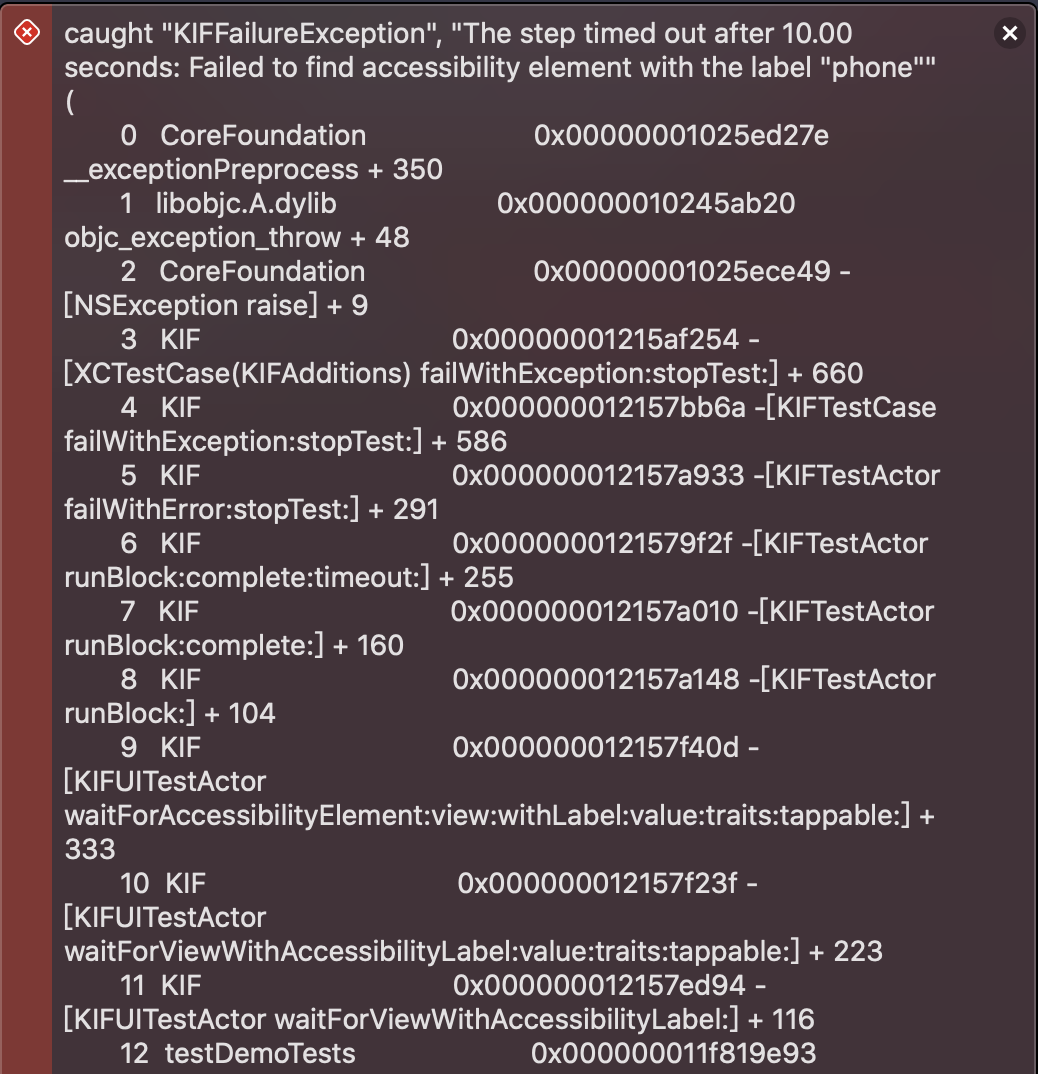
如果你走到这了,恭喜你就报错了 😀😀,为啥? what? WTF?为啥报错:
4.错误解决(悄悄的笑两声就行了)
首先我们应该会检查控件上的这个AccessibilityLabel是否存在值,通过Xcode-> Open Develop Tool -> Accessibility Inspector,控件的这个值AccessibilityLabel存在的,为啥???等等,我们的App貌似没启动啊 😲,更正:2020/03/17 这个地方应该不需要启动App,暂时不需要这个方法。
正确代码如下
import KIF

@testable import testDemo
class LoginTestCase: KIFTestCase {

    func tester00Login() {
        let phoneTextField = tester().waitForView(withAccessibilityLabel: "phone") as! UITextField
        let passwordTextField = tester().waitForView(withAccessibilityLabel: "password") as! UITextField
        tester().enterText("15066668888", intoViewWithAccessibilityLabel: "phone")
        tester().enterText("123456", intoViewWithAccessibilityLabel: "password")

        //点击
        tester().tapView(withAccessibilityLabel: "login")
        XCTAssertTrue(!phoneTextField.text!.isEmpty, "phoneText should not be empty!")
        XCTAssertTrue(!passwordTextField.text!.isEmpty, "password should not be empty!")

    }
}