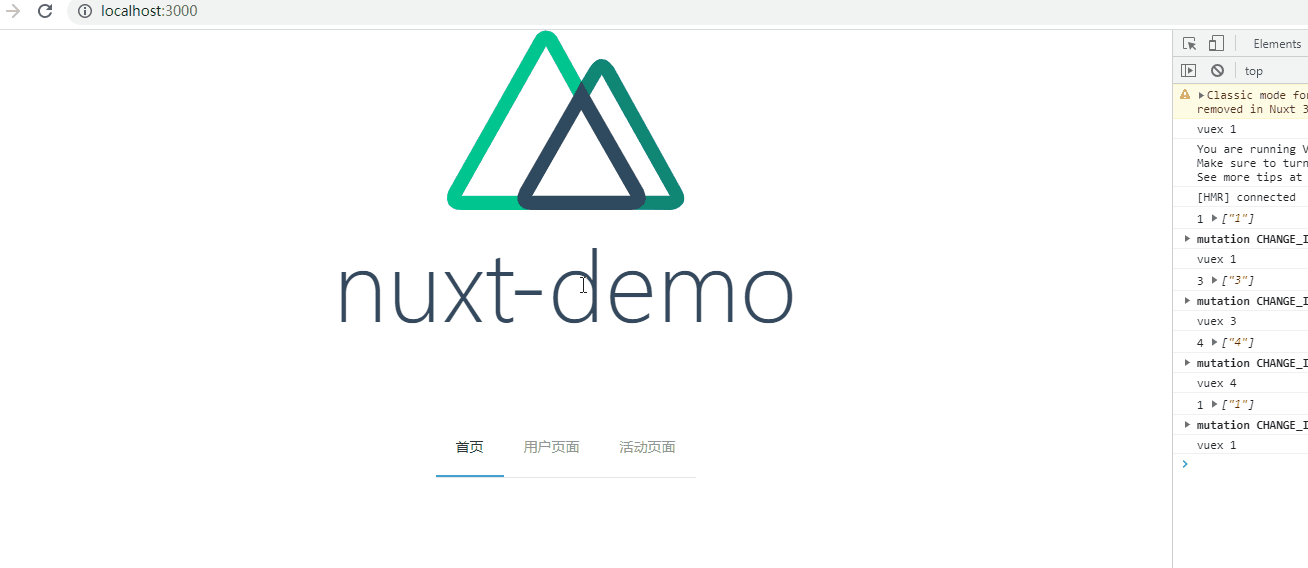
效果如下
方式一 | 通过嵌套路由实现
在pages页面根据nuxt的路由规则,建立页面
1. 创建文件目录及文件
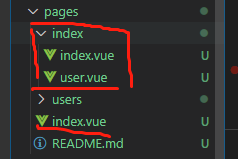
所以,我们的文件夹也为index,index文件夹需要一个默认的页面不然nuxt的路由规则就不能正确匹配页面
一级路由是根路由
二级路由是index,user,默认进入index路由
下面是router页面自动生成的路由
{
    path: "/",
    component: _93624e48,
    children: [{
      path: "",
      component: _7ba30c26,
      name: "index"
    }, {
      path: "user",
      component: _6934afa7,
      name: "index-user"
    }]
  }
2. html页面增加nutx-child配合子路由跳转
<template>
  <div class="container">
    <div>
      <logo />
      <h1 class="title">
        nuxt-demo
      </h1>
      // 直接访问路由
      <!-- <nuxt-link to="/users">用户列表</nuxt-link> -->
      // 通过push的方式直接访问路由路径
      <!-- <el-button @click="$router.push('/users')">用户列表</el-button> -->
      // 通过push的方式,同时用对象的方式访问路由
      <el-button @click="$router.push({name: 'index'})">首页</el-button>
      <el-button @click="$router.push({name: 'index-user'})">用户详情</el-button>
    </div>
    // nuxt规定的子路由插槽
    <nuxt-child></nuxt-child>
  </div>
</template>
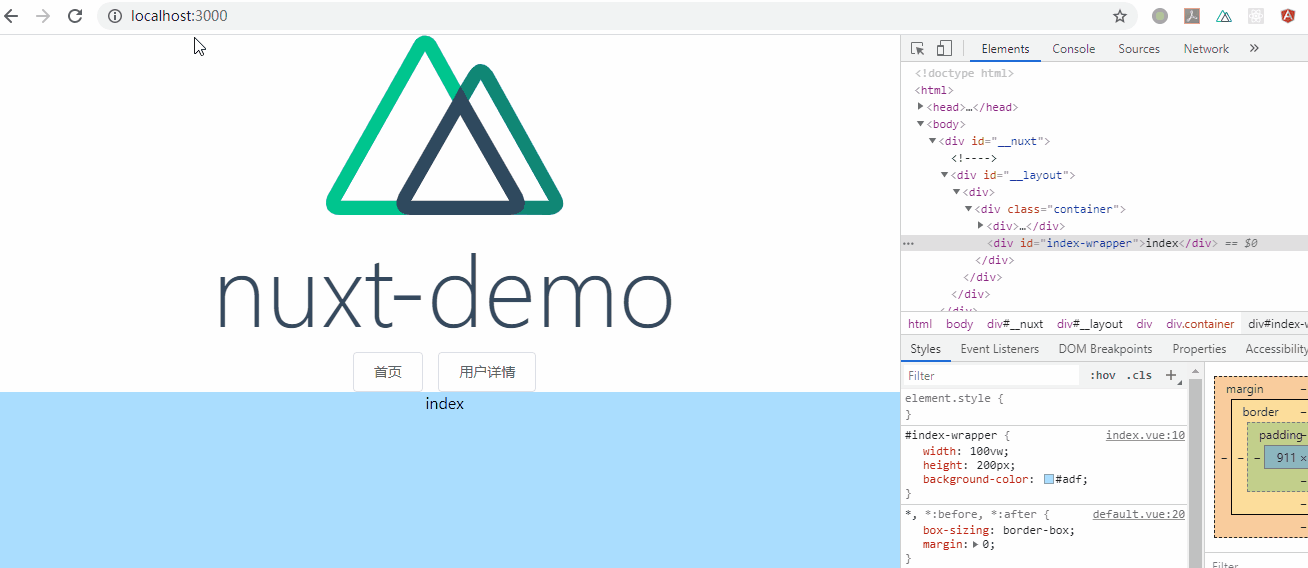
这里就拿官方demo改了一下,可以看到,切换路由的时候,只有子路由页面是变换的,父路由部分是没有变换的
方式二 | 创建公共组件实现
这个方法是需要用到vuex的,当然了,如果嫌麻烦,用storage也行
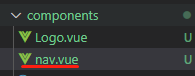
在components内创建公共组件
1.在pages文件夹创建页面,一个主页,一个用户页面,一个活动页面
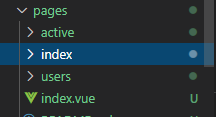
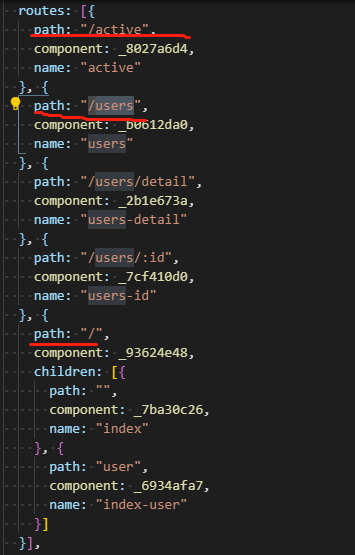
我们看下.nuxt文件夹下面的router.js页面
2. 创建公共组件
<template>
  <div id="nav-wrapper">
    <el-menu :default-active="activeIndex" class="el-menu-demo" mode="horizontal" @select="handleSelect">
      <el-menu-item index="1" @click="$router.push({name: 'index'})">首页</el-menu-item>
      <el-menu-item index="3" @click="$router.push({name: 'users'})">用户页面</el-menu-item>
      <el-menu-item index="4" @click="$router.push({name: 'active'})">活动页面</el-menu-item>
    </el-menu>
  </div>
</template>
3. 在所有路由页面导入创建的公共组件
<template>
  <div class="container">
    <div>
      <logo />
      <h1 class="title">
        nuxt-demo
      </h1>
      <navBar />
    </div>
  </div>
</template>

<script>
import Logo from '~/components/Logo.vue'
import navBar from '~/components/nav.vue'

export default {
  components: {
    Logo,
    navBar
  }
}
</script>

<style>
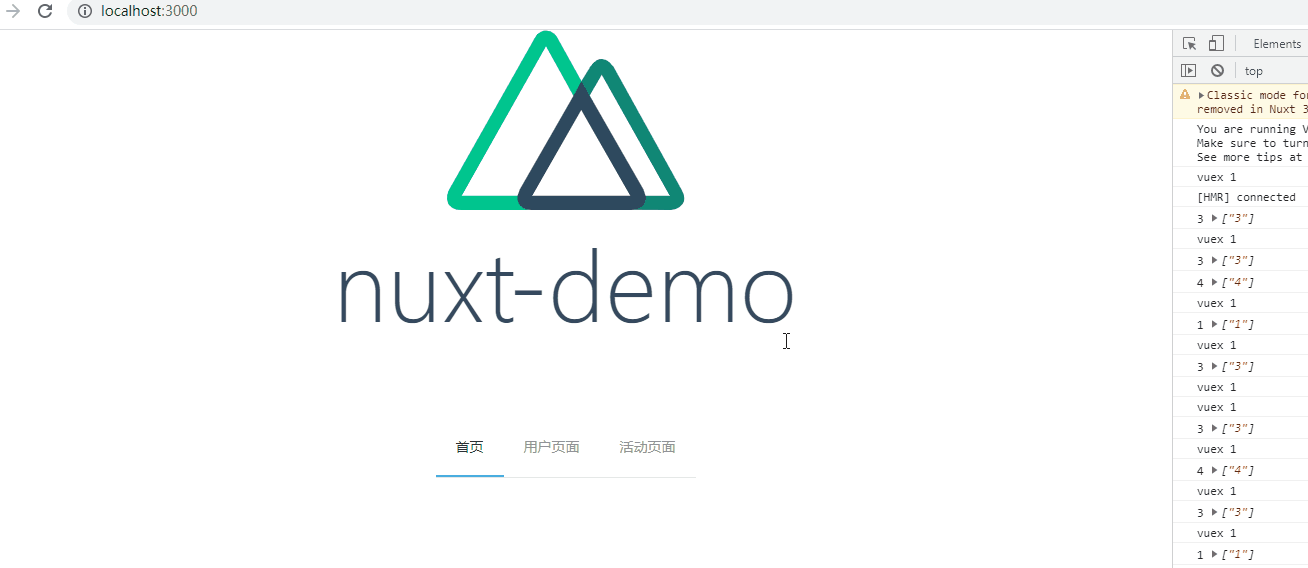
这样就完成了第一步,我们看下预览
3-1(修正,不需要每个页面导入公共组件)
之前在第三步的时候,我写的是需要在每一个组件的开头导入公共组件nav-bar
vue里面有一个app.vue,可以写布局
nuxt里面没有,就以为需要手动在每个页面加入,害~~~主要是api没看完,里面有一个layouts目录的自定义布局
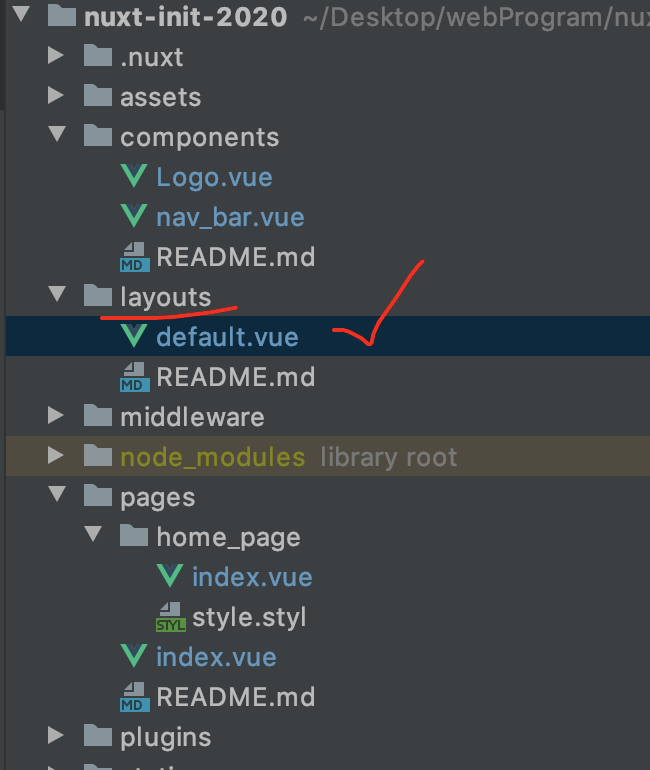
我们只需要在defalult.vue,这个页面中导入我们之前写的公共组件就行了
<template>
  <div>
    <nav-bar />
    <nuxt />
  </div>
</template>

<script>
import navBar from '../components/nav_bar'
export default {
  components: {
    navBar
  }
}
</script>
这样就实现了,一个公共导航栏的布局
4. 使用vuex同步导航栏状态
直接在store文件夹内进行添加就行,nuxt里推荐的两种vuex使用方法
第一种是普通创建
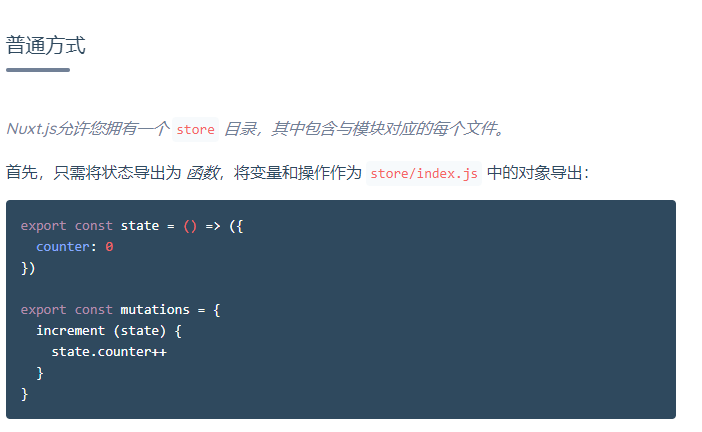
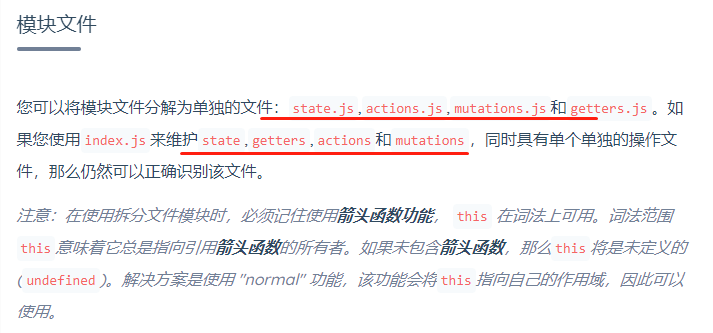
我们看下目录结构,这里和在vue使用的vuex目录是一样的
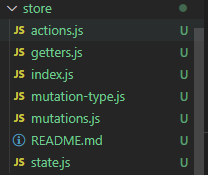
我们把状态同步到vuex中,这样每次页面进来的时候,直接读取vuex中的数据,就可以同步导航栏状态栏了
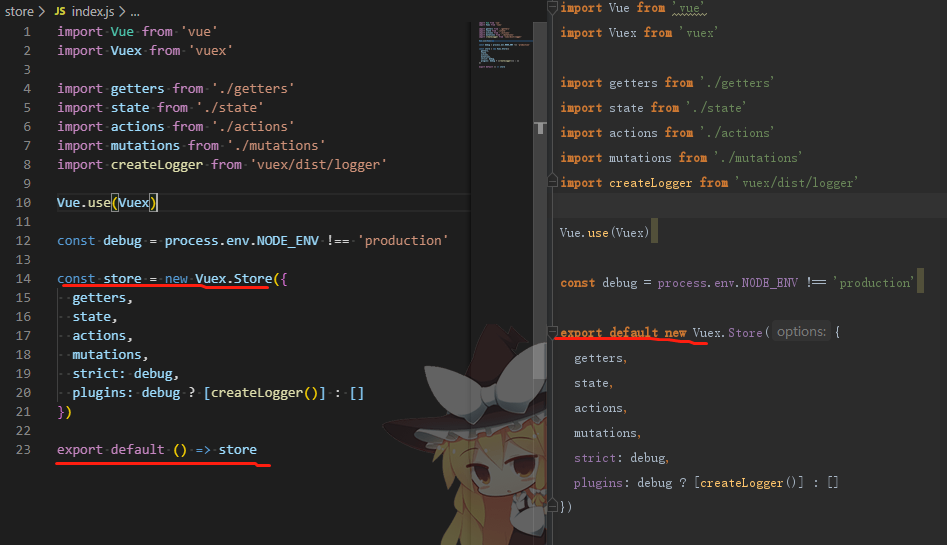
4.1 vuex使用报错
store/index.js should export a method that returns a Vuex
instance.vuex在nuxt中是需要导出一个store实例 我们这里需要改动一下store文件下的index页面
<template>
  <div id="nav-wrapper">
    <el-menu :default-active="activeIndex" class="el-menu-demo" mode="horizontal" @select="handleSelect">
      <el-menu-item index="1" @click="$router.push({name: 'index'})">首页</el-menu-item>
      <el-menu-item index="3" @click="$router.push({name: 'users'})">用户页面</el-menu-item>
      <el-menu-item index="4" @click="$router.push({name: 'active'})">活动页面</el-menu-item>
    </el-menu>
  </div>
</template>

<script>
  import {mapGetters, mapMutations} from 'vuex'
  export default{
    data() {
      return {
        activeIndex: '1',
        activeIndex2: '1'
      };
    },
    computed: {
      ...mapGetters([
        'barIndex'
      ])
    },
    methods: {
      ...mapMutations({
        'change_index': 'CHANGE_INDEX'
      }),
      handleSelect(key, keyPath) {
        console.log(key, keyPath);
        this.activeIndex = key
        // 每次切换导航栏,会把当前状态同步到vuex中
        this.change_index(this.activeIndex)
      }
    },
    created() {
      if (this.barIndex) { // 判断vuex内是否有上一次存储的数据,有就同步到当前状态
        this.activeIndex = this.barIndex
      }
      console.log('vuex', this.activeIndex)
    }
  }
</script>
这样,我们就已经可以同步导航栏状态了