一. 创建动画流程
1.流程
①.创建一个节点
②.节点上挂载动画播放组件:cc.Animation
③.编辑动画剪辑 AnimClip
画布上也可以找到运动轨迹进行快捷调整
二 帧动画
1.制作图集资源
图集资源(Atlas)
图集(Atlas)也称作 Sprite Sheet,是游戏开发中常见的一种美术资源。图集是通过专门的工具将多张图片合并成一张大图,并通过plist等格式的文件索引的资源。可供 Cocos Creator 使用的图集资源由plist和png文件组成。
plist制作软件推荐TexturePacker:
TexturePacker - Create Sprite Sheets for your game!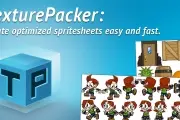
www.codeandweb.com
制作过程很简单
会生产plist和png精灵图
导入cocos中
2. 资源导入cocos后 创建一个精灵 挂上 图集 指定第一帧动画
3. 然后在动画面板置入关键帧,形成动画
三. cc.Animation类型
四. animation代码使用
1.获取animation组件
① 关联到属性面板 //老手法
cc.Class({
    extends: cc.Component,
    properties: {
        anim01:{
            type:cc.Animation,
            default:null
        }
    },
    start () {
        this.anim01.play();
    },
});
② 节点查找 接组件查找 //老手法
    start () {
       var anim02=this.node.getChildByName("anim01").getComponent(cc.Animation);
       anim02.play();
    },
2. 重要的属性
- defaultClip AnimationClip 在勾选自动播放或调用 play() 时默认播放的动画剪辑。
- currentClip AnimationClip 当前播放的动画剪辑。
3. 重要的方法
① play //播放动画 并停止之前动画
② playAddtive //播放动画,但不停止之前的动画
③ 停止 暂停 和 恢复
④. getClips // 返回动画剪辑数组(AnimationClip类型的数组)
4. 重要的事件
播放事件监听:
    start () {
       var anim02=this.node.getChildByName("anim01").getComponent(cc.Animation);
       anim02.play();
       anim02.on("play",function(){
           console.log("play!!!!!");
       },this);
    },
五. 动画中调用代码
双击节点插入事件
可以传参
相当于调用了函数 my_func01(anny,4,true);
此函数在哪呢? 动画组件会遍历自己节点下的所有脚本 来找到它
例如:挂载动画组件的节点下还挂了一个脚本
cc.Class({
    extends: cc.Component,
    my_func01:function(name,age,bool) {
        console.log("hello,"+name+",age:"+age+",little girl:"+bool);
    },
});
慎用! 因为太不容易被发现.