


最近有个需求,要用到类似于echarts.js的图表插件。于是百度查阅资料,发现了好用的wx-charts.js。
微信小程序图表插件(wx-charts.js)基于canvas绘制, 支持图表类型饼图、线图、柱状图 、区域图等常见图形绘制,基本满足日常开发需求。
支持类型
- 饼图 pie
- 圆环图 ring
- 线图 line
- 柱状图 column
- 区域图 area
- 雷达图 radar
如何使用?
- 直接引用编译好的文件charts.js(js下载地址)
<canvas canvas-id="lineCanvas" disable-scroll="true" class="canvas"></canvas> - 在页面头部引入文件并写下这几句话
var wxCharts = require('./wxCharts') // 根据wxCharts所在的位置而定 var app = getApp() var daulineChart = null var yuelineChart = null 注意:canvas-id须与new wxCharts({canvasId:""})中canvasId一致 - 编写一个让charts执行的方法(然后在页面load时候执行就ok)
getMothElectro: function () {
    var windowWidth = 320;
        try {
    var res = wx.getSystemInfoSync();
    windowWidth = res.windowWidth;
    } catch (e) {
        console.error('getSystemInfoSync failed!');
    }
    yuelineChart = new wxCharts({
        canvasId: 'yueEle',
        type: 'radar',
        categories: ['1', '2', '3', '4', '5', '6'],
        series: [{
            name: '数据统计',
            data: [90, 110, 125, 95, 87, 122]
        }],
        width: windowWidth,
        height: 200,
        extra: {
            radar: {
                max: 150
            }
        }
    });
}
需要更改报表类型,直接拷贝下面的demo替换new wxCharts 就ok
给你们参考的demo
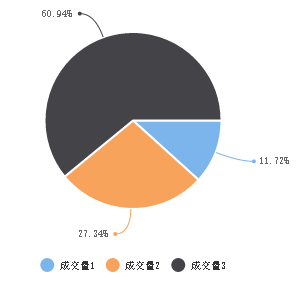
1.pie(饼图)
new wxCharts({
    animation: true, //是否有动画
    canvasId: 'pieCanvas',
    type: 'pie',
    series: [{
        name: '成交量1',
        data: 15,
    }, {
        name: '成交量2',
        data: 35,
    }, {
        name: '成交量3',
        data: 78,
    }],
    width: windowWidth,
    height: 300,
    dataLabel: true,
 });
}
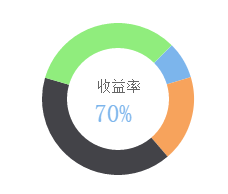
2. ring(圆环图)
new wxCharts({
    animation: true,
    canvasId: 'ringCanvas',
    type: 'ring',
    extra: {
        ringWidth: 25,
        pie: {
            offsetAngle: -45
        }
    },
    title: {
        name: '70%',
        color: '#7cb5ec',
        fontSize: 25
    },
    subtitle: {
        name: '收益率',
        color: '#666666',
        fontSize: 15
    },
    series: [{
        name: '成交量1',
        data: 15,
        stroke: false
    }, {
        name: '成交量2',
        data: 35,
         stroke: false
    }, {
        name: '成交量3',
        data: 78,
        stroke: false
    }, {
        name: '成交量4',
        data: 63,
         stroke: false
    }],
    disablePieStroke: true,
    width: windowWidth,
    height: 200,
    dataLabel: false,
    legend: false,
    padding: 0
});
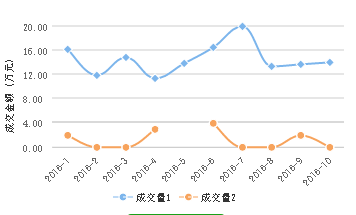
3. line(线图)
new wxCharts({
    canvasId: 'lineCanvas',
    type: 'line',
    categories: simulationData.categories,
    animation: true,
    background: '#f5f5f5',
    series: [{
        name: '成交量1',
        data: simulationData.data,
        format: function (val, name) {
            return val.toFixed(2) + '万';
        }
    }, {
        name: '成交量2',
        data: [2, 0, 0, 3, null, 4, 0, 0, 2, 0],
        format: function (val, name) {
            return val.toFixed(2) + '万';
        }
    }],
    xAxis: {
        disableGrid: true
    },
    yAxis: {
        title: '成交金额 (万元)',
        format: function (val) {
            return val.toFixed(2);
        },
        min: 0
    },
    width: windowWidth,
    height: 200,
    dataLabel: false,
    dataPointShape: true,
    extra: {
        lineStyle: 'curve'
    }
});
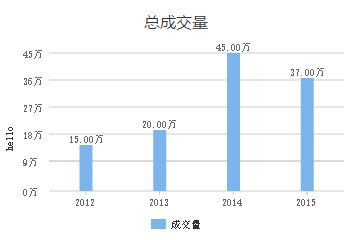
4. column(柱状图)
new wxCharts({
    canvasId: 'columnCanvas',
    type: 'column',
    animation: true,
    categories: chartData.main.categories,
    series: [{
        name: '成交量',
        data: chartData.main.data,
        format: function (val, name) {
            return val.toFixed(2) + '万';
        }
    }],
    yAxis: {
        format: function (val) {
            return val + '万';
        },
        title: 'hello',
        min: 0
    },
    xAxis: {
        disableGrid: false,
        type: 'calibration'
    },
    extra: {
        column: {
            width: 15
        }
    },
    width: windowWidth,
    height: 200,
});
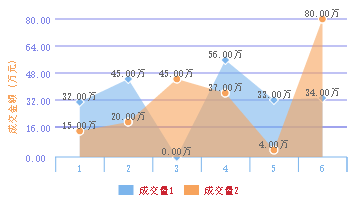
5. area(区域图)
new wxCharts({
    canvasId: 'areaCanvas',
    type: 'area',
    categories: ['1', '2', '3', '4', '5', '6'],
    animation: true,
    series: [{
        name: '成交量1',
        data: [32, 45, 0, 56, 33, 34],
        format: function (val) {
            return val.toFixed(2) + '万';
        }
    }, {
      name: '成交量2',
      data: [15, 20, 45, 37, 4, 80],
      format: function (val) {
        return val.toFixed(2) + '万';
      },
    }],
    yAxis: {
        title: '成交金额 (万元)',
        format: function (val) {
            return val.toFixed(2);
        },
        min: 0,
        fontColor: '#8085e9',
        gridColor: '#8085e9',
        titleFontColor: '#f7a35c'
    },
    xAxis: {
        fontColor: '#7cb5ec',
        gridColor: '#7cb5ec'
    },
    extra: {
        legendTextColor: '#cb2431'
    },
    width: windowWidth,
    height: 200
});
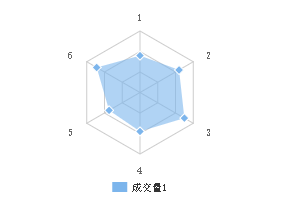
6.radar(雷达图)
new wxCharts({
   canvasId: 'radarCanvas',
    type: 'radar',
    categories: ['1', '2', '3', '4', '5', '6'],
    series: [{
        name: '成交量1',
        data: [90, 110, 125, 95, 87, 122]
    }],
    width: windowWidth,
    height: 200,
    extra: {
        radar: {
            max: 150
        }
    }
});
最后献上API参数
opts                         Object
opts.canvasId                String required                微信小程序canvas-id
opts.width                   Number required                canvas宽度,单位为px
opts.height                  Number required                canvas高度,单位为px
opts.title                   Object                         (only for ring chart)
opts.title.name              String                         标题内容
opts.title.fontSize          Number                         标题字体大小(可选,单位为px)
opts.title.color             String                         标题颜色(可选)
opts.subtitle                Object                         (only for ring chart)
opts.subtitle.name           String                         副标题内容
opts.subtitle.fontSize       Number                         副标题字体大小(可选,单位为px)
opts.subtitle.color          String                         副标题颜色(可选)
opts.animation               Boolean default true           是否动画展示
opts.legend                  Boolen default true           是否显示图表下方各类别的标识
opts.type                    String required               图表类型,可选值为pie, line, column, area……
opts.categories              Array required                (饼图、圆环图不需要) 数据类别分类
opts.dataLabel               Boolean default true           是否在图表中显示数据内容值
opts.dataPointShape          Boolean default true           是否在图表中显示数据点图形标识
opts.xAxis                   Object                         X轴配置
opts.xAxis.disableGrid       Boolean default false          不绘制X轴网格
opts.yAxis                   Object                         Y轴配置
opts.yAxis.format            Function                       自定义Y轴文案显示
opts.yAxis.min               Number                         Y轴起始值
opts.yAxis.max               Number                         Y轴终止值
opts.yAxis.title             String                         Y轴title
opts.yAxis.disabled          Boolean default false          不绘制Y轴
opts.series                  Array required                 数据列表
数据列表每项结构定义
dataItem                      Object
dataItem.data                 Array required (饼图、圆环图为Number) 数据
dataItem.color                String 例如#7cb5ec 不传入则使用系统默认配色方案
dataItem.name                 String 数据名称
dateItem.format               Function 自定义显示数据内容
整理仓促,如有纰漏欢迎指正 。同时,感谢网友的分享
