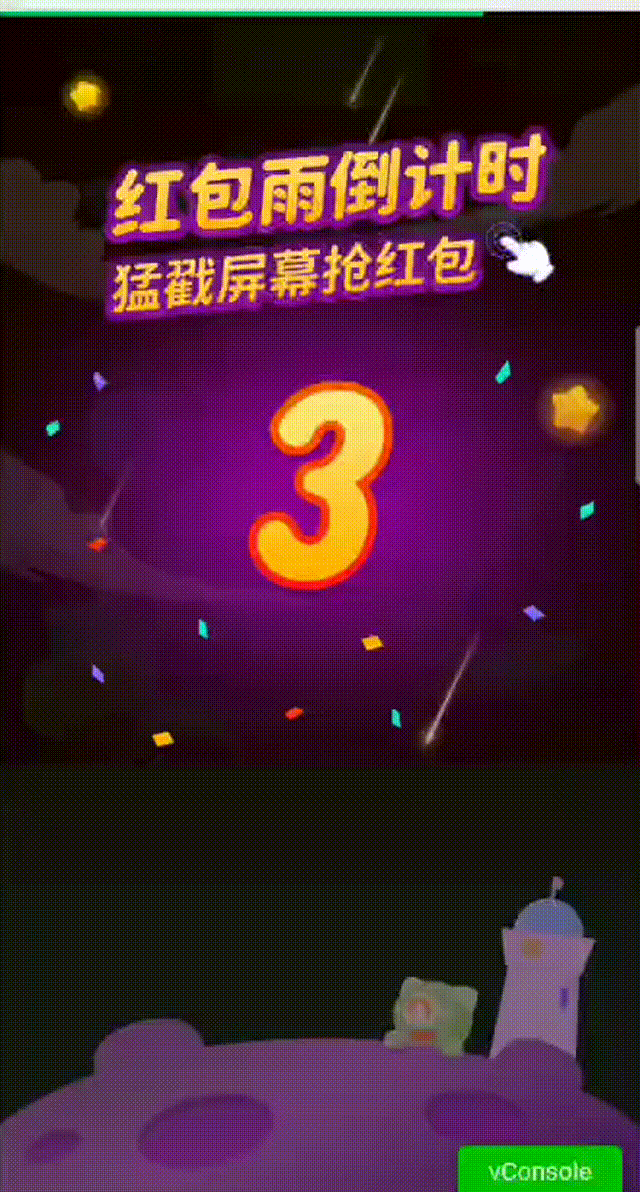
活动背景
这是去年双十一做的一个功能,分享这篇文章主要是想把自己的一些积累以文章的形式逐渐输出出来,与大家一起探讨学习。
接到这个需求时,刚开始的想法是用css3动画做效果,通过几顿猛操作之后,发现效果真的不如人意:
- 动画出现卡顿现象
- 通过操作dom不断生成节点,会致使性能下降
造成以上是因为用setInterval会存在延时差,一般绘制一帧的时间为16.7ms最完美,且通过dom新增节点会使页面频繁发生回流。
后来通过搜索资料,决定采用canvas和requestAnimationFrame制作红包雨,优点有:
- canvas不会引起回流,因为没有对节点进行操作
- requestAnimationFrame能达到60FPS,即16.7ms执行一次动画。
下面讲一下本次红包雨的实现
红包雨实现
主要分为以下几个部分进行讲解。
1.初始化工作
- 获取canvas对象,并获取其上下文
- 设置canvas尺寸,canvas默认初始化尺寸为300*150,如果通过css设置的将将会把canvas拉伸,导致绘制的时候出现图形扭曲,通过dom对象设置width和height可以定义画布的大小。
- 在红包雨开始前把需要用到的图片通过loadImgs提前加载好。
- 加载完图片之后可以进行一些下雨前的操作,比如倒计时效果。
- 倒计时结束后正式进入红包雨环节。
init() {
    const canvas = this.$refs.canvas
    if (canvas.getContext) {
      this.ctx = canvas.getContext("2d")
      // 初始化时同步进行图片预加载
      Promise.all([/**需要加载的图片,调用loadImgs*/]).then(() => {
      	this.beforeStart()
      })
    }
    this.setCanvasSize(canvas)
  },
  // canvas默认初始化尺寸为300*150,如果通过css设置的话将会把canvas拉伸,导致绘制的时候出现图形扭曲,通过dom对象设置width和height可以达到真是的尺寸
  setCanvasSize(canvas) {
    canvas.width = clientWidth
    canvas.height = clientHeight
  },
  loadImgs(arr, obj) {
    return new Promise(resolve => {
      let count = 0
      // 循环图片数组,每张图片都生成一个新的图片对象
      const len = arr.length
      for (let i = 0; i < len; i++) {
        // 创建图片对象
        const image = new Image()
        // 成功的异步回调
        image.onload = () => {
          count++
          arr.splice(i, 1, {
            // 加载完的图片对象都缓存在这里了,canvas可以直接绘制
            img: image,
            width: image.width,
            height: image.height
          })
          // 这里说明 整个图片数组arr里面的图片全都加载好了
          if (count === len) {
              this[obj] = arr
            resolve()
          }
        }
        image.onerror = (err) => {
          console.log(err, 'err')
        }
        image.src = arr[i].img
      }
    })
  }
2. 红包雨
红包雨效果主要包含三个重要方法,用于增加红包的pushPackets方法,用于监听是否被击中的listenClick方法,用于绘制画布的movePackets方法,此方法是运动的核心。
/** 代码中用到的属性和方法的说明 */
packetConfig: 红包雨的配置
packetImgs: 提供红包的对象数组
randomRound:返回给定两数值之间的随机数

// 定义红包雨类
class Packet {
    constructor(options) {
    /** x: '定义红包在x轴位置', y: '定义红包在y轴位置', img: '用于绘制的红包对象',speed: '红包的下落速度,以像素为单位', index: 用于记录 */
      this.x = options.x // 定义红包在x轴位置
      this.y = options.y, // 定义红包在y轴位置
      this.img = options.img // 用于绘制的红包对象
      this.speed = options.speed // 红包的下落速度,以像素为单位
	  this.index = options.index // 用于记录取出时的下标,用于与击中效果下标作映射,每个红包大小不同,对应的击中效果也不相同
    }
  }
start是启动红包雨的方法:
start() {
    this.pushPackets() // 增加红包
    this.listenClick() // 监听红包点击
    this.movePackets() // 红包开始运动,核心函数

      // 红包雨倒计时,NewTimer为团队封装的一个方法,自己可以写一个
      new NewTimer(
      	packetConfig.duration,
	      (time) => {
	        this.cutDownTime = time[3] + '.' + time[4]
	      },
	      () => {
          //...倒计时后,停止动画,并获得奖品
          window.cancelAnimationFrame(this.movePacketAnimation)
          this.$emit('getRainReward', this.count)
      }).startCountDown()
  }
2.1 增加红包
pushPackets() {
    // 每次随机生成1~3个红包
    const ranCount = this.randomRound(...packetConfig.renderCount)
    let arr = []
    for (let i = 0; i < ranCount; i++) {
      const ranPacketIdx = this.randomRound(0, this.packetImgs.length)
      // 创建新的红包对象
      const newPacket = new Packet({
		x: this.randomRound(0, clientWidth - this.calculatePos(this.packetImgs[ranPacketIdx].width)), // 横向随机  红包不要贴近边边
		y: 0 -this.calculatePos(Math.random() * 150), // -150内高度 随机
		img: this.packetImgs[ranPacketIdx].img, // 随机取一个红包图片对象,这几个图片对象在页面初始化时就已经缓存好了
		speed: this.calculatePos(Math.random() * 10 + packetConfig.speed), // 下落速度 随机
		index: ranPacketIdx // 在图片数组中的索引,用于寻找相应的击中效果图片
	  })
      arr.push(newPacket);
    }
    // 每次都插入一批新红包对象arr到运动的红包数组this.renderPkArr
    this.renderPkArr = [...this.renderPkArr, ...arr];
    // 间隔多久生成一批红包
    this.addPacketsTimer = setTimeout(() => {
      this.pushPackets()
    }, packetConfig.timeout)
  }
2.2 监听击中
监听击中环节主要包括用于监听点击的listenClick方法和判断是否击中的isIntersect方法。
listenClick() {
    const canvas = this.$refs.canvas
    canvas.addEventListener("click", e => {
      // 点击位置
      const pos = {
        x: e.clientX,
        y: e.clientY
      };
      // 所有点中的红包都存这
      const clickedPackets = [];
      this.renderPkArr.forEach((packet, index) => {
        // 判断点击位置是否在该红包范围内
        if (this.isIntersect(pos, packet)) {
          clickedPackets.push({
            x: packet.x,
            y: packet.y,
            index: packet.index
          })
        }
      })
      // 如果点击中了重叠的红包,只取第一个即可  也只删除第一个红包  count也只增加一次
      if (clickedPackets.length > 0) {
        this.count += 1
        // 击中红包时的一些操作
        this.clickedTip(this.count)

        // 获取被击中的红包索引
        const clickedPkIndex = clickedPackets[0].index
        // 获取被击中红包对应的击中效果
        const bubbleImg = this.bubbleObjs[clickedPkIndex]
        const bubble = {
          x: clickedPackets[0].x - this.calculatePos(bubbleOffet[clickedPkIndex].offsetX),
          y: clickedPackets[0].y - this.calculatePos(bubbleOffet[clickedPkIndex].offsetY),
          fadeNum: 1,
          img: bubbleImg.img,
          width: bubbleImg.img.width,
          height: bubbleImg.img.height
        }
        // 加入点击效果数组
        this.bubbleArr.push(bubble)
        // 移除被点中的第一个红包对象
        this.renderPkArr.splice(0, 1)
      }
    })
  }
  // 判断点击的位置是否落在某个红包中
  isIntersect(point, packet) {
    const distanceX = point.x - packet.x
    const distanceY = point.y - packet.y
    const boundary = packetConfig.boundary // 允许误差的值。如不加误差值,产品手一抖,说诶我怎么总是点不中(微笑.png)。不过个人觉得这个误差值有必要加上,因为视觉与点击的动作不能保证完全同步
    const withinX = distanceX > 0 - boundary && distanceX < packet.width + boundary
    const withinY = distanceY > 0 - boundary && distanceY < packet.height + boundary
    return withinX && withinY
  }
2.3 红包雨绘制(核心)
// 核心函数
  movePackets() {
    // 每次绘制之前都需要清空画布,否则
    this.ctx.clearRect(0, 0, clientWidth, clientHeight)
    // 绘制红包雨动画
    this.drawPackets()
    // 绘制击中动画
    this.drawBubble()

    // 不断执行绘制,形成动画
    this.movePacketAnimation = window.requestAnimationFrame(this.movePackets)
  }
  // 用于绘制不断下落的红包
  drawPackets() {
    // 遍历这个红包对象数组
    this.renderPkArr.forEach((packet, index) => {
      // 运动的关键  增加的量为speed,每次只有y不一样。若红包纵向运动则改变y,若是水平运动则改变x
      const newPacket = new Packet({
          x: packet.x,
          y: packet.y + packet.speed,
          width: packet.img.width,
          height: packet.img.height,
          img: packet.img,
          speed: packet.speed,
          index: packet.index
      })
      // 绘制某个红包对象时,也同时生成一个新的红包对象,替换掉原来的它,唯一的区别就是它的y变了,下一帧绘制这个红包时,就运动了一点点距离
      this.renderPkArr.splice(index, 1, newPacket)
      this.ctx.drawImage(
        packet.img,
        packet.x,
        packet.y,
        packet.width,
        packet.height
      )
    })
  },
  // 用于绘制击中动画
  drawBubble() {
    // 击中效果都有一个驻留时间,可以通过设置fadeNum的初始值,可以为1。在之后的绘制中这个值逐渐减少,当这个值为小于0时,则把该击中效果移出。
    this.bubbleArr.forEach((bubble, index) => { // 绘制击中效果前,都需要先检查驻留时间是否小于0,若成立则将其移出
      if (bubble.fadeNum < 0) {
        this.bubbleArr.splice(index, 1)
      }
    })
    this.bubbleArr.forEach((bubble, index) => {
      // 绘制击中效果
        this.ctx.drawImage(
          bubble.img,
          bubble.x,
          bubble.y,
          this.calculatePos(bubble.img.width),
          this.calculatePos(bubble.img.height)
        )
        // 每次绘制完击中效果后,则将fadeNum减少
        const newBubble = {
          x: bubble.x,
          y: bubble.y,
          fadeNum: bubble.fadeNum - packetConfig.fadeSpeed,
          img: bubble.img,
          width: bubble.img.width,
          height: bubble.img.height
        }
        // 更新击中对象
        this.bubbleArr.splice(index, 1, newBubble)
    })
  }
参考资料:
- canvas+vue实现60帧FPS的抢金币动画(类天猫红包雨)
- Canvas的基本用法
- window.requestAnimationFrame
- JavaScript高级程序设计