

Vue移动端商城
一. 项目基本设置
1.1. 目录结构
- network
- components -> common/content
- pages -> 路由分层
- common
- assets
- router
- store
1.2. 设置CSS初始化和全局样式
-
normalize.css
/*! normalize.css v8.0.1 | MIT License | github.com/necolas/normalize.css */ /* Document ========================================================================== */ /** * 1. Correct the line height in all browsers. * 2. Prevent adjustments of font size after orientation changes in iOS. */ html { line-height: 1.15; /* 1 */ -webkit-text-size-adjust: 100%; /* 2 */ } /* Sections ========================================================================== */ /** * Remove the margin in all browsers. */ body { margin: 0; } /** * Render the `main` element consistently in IE. */ main { display: block; } /** * Correct the font size and margin on `h1` elements within `section` and * `article` contexts in Chrome, Firefox, and Safari. */ h1 { font-size: 2em; margin: 0.67em 0; } /* Grouping content ========================================================================== */ /** * 1. Add the correct box sizing in Firefox. * 2. Show the overflow in Edge and IE. */ hr { box-sizing: content-box; /* 1 */ height: 0; /* 1 */ overflow: visible; /* 2 */ } /** * 1. Correct the inheritance and scaling of font size in all browsers. * 2. Correct the odd `em` font sizing in all browsers. */ pre { font-family: monospace, monospace; /* 1 */ font-size: 1em; /* 2 */ } /* Text-level semantics ========================================================================== */ /** * Remove the gray background on active links in IE 10. */ a { background-color: transparent; } /** * 1. Remove the bottom border in Chrome 57- * 2. Add the correct text decoration in Chrome, Edge, IE, Opera, and Safari. */ abbr[title] { border-bottom: none; /* 1 */ text-decoration: underline; /* 2 */ text-decoration: underline dotted; /* 2 */ } /** * Add the correct font weight in Chrome, Edge, and Safari. */ b, strong { font-weight: bolder; } /** * 1. Correct the inheritance and scaling of font size in all browsers. * 2. Correct the odd `em` font sizing in all browsers. */ code, kbd, samp { font-family: monospace, monospace; /* 1 */ font-size: 1em; /* 2 */ } /** * Add the correct font size in all browsers. */ small { font-size: 80%; } /** * Prevent `sub` and `sup` elements from affecting the line height in * all browsers. */ sub, sup { font-size: 75%; line-height: 0; position: relative; vertical-align: baseline; } sub { bottom: -0.25em; } sup { top: -0.5em; } /* Embedded content ========================================================================== */ /** * Remove the border on images inside links in IE 10. */ img { border-style: none; } /* Forms ========================================================================== */ /** * 1. Change the font styles in all browsers. * 2. Remove the margin in Firefox and Safari. */ button, input, optgroup, select, textarea { font-family: inherit; /* 1 */ font-size: 100%; /* 1 */ line-height: 1.15; /* 1 */ margin: 0; /* 2 */ } /** * Show the overflow in IE. * 1. Show the overflow in Edge. */ button, input { /* 1 */ overflow: visible; } /** * Remove the inheritance of text transform in Edge, Firefox, and IE. * 1. Remove the inheritance of text transform in Firefox. */ button, select { /* 1 */ text-transform: none; } /** * Correct the inability to style clickable types in iOS and Safari. */ button, [type="button"], [type="reset"], [type="submit"] { -webkit-appearance: button; } /** * Remove the inner border and padding in Firefox. */ button::-moz-focus-inner, [type="button"]::-moz-focus-inner, [type="reset"]::-moz-focus-inner, [type="submit"]::-moz-focus-inner { border-style: none; padding: 0; } /** * Restore the focus styles unset by the previous rule. */ button:-moz-focusring, [type="button"]:-moz-focusring, [type="reset"]:-moz-focusring, [type="submit"]:-moz-focusring { outline: 1px dotted ButtonText; } /** * Correct the padding in Firefox. */ fieldset { padding: 0.35em 0.75em 0.625em; } /** * 1. Correct the text wrapping in Edge and IE. * 2. Correct the color inheritance from `fieldset` elements in IE. * 3. Remove the padding so developers are not caught out when they zero out * `fieldset` elements in all browsers. */ legend { box-sizing: border-box; /* 1 */ color: inherit; /* 2 */ display: table; /* 1 */ max-width: 100%; /* 1 */ padding: 0; /* 3 */ white-space: normal; /* 1 */ } /** * Add the correct vertical alignment in Chrome, Firefox, and Opera. */ progress { vertical-align: baseline; } /** * Remove the default vertical scrollbar in IE 10+. */ textarea { overflow: auto; } /** * 1. Add the correct box sizing in IE 10. * 2. Remove the padding in IE 10. */ [type="checkbox"], [type="radio"] { box-sizing: border-box; /* 1 */ padding: 0; /* 2 */ } /** * Correct the cursor style of increment and decrement buttons in Chrome. */ [type="number"]::-webkit-inner-spin-button, [type="number"]::-webkit-outer-spin-button { height: auto; } /** * 1. Correct the odd appearance in Chrome and Safari. * 2. Correct the outline style in Safari. */ [type="search"] { -webkit-appearance: textfield; /* 1 */ outline-offset: -2px; /* 2 */ } /** * Remove the inner padding in Chrome and Safari on macOS. */ [type="search"]::-webkit-search-decoration { -webkit-appearance: none; } /** * 1. Correct the inability to style clickable types in iOS and Safari. * 2. Change font properties to `inherit` in Safari. */ ::-webkit-file-upload-button { -webkit-appearance: button; /* 1 */ font: inherit; /* 2 */ } /* Interactive ========================================================================== */ /* * Add the correct display in Edge, IE 10+, and Firefox. */ details { display: block; } /* * Add the correct display in all browsers. */ summary { display: list-item; } /* Misc ========================================================================== */ /** * Add the correct display in IE 10+. */ template { display: none; } /** * Add the correct display in IE 10. */ [hidden] { display: none; } -
base.css
@import "./normalize.css";
:root {
    --color-text: #666;
    --color-high-text: #ff5777;
    --color-tint: #ff8198;
    --color-background: #fff;
    --font-size: 14px;
    --line-height: 1.5;
}

*,
*::before,
*::after {
    margin: 0;
    padding: 0;
    box-sizing: border-box;
}

body {
    font-family: "Helvetica Neue", Helvetica, "PingFang SC", "Hiragino Sans GB", "Microsoft YaHei", "微软雅黑", Arial, sans-serif;
    user-select: none;
    /* 禁止用户鼠标在页面上选中文字/图片等 */
    -webkit-tap-highlight-color: transparent;
    /* webkit是苹果浏览器引擎,tap点击,highlight背景高亮,color颜色,颜色用数值调节 */
    background: var(--color-background);
    color: var(--color-text);
    /* rem vw/vh */
    width: 100vw;
}

a {
    color: var(--color-text);
    text-decoration: none;
}

.clear-fix::after {
    clear: both;
    content: '';
    display: block;
    width: 0;
    height: 0;
    visibility: hidden;
}

.clear-fix {
    zoom: 1;
}

.left {
    float: left;
}

.right {
    float: right;
}
列表请求模型

请求的url格式是:http://123.207.32.32:8000/home/data?type=pop&page=1
type可以是:pop,new,sell
page是由用于上拉加载决定
所以设计的原型就是:
data() {
      return {
        goods: {  //初始化个模型
          'pop': {page: 1, list: []},
          'new': {page: 1, list: []},
          'sell': {page: 1, list: []},
        },
    },
    created() {
     //页面初始化的时候发送三个请求,把第一页的数据拿到
      this._getProductData(POP)
      this._getProductData(NEW)
      this._getProductData(SELL)
    },
     methods: {

      _getProductData(type) {   //每次需要加载更多数据的时候,就调用这个方法
        // 获取页码
        const page = this.goods[type].page
        getProductData(type, page).then(res => {
          const newList = res.data.list
          this.goods[type].list.push(...newList)
          this.goods[type].page += 1

        })
      }
使用better-scroll解决移动端滑动卡顿问题
2.x版本
安装
yarn add better-scroll
或者
npm i better-scroll --save
基本使用:
注意点
①:要在最外层组件获取DOM,这样滚动才能有效果
②:最外层的wrapper元素里面只能有一个子元素,就是说,只能有一个content
③:一定是要在mounted这个生命周期里面实例化BScroll
<template>
    <div class="wrapper" ref="wrapper"> //1.在最外层用ref拿到DOM
    <ul  class="content"> //2.wrapper里面只有一个元素,不能有其他的兄弟元素了
      <li>第1个li</li>
      <li>第2个li</li>
      <li>第3个li</li>
      <li>第4个li</li>
      <li>第5个li</li>
      <li>第6个li</li>
      <li>第7个li</li>
      <li>第8个li</li>
      <li>第9个li</li>
      <li>第10个li</li>
      <li>第11个li</li>
      <li>第12个li</li>
      <li>第13个li</li>
      <li>第14个li</li>
      <li>第15个li</li>
      <li>第16个li</li>
      <li>第17个li</li>
      <li>第18个li</li>
      <li>第19个li</li>
      <li>第20个li</li>
      <li>第21个li</li>
      <li>第22个li</li>
      <li>第23个li</li>
      <li>第24个li</li>
      <li>第25个li</li>
      <li>第26个li</li>
      <li>第27个li</li>
      <li>第28个li</li>
      <li>第29个li</li>
      <li>第30个li</li>
      <li>第31个li</li>
      <li>第32个li</li>
      <li>第33个li</li>
      <li>第34个li</li>
      <li>第35个li</li>
      <li>第36个li</li>
      <li>第37个li</li>
      <li>第38个li</li>
      <li>第39个li</li>
      <li>第40个li</li>
      <li>第41个li</li>
      <li>第42个li</li>
      <li>第43个li</li>
      <li>第44个li</li>
      <li>第45个li</li>
      <li>第46个li</li>
      <li>第47个li</li>
      <li>第48个li</li>
      <li>第49个li</li>
      <li>第50个li</li>
    </ul>
    </div>
</template>

<script>
import BScroll from 'better-scroll'

export default {
  name:'Category',
  mounted(){ //3.在mounted这里实例化
  this.scroll = new BScroll(this.$refs.wrapper,{

    })
  }
}
</script>

<style>
.wrapper{
  height: 300px;
  overflow: hidden;
}
</style>
配置对象:
实时的监听滚动位置:probeType
上拉到底:pullUpLoad
<template>
    <div class="wrapper" ref="wrapper">
    <ul  class="content">
      <button @click="btnClick">按我</button>
      <li>第1个li</li>
      <li>第2个li</li>
      <li>第3个li</li>
      <li>第4个li</li>
      <li>第5个li</li>
      <li>第6个li</li>
      <li>第7个li</li>
      <li>第8个li</li>
      <li>第9个li</li>
      <li>第10个li</li>
      <li>第11个li</li>
      <li>第12个li</li>
      <li>第13个li</li>
      <li>第14个li</li>
      <li>第15个li</li>
      <li>第16个li</li>
      <li>第17个li</li>
      <li>第18个li</li>
      <li>第19个li</li>
      <li>第20个li</li>
      <li>第21个li</li>
      <li>第22个li</li>
      <li>第23个li</li>
      <li>第24个li</li>
      <li>第25个li</li>
      <li>第26个li</li>
      <li>第27个li</li>
      <li>第28个li</li>
      <li>第29个li</li>
      <li>第30个li</li>
      <li>第31个li</li>
      <li>第32个li</li>
      <li>第33个li</li>
      <li>第34个li</li>
      <li>第35个li</li>
      <li>第36个li</li>
      <li>第37个li</li>
      <li>第38个li</li>
      <li>第39个li</li>
      <li>第40个li</li>
      <li>第41个li</li>
      <li>第42个li</li>
      <li>第43个li</li>
      <li>第44个li</li>
      <li>第45个li</li>
      <li>第46个li</li>
      <li>第47个li</li>
      <li>第48个li</li>
      <li>第49个li</li>
      <li>第50个li</li>
    </ul>
    </div>
</template>

<script>
import BScroll from 'better-scroll'

export default {
  name:'Category',
  mounted(){
    //默认情况下Bscroll是不可以实时的监听滚动位置
    //如果想监听,那么在配置的时候要传入一个属性
    //probeType:0 || 1 || 2 || 3
    //0,1都是不侦测实时的位置
    //2:在手指滚动的过程中侦测,手指离开后的惯性滚动过程中不侦测
    //3:只要是滚动,都侦测
  this.scroll = new BScroll(this.$refs.wrapper,{
    probeType:3,
    pullUpLoad:true //配置底部上拉有回调函数
    })
    this.scroll.on('scroll',(position)=>{
      // console.log(position)
    })
     this.scroll.on('pullingUp',()=>{ //监听底部上拉的回调函数
      console.log('上拉加载更多')
      //因为这个函数只会触发一次,所以要在这里处理两件事
      //第一件事:在这里发送网络请求,获取更多页的数据
      //第二件事: 等数据请求王朝,并且将新的数据展示出来后,调用
      //this.scroll.finishPullUp()这个事件,重置这个pullingUp
    })
  },
  methods:{
    btnClick(e){
      console.log(e)
    }
  }
}
</script>

<style>
.wrapper{
  height: 300px;
  overflow: hidden;
}
</style>
封装Better-Scroll
封装
<template>
  <div class="wrapper" ref="wrapper">
    <div class="content">
      <slot></slot>
    </div>
  </div>
</template>

<script>
import BScroll from "better-scroll";

export default {
  name: "Scroll",
  props: {
    probeType: {
      //监听实时滚动事件
      type: Number,
      default: 0
    },
    pullUpLoad: {
      //监听上拉加载更多
      type: Boolean,
      default: false
    }
  },
  data() {
    return {
      scroll: null
    };
  },
  mounted() {

    this.getScorll();
    this.$bus.$emit("aaa");
  },
  methods: {
    getScorll() {
      this.scroll = new BScroll(this.$refs.wrapper, {
        click: true,
        probeType: this.probeType,
        pullUpLoad: true
      });
      //当传递过来的值是2或者是3的时候才开启监听滚动事件
      if (this.probeType === 2 || this.probeType === 3) {
        //监听实时滚动事件,并且通过$emit把这个属性传递出去,父组件监听这个事件就可以拿到值
        this.scroll.on("scroll", position => {
          this.$emit("scroll", position);
        });
      }

      //当传递过来的pullUpLoad为true的时候才开启监听上拉加载更多
      if (this.pullUpLoad) {
        //监听上拉加载更多
        this.scroll.on("pullingUp", () => {
          this.$emit("pullingUp");
        });
      }
    },
    scrollTo(x, y, time = 300) {
      //判断this.scroll是否被创建了
      this.scroll && this.scroll.scrollTo(x, y, time);
    },
    //上拉加载只能调用一次,如果想多次调用,每次都要先调用finishPullDown这个方法
    finishPullUp() {
      this.scroll.finishPullUp();
    },
    //重新计算scrollerHeight可滚动区域高度
    refresh() {
      //判断this.scroll是否被创建了
      this.scroll && this.scroll.refresh();
    },
    getScrollY(){
      return this.scroll ? this.scroll.y : 0
    }
  }
};
</script>

<style scoped>
</style>
使用
<scroll
      class="content"
      ref="scroll"
      :probe-type="3"
      @scroll="contentScroll"
      :pull-up-load="true"
      @pullingUp="loadMore"
    >
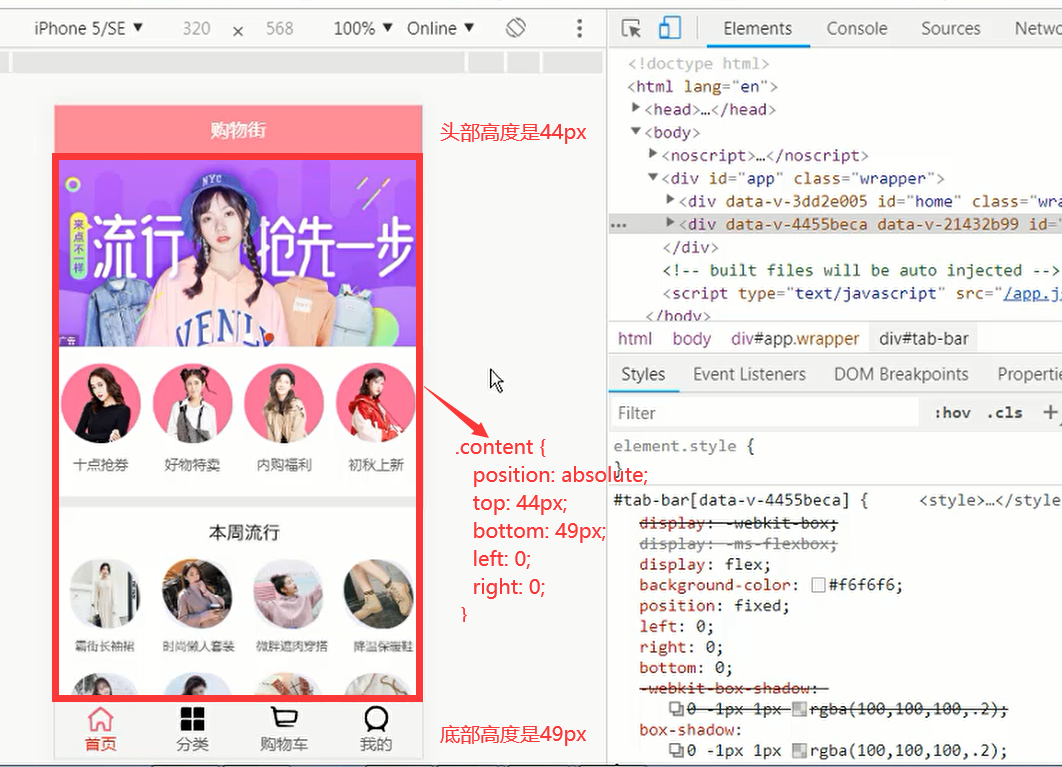
使用Better-Scroll之后的布局
头部的高度和底部的高度确定的情况下,但是Scroll的高度并不确定的情况下,可以使用这样的布局
html:
  <div id="home">
    <scroll :probe-type="3"
            :pull-up-load="true"
            class="content"
            :data="[showGoodsList]"
            @pullingUp="loadMore"
            @scroll="contentScroll"
            ref="scroll">
    xxxx
     中间是需要滚动的组件,都放进来这里
    </scroll>

  </div>
CSS:
  #home {
    height: 100vh;
    position: relative;
  }
  .content {
    position: absolute;
    top: 44px;
    bottom: 49px;
    left: 0;
    right: 0;
  }
父组件通过ref调用子组件的方法
父组件:
<template>
	<scroll class="content" ref="scroll"> //用ref获得这个组件对象
      <ul>
        <li>1个li</li>
     	 xxxxxx
      </ul>
       <button @click="toTop">点我</button>
	</scroll>
</template>
<script>

import Scroll from "components/common/scroll/Scroll";


export default {
  name: "Home",

  methods: {
    toTop(){    //this.$refs.scroll => 这时候拿到的就是子组件里面的对象了,所以,子组件methods里面的方法都可以调用了
      this.$refs.scroll.scrollTo(0,0,5000)
    }
  }
};
</script>
子组件:
<template>
  <div class="wrapper" ref="wrapper">
    <div class="content">
      <slot></slot>
    </div>
  </div>
</template>

<script>
import BScroll from "better-scroll";

export default {
  name: "Scroll",
  data() {
    return {
      scroll: null
    };
  },
  mounted() {
    console.log(this.$refs.wrapper);
    this.getScorll()
  },
  methods: {
    getScorll() {
      this.scroll = new BScroll(this.$refs.wrapper, {
        probeType: 3,
        pullUpLoad: true
      });
    },
    scrollTo(x,y,time=300){    //子组件的方法,可以被父组件调用
      this.scroll.scrollTo(x,y,time) //子组件有new BScroll 的实例,可以用 BScroll提供的方法
    }
  }
};
</script>

<style scoped>
</style>
解决Better-Scroll可滚动区域的问题
- Better-Scroll在决定有多少区域可以滚动时,是根据scrollerHeight属性决定
- scrollerHeight属性是根据放Better-Scroll的content中的子组件的高度决定的
- 碰到异步操作的时候,如果要加载图,那么子组件的高度就不能确定了
- 所以,计算出来的高度是错误的
- 只有等图片加载完之后的高度才是正确的,但是scrollerHeight属性已经计算完了,不会再更新了
- 所以滚动会出现问题
- 如何解决这个问题?
- 监听每一次图片是否加载完成,只要有一张图片加载完成了,执行一次refresh()
- 如何监听图片加载完成?
- 原生的js监听图片:img.onload =function(){}
- Vue中监听:@load='方法'
- 调用scroll.refresh()方法就可以 重新计算一次高度
- 事件总线的使用
- bus ->总线
- Vue.prototype.$bus = new Vue()
- this.
emit('事件名称',参数)
- this.$bus.on('事件名称',回调函数(参数))
利用$bus总线模式实现非父子组件的事件监听
第一步,先创建$bus:
main.js:
import Vue from 'vue'
import App from './App.vue'
import router from './router'
Vue.config.productionTip = false

Vue.prototype.$bus = new Vue()  //在vue的原型链上加上一个$bus,它的地址执行vue的实例

new Vue({
    render: h => h(App),
    router,
}).$mount('#app')
第二步,被监听的组件触发事件:
<template>
  <div class="goods-item" @click="itemClick">
    <img v-lazy="showImage" :key="showImage" alt=""  @load="imgLoad"> //监听图片的加载事件
    <div class="goods-info">
      <p>{{goodsItem.title}}</p>
      <span class="price">{{goodsItem.price}}</span>
      <span class="collect">{{goodsItem.cfav}}</span>
    </div>
  </div>
</template>

<script>
  export default {
    name: "GoodsListItem",
    methods: {
	    imgLoad() {  //图片加载完成后,向$bus发射一个imgLoad事件
		    this.$bus.$emit('imgLoad')
	    }
    }
  }
</script>

<style scoped>

</style>
第三步,组件监听事件:
created() {   //监听的组件需要在组件创建的时候就马上开始监听

    this.$bus.$on('imgLoad',()=>{  //在此处处理事件
      console.log('监听到了imgLoad事件,要在这里处理事情')
       this.scroll.refresh()  //调用事件来更新高度
    })

  }
=========================>

如果涉及到了ref的DOM操作。那么可以在mounted()这个生命周期里面监听
刷新频繁的防抖函数处理
-
对于输入框频繁输入的问题,进行防抖操作
- 防抖debounce/节流throttle
- 如果每次在文本框中输入之后,马上发送请求,那么请求函数就会被执行很多次
- 可以将请求函数传入到debounce函数中,生成一个新的函数
- 之后调用非常频繁的时候,就使用新生成的函数
- 而新生成的函数并不会非常频繁的调用,如果下一次执行来的非常快,那么会将上一次取消掉
 debounce(func, delay) {
      let timer = null;
      return function(...args) {
        if (timer) clearTimeout(timer);
        timer = setTimeout(() => {
          func.apply(this,args);
        }, delay);
      };
    }
调用:
mounted() { const result = this.debounce(this.getHome,200) //拿到返回的函数 this.$bus.$on("imgLoad", () => { //这里的监听事件会多次被调用,所以要使用防抖动执行函数 result() }); }, methods: { debounce(func, delay) { let timer = null; return function(...args) { if (timer) clearTimeout(timer); timer = setTimeout(() => { func.apply(this,args); }, delay); }; }, getHome(){ //请求事件 axios.get('xxxx') } } - 防抖debounce/节流throttle
上拉加载更多
组件内设置:
<template>
  <div class="wrapper" ref="wrapper">
    <div class="content">
      <slot></slot>
    </div>
  </div>
</template>

<script>
import BScroll from "better-scroll";

export default {
  name: "Scroll",
  props: {
    probeType: {
      //监听实时滚动事件
      type: Number,
      default: 0
    },
    pullUpLoad: {
      //监听上拉加载更多
      type: Boolean,
      default: false
    }
  },
  data() {
    return {
      scroll: null
    };
  },
  mounted() {
    console.log(this.$refs.wrapper);
    this.getScorll();
    this.$bus.$emit("aaa");
  },
  methods: {
    getScorll() {
      this.scroll = new BScroll(this.$refs.wrapper, {
        click: true,
        probeType: this.probeType,
        pullUpLoad: true
      });
      //当传递过来的值是2或者是3的时候才开启监听滚动事件
      if (this.probeType === 2 || this.probeType === 3) {
        //监听实时滚动事件,并且通过$emit把这个属性传递出去,父组件监听这个事件就可以拿到值
        this.scroll.on("scroll", position => {
          this.$emit("scroll", position);
        });
      }

      //当传递过来的pullUpLoad为true的时候才开启监听上拉加载更多
      if (this.pullUpLoad) {
        //监听上拉加载更多
        this.scroll.on("pullingUp", () => {
          this.$emit("pullingUp");
        });
      }
    },
    scrollTo(x, y, time = 300) {
      //判断this.scroll是否被创建了
      this.scroll && this.scroll.scrollTo(x, y, time);
    },
    //上拉加载只能调用一次,如果想多次调用,每次都要先调用finishPullDown这个方法
    finishPullUp() {
      this.scroll.finishPullUp();
    },
    //重新计算scrollerHeight可滚动区域高度
    refresh() {
      //判断this.scroll是否被创建了
      this.scroll && this.scroll.refresh();
    }
  }
};
</script>

<style scoped>
</style>
父组件调用的时候要做的事情:
<template>
  <div id="home">
    <nav-bar class="home-nav">
      <div slot="center">购物街</div>
    </nav-bar>
    <scroll
      class="content"
      ref="scroll"
      :probe-type="3"
      @scroll="contentScroll"
      :pull-up-load="true"   //传递这个属性代表开启上拉加载更多功能
      @pullingUp="loadMore"  //监听上拉加载更多事件的触发
    >

    </scroll>
  </div>
</template>

<script>


import NavBar from "components/common/navbar/NavBar";
import TabContorl from "components/content/tabControl/TabControl";
import Scroll from "components/common/scroll/Scroll";

export default {
  name: "Home",
  components: {
    HomeSwiper,
    RecommendView,
    FeatureView,
    NavBar,
    TabContorl,
    Scroll
  },
  data() {
    return {

    };
  },
  created() {

  },
  mounted() {

  },
  methods: {
    loadMore() {
      console.log("上拉加载更多");
      setTimeout(() => {
        //在这里发送请求,加载更多数据
        //处理数据之后,要调用一下这个方法,上拉事件才会被刷新
        this.$refs.scroll.finishPullUp();
      }, 1000);
    }

  }
};
</script>

<style scoped>

</style>
吸顶效果
获取到组件的offsetTop
必须知道滚动到多少时,开始有吸顶效果
获取组件offsetTop值的方法:
this.$refs.xxx.$el.offsetTop
- 必须知道滚动到多少时, 开始有吸顶效果, 这个时候就需要获取组件的offsetTop
- 但是, 如果直接在mounted中获取组件的offsetTop, 那么有可能值是不正确的,特别是由轮播图的情况下
- 如何获取正确的值了?
- 监听组件中img的加载完成.
- 加载完成后, 发出事件, 在父组件中, 获取正确的值.
- 补充:
- 为了不让子组件多次发出事件,
- 可以使用isLoad的变量进行状态的记录.
- 注意: 这里不进行多次调用和debounce的是有区别的
让首页保持原来的状态
让Home不要随意销毁掉
- keep-alive
让首页中的内容保持原来的位置
-
离开时, 保存一个位置信息saveY.
-
activated() {  // keep-alive 特有的两个生命周期
      this.$refs.scroll.scrollTo(0, this.saveY, 0) //进入时候回到这个位置
      this.$refs.scroll.refresh()
    },
    deactivated() {
	    this.saveY = this.$refs.scroll.scrollY  //记录离开时候的位置
    }
-
-
进来时, 将位置设置为原来保存的位置saveY信息即可.
- 注意: 最好回来时, 进行一次refresh()
点击标题滚到对应的内容
- 在detail中监听标题的点击,获取Index
- 滚动到对应的主题:
- 获取所有主题的offsetTop
- 问题:在哪里才能获取到正确的offsetTop
- 1.created是不行的,不能获取元素
- 2.mounted也不行,数据还没获取到
- 3.获取到数据中的回调中也不行,DOM还没有渲染玩
- 4.$nextTick也不行,因为图片的高度没有被计算在内
- 5.在图片加载完成后,获取的高度才是正确
<template>
  <div id="detail">
    <detail-nav-bar @titleClick="selectIndex" :current-index="currentIndex"/>
    <scroll class="content"
            ref="scroll"
            @scroll="contentScroll"
            :probe-type="3"
            :data="[topImages, goods, shop, detailInfo, paramInfo, goodsList]">
      <detail-swiper :images="topImages"/>
      <detail-base-info :goods="goods"/>
      <detail-shop-info :shop="shop"/>
      <detail-goods-info :detail-info="detailInfo" @imageLoad="imageLoad"/>
      <detail-param-info ref="param" :param-info="paramInfo"/>
      <detail-comment-info ref="comment" :comment-info="commentInfo"/>
      <goods-list ref="recommend" :goods="goodsList"/>
    </scroll>
    <back-top v-show="showBackTop" @click.native="backTop"/>
    <!--<cart-button @click.native="cartClick"/>-->
    <detail-bottom-bar @addToCart="addToCart"/>
    <toast ref="toast"/>
  </div>
</template>

<script>
  import DetailNavBar from './childComps/DetailNavBar'
  import DetailSwiper from './childComps/DetailSwiper'
  import DetailBaseInfo from './childComps/DetailBaseInfo'
  import DetailShopInfo from './childComps/DetailShopInfo'
  import DetailGoodsInfo from './childComps/DetailGoodsInfo'
  import DetailParamInfo from './childComps/DetailParamInfo'
  import DetailCommentInfo from './childComps/DetailCommentInfo'
  import DetailBottomBar from './childComps/DetailBottomBar'
  import CartButton from './childComps/CartButton'

  import GoodsList from 'components/content/goods/GoodsList'

  import Scroll from 'components/common/scroll/Scroll'

  import {getDetail, getRecommend, Goods, Shop, GoodsParam} from "network/detail";
  import {backTopMixin} from "common/mixin";
  import {mapActions} from 'vuex'

  import Toast from 'components/common/toast/Toast'

  export default {
    name: "Detail",
    components: {
	    DetailParamInfo,
    	DetailNavBar,
      DetailSwiper,
      DetailBaseInfo,
	    DetailShopInfo,
      DetailGoodsInfo,
      DetailCommentInfo,
      CartButton,
	    GoodsList,
      DetailBottomBar,
      Scroll,
      Toast
    },
    mixins: [backTopMixin],
    data() {
      return {
        themeTops: []
      }
    },
    created() {

    },
    methods: {
      ...mapActions({
        addCart: 'addToCart'
      }),
	    imageLoad() {  //在图片加载之后获取到正确的offsetTop
	    	this.$refs.scroll.refresh()
        // 获取对应的offsetTop
        this.themeTops = []
        this.themeTops.push(0)   //把他们放进对应的数组里
        this.themeTops.push(this.$refs.param.$el.offsetTop)
        this.themeTops.push(this.$refs.comment.$el.offsetTop)
        this.themeTops.push(this.$refs.recommend.$el.offsetTop)
        this.themeTops.push(Number.MAX_VALUE)
	    },
	    selectIndex(index) {  //调用后就可以跳转了
		    this.$refs.scroll.scrollTo(0, -this.themeTops[index], 500)
	    }
      }
    }
  }
</script>

<style scoped>
  #detail {
    height: 100vh;
    position: relative;
    z-index: 1;
    background-color: #fff;
  }

  .content {
    position: absolute;
    top: 44px;
    bottom: 58px;
    left: 0;
    right: 0;
  }
</style>
页面移动,头部标题也会跟着移动,完整版:
<template>
  <div id="detail">
    <detail-nav-bar @titleClick="selectIndex" :current-index="currentIndex"/>
    <scroll class="content"
            ref="scroll"
            @scroll="contentScroll"
            :probe-type="3"
            :data="[topImages, goods, shop, detailInfo, paramInfo, goodsList]">
      <detail-swiper :images="topImages"/>
      <detail-base-info :goods="goods"/>
      <detail-shop-info :shop="shop"/>
      <detail-goods-info :detail-info="detailInfo" @imageLoad="imageLoad"/>
      <detail-param-info ref="param" :param-info="paramInfo"/>
      <detail-comment-info ref="comment" :comment-info="commentInfo"/>
      <goods-list ref="recommend" :goods="goodsList"/>
    </scroll>
    <back-top v-show="showBackTop" @click.native="backTop"/>
    <!--<cart-button @click.native="cartClick"/>-->
    <detail-bottom-bar @addToCart="addToCart"/>
    <toast ref="toast"/>
  </div>
</template>

<script>
  import DetailNavBar from './childComps/DetailNavBar'
  import DetailSwiper from './childComps/DetailSwiper'
  import DetailBaseInfo from './childComps/DetailBaseInfo'
  import DetailShopInfo from './childComps/DetailShopInfo'
  import DetailGoodsInfo from './childComps/DetailGoodsInfo'
  import DetailParamInfo from './childComps/DetailParamInfo'
  import DetailCommentInfo from './childComps/DetailCommentInfo'
  import DetailBottomBar from './childComps/DetailBottomBar'
  import CartButton from './childComps/CartButton'

  import GoodsList from 'components/content/goods/GoodsList'

  import Scroll from 'components/common/scroll/Scroll'

  import {getDetail, getRecommend, Goods, Shop, GoodsParam} from "network/detail";
  import {backTopMixin} from "common/mixin";
  import {mapActions} from 'vuex'

  import Toast from 'components/common/toast/Toast'

  export default {
    name: "Detail",
    components: {
	    DetailParamInfo,
    	DetailNavBar,
      DetailSwiper,
      DetailBaseInfo,
	    DetailShopInfo,
      DetailGoodsInfo,
      DetailCommentInfo,
      CartButton,
	    GoodsList,
      DetailBottomBar,
      Scroll,
      Toast
    },
    mixins: [backTopMixin],
    data() {
      return {
      	iid: '',
        topImages: [],
        goods: {},
        shop: {},
	      detailInfo: {},
        paramInfo: {},
        commentInfo: {},
        goodsList: [],
        themeTops: [],
        currentIndex: 0
      }
    },
    created() {
    	// 1.取出iid
      this.iid = this.$route.query.iid

      // 2.发送商品请求
      this._getDetail(this.iid)

      // 3.请求推荐请求
      this._getRecommend()
    },
    methods: {
      ...mapActions({
        addCart: 'addToCart'
      }),
	    imageLoad() {
	    	this.$refs.scroll.refresh()
        // 获取对应的offsetTop
        this.themeTops = []
        this.themeTops.push(0)
        this.themeTops.push(this.$refs.param.$el.offsetTop)
        this.themeTops.push(this.$refs.comment.$el.offsetTop)
        this.themeTops.push(this.$refs.recommend.$el.offsetTop)
        this.themeTops.push(Number.MAX_VALUE)
	    },
	    selectIndex(index) {
		    this.$refs.scroll.scrollTo(0, -this.themeTops[index], 500)
	    },
	    contentScroll(position) {
	    	// 决定backTop按钮是否显示
		    this.showBackTop = position.y <= -1000
	    	// 监听滚动到某个主题
        this._listenScrollTheme(-position.y)
	    },
      _listenScrollTheme(position) {
	      let length = this.themeTops.length;
	      for (let i = 0; i < length; i++) {
		      let iPos = this.themeTops[i];
		      /**
		       * 判断的方案:
		       *  方案一:
		       *    条件: (i < (length-1) && currentPos >= iPos && currentPos < this.themeTops[i+1]) || (i === (length-1) && currentPos >= iPos),
		       *    优点: 不需要引入其他的内容, 通过逻辑解决
		       *    缺点: 判断条件过长, 并且不容易理解
		       *  方案二:
		       *    条件: 给themeTops最后添加一个很大的值, 用于和最后一个主题的top进行比较.
		       *    优点: 简洁明了, 便于理解
		       *    缺点: 需要引入一个较大的int数字
		       * 疑惑: 在第一个判断中, 为什么不能直接判断(currentPos >= iPos)即可?
		       * 解答: 比如在某一个currentPos大于第0个时, 就会break, 不会判断后面的i了.
		       */
		      if (position >= iPos && position < this.themeTops[i+1]) {
			      if (this.currentIndex !== i) {
				      this.currentIndex = i;
			      }
			      break;
		      }
	      }
      },
	    cartClick() {
	    	this.$router.push('/cart')
      },
	    addToCart() {
        // 2.将商品信息添加到Store中
        const obj = {}
        obj.iid = this.iid
        obj.imgURL = this.topImages[0]
        obj.title = this.goods.title
        obj.desc = this.goods.desc
        obj.price = this.goods.realPrice
        // this.$store.dispatch('addToCart', obj).then(() => {
	       //  this.$toast({message: '加入购物车成功'})
        // })
        this.addCart(obj).then(() => {
	        this.$toast({message: '加入购物车成功'})
        })
	    },
    	_getDetail(iid) {
        getDetail(iid).then(res => {
        	// 1.获取数据
          const data = res.result
	        console.log(data);

	        // 2.获取顶部的图片数据
          this.topImages = data.itemInfo.topImages

          // 3.获取商品信息
          this.goods = new Goods(data.itemInfo, data.columns, data.shopInfo.services)

          // 4.获取店铺信息
          this.shop = new Shop(data.shopInfo)

          // 5.获取商品详细信息
          this.detailInfo = data.detailInfo

          // 6.保存参数信息
          this.paramInfo = new GoodsParam(data.itemParams.info, data.itemParams.rule)

          // 7.保存评论数据
	        if (data.rate.list) {
		        this.commentInfo = data.rate.list[0];
	        }
        })
      },
	    _getRecommend() {
	    	getRecommend().then(res => {
	    		this.goodsList = res.data.list
		    })
      }
    }
  }
</script>

<style scoped>
  #detail {
    height: 100vh;
    position: relative;
    z-index: 1;
    background-color: #fff;
  }

  .content {
    position: absolute;
    top: 44px;
    bottom: 58px;
    left: 0;
    right: 0;
  }
</style>
mixin
新建一个xinxin.js文件:
把两个有重复业务带代码抽离到这个js中
import {TOP_DISTANCE} from "./const";
import BackTop from 'components/content/backTop/BackTop'
import {POP, NEW, SELL} from "./const";

export const backTopMixin = {
	components: {
		BackTop
	},
	data() {
		return {
			showBackTop: false
		}
	},
	methods: {
		backTop() {
			this.$refs.scroll.scrollTo(0, 0, 1000)
		}
	}
}

export const tabControlMixin = {
	data: function () {
		return {
			currentType: POP
		}
	},
	methods: {
		tabClick(index) {
			switch (index) {
				case 0:
					this.currentType = POP
					break
				case 1:
					this.currentType = NEW
					break
				case 2:
					this.currentType = SELL
					break
			}
			console.log(this.currentType);
		}
	}
}
在组件中使用:
<template>
  <div id="detail">

    <scroll class="content"
            ref="scroll"
            @scroll="contentScroll"
            :probe-type="3"
            :data="[topImages, goods, shop, detailInfo, paramInfo, goodsList]">

    </scroll>
  </div>
</template>

<script>
  import {backTopMixin} from "common/mixin"; //引入混入文件


  export default {
    name: "Detail",
    mixins: [backTopMixin], //在这里声明使用就可以了
    data() {
      return {

      }
    },
    created() {

    },
    methods: {

    }
  }
</script>

<style scoped>

</style>
封装一个Toast插件
有时候需要一个全局都可以用的提示框,那么,封装一个全局的插件会比较好
这是一个独立的插件,所以先创建一个文件夹toast:
在tosat文件夹下创建:index.js,Toast.vue文件
index.js:
import Toast from './Toast'

const obj = {}


obj.install = (Vue) => {
    //1.创建组件构造器
    const toastConstructor = Vue.extend(Toast)
        // 2.new的方式,根据组件构造器,可以创建出来一个组件对象
    const toast = new toastConstructor()
        //3.将组件对象,手动挂载到某一个元素上
    toast.$mount(document.createElement('div'))
        //4.toast.$el对应的就是div
    document.body.appendChild(toast.$el)
        //5.挂载到Vue的原型上
    Vue.prototype.$toast = toast
}

export default obj
Toast.vue:
<template>
  <div class="toast" v-show="isShow">
    <div>{{message}}</div>
  </div>
</template>

<script>
export default {
  name: "Toast",
  data() {
    return {
      isShow: false,
      message: ""
    };
  },
  methods: {
    show(message = "默认信息", duration = 1500) {
      this.message = message;
      this.isShow = true;
      setTimeout(() => {
        this.isShow = false;
      }, duration);
    }
  }
};
</script>

<style scoped>
.toast {
  position: fixed;
  left: 50%;
  top: 50%;
  background-color: rgba(0, 0, 0, 0.8);
  padding: 10px;
  border-radius: 5px;
  transform: translate(-50%, -50%);
  color: #fff;
  z-index: 99;
}
</style>
全局插件封装好了,接下来就是使用了:
main.js文件中:
import Vue from 'vue'
import App from './App.vue'
import router from './router'
import store from './store'
import Toast from 'components/common/toast' //关键代码 => 引入封装好的插件

Vue.config.productionTip = false

Vue.prototype.$bus = new Vue()

Vue.use(Toast)  //注册插件

new Vue({
  render: h => h(App),
  router,
  store
}).$mount('#app')
组件中使用:
this.$toast.show('显示的信息',2000) //在组件中就可以这样调用了
图片懒加载
-
什么是图片懒加载?
- 图片需要现在在屏幕上,再加载这张图片
-
使用vue-lazyload插件
- 安装
- 导入
- Vue.use
- 修改img:src -> v-lazy
安装:
npm i vue-lazyload --save
或者
yarn add vue-lazyload
在main.js中配置:
import Vue from 'vue'
import App from './App.vue'

import LazyLoad from 'vue-lazyload'

Vue.config.productionTip = false

Vue.prototype.$bus = new Vue()

Vue.use(Toast)
Vue.use(LazyLoad, {    //图片懒加载的配置
  loading: require('assets/img/common/placeholder.png') //配置懒加载占位符
})

new Vue({
  render: h => h(App),
  router,
  store
}).$mount('#app')
在组件中使用:
<template>
  <div class="goods-item" @click="itemClick">
    <img @load="imgLoad" v-lazy="showImage" :key="showImage" alt=""> //src换成v-lazy
    <div class="goods-info">
      <p>{{goodsItem.title}}</p>
      <span class="price">{{goodsItem.price}}</span>
      <span class="collect">{{goodsItem.cfav}}</span>
    </div>
  </div>
</template>
具体配置可以查阅github
CSS单位转化插件
将px单位转换为视口单位的 (vw, vh, vmin, vmax) 的 PostCSS 插件.
- 安装
$ npm install postcss-px-to-viewport --save-dev
或者
$ yarn add -D postcss-px-to-viewport
- 使用
- 在根目录下创建一个
postcss.config.js文件 - 在这个文件里面配置一些参数
- 在根目录下创建一个
postcss.config.js:
module.exports = {
  plugins: {
    autoprefixer: {},
	  "postcss-px-to-viewport": {
		  viewportWidth: 375,  // 视窗的宽度,对应的是我们设计稿的宽度.
		  viewportHeight: 667, // 视窗的高度,对应的是我们设计稿的高度.(也可以不配置)
		  unitPrecision: 5, // 指定`px`转换为视窗单位值的小数位数(很多时候无法整除)
		  viewportUnit: 'vw', // 指定需要转换成的视窗单位,建议使用vw
		  selectorBlackList: ['ignore', 'tab-bar', 'tab-bar-item'], // 指定不需要转换的类,加进来之后,单位就不会再转化了
		  minPixelValue: 1, // 小于或等于`1px`不转换为视窗单位.
		  mediaQuery: false // 允许在媒体查询中转换`px`
	  },
  }
}
github地址:
nginx-项目在window下的部署
下载:
使用:
直接解压使用即可
把打包好的文件放在html文件中
或者修改conf文件夹下面的nginx.conf配置文件
location / {
            root   html;     //这里选择项目根目录
            index  index.html index.htm;
        }
