一、功能概述
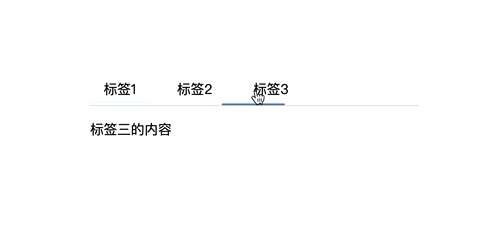
本章记录一下基于Vue实现一个的tabs选项卡切换组件(iview组件库tabs组件源码)。需要将实现的功能一步一步细化拆解出来,然后逐步实现。目前实现的功能包括:
- 实现基础选项卡切换功能。
- 实现当前选中的页签底部条高亮显示并且加入移动的动画。
- 当空间不足时,显示左右箭头点击后可以进行移动页签。
... 后续有时间还会继续累加功能。
二、疑问🤔️
不管是
elementui还是iview组件,组件库设计的时候为什么tabs组件下面要设计pane组件呢?
可能首先想到的解决方案是写一个tabs组件,传入tabs数据,再定义一个插槽来显示内容,类似下面这种代码:
<template>
  <div>
    <tabs :data="['标签1','标签2','标签3']" @toggle="toggle">
      <div :class="[active === 0 ? 'showActive' : '']">1</div>
      <div :class="[active === 1 ? 'showActive' : '']">2</div>
      <div :class="[active === 2 ? 'showActive' : '']">3</div>
    </tabs>
  </div>
</template>
<script>
export default {
  data() {
    return {
      active: 0
    }
  },
  methods: {
    toggle(tab) {
      this.active = tab.index
    }
  }
}
</script>
<style scoped>
.showActive {
  display: block;
}
</style>
上面的实现方案通过@toggle方法接收到切换通知时,显示和隐藏相关的div。显示隐藏功能是与业务无关的交互逻辑。而这部分逻辑最好组件本身帮忙写好了,我们只注重于内容本身。
所以我们要再定义一个子组件pane, 嵌套在标签页组件tabs里,我们的业务代码都放在pane的 slot 内,而所有pane组件作为整体成为tabs的slot,类似下面这种:
<tabs value="name1">
  <panel label="标签1" name="name1">标签一的内容</TabPane>
  <panel label="标签2" name="name2">标签二的内容</TabPane>
  <panel label="标签3" name="name3">标签三的内容</TabPane>
</tabs>
所以需要新建tabs组件和pane组件两个组件来现实功能。接下里把实现方案一步步拆解出来。
三、实现基础选项卡切换功能
3.1、定义tabs组件和pane组件,实现基础样式
首先编写tabs.vue组件,定义html结构和初始化基础样式。tabs组件需要传入value,表示当前激活的tab面板。data里定义navListv用来表示的pane组件传入的label和name列表,用于动态渲染tabs的标题。activeKey表示当前激活的tab面板。
tabs.vue
<template>
  <!--tabs容器-->
  <div class="tabs">
    <!--标签页容器-->
    <div ref="navWrap" class="tabs-nav-wrap">
      <!--标签页头label-->
      <div class="tabs-tab" v-for="(item, index) in navList" :key="index">{{item.label}}</div>
    </div>
    <!--所有pane组件使用的slot容器-->
    <div class="pane-content">
      <slot></slot>
    </div>
  </div>
</template>
<script>
export default {
  name: 'Tabs',
  props: {
    value: {
      type: [String, Number]
    },
  },
  data() {
    return {
      navList: [],
      activeKey: this.value
    }
  }
}
</script>
<style scoped>
.tabs-nav-wrap {
  position: relative;
  border-bottom: 1px solid #dcdee2;
  margin-bottom: 16px;
}
.tabs-tab {
  display: inline-block;
  margin-right: 16px;
  padding: 8px 16px;
  cursor: pointer;
}
</style>
接下来编写pane.vue组件的基本的html布局,供tabs.vue来使用。pane.vue组件需要传入name用于标识当前面板,对应 value,如果不传默认值是索引值。label选项表示对应的tab头显示的文字。pane需要控制标签页内容的显示与隐藏, 设置一个data: show,井且用 v-show指令来控制元素。
pane.vue
<template>
  <div v-show="show">
    <slot></slot>
  </div>
</template>

<script>
export default {
  name: 'TabPane',
  props: {
    name: {
      type: String
    },
    label: {
      type: [String, Function],
      default: ''
    }
  },
  data() {
    return {
      show: true
    }
  }
}
</script>
3.2、显示用户传入的数据
- 首先获取
tabs.vue下面的所有pane组件。 - 通过
updateNav方法来更新标题。 - 由于
label和name用户是可以动态修改的,所以在pane初始化及label更新时,都要通知父组件也更新。所以要在pane组件初始化和监听label和name的更新。在pane组件里使用provide / inject的方式来获取父组件。
tab.vue
export default {
  provide() {
    return { TabsInstance: this }
  },
  methods: {
    //初始化更新
    initTabs() {
      this.updateNav()
    }
    //获取tabs下的所有pane实例
    getTabs() {
      return this.$children.filter(item => item.$options.name === 'TabPane')
    },
    //获取所有pane组件用户传入的props
    updateNav() {
      this.navList = []
      this.getTabs().forEach((pane, index) => {
        this.navList.push({
          label: pane.label,
          name: pane.name || index
        })
        //如果不传value,默认选中第一项
        if (index === 0 && !this.activeKey) {
          this.activeKey = pane.name
        }
      })
    }
  }
}
pane.vue
export default {
  inject: ['TabsInstance'],
  mounted() {
    this.TabsInstance.initTabs()
  },
  watch: {
    name() {
      this.TabsInstance.initTabs()
    }
  }
}
3.3、 显示activeKey当前激活的tab面板的内容,隐藏其他内容
先定义updateStatus方法,设置每个show属性的值。初始化更新一次。updateNav还需要监听value和activeKey,实现动态更新content内容。
export default {
  provide() {
    return { TabsInstance: this }
  },
  methods: {
   //初始化更新
    initTabs() {
      this.updateNav()
      this.updateStatus()
    }
    //显示当前tab激活的content的内容
    updateStatus() {
      const tabs = this.getTabs()
      tabs.forEach(tab => (tab.show = tab.name === this.activeKey))
    }
  }
  watch: {
    value(val) {
      this.activeKey = val
    },
    activeKey() {
      this.updateStatus()
    }
  }
}
3.4、点击标签页动态切换内容
在tabs.vue里添加点击事件handleChange。
tab.vue
<div
  class="tabs-tab"
  v-for="(item, index) in navList"
  :key="index"
  @click="handleChange(index)"
>{{item.label}}</div>

export default {
  methods: {
    //改变activeKey,并监听activeKey重新更新显示状态
    handleChange(index) {
      const nav = this.navList[index]
      this.activeKey = nav.name
    }
  }
}
四、当前选中的页签底部条高亮显示并且加入移动的动画
4.1、 实现底部条基础样式
tabs.vue
<div ref="navWrap" class="tabs-nav-wrap">
  <!--底部底部条-->
  <div class="tabs-inv-bar"></div>
  <div
    class="tabs-tab"
    v-for="(item, index) in navList"
    :key="index"
    @click="handleChange(index)"
  >{{item.label}}</div>
</div>
<style>
.tabs-inv-bar {
  position: absolute;
  left: 0;
  bottom: 0;
  background-color: #2d8cf0;
  height: 2px;
  transition: transform 300ms ease-in-out;
}
</style>
4.2、动态计算当前选中的标签宽度和偏移量
在data里定义barWidth,barOffset属性,默认为0。使用计算属性动态绑定style属性,通过计算属性绑定标签页的宽度barWidth宽度和barOffset偏移量。定义updataBar()方法动态计算barWidth和barOffset的具体值。并且需要监听activeKey改变的时候再次调用updataBar()。
tabs.vue
<!--绑定barStyle-->
<div class="tabs-inv-bar" :style="barStyle"></div>
export default {
  data() {
    return {
      barWidth: 0,
      barOffset: 0,
    }
  },
  computed: {
    barStyle() {
      return {
        width: `${this.barWidth}px`,
        transform: `translate3d(${this.barOffset}px,0px,0px)`
      }
    }
  },
  methods: {
    //初始化更新
    initTabs() {
      this.updateNav()
      this.updateStatus()
      this.updateBar()
    }
    updataBar() {
      //等待dom更新完毕后获取dom节点
      this.$nextTick(() => {
        //当前选中的activeKey下标
        const index = this.navList.findIndex(nav => nav.name === this.activeKey)
        //获取navWrap元素下的所有tab的元素
        const elemTabs = this.$refs.navWrap.querySelectorAll('.tabs-tab')
        //获取当前选中的元素
        const elemTab = elemTabs[index]
        this.barWidth = elemTab ? elemTab.offsetWidth : 0
        //计算需要移动的距离,当index > 0时进行累加
        if (index > 0) {
          let offset = 0
          for (let i = 0; i < index; i++) {
            offset += elemTabs[i].offsetWidth + 16
          }
          this.barOffset = offset
        } else {
          this.barOffset = 0
        }
      })
    }
  },
   watch: {
    activeKey() {
      this.updataBar()
    }
  }
}
五、 当空间不足时显示左右箭头,点击后可以进行移动页签
要实现这个功能需要监听vue中元素大小变化。当空间不足的时候显示左右箭头。
这里使用element-resize-detector库。
npm i element-resize-detector -S
要实现移动页签的功能,要实现当父元素宽度随着页面宽度增大或缩小也相应的增大或缩小,子元素宽度始终为内容宽度。类似下面这种布局:
 .father {
    overflow: hidden;
    white-space: nowrap;
  }
  .children {
    float: left;
  }
 <div  class="father clearfix">
  <div ref="nav" class="children">
    我是好多好多内容内容...
  </div>
 </div>
5.1、 基础布局
接下来开始稍微修改一下tabs.vue的标签页容器布局和样式。要在标签页多加两层容器来实现。
tabs.vue
<template>
<div class="tabs">
<div ref="navWrap" class="tabs-nav-wrap">
<!--当宽度不够的时候,显示左右按钮-->
<span class="tabs-nav-prev"><</span>
<span class="tabs-nav-next">></span>
<!--父元素宽度随着页面宽度增加或缩小-->
<div ref="navScroll" class="tabs-nav-scroll clearfix">
<!--子元素宽度始终为内容宽度-->
<div ref="nav" class="tabs-nav">
<div class="tabs-inv-bar" :style="barStyle"></div>
<div
class="tabs-tab"
v-for="(item, index) in navList"
:key="index"
@click="handleChange(index)"
>{{item.label}}</div>
</div>
</div>
</div>
<!--所有pane组件使用的slot容器-->
<div class="pane-content">
<slot></slot>
</div>
</div>
</template>
</style scoped>
.tabs-nav-scroll {
overflow: hidden;
white-space: nowrap;
}
.tabs-nav {
position: relative;
float: left;
transition: transform 0.5s ease-in-out;
}
/*设置左右箭头样式*/
.tabs-nav-prev, .tabs-nav-next {
position: absolute;
width: 32px;
line-height: 32px;
text-align: center;
cursor: pointer;
}
.tabs-nav-prev {
left: 0;
}
.tabs-nav-next {
right: 0;
}
</style>
5.2、 动态计算是否隐藏左右按钮图标
我们需要 element-resize-detector 来监听元素是否需要显示和隐藏按钮图标。并且需要动态的定义显示时的样式。 使用scrollable属性来控制
tabs.vue
<template>
<div ref="navWrap" class="tabs-nav-wrap" :class="[scrollable ? 'tabs-nav-scrollable' : '']">
<!--当宽度不够的时候,显示左右按钮-->
<span class="tabs-nav-prev" :class="[scrollable ? '' : 'tabs-nav-scroll-disabled']"><</span>
<span class="tabs-nav-next" :class="[scrollable ? '' : 'tabs-nav-scroll-disabled']">></span>
</div>
</template>
//引入element-resize-detector
import elementResizeDetectorMaker from 'element-resize-detector'
export default {
data() {
return {
//宽度不够是否显示图标
scrollable: false
}
},
methods: {
handleResize() {
//得到实际内容宽度
const navWidth = this.$refs.nav.offsetWidth
//得到当前页面宽度
const scrollWidth = this.$refs.navScroll.offsetWidth
if (scrollWidth < navWidth) {
this.scrollable = true
} else {
this.scrollable = false
}
}
}
mounted() {
//创建
this.observer = elementResizeDetectorMaker()
this.observer.listenTo(this.$refs.navWrap, this.handleResize)
},
beforeDestroy() {
//销毁
this.observer.removeListener(this.$refs.navWrap, this.handleResize)
}
}
<style scoped>
/* 如果需要左右滚动,则需要添加箭头图标,设置左右padding */
.tabs-nav-scrollable {
padding: 0 32px;
}
/ *隐藏左右按钮 */
.tabs-nav-scroll-disabled {
display: none;
}
</style>
5.3、点击左右箭头后移动页签
首先添加两个click方法来实现左右页签的点击事件。还需要在data增加一个属性navStyle绑定在class为tabs-nav的元素上,来实现动态改变transfrom属性,实现移动效果。当页面慢慢增大的时候,需要定义updateMove方法,作用是改变偏移值让transfrom回到正常状态。
<template>
<div ref="navWrap" class="tabs-nav-wrap">
<!--当宽度不够的时候,显示左右按钮-->
<span class="tabs-nav-prev" @click="scrollPrev"><</span>
<span class="tabs-nav-next" @click="scrollNext">></span>
<div ref="navScroll" class="tabs-nav-scroll clearfix">
<div ref="nav" class="tabs-nav" :style="navStyle">
/* ... */
</div>
</div>
</div>
</template>
export default {
data() {
return {
navStyle: {
transform: ''
}
}
},
methods: {
//获取当前navStyle元素transformX的移动距离
getCurrentScrollOffset() {
const { navStyle } = this
const reg = /translateX\(-(\d+(\.\d+)*)px\)/
return navStyle.transform ? Number(navStyle.transform.match(reg)[1]) : 0
},
scrollPrev() {
//得到当前页面宽度
const containerWidth = this.$refs.navScroll.offsetWidth
const currentOffset = this.getCurrentScrollOffset()
//如果为0,return
if (!currentOffset) return
let newOffset = 0
//移动距离 > 当前页面宽度
if (currentOffset > containerWidth) {
//移动距离 - 当前页面宽度
newOffset = currentOffset - containerWidth
}
this.navStyle.transform = `translateX(-${newOffset}px)`;
},
scrollNext() {
//实际内容的宽度
const navWidth = this.$refs.nav.offsetWidth
//当前页面宽度
const containerWidth = this.$refs.navScroll.offsetWidth
//当前navStyle元素的移动距离
const currentOffset = this.getCurrentScrollOffset()
// 实际内容的宽度 - 当前navStyle元素的移动距离 <= 当前页面宽度 return
if (navWidth - currentOffset <= containerWidth) return
let newOffset = null
//实际内容的宽度 - 当前navStyle元素的移动距离 > 当前页面宽度 * 2
if (navWidth - currentOffset > containerWidth * 2) {
//当前移动位置加上当前页面宽度
newOffset = currentOffset + containerWidth
} else {
newOffset = navWidth - containerWidth
}
this.navStyle.transform = `translateX(-${newOffset}px)`
},
handleResize() {
this.updateMove()
}
updateMove() {
const navWidth = this.$refs.nav.offsetWidth
const scrollWidth = this.$refs.navScroll.offsetWidth
const currentOffset = this.getCurrentScrollOffset()
if (scrollWidth < navWidth) {
if (navWidth - currentOffset < scrollWidth) {
this.navStyle.transform = `translateX(-${navWidth - scrollWidth}px)`
}
} else {
if (currentOffset > 0) {
this.navStyle.transform = `translateX(-${0}px)`
}
}
}
}
}
六、源码
tabs.vue
<template>
<div class="tabs">
<div ref="navWrap" class="tabs-nav-wrap" :class="[scrollable ? 'tabs-nav-scrollable' : '']">
<span
class="tabs-nav-prev"
:class="[scrollable ? '' : 'tabs-nav-scroll-disabled']"
@click="scrollPrev"
><</span>
<span
class="tabs-nav-next"
:class="[scrollable ? '' : 'tabs-nav-scroll-disabled']"
@click="scrollNext"
>></span>
<div ref="navScroll" class="tabs-nav-scroll">
<div ref="nav" class="tabs-nav" :style="navStyle">
<div class="tabs-inv-bar" :style="barStyle"></div>
<div
class="tabs-tab"
v-for="(item, index) in navList"
:key="index"
@click="handleChange(index)"
>{{item.label}}</div>
</div>
</div>
</div>
<div class="pane-content">
<slot></slot>
</div>
</div>
</template>
<script>
import elementResizeDetectorMaker from 'element-resize-detector'
export default {
name: 'Tabs',
provide() {
return { TabsInstance: this }
},
props: {
value: {
type: [String, Number]
}
},
data() {
return {
navList: [],
activeKey: this.value,
barWidth: 0,
barOffset: 0,
scrollable: false,
navStyle: {
transform: ''
}
}
},
computed: {
barStyle() {
return {
width: `${this.barWidth}px`,
transform: `translate3d(${this.barOffset}px,0px,0px)`
}
}
},
methods: {
getTabs() {
return this.$children.filter(item => item.$options.name === 'TabPane')
},
initTabs() {
this.updateNav()
this.updateStatus()
this.updataBar()
},
updateNav() {
this.navList = []
this.getTabs().forEach((pane, index) => {
this.navList.push({
label: pane.label,
name: pane.name || index
})
if (index === 0 && !this.activeKey) {
this.activeKey = pane.name
}
})
},
updataBar() {
this.$nextTick(() => {
const index = this.navList.findIndex(nav => nav.name === this.activeKey)
const elemTabs = this.$refs.navWrap.querySelectorAll('.tabs-tab')
const elemTab = elemTabs[index]
this.barWidth = elemTab ? elemTab.offsetWidth : 0
if (index > 0) {
let offset = 0
for (let i = 0; i < index; i++) {
offset += elemTabs[i].offsetWidth + 16
}
this.barOffset = offset
} else {
this.barOffset = 0
}
})
},
updateStatus() {
const tabs = this.getTabs()
tabs.forEach(tab => (tab.show = tab.name === this.activeKey))
},
handleChange(index) {
const nav = this.navList[index]
this.activeKey = nav.name
},
handleResize() {
const navWidth = this.$refs.nav.offsetWidth
const scrollWidth = this.$refs.navScroll.offsetWidth
if (scrollWidth < navWidth) {
this.scrollable = true
} else {
this.scrollable = false
}
this.updateMove()
},
updateMove() {
const navWidth = this.$refs.nav.offsetWidth
const scrollWidth = this.$refs.navScroll.offsetWidth
const currentOffset = this.getCurrentScrollOffset()
if (scrollWidth < navWidth) {
if (navWidth - currentOffset < scrollWidth) {
this.navStyle.transform = `translateX(-${navWidth - scrollWidth}px)`
}
} else {
if (currentOffset > 0) {
this.navStyle.transform = `translateX(-${0}px)`
}
}
},
getCurrentScrollOffset() {
const { navStyle } = this
const reg = /translateX\(-(\d+(\.\d+)*)px\)/
return navStyle.transform ? Number(navStyle.transform.match(reg)[1]) : 0
},
setOffset(value) {
this.navStyle.transform = `translateX(-${value}px)`
},
scrollPrev() {
const containerWidth = this.$refs.navScroll.offsetWidth
const currentOffset = this.getCurrentScrollOffset()
if (!currentOffset) return
let newOffset = 0
if (currentOffset > containerWidth) {
newOffset = currentOffset - containerWidth
}
this.navStyle.transform = `translateX(-${newOffset}px)`
},
scrollNext() {
const navWidth = this.$refs.nav.offsetWidth
const containerWidth = this.$refs.navScroll.offsetWidth
const currentOffset = this.getCurrentScrollOffset()
if (navWidth - currentOffset <= containerWidth) return
let newOffset = null
if (navWidth - currentOffset > containerWidth * 2) {
newOffset = currentOffset + containerWidth
} else {
newOffset = navWidth - containerWidth
}
this.navStyle.transform = `translateX(-${newOffset}px)`
}
},
watch: {
value(val) {
this.activeKey = val
},
activeKey() {
this.updateStatus()
this.updataBar()
}
},
mounted() {
this.observer = elementResizeDetectorMaker()
this.observer.listenTo(this.$refs.navWrap, this.handleResize)
},
beforeDestroy() {
this.observer.removeListener(this.$refs.navWrap, this.handleResize)
}
}
</script>
<style lang="stylus" scoped>
.tabs {
.tabs-nav-wrap {
position: relative;
border-bottom: 1px solid #dcdee2;
margin-bottom: 16px;
}
.tabs-tab {
position: relative;
display: inline-block;
margin-right: 16px;
padding: 8px 16px;
cursor: pointer;
}
.tabs-inv-bar {
position: absolute;
left: 0;
bottom: 0;
background-color: #2d8cf0;
height: 2px;
transition: transform 300ms ease-in-out;
}
.tabs-nav-scroll {
overflow: hidden;
white-space: nowrap;
}
.tabs-nav {
position: relative;
float: left;
transition: transform 0.5s ease-in-out;
}
.tabs-nav-prev, .tabs-nav-next {
position: absolute;
width: 32px;
line-height: 32px;
text-align: center;
cursor: pointer;
}
.tabs-nav-prev {
left: 0;
}
.tabs-nav-next {
right: 0;
}
.tabs-nav-scrollable {
padding: 0 32px;
}
.tabs-nav-scroll-disabled {
display: none;
}
}
</style>
pane.vue
<template>
  <div v-show="show">
    <slot></slot>
  </div>
</template>
<script>
export default {
  name: 'TabPane',
  inject: ['TabsInstance'],
  props: {
    name: {
      type: String
    },
    label: {
      type: String,
      default: ''
    }
  },
  data() {
    return {
      show: true
    }
  },
  mounted() {
    this.TabsInstance.initTabs()
  },
  watch: {
    label() {
      this.TabsInstance.initTabs()
    },
    name() {
      this.TabsInstance.initTabs()
    }
  }
}
</script>