概览
因工作需要接触了vscode的插件开发,所以在此记录开发流程以及一些踩过的坑。
开发过程
1.Vscode插件开发官网
生成项目命令如下:
npm install -g yo generator-code  # 全局安装generator-code
yo code # 运行生成器,生成插件项目目录
运行项目:
方法1: 编辑器中,按F5。这将在新的“扩展开发主机”窗口中编译并运行插件。
方法2: 编辑器中,点击“运行并调试”。
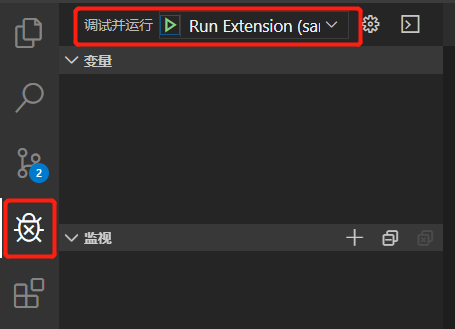
这时,在新窗口从命令面板(Ctrl + Shift + P)运行命令:
hello world
这时候应该看到Hello World显示的通知。成功运行demo!

2.项目目录结构
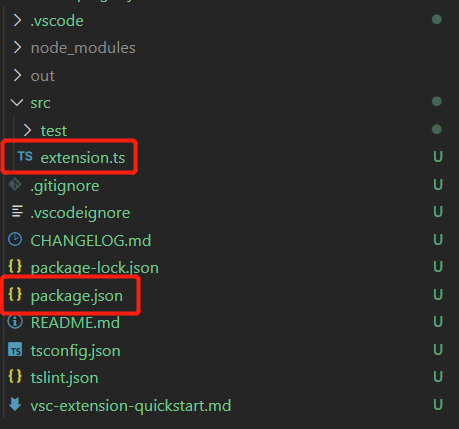
项目结构主要是清单文件package.json以及extension.ts这个插件入口文件
先看package.json文件(部分代码已省略):
// 命令激活事件
"activationEvents": [
	"onCommand:extension.helloWorld"
],
// 入口文件
"main": "./out/extension.js",
// 功能配置(比如:命令行配置,菜单配置,触发配置),使命令在命令面板中可用,并将其绑定到命令ID
"contributes": {
	"commands": [
		{
			"command": "extension.helloWorld",
			"title": "Hello World"
		}
	]
}
extension.ts文件:
export function activate(context: vscode.ExtensionContext) {
    // registerCommand 功能绑定到已注册的命令ID
	let disposable = vscode.commands.registerCommand('extension.helloWorld', () => {
		vscode.window.showInformationMessage('Hello World!');
	});
	context.subscriptions.push(disposable);
}
-
从开发的角度,这一系列动作连起来解读就是:先在
contributes注册命令IDextension.helloWorld,"title" 为运行命令的名称,然后在extension.ts中进行命令绑定,也就是registerCommand,最后就是运行命令的时机(命令激活事件)activationEvents。 -
从程序的角度,当我们运行
hello world这个命令的时候,程序首先从contributes找到"Hello World",然后找到extension.helloWorld这个命令ID,再从命令激活事件activationEvents中找到对应的执行函数,运行hello world。
3.package.json 详解(已经有大神写过了,我就偷个懒:链接)
{
	// 插件的名字,应全部小写,不能有空格
	"name": "vscode-plugin-demo",
	// 插件的友好显示名称,用于显示在应用市场,支持中文
	"displayName": "VSCode插件demo",
	// 描述
	"description": "VSCode插件demo集锦",
	// 关键字,用于应用市场搜索
	"keywords": ["vscode", "plugin", "demo"],
	// 版本号
	"version": "1.0.0",
	// 发布者,如果要发布到应用市场的话,这个名字必须与发布者一致
	"publisher": "sxei",
	// 表示插件最低支持的vscode版本
	"engines": {
		"vscode": "^1.27.0"
	},
	// 插件应用市场分类,可选值: [Programming Languages, Snippets, Linters, Themes, Debuggers, Formatters, Keymaps, SCM Providers, Other, Extension Packs, Language Packs]
	"categories": [
		"Other"
	],
	// 插件图标,至少128x128像素
	"icon": "images/icon.png",
	// 扩展的激活事件数组,可以被哪些事件激活扩展,后文有详细介绍
	"activationEvents": [
		"onCommand:extension.sayHello"
	],
	// 插件的主入口
	"main": "./src/extension",
	// 贡献点,整个插件最重要最多的配置项
	"contributes": {
		// 插件配置项
		"configuration": {
			"type": "object",
			// 配置项标题,会显示在vscode的设置页
			"title": "vscode-plugin-demo",
			"properties": {
				// 这里我随便写了2个设置,配置你的昵称
				"vscodePluginDemo.yourName": {
					"type": "string",
					"default": "guest",
					"description": "你的名字"
				},
				// 是否在启动时显示提示
				"vscodePluginDemo.showTip": {
					"type": "boolean",
					"default": true,
					"description": "是否在每次启动时显示欢迎提示!"
				}
			}
		},
		// 命令
		"commands": [
			{
				"command": "extension.sayHello",
				"title": "Hello World"
			}
		],
		// 快捷键绑定
		"keybindings": [
			{
				"command": "extension.sayHello",
				"key": "ctrl+f10",
				"mac": "cmd+f10",
				"when": "editorTextFocus"
			}
		],
		// 菜单
		"menus": {
			// 编辑器右键菜单
			"editor/context": [
				{
					// 表示只有编辑器具有焦点时才会在菜单中出现
					"when": "editorFocus",
					"command": "extension.sayHello",
					// navigation是一个永远置顶的分组,后面的@6是人工进行组内排序
					"group": "navigation@6"
				},
				{
					"when": "editorFocus",
					"command": "extension.demo.getCurrentFilePath",
					"group": "navigation@5"
				},
				{
					// 只有编辑器具有焦点,并且打开的是JS文件才会出现
					"when": "editorFocus && resourceLangId == javascript",
					"command": "extension.demo.testMenuShow",
					"group": "z_commands"
				},
				{
					"command": "extension.demo.openWebview",
					"group": "navigation"
				}
			],
			// 编辑器右上角图标,不配置图片就显示文字
			"editor/title": [
				{
					"when": "editorFocus && resourceLangId == javascript",
					"command": "extension.demo.testMenuShow",
					"group": "navigation"
				}
			],
			// 编辑器标题右键菜单
			"editor/title/context": [
				{
					"when": "resourceLangId == javascript",
					"command": "extension.demo.testMenuShow",
					"group": "navigation"
				}
			],
			// 资源管理器右键菜单
			"explorer/context": [
				{
					"command": "extension.demo.getCurrentFilePath",
					"group": "navigation"
				},
				{
					"command": "extension.demo.openWebview",
					"group": "navigation"
				}
			]
		},
		// 代码片段
		"snippets": [
			{
				"language": "javascript",
				"path": "./snippets/javascript.json"
			},
			{
				"language": "html",
				"path": "./snippets/html.json"
			}
		],
		// 自定义新的activitybar图标,也就是左侧侧边栏大的图标
		"viewsContainers": {
			"activitybar": [
				{
					"id": "beautifulGirl",
					"title": "美女",
					"icon": "images/beautifulGirl.svg"
				}
			]
		},
		// 自定义侧边栏内view的实现
		"views": {
			// 和 viewsContainers 的id对应
			"beautifulGirl": [
				{
					"id": "beautifulGirl1",
					"name": "国内美女"
				},
				{
					"id": "beautifulGirl2",
					"name": "国外美女"
				},
				{
					"id": "beautifulGirl3",
					"name": "人妖"
				}
			]
		},
		// 图标主题
		"iconThemes": [
			{
				"id": "testIconTheme",
				"label": "测试图标主题",
				"path": "./theme/icon-theme.json"
			}
		]
	},
	// 同 npm scripts
	"scripts": {
		"postinstall": "node ./node_modules/vscode/bin/install",
		"test": "node ./node_modules/vscode/bin/test"
	},
	// 开发依赖
	"devDependencies": {
		"typescript": "^2.6.1",
		"vscode": "^1.1.6",
		"eslint": "^4.11.0",
		"@types/node": "^7.0.43",
		"@types/mocha": "^2.2.42"
	},
	// 后面这几个应该不用介绍了
	"license": "SEE LICENSE IN LICENSE.txt",
	"bugs": {
		"url": "https://github.com/sxei/vscode-plugin-demo/issues"
	},
	"repository": {
		"type": "git",
		"url": "https://github.com/sxei/vscode-plugin-demo"
	},
	// 主页
	"homepage": "https://github.com/sxei/vscode-plugin-demo/blob/master/README.md"
}
4. 插件开发
简单的 hello world 插件已经成功运行,基本流程也清楚之后,开始了开发插件的流程。
在开发插件的过程中,用到了『webview』『命令』『菜单』等功能开发。
TODO:...