

AlertDialog:同Android中的alertDialog
const AlertDialog({
  Key key,
  this.title, //对话框标题组件
  this.titlePadding, // 标题填充
  this.titleTextStyle, //标题文本样式
  this.content, // 对话框内容组件
  this.contentPadding = const EdgeInsets.fromLTRB(24.0, 20.0, 24.0, 24.0), //内容的填充
  this.contentTextStyle,// 内容文本样式
  this.actions, // 对话框操作按钮组
  this.backgroundColor, // 对话框背景色
  this.elevation,// 对话框的阴影
  this.semanticLabel, //对话框语义化标签(用于读屏软件)
  this.shape, // 对话框外形
})
通常使用SIngleChildScrollView来包裹过多的元素,这是因为alertDialog是使用child的大小来调整自身大小 它的显示是通过showDialog方法实现
Future<T> showDialog<T>({
  @required BuildContext context,
  bool barrierDismissible = true,//点击对话框的遮罩时是否关闭它
  WidgetBuilder builder,//对话框UI的builder
})
而它的关闭与正常的路由关闭是一样的,Navigator.of(context).pop(T),这个参数可选,其实就是返回值类型。 比如下面的代码
class AlertDialogDemo extends StatelessWidget {
  Future<bool> showAlertDialog(BuildContext context) {
    return showDialog<bool>(
      context: context,
      barrierDismissible: true, // user must tap button!
      builder: (BuildContext context) {
        return AlertDialog(
          title: Text('title'),
          content: Container(
            height: 200.0,
            child: SingleChildScrollView(
              child: ListBody(
                children: <Widget>[
                  Text('too long~~~'),
                  Text('too long~~~'),
                  Text('too long~~~'),
                  Text('too long~~~'),
                  Text('too long~~~'),
                ],
              ),
            ),
          ),
          actions: <Widget>[
            FlatButton(
              child: Text('关闭'),
              onPressed: () {
                Navigator.of(context).pop();
              },
            ),
            FlatButton(
              child: Text("确定"),
              onPressed: () {
                Navigator.of(context).pop(true);
              },
            )
          ],
        );
      },
    );
  }

  Widget build(BuildContext context) {
    return Scaffold(
      appBar: AppBar(
        title: Text("AlertDialogDemo"),
      ),
      body: RaisedButton(
          padding: EdgeInsets.fromLTRB(10.0, 10.0, 10.0, 10.0),
          //padding
          child: Text(
            '点我显示 AlertDialog',
            style: TextStyle(
              fontSize: 18.0, //textsize
              color: Colors.white, // textcolor
            ),
          ),
          color: Theme.of(context).accentColor,
          elevation: 4.0,
          //shadow
          splashColor: Colors.blueGrey,
          onPressed: () async {
            bool isConfirmed = await showAlertDialog(context);
            if (isConfirmed == null) {
              print("点击了取消");
            } else if (isConfirmed) {
              print("点击了确定");
            }
          }),
    );
  }
}
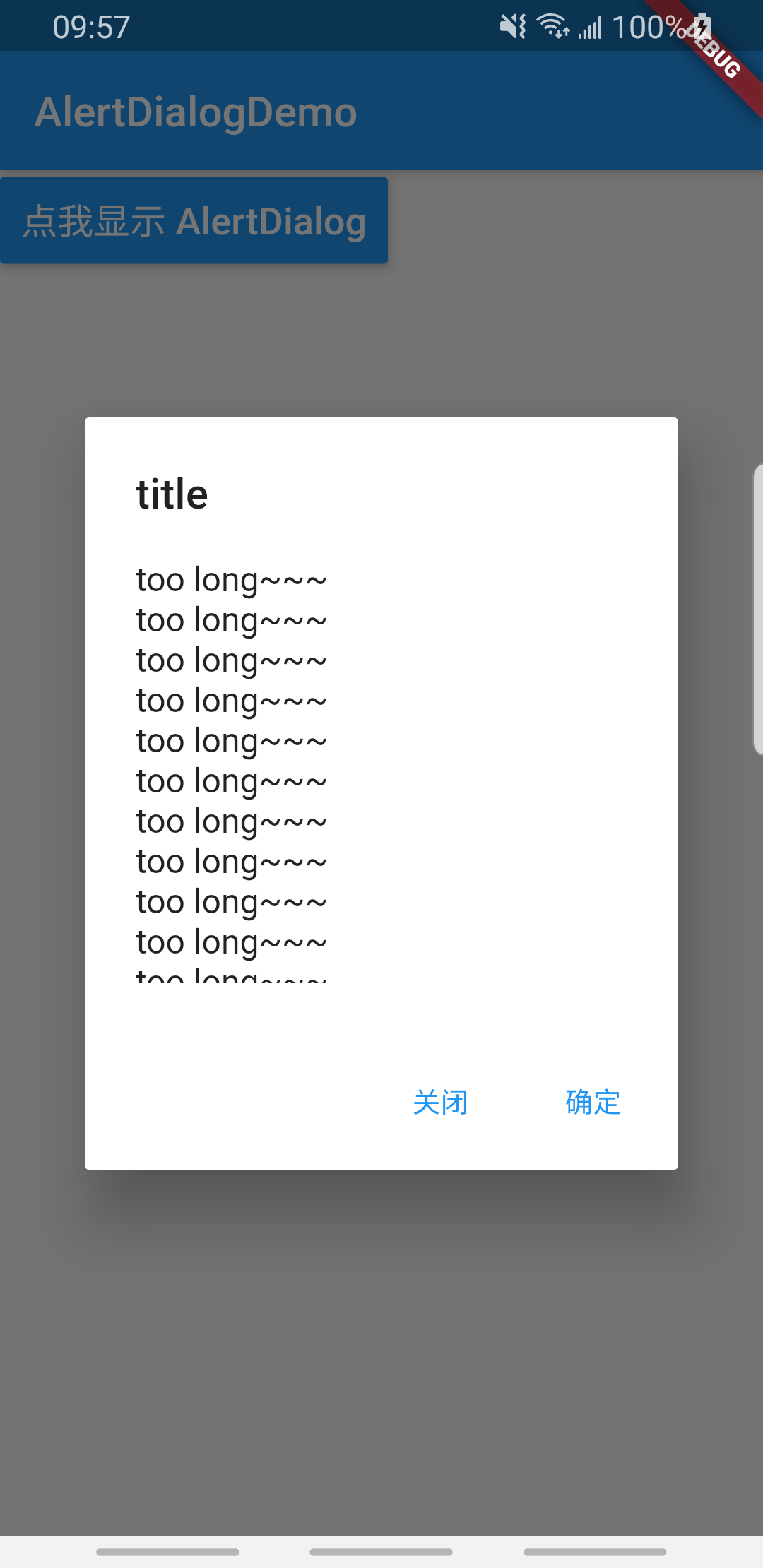
上面我们定义了一个需要用到返回值的alertDialog,这里定义一个返回bool值的show方法,在需要弹出对话框的press方法中,我们通过async和await来获取到用户在alertDialog中点击的action 效果为
  Future<int> changeLanguage(BuildContext context) {
   return showDialog<int>(
        context: context,
        builder: (BuildContext context) {
          return SimpleDialog(
            title: const Text('请选择语言'),
            children: <Widget>[
              SimpleDialogOption(
                onPressed: () {
                  // 返回1
                  Navigator.pop(context, 1);
                },
                child: Padding(
                  padding: const EdgeInsets.symmetric(vertical: 6),
                  child: const Text('中文简体'),
                ),
              ),
              SimpleDialogOption(
                onPressed: () {
                  // 返回2
                  Navigator.pop(context, 2);
                },
                child: Padding(
                  padding: const EdgeInsets.symmetric(vertical: 6),
                  child: const Text('美国英语'),
                ),
              ),
            ],
          );
        });
  }
}
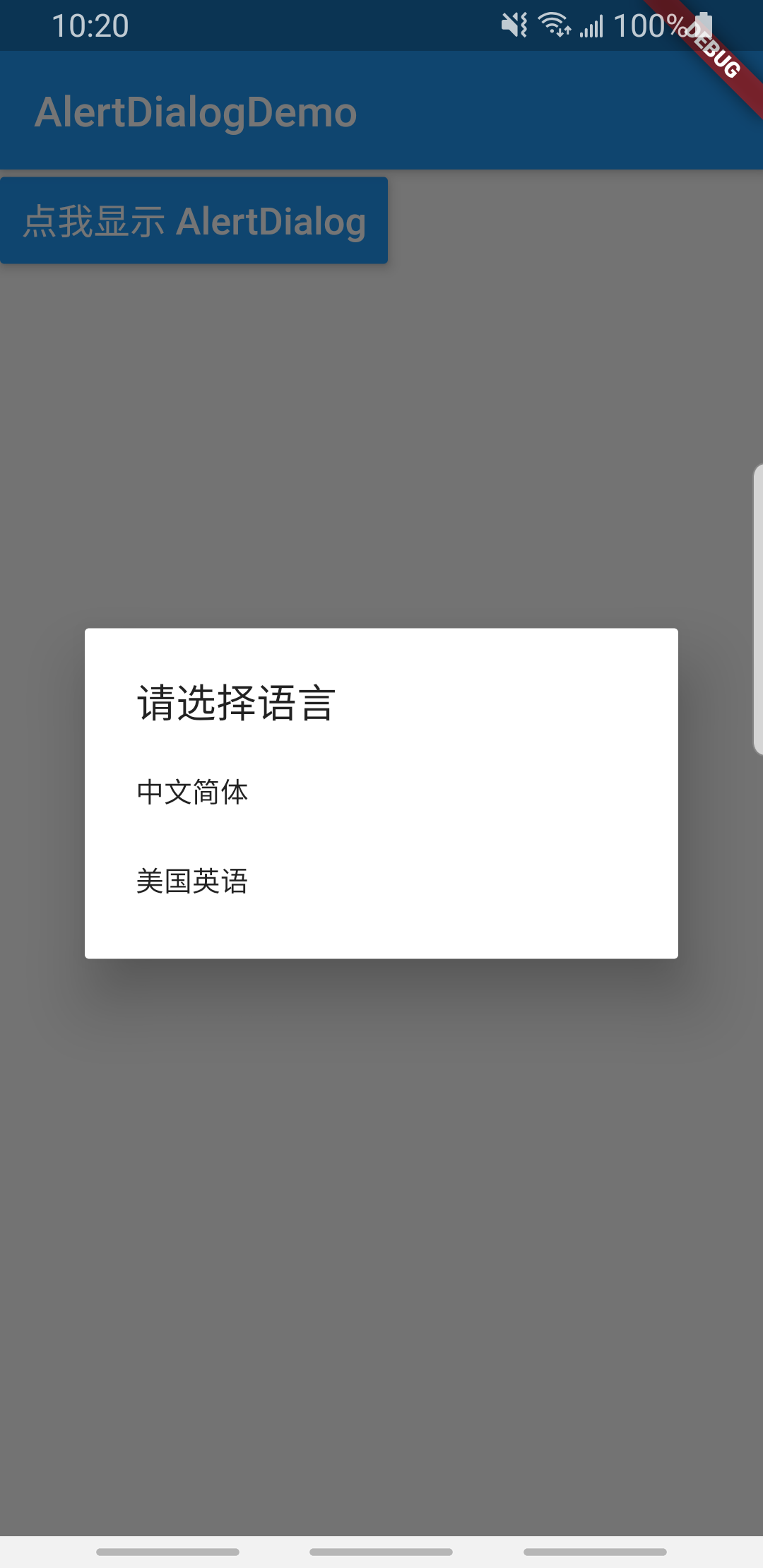
实现的效果为
Future<int> showListDialog(BuildContext context)  {
  return showDialog<int>(
    context: context,
    builder: (BuildContext context) {
      var child = Column(
        children: <Widget>[
          ListTile(title: Text("请选择")),
          Expanded(
              child: ListView.builder(
                itemCount: 30,
                itemBuilder: (BuildContext context, int index) {
                  return ListTile(
                    title: Text("$index"),
                    onTap: () => Navigator.of(context).pop(index),
                  );
                },
              )),
        ],
      );
      //使用AlertDialog会报错
      //return AlertDialog(content: child);
      return Dialog(child: child);
    },
  );
}

