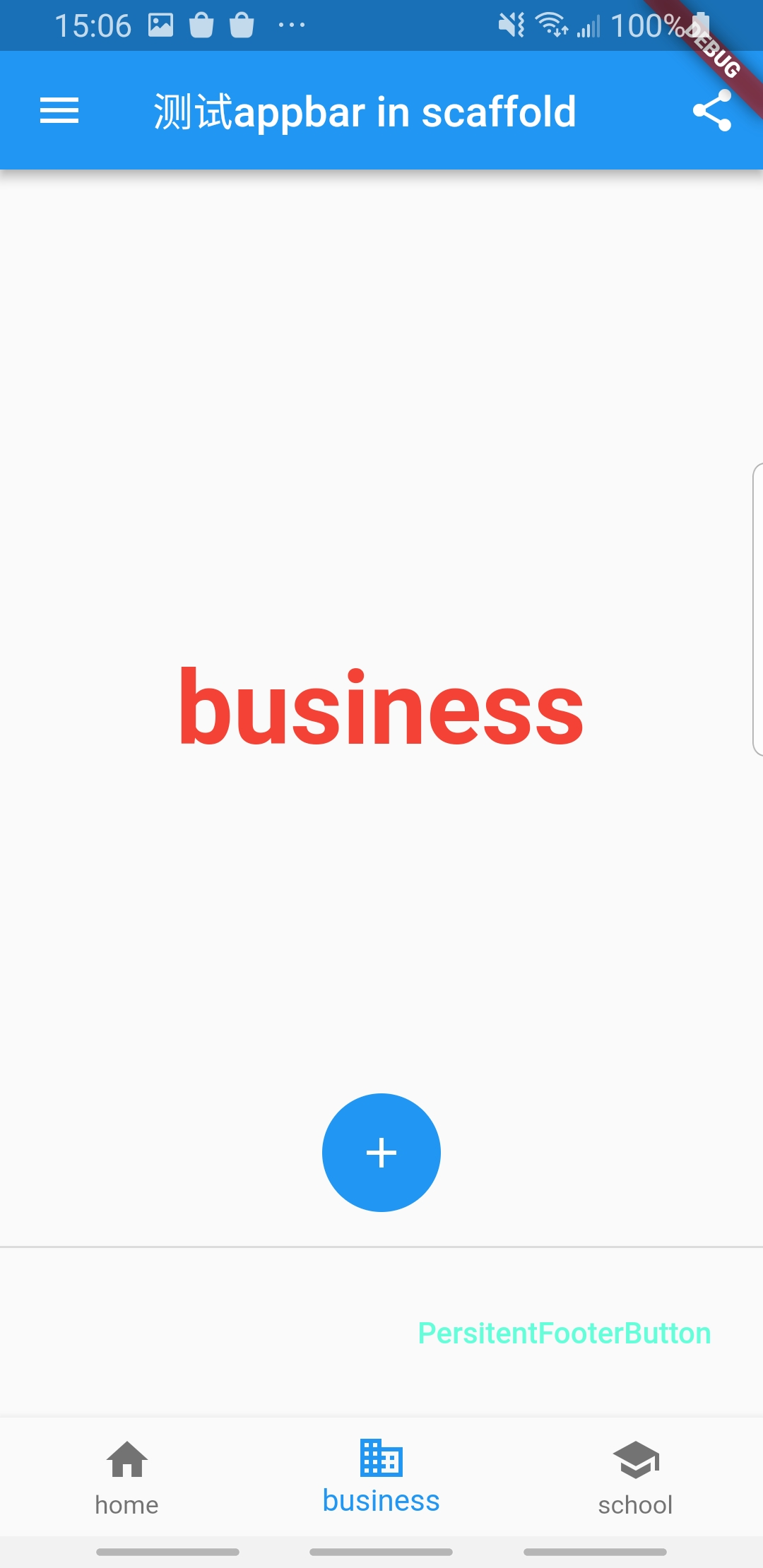
Scaffold是一个路由页的骨架,通过它我们可以很容易的拼装出一个完整的页面
const Scaffold({
  Key key,
  this.appBar,
  this.body,
  this.floatingActionButton,
  this.floatingActionButtonLocation,
  this.floatingActionButtonAnimator,
  this.persistentFooterButtons,
  this.drawer,
  this.endDrawer,
  this.bottomNavigationBar,
  this.bottomSheet,
  this.backgroundColor,
  this.resizeToAvoidBottomPadding = true,
  this.primary = true,
})
- appBar:显示在界面顶部的一个appBar
- body:当前界面所显示的主要内容widget
- floatingActionButton:materialDesign中所设定的FAB,界面的主要功能按钮
- floatingActionButtonLocation:用于确定上面FAB的位置,默认为FloatingActionBttonLocation.endFloat
- floatingActionButtonAnimator:用于将FAB移动到新的位置时所采用的动画,默认为scaling
- persistentFooterButtons:一组显示在Scaffold底部的按钮,通常是FlatButton的集合。这些按钮是一直显示的,即使Scaffold的body是可以滚动的,这就类似于RelativeLayout中设置alignParentBottom。他显示在bottomNavigationBar的上方,但是在body的下方,这些button将会包装到ButtonBar中
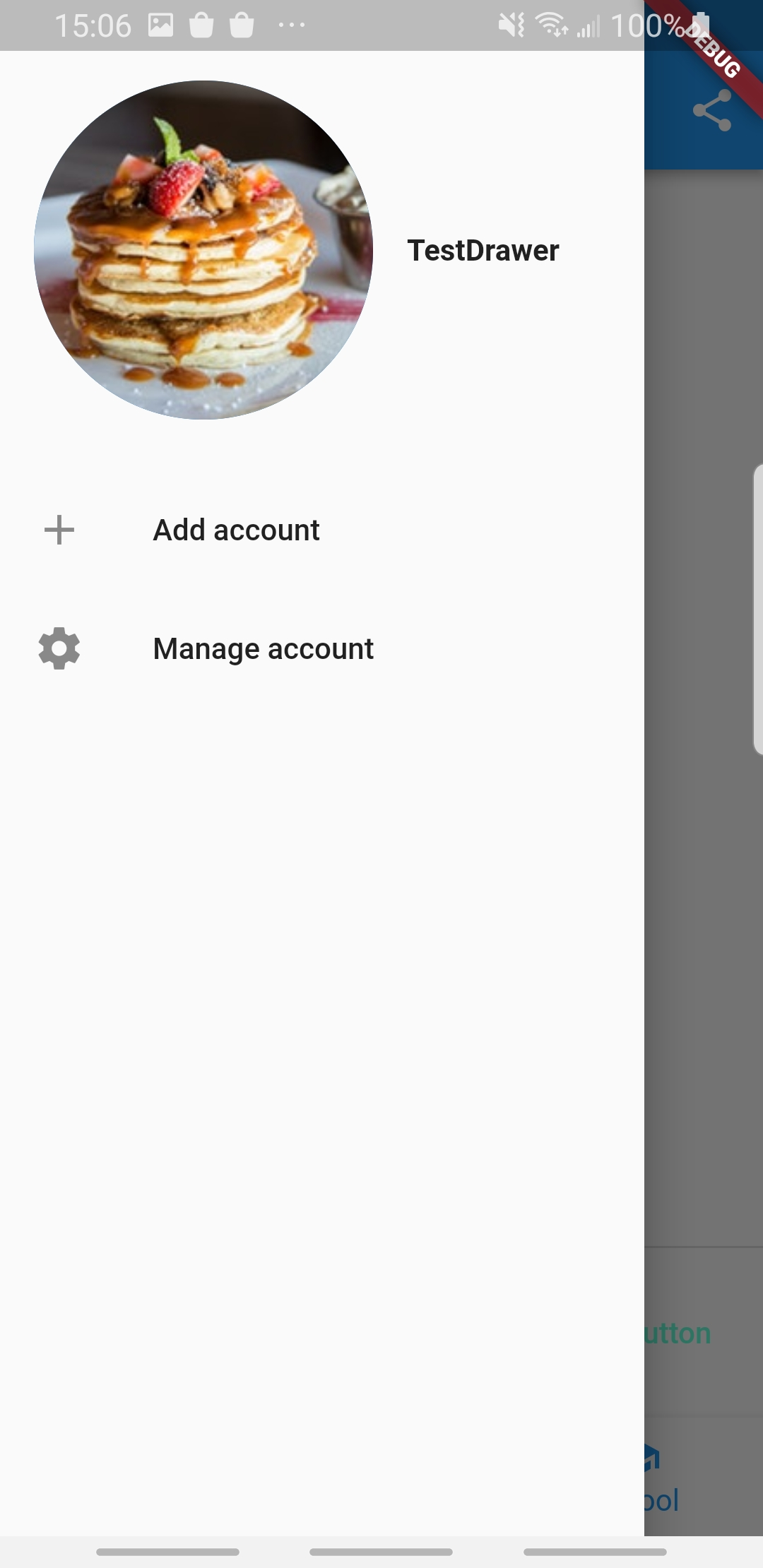
- drawer:侧边栏控件(一般在左边),通常我们会使用Drawer这个statelessWidget
- endDrawer:与drawer位置相反,其他一样
- bottomNavigationBar:底部导航栏
- bottomSheet:
- backgroundColor:内容的背景色,默认使用的是ThemeData.scaffoldBackgroundColor
- resizeToAvoidBottomPadding:控制界面内容body是否重新布局来避免底部被覆盖了,比如当键盘显示的时候重新布局,避免被键盘挡住
下面我们就来实现一个Scaffold,这里用到了上面提到的大部分属性
class ScaffoldDemo extends StatefulWidget {
  @override
  State<StatefulWidget> createState() {
    return _ScaffoldDemoState();
  }
}

class _ScaffoldDemoState extends State<ScaffoldDemo> {
  int _selectedIndex = 0;

  List<Widget> _list = List();

  @override
  void initState() {
    // TODO: implement initState
    super.initState();

    _list.add(buildDefaultPage("home"));
    _list.add(buildDefaultPage("business"));
    _list.add(buildDefaultPage("school"));
  }

  @override
  Widget build(BuildContext context) {
    return Scaffold(
      appBar: AppBar(
        title: Text("测试appbar in scaffold"),
        actions: <Widget>[
          IconButton(
            icon: Icon(Icons.share),
            onPressed: () {},
          )
        ],
      ),
      floatingActionButton: FloatingActionButton(
        onPressed: _onFABPressed(),
        child: Icon(Icons.add),
      ),
      floatingActionButtonLocation: FloatingActionButtonLocation.centerFloat,
      persistentFooterButtons: <Widget>[
        ButtonBar(
          children: <Widget>[
            Row(
              children: <Widget>[
                FlatButton(
                  onPressed: () {},
                  child: Text(
                    "PersitentFooterButton",
                    style: TextStyle(color: Colors.tealAccent),
                  ),
                )
              ],
            )
          ],
        )
      ],
      drawer: Drawer(
        child: MediaQuery.removePadding(
            context: context,
            child: Column(
              crossAxisAlignment: CrossAxisAlignment.start,
              children: <Widget>[
                Padding(
                  padding: EdgeInsets.only(top: 38.0),
                  child: Row(
                    children: <Widget>[
                      Padding(
                        padding: EdgeInsets.symmetric(horizontal: 16.0),
                        child: CircleAvatar(
                          radius: 80,
                          backgroundImage: AssetImage("images/food01.jpeg"),
//                          child: Image.asset(
//                            "images/food01.jpeg",
//                            width: 80,
//                          ),
                        ),
                      ),
                      Text(
                        "TestDrawer",
                        style: TextStyle(fontWeight: FontWeight.bold),
                      )
                    ],
                  ),
                ),
                Expanded(
                  child: ListView(
                    children: <Widget>[
                      ListTile(
                        leading: const Icon(Icons.add),
                        title: const Text("Add account"),
                      ),
                      ListTile(
                        leading: const Icon(Icons.settings),
                        title: const Text("Manage account"),
                      )
                    ],
                  ),
                )
              ],
            )),
      ),
      body: IndexedStack(
        children: _list,
        index: _selectedIndex,
      ),
      bottomNavigationBar: BottomNavigationBar(
        items: <BottomNavigationBarItem>[
          BottomNavigationBarItem(icon: Icon(Icons.home), title: Text("home")),
          BottomNavigationBarItem(
              icon: Icon(Icons.business), title: Text("business")),
          BottomNavigationBarItem(
              icon: Icon(Icons.school), title: Text("school")),
        ],
        currentIndex: _selectedIndex,
        onTap: (int currIndex) {
          _changeIndex(currIndex);
        },
        fixedColor: Theme.of(context).primaryColor,
        type: BottomNavigationBarType.fixed,
      ),
    );
  }

  _onFABPressed() {}

  void _changeIndex(int currIndex) {
    setState(() {
      _selectedIndex = currIndex;
    });
  }

  Widget buildDefaultPage(String content) {
    return Center(
      child: Text(
        content,
        style: TextStyle(color: Colors.red, fontWeight: FontWeight.bold,fontSize: 48),
      ),
    );
  }
}