原文链接heartbeat.fritz.ai/image-class…
最近,针对React Native和Expo应用程序的TensorFlow.js的alpha版本发布了。目前支持加载预先训练的模型并训练新模型,以下是公告推文:

TensorFlow.js提供了许多预训练的模型,这些模型简化了从头开始训练新机器学习模型的耗时任务。在本教程中,我们将探索TensorFlow.js和MobileNet预训练的模型架构,以对React Native移动应用程序中的输入图像进行分类。
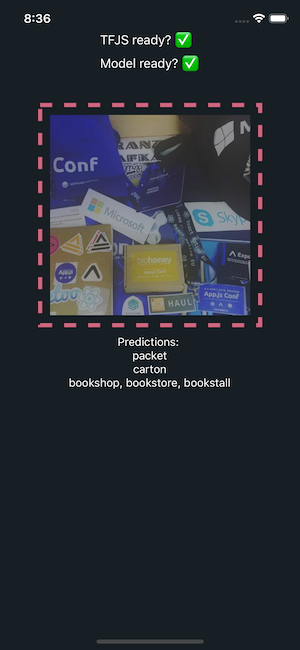
在本教程结束时,该应用程序将如下所示:
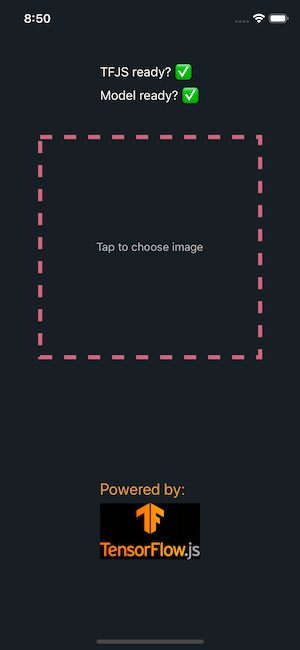
注:以前,我确实接触过Google的Vision API来构建图像分类应用程序,该应用程序可判定给定图像是否为热狗。如果您有兴趣阅读该示例,请点击以下链接:heartbeat.fritz.ai/build-a-not…
本文目录
- 环境准备
- 将TF.js集成到Expo应用程序中
- 测试TF.js集成
- 加载MobileNet模型
- 询问用户权限
- 将原始图像转换为张量
- 加载和分类图像
- 允许用户选择图像
- 运行应用
- 结论
完整代码链接:github.com/amandeepmit…
环境准备
- 本地环境
Nodejs >= 10.x.x expo-cli- 适用于
Android或iOS的Expo Client应用程序,用于测试该APP
将TF.js集成到Expo应用程序中
在React Native中使用TensorFlow库,第一步是集成平台适配器-- tfjs-react-native模块,支持从Web加载所有主要的tfjs模型。它还使用expo-gl提供了GPU支持。
打开终端窗口,并通过执行以下命令来创建新的Expo应用程序。
expo init mobilenet-tfjs-expo
接下来,请确保生成一个由Expo管理的应用程序。然后在app所在目录中安装以下依赖项:
yarn add @react-native-community/async-storage @tensorflow/tfjs @tensorflow/tfjs-react-native expo-gl @tensorflow-models/mobilenet jpeg-js
注:如果您想使用react-native-cli生成应用程序,则可以按照明确的说明来修改metro.config.js文件和其他必要步骤,如此处所述。
即便您使用了Expo,也仍然需要安装tfjs模块依赖的async-storage。
测试TF.js集成
我们需要确保在呈现应用程序之前将tfjs成功加载到应用程序中。这里有一个异步函数称为tf.ready()。打开App.js文件,导入必要的依赖项,并定义isTfReady初始状态为false。
import React from 'react'
import { StyleSheet, Text, View } from 'react-native'
import * as tf from '@tensorflow/tfjs'
import { fetch } from '@tensorflow/tfjs-react-native'

class App extends React.Component {
  state = {
    isTfReady: false
  }

  async componentDidMount() {
    await tf.ready()
    this.setState({
      isTfReady: true
    })

    //Output in Expo console
    console.log(this.state.isTfReady)
  }

  render() {
    return (
      <View style={styles.container}>
        <Text>TFJS ready? {this.state.isTfReady ? <Text>Yes</Text> : ''}</Text>
      </View>
    )
  }
}

const styles = StyleSheet.create({
  container: {
    flex: 1,
    backgroundColor: '#fff',
    alignItems: 'center',
    justifyContent: 'center'
  }
})

export default App
由于生命周期方法是异步的,因此仅在实际加载tfjs时才会将isTfReady的值更新为true。
您可以在模拟器设备中看到输出,如下所示。


加载MobileNet模块
与上一步骤类似,在提供输入图像之前,您还必须加载MobileNet模型。从Web上加载经过预先训练的TensorFlow.js模型是一个昂贵的网络调用,将花费大量时间。修改App.js文件以加载MobileNet模型。首先导入它:
import * as mobilenet from '@tensorflow-models/mobilenet'
添加初始状态其他的属性:
state = {
  isTfReady: false,
  isModelReady: false
}
修改生命周期方法:
async componentDidMount() {
    await tf.ready()
    this.setState({
      isTfReady: true
    })
    this.model = await mobilenet.load()
    this.setState({ isModelReady: true })
}
最后,当模型加载完成后,让我们在屏幕上显示一个指示器。
<Text>
  Model ready?{' '}
  {this.state.isModelReady ? <Text>Yes</Text> : <Text>Loading Model...</Text>}
</Text>
当模块加载时,会展示以下的信息:


询问用户权限
现在,平台适配器和模型都已集成在React Native应用程序中,我们需要添加一个异步功能,以请求用户的许可以访问相机。使用Expo的图像选择器组件构建iOS应用程序时,这是必不可少的步骤。
在继续之前,请运行以下命令以安装Expo SDK提供的所有软件包。
expo install expo-permissions expo-constants expo-image-picker
在APP.js中添加import声明
import Constants from 'expo-constants'
import * as Permissions from 'expo-permissions'
在APP类中添加方法:
getPermissionAsync = async () => {
  if (Constants.platform.ios) {
    const { status } = await Permissions.askAsync(Permissions.CAMERA_ROLL)
    if (status !== 'granted') {
      alert('Sorry, we need camera roll permissions to make this work!')
    }
  }
}
在componentDidMount()内部调用此异步方法:
async componentDidMount() {
    await tf.ready()
    this.setState({
      isTfReady: true
    })
    this.model = await mobilenet.load()
    this.setState({ isModelReady: true })

    // add this
    this.getPermissionAsync()
  }
将原始图像转换为张量
该应用将要求用户从手机的相机或图库中上传图像。您必须添加一个方法来加载图像,并允许TensorFlow解码图像中的数据。 TensorFlow支持JPEG和PNG格式。
在App.js文件中,首先导入jpeg-js程序包,该程序包将用于解码图像中的数据。
import * as jpeg from 'jpeg-js'
方法imageToTensor解码图片的宽度,高度和二进制数据,该方法接受原始图像数据的参数。
imageToTensor(rawImageData) {
    const TO_UINT8ARRAY = true
    const { width, height, data } = jpeg.decode(rawImageData, TO_UINT8ARRAY)
    // Drop the alpha channel info for mobilenet
    const buffer = new Uint8Array(width * height * 3)
    let offset = 0 // offset into original data
    for (let i = 0; i < buffer.length; i += 3) {
      buffer[i] = data[offset]
      buffer[i + 1] = data[offset + 1]
      buffer[i + 2] = data[offset + 2]

      offset += 4
    }

    return tf.tensor3d(buffer, [height, width, 3])
  }
TO_UINT8ARRAY数组表示8位无符号整数的数组。构造方法Uint8Array()是新的ES2017语法。对于不同的类型化数组,每种类型的数组在内存中都有其自己的字节范围。
加载和分类图像
接下来,我们添加另一个称为classifyImage的方法,该方法将从图像中读取原始数据,并在分类后以预测形式产生结果。
必须在应用程序组件的state中保存该图像源的路径,以便从源中读取图像。同样,也必须包括上述异步方法产生的结果。 这是最后一次修改App.js文件中的现有状态。
state = {
  isTfReady: false,
  isModelReady: false,
  predictions: null,
  image: null
}
添加异步方法:
classifyImage = async () => {
  try {
    const imageAssetPath = Image.resolveAssetSource(this.state.image)
    const response = await fetch(imageAssetPath.uri, {}, { isBinary: true })
    const rawImageData = await response.arrayBuffer()
    const imageTensor = this.imageToTensor(rawImageData)
    const predictions = await this.model.classify(imageTensor)
    this.setState({ predictions })
    console.log(predictions)
  } catch (error) {
    console.log(error)
  }
}
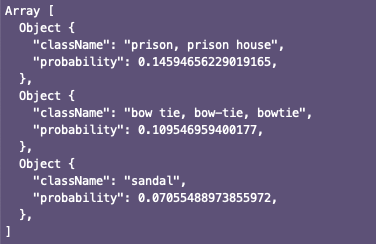
预训练模型的结果以数组形式产生。举例如下:
允许用户选择图像
从系统设备的相机中选择图像,需要使用expo-image-picker包提供的异步方法ImagePicker.launchImageLibraryAsync。导入包:
import * as Permissions from 'expo-permissions'
添加selectImage方法用于:
- 让用户选择图片
- 选择图像,在
state.image中填充源URI对象 - 最后,调用
classifyImage()方法根据给定的输入进行预测
selectImage = async () => {
  try {
    let response = await ImagePicker.launchImageLibraryAsync({
      mediaTypes: ImagePicker.MediaTypeOptions.All,
      allowsEditing: true,
      aspect: [4, 3]
    })

    if (!response.cancelled) {
      const source = { uri: response.uri }
      this.setState({ image: source })
      this.classifyImage()
    }
  } catch (error) {
    console.log(error)
  }
}
包expo-image-picker返回一个对象。如果用户取消了选择图像的过程,则图像选择器模块将返回单个属性:canceled:true。如果成功,则图像选择器模块将返回属性,例如图像本身的uri。因此,上述片段中的if语句具有重要的意义。
运行应用
要完成此程序,需要在用户单击添加图像的位置添加不透明度。
这是App.js文件中render方法的完整代码段:
render() {
    const { isTfReady, isModelReady, predictions, image } = this.state

    return (
      <View style={styles.container}>
        <StatusBar barStyle='light-content' />
        <View style={styles.loadingContainer}>
          <Text style={styles.commonTextStyles}>
            TFJS ready? {isTfReady ? <Text>✅</Text> : ''}
          </Text>

          <View style={styles.loadingModelContainer}>
            <Text style={styles.text}>Model ready? </Text>
            {isModelReady ? (
              <Text style={styles.text}>✅</Text>
            ) : (
              <ActivityIndicator size='small' />
            )}
          </View>
        </View>
        <TouchableOpacity
          style={styles.imageWrapper}
          onPress={isModelReady ? this.selectImage : undefined}>
          {image && <Image source={image} style={styles.imageContainer} />}

          {isModelReady && !image && (
            <Text style={styles.transparentText}>Tap to choose image</Text>
          )}
        </TouchableOpacity>
        <View style={styles.predictionWrapper}>
          {isModelReady && image && (
            <Text style={styles.text}>
              Predictions: {predictions ? '' : 'Predicting...'}
            </Text>
          )}
          {isModelReady &&
            predictions &&
            predictions.map(p => this.renderPrediction(p))}
        </View>
        <View style={styles.footer}>
          <Text style={styles.poweredBy}>Powered by:</Text>
          <Image source={require('./assets/tfjs.jpg')} style={styles.tfLogo} />
        </View>
      </View>
    )
  }
}
完整的styles对象:
const styles = StyleSheet.create({
  container: {
    flex: 1,
    backgroundColor: '#171f24',
    alignItems: 'center'
  },
  loadingContainer: {
    marginTop: 80,
    justifyContent: 'center'
  },
  text: {
    color: '#ffffff',
    fontSize: 16
  },
  loadingModelContainer: {
    flexDirection: 'row',
    marginTop: 10
  },
  imageWrapper: {
    width: 280,
    height: 280,
    padding: 10,
    borderColor: '#cf667f',
    borderWidth: 5,
    borderStyle: 'dashed',
    marginTop: 40,
    marginBottom: 10,
    position: 'relative',
    justifyContent: 'center',
    alignItems: 'center'
  },
  imageContainer: {
    width: 250,
    height: 250,
    position: 'absolute',
    top: 10,
    left: 10,
    bottom: 10,
    right: 10
  },
  predictionWrapper: {
    height: 100,
    width: '100%',
    flexDirection: 'column',
    alignItems: 'center'
  },
  transparentText: {
    color: '#ffffff',
    opacity: 0.7
  },
  footer: {
    marginTop: 40
  },
  poweredBy: {
    fontSize: 20,
    color: '#e69e34',
    marginBottom: 6
  },
  tfLogo: {
    width: 125,
    height: 70
  }
})
从终端窗口执行expo start命令来运行此程序。您会注意到的第一件事是,在Expo客户端中引导应用程序后,它将要求权限。
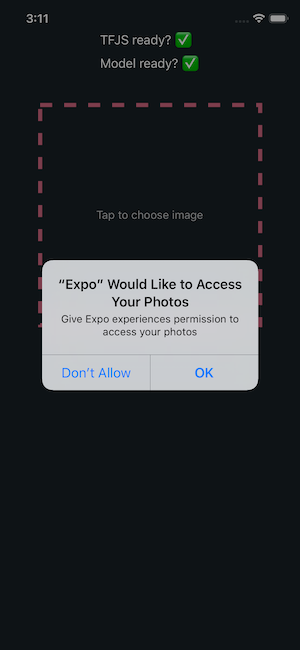
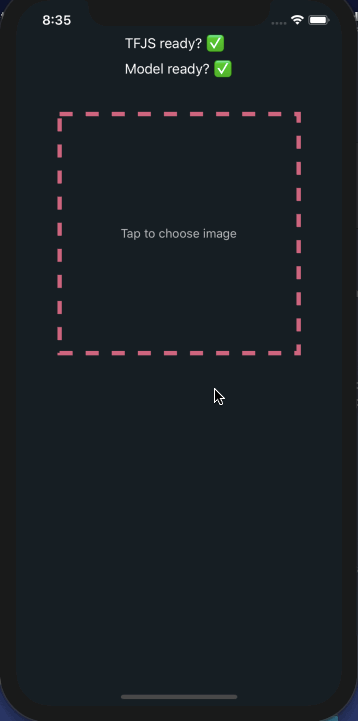
结论
这篇文章的目的是让您抢先了解如何在React Native应用中实现TesnorFlow.js模型,以及更好地理解图像分类,这是基于计算机视觉的机器学习的核心用例。
由于在撰写本文时,用于React Native的TF.js处于alpha版本,因此我们希望将来能看到更多更高级的示例来构建实时应用程序。
这里有一些我觉得非常有用的资源。
tfjs-react-native GitHub存储库,其中包含更多使用不同预训练模型的示例
Infinite Red的NSFW JS和React Native示例清晰明了,非常有帮助
Tensorflow.js简介