1. 应用场景
做电商APP的朋友应该都会遇到订单列表页面这个需求,类似于下图这个需求。
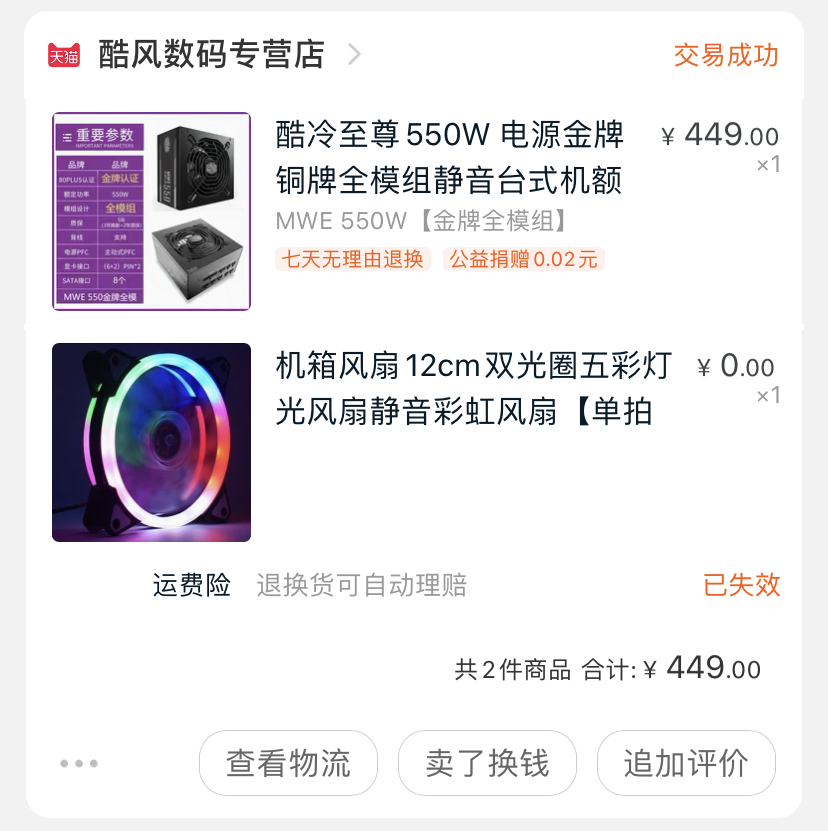
有些朋友可能会使用addView的方式来实现这个需求,不过在View到达一个数量级的时候,整个页面会非常卡。这个需求其实可以用一个RecyclerView中getItemViewType()这个函数实现这一个需求。简单来说就是将一个二维数组变成一维数组,这样就可以直接传入Adapter中使用,我们再根据数据结构类型的不用来判断加载哪一种Item。
2. 实现思路
2.1 界面切割
首先我们要将这个Item进行切分,划分为3个部分,如下图所示:
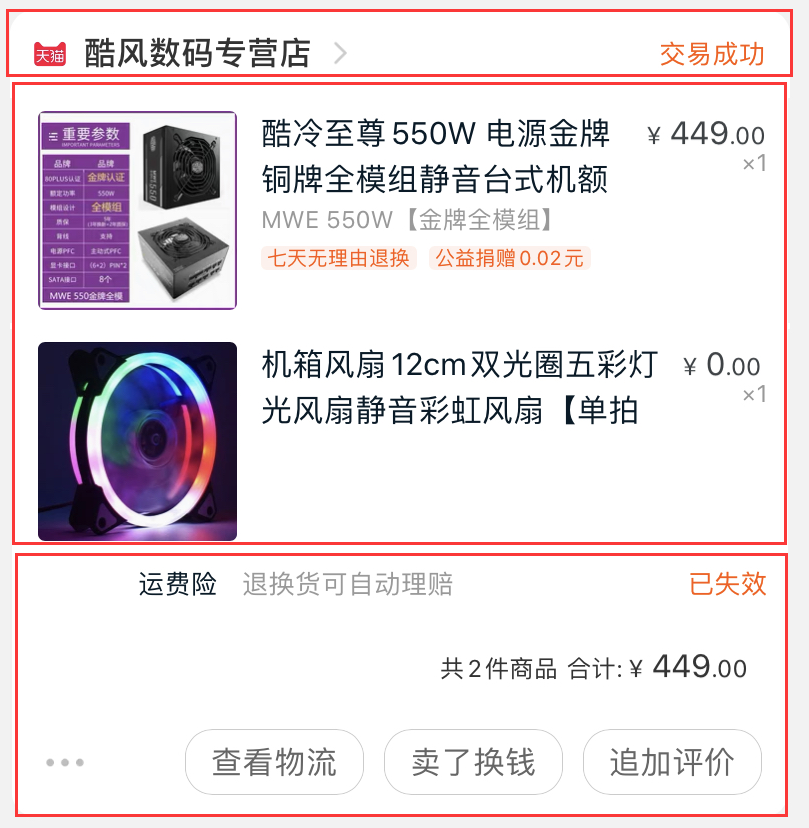
- 第一部分为订单头部信息,包括店铺名字与订单状态
- 第二部分为商品列表信息(多个)
- 第三部分为订单尾部信息,包括商品数量,价格,以及不同的功能按钮(可自定义)
根据页面切割部分编写各自对应的layout文件,
- item_order_layout_header
<?xml version="1.0" encoding="utf-8"?>
<RelativeLayout xmlns:android="http://schemas.android.com/apk/res/android"
    xmlns:tools="http://schemas.android.com/tools"
    android:layout_width="match_parent"
    android:background="@drawable/bg_item_header"
    android:layout_height="30dp">

    <ImageView
        android:id="@+id/iv_shop_icon"
        android:layout_width="24dp"
        android:layout_height="24dp"
        android:layout_alignParentStart="true"
        android:layout_centerVertical="true"
        android:layout_marginStart="8dp"
        android:src="@drawable/icon_tmall"
        tools:ignore="ContentDescription" />

    <TextView
        android:id="@+id/tv_shop_name"
        android:layout_width="wrap_content"
        android:layout_height="wrap_content"
        android:layout_centerVertical="true"
        android:layout_marginStart="8dp"
        android:layout_toEndOf="@id/iv_shop_icon"
        android:drawableEnd="@drawable/icon_enter"
        android:drawablePadding="8dp"
        android:textColor="@color/text_main"
        android:textSize="14sp"
        android:textStyle="bold"
        tools:text="Android死丢丢旗舰店" />

    <TextView
        android:id="@+id/tv_transaction_status"
        android:layout_width="wrap_content"
        android:layout_height="wrap_content"
        android:layout_alignParentEnd="true"
        android:layout_centerVertical="true"
        android:layout_marginEnd="8dp"
        android:textColor="@color/colorPrimary"
        android:textSize="14sp"
        android:textStyle="bold"
        tools:text="交易成功" />

</RelativeLayout>
- item_order_layout_content
<?xml version="1.0" encoding="utf-8"?>
<RelativeLayout xmlns:android="http://schemas.android.com/apk/res/android"
    xmlns:tools="http://schemas.android.com/tools"
    android:layout_width="match_parent"
    android:layout_height="100dp"
    android:background="#fff">

    <ImageView
        android:id="@+id/iv_goods_icon"
        android:layout_width="80dp"
        android:layout_height="80dp"
        android:layout_alignParentStart="true"
        android:layout_centerVertical="true"
        android:layout_marginStart="8dp"
        tools:ignore="ContentDescription"
        tools:src="@drawable/icon_default_goods" />

    <TextView
        android:id="@+id/tv_goods_name"
        android:layout_width="wrap_content"
        android:layout_height="wrap_content"
        android:layout_marginStart="8dp"
        android:layout_marginTop="12dp"
        android:layout_toEndOf="@id/iv_goods_icon"
        android:maxWidth="230dp"
        android:maxLines="2"
        android:textColor="@color/text_main"
        android:textSize="16sp"
        tools:text="垃圾Android死丢丢毁我青春" />

    <TextView
        android:id="@+id/tv_goods_price"
        android:layout_width="wrap_content"
        android:layout_height="wrap_content"
        android:layout_alignParentEnd="true"
        android:layout_marginTop="12dp"
        android:layout_marginEnd="8dp"
        android:maxWidth="64dp"
        android:textColor="@color/text_main"
        android:textSize="16sp"
        tools:ignore="RelativeOverlap"
        tools:text="¥499.00" />

    <TextView
        android:id="@+id/tv_goods_count"
        android:layout_width="wrap_content"
        android:layout_height="wrap_content"
        android:layout_below="@id/tv_goods_price"
        android:layout_alignParentEnd="true"
        android:layout_marginEnd="8dp"
        android:textColor="@color/text_second"
        android:textSize="16sp"
        tools:text="x1" />

</RelativeLayout>
- item_order_layout_footer
<?xml version="1.0" encoding="utf-8"?>
<RelativeLayout xmlns:android="http://schemas.android.com/apk/res/android"
    xmlns:tools="http://schemas.android.com/tools"
    android:layout_width="match_parent"
    android:layout_height="wrap_content"
    android:background="@drawable/bg_item_footer">

    <TextView
        android:id="@+id/tv_total_price"
        android:layout_width="wrap_content"
        android:layout_height="wrap_content"
        android:layout_alignParentEnd="true"
        android:layout_marginTop="4dp"
        android:layout_marginEnd="8dp"
        tools:text="共两件商品 合计: ¥999.00" />

    <Button
        android:layout_width="wrap_content"
        android:layout_height="30dp"
        android:layout_below="@id/tv_total_price"
        android:layout_alignParentEnd="true"
        android:layout_marginTop="8dp"
        android:layout_marginEnd="8dp"
        android:layout_marginBottom="8dp"
        android:background="@drawable/bg_button_main"
        android:text="确认收货"
        android:textColor="#fff" />

</RelativeLayout>
2.2 JSON数据再封装
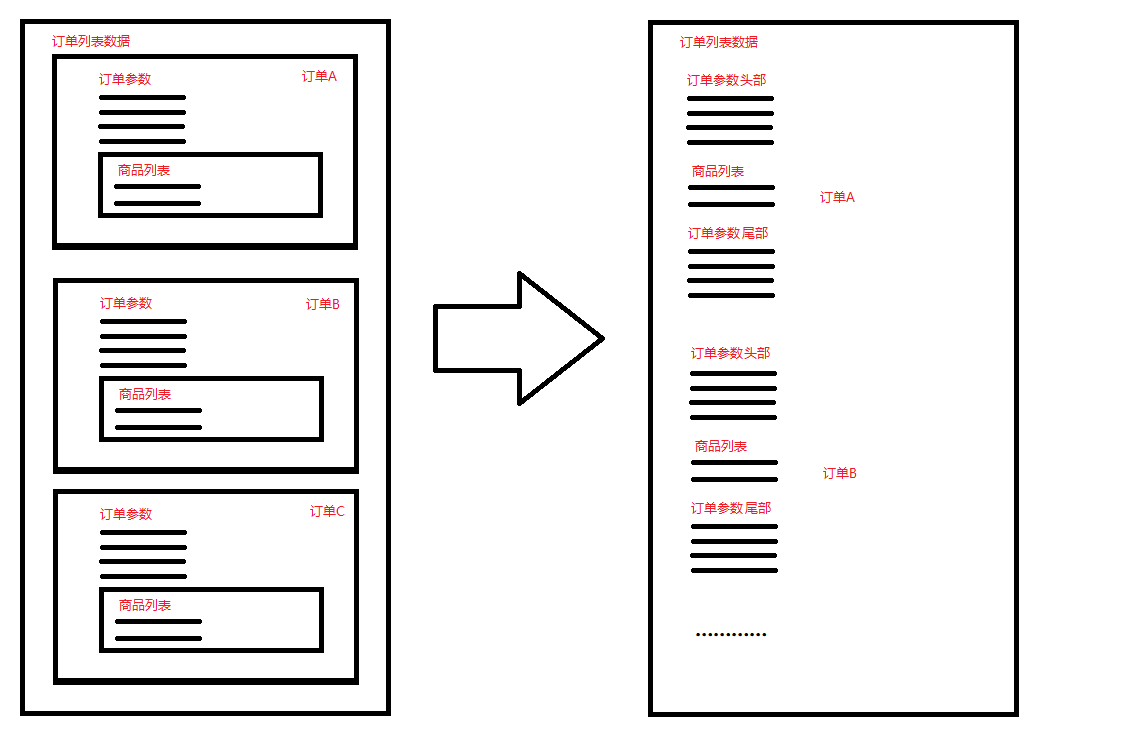
在界面切割完成以后,我们也要根据页面切分的情况进行后端返回JSON数据的封装,将二维数组变成一维数组。
一般服务端返回数据的数据结构如下图左所示,需要将图左的数据结构转为右边这种给RecyclerView使用:
具体代码实现(类OrderListDataHelper)
public static List<Object> getDataAfterHandle(List<OrderListModel.RecordBean> resultList) {
    // 获得服务端返回Json实体
    List<Object> dataList = new ArrayList<>();// 新建单链表
    OrderListHeaderModel orderHeaderModel = null;
    OrderListContentModel orderContentModel = null;
    OrderListFooterModel orderFooterModel = null;

    //遍历每一张订单
    for (OrderListModel.RecordBean recordBean : resultList) {

        //设置item头部订单状态
        orderHeaderModel = new OrderListHeaderModel();
        //TODO 设置数据
        dataList.add(orderHeaderModel);

        //设置item订单商品列表
        for (ProductListModel productListBean : recordBean.getProductList()) {
            orderContentModel = new OrderListContentModel();
            //TODO 设置数据
            dataList.add(orderContentModel);
        }

        //设置item订单尾部信息
        orderFooterModel = new OrderListFooterModel();
        //TODO 设置数据
        dataList.add(orderFooterModel);
    }
    // 返回封装好的单链表
    return dataList;
}
2.3 Adapter中适配
目前使用的是原生未封装的Adapter,更简洁的使用方法可以了解一下BaseRecyclerViewAdapterHelper,使用起来更方便哟,在商品列表需要多类型Item的话也可以参考他的Demo,写的很完美。
在Adapter中,我们首先要复写getItemCount方法:
@Override
public int getItemCount() {
    return data != null ? data.size() : 0 ;
}
其次复写getItemViewType方法
@Override
public int getItemViewType(int position) {
    if (data.get(position) instanceof OrderListHeaderModel) {// 判断数据类型是否为头部Item
        return ITEM_HEADER;
    } else if (data.get(position) instanceof OrderListContentModel) {// 判断数据类型是否为内容Item
        return ITEM_CONTENT;
    } else if (data.get(position) instanceof OrderListFooterModel) {// 判断数据类型是否为尾部Item
        return ITEM_FOOTER;
    }
    return ITEM_CONTENT;// 默认返回内容Item
}
复写onCreateViewHolder方法,将view与viewType对应
@NonNull
@Override
public BaseViewHolder onCreateViewHolder(ViewGroup parent, int viewType) {
    View view;
    if (viewType == ITEM_HEADER) {// 返回订单头部view
        view = LayoutInflater.from(mContext).inflate(R.layout.mallmodule_item_order_header, parent, false);
        return new OrderViewHolderHeader(view);
    } else if (viewType == ITEM_CONTENT) {// 返回订单商品列表view
        view = LayoutInflater.from(mContext).inflate(R.layout.mallmodule_item_order_goods, parent, false);
        return new OrderViewHolderContent(view);
    } else if (viewType == ITEM_FOOTER) {// 返回订单尾部view
        view = LayoutInflater.from(mContext).inflate(R.layout.mallmodule_item_order_footer, parent, false);
        return new OrderViewHolderFooter(view);
    }
    // 默认为订单商品列表view
    return new OrderViewHolderContent(LayoutInflater.from(mContext).inflate(R.layout.mallmodule_item_order_goods, parent, false));
}
复写onBindViewHolder方法,设置Model数据到View
@Override
public void onBindViewHolder(@NonNull BaseViewHolder holder, int position) {
    if (holder instanceof OrderViewHolderHeader) {// 订单头部View数据设置
        final OrderListHeaderModel orderHeaderModel = (OrderListHeaderModel) data.get(position);
        final OrderViewHolderHeader viewHolderHeader = (OrderViewHolderHeader) holder;
        // TODO 设置Model数据到View
    } else if (holder instanceof OrderViewHolderContent) {// 订单商品View数据设置
        final OrderListContentModel orderContentModel = (OrderListContentModel) data.get(position);
        final OrderViewHolderContent viewHolderContent = (OrderViewHolderContent) holder;
        // TODO 设置Model数据到View
        }
    } else if (holder instanceof OrderViewHolderFooter) {// 订单尾部View数据设置
        final OrderListFooterModel orderFooterModel = (OrderListFooterModel) data.get(position);
        final OrderViewHolderFooter viewHolderFooter = (OrderViewHolderFooter) holder;
        // TODO 设置Model数据到View
    }
}
3. Demo地址
周末补 (无限火力连跪的话)。