前言
早期作为一个小白,学习的时候,写代码都是很粗犷的,也疏于管理
自己一个人做项目可能还不觉得什么,但是到了公司中,大量语法层面的错误以及不规范的格式是不被容忍的
同时自己也开始思考,如何能形成更好的工作流,提升代码质量,加快编写速度,增加书写的容错率
本文会介绍使用git进行版本控制和多人协作,以及用eslint和stylelint进行自动格式修复,对于.vue文件实现html,js,scss全覆盖检测
编辑器使用的是vscode,把这些整合的很好
版本及分支管理
安装git
从官网下载对应的exe进行安装即可
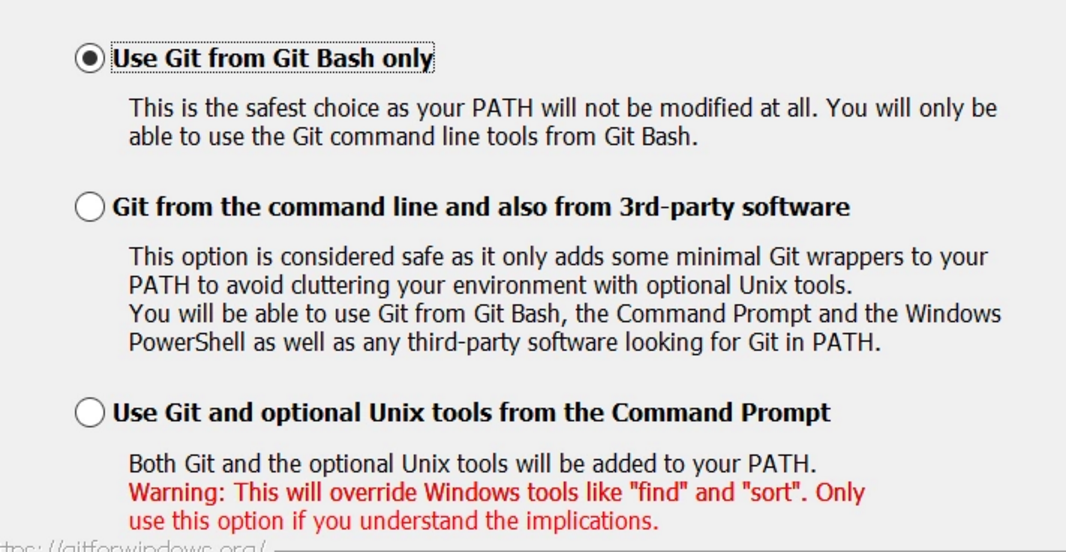
只要这边改成第一个,保证安全性,其他就一路next就可以了
在系统高级设置中,点击环境变量
在系统变量的path中,新建一条,属性为安装的git的bash的文件夹的位置
比如 C:\git\Git\bin
配置用户
右键打开git bash,进行全局配置
$ git config --global user.name "name" //填名字
$ git config --global user.email 123@163.com //邮箱
user.name还有email 后面一定记得加空格
如果要查看当前用户,直接输入
$ git config user.name
如果要修改当前项目的用户,不加--global即可
$ git config user.name "name" //填名字
配置ssh
为了使用公司的gitlab,我们就得生成ssh
首先看看自己的c:/Users/xxxx/.ssh/目录,有没有id_rsa.pub文件,如果没有的话,打开git bash,输入
ssh-keygen -t rsa -C "你的公司或个人邮箱"
直接三个回车,就完成了ssh的生成
然后把id_rsa.pub的内容全选复制,到gitlab网站上,登陆账号后,打开Profile Settings -> SSH Keys
粘贴公钥并 点击Addkey,即可完成SSH配置
vscode关联git
vscode,内置是有git的,不过我们需要把它关联到安装的git路径才行
在编辑器的文件->首选项->设置->搜索git.path->点击编辑->找到git的安装目录里面的bin文件夹,里面的git.exe文件,把该文件的完整路径复制下来
"git.path":"C:\git\Git\bin\git.exe"
如果不记得git的安装目录在哪,可以使用命令行输入
where git
关联完成后,就可以愉快在vscode中直接使用git了,不用再去敲命令行
克隆远程仓库
在代码仓库页面上,新建一个自己的分支,比如命名dev_gyf,点击clone,选择ssh方式复制
在本地新建文件夹,git bash中输入
$ git clone 刚才复制的内容
克隆下来的代码仓库,名字默认是origin(后面会用到)
也可以再手动添加别的仓库
$ git remote add shortname url
创建本地分支
$ git branch dev_gyf    //创建分支
$ git checkout dev_gyf  //切换到新的这个分支上
$ git checkout -b dev_gyf  //也可以两句合写
$ git push --set-upstream origin dev_gyf //将dev_gyf与远端的dev_gyf关联
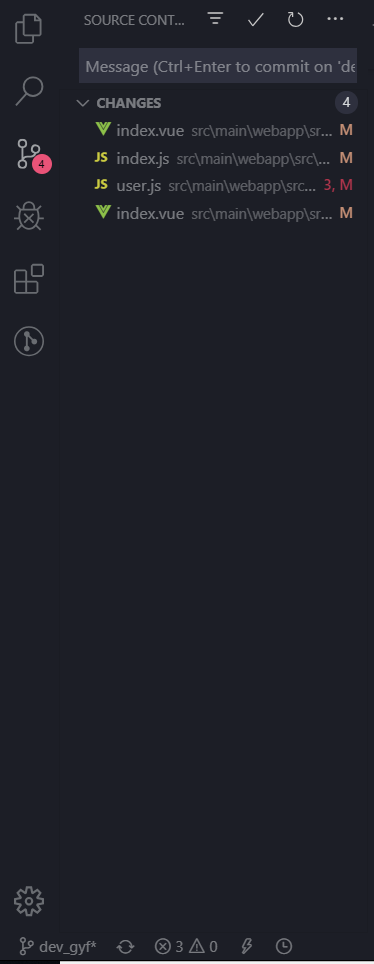
也可以在vscode中,点击左下角的分支
本地代码提交
在本地的dev_gyf分支开发完毕后就要提交代码了
$ git add .
$ git commit -m 'xxx'
vscode的话直接在git面板点个勾就好了
拉取代码
在提交代码前,先在本地解决一下冲突
如果远端的dev_gyf是由release分支创建出来的,大家都在基于这个分支为基础做开发的话
就拉取release分支并merge
$ git pull origin release
可能会有冲突,可以在vscode中手动解决
提交远端
解决之后,就可以提交到远端的dev_gyf分支了,直接
$ git push
如果有遇到问题,可以加上 -f 执行强推,因为是只有自己在用的远端分支,所以可以这么做
提交完毕后,在gitlab上发起merge请求,合到主分支上就行了
临时分支
在公司中,经常会碰到这样的情况
完成了一个需求任务a,发给主管和测试看了,还在等回复,可能会有修改
不过等的时候也不想闲着,想做另一个需求任务b
但任务a是急着上线的,任务b并不是,所以不能让任务b代码去污染已经做好的部分
此时就需要分支了,分支的作用就是保证开发的稳定性,以及分离需求
用上面的方法,本地新建一个dev_gyf_test分支,来做新的需求
等到需求做好后,再合到本地的dev_gyf分支
$ git checkout dev_gyf
$ git merge dev_gyf_test
合完之后删除test分支
$ git branch -d dev_gyf_test
提交历史
$ git log
$ git log -a   //更详细
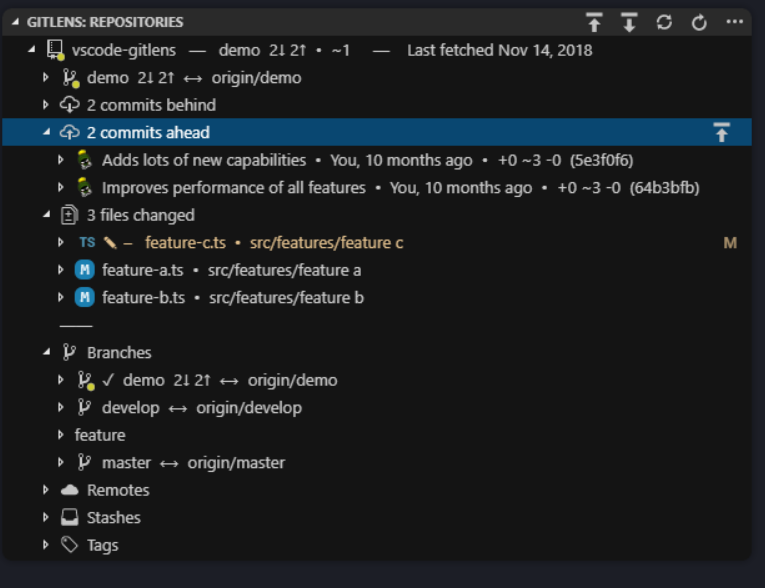
在vscode中,安装gitlens插件,即可更直观地看到历史,并进行版本比对
自动格式修复
EsLint
首先,全局安装eslint
npm i -g eslint
并在vscode中,安装eslint插件 在项目最外层目录上,生成eslint.js
eslint --init
然后在文件中进行rules的设置 也可以把别人写好的eslint规则文件复制过来
module.exports = {
	root: true,
	parserOptions: {
		parser: 'babel-eslint',
		sourceType: 'module'
	},
	env: {
		browser: true,
		node: true,
		es6: true,
	},
	extends: ['plugin:vue/recommended', 'eslint:recommended'],
	rules: {
		"vue/max-attributes-per-line": [2, {
			"singleline": 10,
			"multiline": {
				"max": 1,
				"allowFirstLine": false
			}
		}],
		"vue/singleline-html-element-content-newline": "off",
		"vue/multiline-html-element-content-newline":"off",
		"vue/name-property-casing": ["error", "PascalCase"],
		"vue/no-v-html": "off",
		'accessor-pairs': 2,
		'arrow-spacing': [2, {
			'before': true,
			'after': true
		}],
		'block-spacing': [2, 'always'],
		'brace-style': [2, '1tbs', {
			'allowSingleLine': true
		}],
		'camelcase': [0, {
			'properties': 'always'
		}],
		'comma-dangle': [2, 'never'],
		'comma-spacing': [2, {
			'before': false,
			'after': true
		}],
		'comma-style': [2, 'last'],
		'constructor-super': 2,
		'curly': [2, 'multi-line'],
		'dot-location': [2, 'property'],
		'eol-last': 2,
		'eqeqeq': ["error", "always", {"null": "ignore"}],
		'generator-star-spacing': [2, {
			'before': true,
			'after': true
		}],
		'handle-callback-err': [2, '^(err|error)$'],
		'indent': [2, 2, {
			'SwitchCase': 1
		}],
		'jsx-quotes': [2, 'prefer-single'],
		'key-spacing': [2, {
			'beforeColon': false,
			'afterColon': true
		}],
		'keyword-spacing': [2, {
			'before': true,
			'after': true
		}],
		'new-cap': [2, {
			'newIsCap': true,
			'capIsNew': false
		}],
		'new-parens': 2,
		'no-array-constructor': 2,
		'no-caller': 2,
		'no-console': 'off',
		'no-class-assign': 2,
		'no-cond-assign': 2,
		'no-const-assign': 2,
		'no-control-regex': 0,
		'no-delete-var': 2,
		'no-dupe-args': 2,
		'no-dupe-class-members': 2,
		'no-dupe-keys': 2,
		'no-duplicate-case': 2,
		'no-empty-character-class': 2,
		'no-empty-pattern': 2,
		'no-eval': 2,
		'no-ex-assign': 2,
		'no-extend-native': 2,
		'no-extra-bind': 2,
		'no-extra-boolean-cast': 2,
		'no-extra-parens': [2, 'functions'],
		'no-fallthrough': 2,
		'no-floating-decimal': 2,
		'no-func-assign': 2,
		'no-implied-eval': 2,
		'no-inner-declarations': [2, 'functions'],
		'no-invalid-regexp': 2,
		'no-irregular-whitespace': 2,
		'no-iterator': 2,
		'no-label-var': 2,
		'no-labels': [2, {
			'allowLoop': false,
			'allowSwitch': false
		}],
		'no-lone-blocks': 2,
		'no-mixed-spaces-and-tabs': 2,
		'no-multi-spaces': 2,
		'no-multi-str': 2,
		'no-multiple-empty-lines': [2, {
			'max': 1
		}],
		'no-native-reassign': 2,
		'no-negated-in-lhs': 2,
		'no-new-object': 2,
		'no-new-require': 2,
		'no-new-symbol': 2,
		'no-new-wrappers': 2,
		'no-obj-calls': 2,
		'no-octal': 2,
		'no-octal-escape': 2,
		'no-path-concat': 2,
		'no-proto': 2,
		'no-redeclare': 2,
		'no-regex-spaces': 2,
		'no-return-assign': [2, 'except-parens'],
		'no-self-assign': 2,
		'no-self-compare': 2,
		'no-sequences': 2,
		'no-shadow-restricted-names': 2,
		'no-spaced-func': 2,
		'no-sparse-arrays': 2,
		'no-this-before-super': 2,
		'no-throw-literal': 2,
		'no-trailing-spaces': 2,
		'no-undef': 2,
		'no-undef-init': 2,
		'no-unexpected-multiline': 2,
		'no-unmodified-loop-condition': 2,
		'no-unneeded-ternary': [2, {
			'defaultAssignment': false
		}],
		'no-unreachable': 2,
		'no-unsafe-finally': 2,
		'no-unused-vars': [2, {
			'vars': 'all',
			'args': 'none'
		}],
		'no-useless-call': 2,
		'no-useless-computed-key': 2,
		'no-useless-constructor': 2,
		'no-useless-escape': 0,
		'no-whitespace-before-property': 2,
		'no-with': 2,
		'one-var': [2, {
			'initialized': 'never'
		}],
		'operator-linebreak': [2, 'after', {
			'overrides': {
				'?': 'before',
				':': 'before'
			}
		}],
		'padded-blocks': [2, 'never'],
		'quotes': [2, 'single', {
			'avoidEscape': true,
			'allowTemplateLiterals': true
		}],
		'semi': [2, 'never'],
		'semi-spacing': [2, {
			'before': false,
			'after': true
		}],
		'space-before-blocks': [2, 'always'],
		'space-before-function-paren': [2, 'never'],
		'space-in-parens': [2, 'never'],
		'space-infix-ops': 2,
		'space-unary-ops': [2, {
			'words': true,
			'nonwords': false
		}],
		'spaced-comment': [2, 'always', {
			'markers': ['global', 'globals', 'eslint', 'eslint-disable', '*package', '!', ',']
		}],
		'template-curly-spacing': [2, 'never'],
		'use-isnan': 2,
		'valid-typeof': 2,
		'wrap-iife': [2, 'any'],
		'yield-star-spacing': [2, 'both'],
		'yoda': [2, 'never'],
		'prefer-const': 2,
		'no-debugger': process.env.NODE_ENV === 'production' ? 2 : 0,
		'object-curly-spacing': [2, 'always', {
			objectsInObjects: false
		}],
		'array-bracket-spacing': [2, 'never']
	}
}
然后在eslint的setting中设置路径

"eslint.validate": [ //开启对.vue,.html文件中错误的检查
    "javascript",
    "javascriptreact",
    {
    "language": "html",
    "autoFix": true
    },
    {
    "language": "vue",
    "autoFix": true
    }
    ],
	]
然后打开eslint的autoFixOnSave选项,就可以用eslint来进行自动格式化了
styleLint
有了eslint检测js,html,vue,不过css就要用到css的检测工具:stylelint
全局安装
npm i -g styelint
在项目中安装stylelint-config-standard(官方的标准规则),stylelint-order(对css规则顺序做要求),stylelint-scss(scss拓展),后面两个可选,根据你的项目要求
npm i -d stylelint-config-standard
npm i -d stylelint-order
npm i -d stylelint-scss
在项目根目录新建.stylelintrc.json文件,复制以下内容
{
    "extends": "stylelint-config-standard",
    "plugins": [
        "stylelint-order",
        "stylelint-scss"
    ],
    "rules": {
      "no-descending-specificity":null,
      "block-no-empty": null,
      "color-no-invalid-hex": true,
      "comment-empty-line-before": [ "always", {
         "ignore": ["stylelint-commands", "after-comment"]
      }],
      "declaration-colon-space-after": "always",
      "indentation": ["tab", {
        "except": ["value"]
      }],
      "max-empty-lines": 2,
      "rule-empty-line-before": [ "always", {
        "except": ["first-nested"],
        "ignore": ["after-comment"]
      } ],
      "unit-whitelist": ["px", "em", "rem", "%", "s","vh","vw"]
    }
  }
最后,在vscode中安装插件,stylelint-plus
当然也可以选择普通的stylelint插件,不过plus版本有保存即fix的功能
在设置中打开StyleLint:Auto Fix On Save,就可以在保存代码的同时自动进行格式修复
总结
完善了自己的工作流后,得益于自动格式修复,开发速度有显著提升,代码质量也上去了,更重要的是书写有了容错率,可以提前发现很多语法错误,真正的bug也可以通过git的版本控制来减少污染,通过比对找到bug根源
我的个人博客
这是我的个人网站,记录下前端学习的点滴,欢迎大家参观
www.ssevenk.com