

OS:Ubuntu 18.04×64
一、搭建LNMP环境
- L:linux是一类Unix计算机操作系统的统称
- N:nginx是一个高性能的HTTP和反向代理服务器,也是一个IMAP/POP3/SMTP代理服务器。
- M:mysql是一个小型关系型数据库管理系统。
- P:PHP是一种在服务器端执行的嵌入HTML文档的脚本语言。
1.安装nginx
sudo apt install nginx
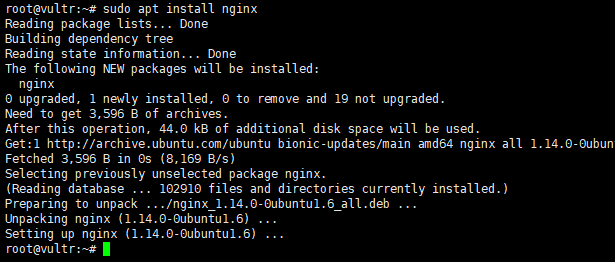
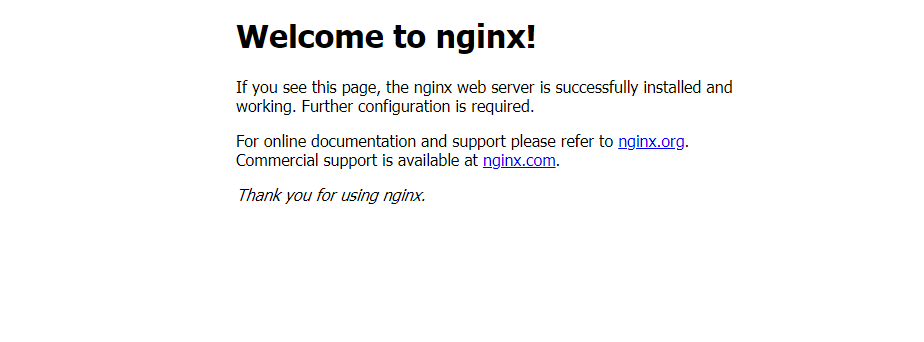
打开http://localhost看到下图代表nginx安装成功
2.安装mysql
sudo apt install mysql-server
遇到下图输入Y回车
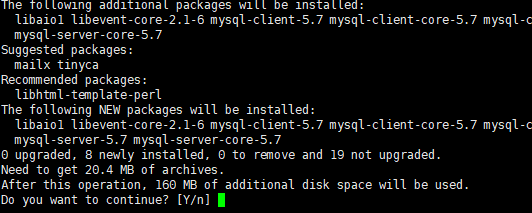
确认安装mysql
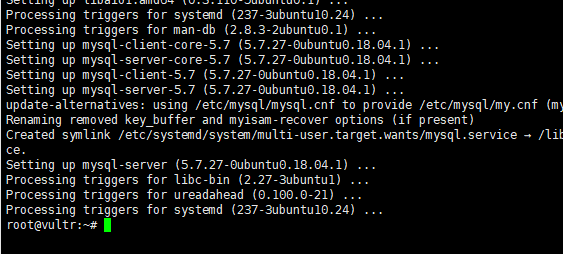
检验安装mysql安装结果
mysql -u root -p
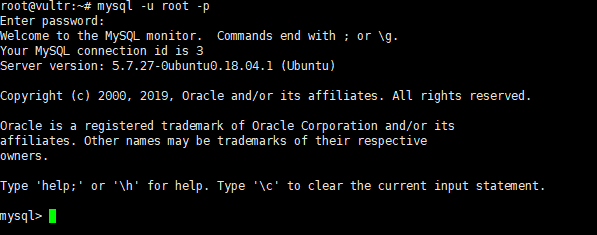
输入密码后进入mysql命令行即成功
3.安装php
sudo apt install php
sudo apt install php-fpm
sudo apt install php-mysql
依次执行上面三个命令,可能需要耐心等待一会儿。
我们已经安装完了Nginx、PHP及MySQL,但是这套服务暂时还不能使用,我们需要将Nginx和PHP通过配置链接起来。具体操作如下,首先我们需要进入Nginx配置目录。
cd /etc/nginx/sites-enabled
sudo nano default
#我使用的是nano,用此方法修改default.conf文件,ctrl+s保存,ctrl+x推出;没有的话可以执行
#sudo apt install nano;安装nano,或者使用自带的vi编辑;
然后将下面的代码贴入
server {
    listen       80;
    root         /usr/share/nginx/html;
    location ~ .php$ {
        fastcgi_pass  unix:/run/php/php7.2-fpm.sock;
        # 注意此处的php7.2-fpm.sock为/run/php目录下运行的.sock文件,可能会因为下载的php-fpm版本不同需要自行检测一下
        fastcgi_index  index.php;
        fastcgi_param  SCRIPT_FILENAME  $document_root$fastcgi_script_name;
        include        fastcgi_params;
    }
}
测试php环境
cd /usr/share/nginx/html
sudo nano info.php
在编辑器里写入
<?php phpinfo(); ?>
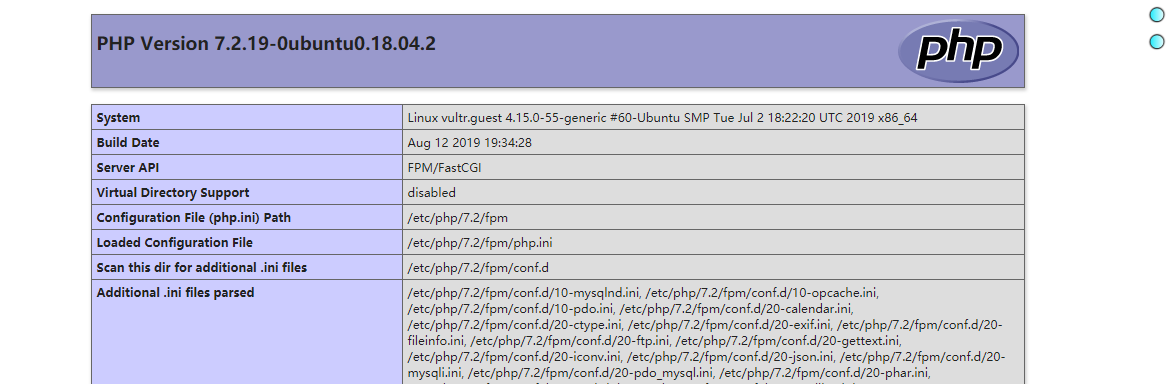
打开http://localhost/info.php或者http://你的ip地址/info.php,看到下图内容即Php环境搭配成功
二、安装wordpress
执行下面命令安装wordpress
apt install wordpress
为wodpress创建一个数据库和用户
进入数据库
mysql -u root -p #然后输入密码进入mysql命令行
创建名为wordpress的数据库
CREATE DATABASE wordpress;
创建一个名为wordpress,密码为wordpressPS且赋予操作数据库wordpress全部权限的mysql用户;
GRANT ALL ON wordpress.* TO 'wordpress'@'localhost' IDENTIFIED BY 'wordpressPS';
退出数据库
EXIT;
把上述的 DB 配置_同步到 WordPress 的配置_文件中;
cd /etc/wordpress
sudo nano wp-config.php
参照下面代码配置
<?php
/**
 * The base configuration for WordPress
 *
 * The wp-config.php creation script uses this file during the
 * installation. You don't have to use the web site, you can
 * copy this file to "wp-config.php" and fill in the values.
 *
 * This file contains the following configurations:
 *
 * * MySQL settings
 * * Secret keys
 * * Database table prefix
 * * ABSPATH
 *
 * @link https://codex.wordpress.org/Editing_wp-config.php
 *
 * @package WordPress
 */

// ** MySQL settings - You can get this info from your web host ** //
/** The name of the database for WordPress */
define('DB_NAME', 'wordpress');

/** MySQL database username */
define('DB_USER', 'wordpress');

/** MySQL database password */
define('DB_PASSWORD', 'wordpressPS');
/** MySQL hostname */
define('DB_HOST', 'localhost');

/** Database Charset to use in creating database tables. */
define('DB_CHARSET', 'utf8');

/** The Database Collate type. Don't change this if in doubt. */
define('DB_COLLATE', '');

/**#@+
 * Authentication Unique Keys and Salts.
 *
 * Change these to different unique phrases!
 * You can generate these using the {@link https://api.wordpress.org/secret-key/1.1/salt/ WordPress.org secret-key service}
 * You can change these at any point in time to invalidate all existing cookies. This will force all users to have to log in again.
 *
 * @since 2.6.0
 */


/**
 * WordPress Database Table prefix.
 *
 * You can have multiple installations in one database if you give each
 * a unique prefix. Only numbers, letters, and underscores please!
 */
$table_prefix  = 'wp_';
/**
 * See http://make.wordpress.org/core/2013/10/25/the-definitive-guide-to-disabling-auto-updates-in-wordpress-3-7
 */

/* Disable all file change, as RPM base installation are read-only */
define('DISALLOW_FILE_MODS', true);

/* Disable automatic updater, in case you want to allow
   above FILE_MODS for plugins, themes, ... */
define('AUTOMATIC_UPDATER_DISABLED', true);

define('WP_DEBUG', false);
/* That's all, stop editing! Happy blogging. */

/** Absolute path to the WordPress directory. */
if ( !defined('ABSPATH') )
    define('ABSPATH', '/usr/share/wordpress');

/** Sets up WordPress vars and included files. */
require_once(ABSPATH . 'wp-settings.php');
?>
修改wordpress内容文件的DB配置
cd /usr/share/wordpress
sudo nano wp-config #其配置同样参照上面的配置文件
修改nginx配置文件,参照下面配置
server {
    listen       80;
    root         /usr/share/wordpress;
    location / {
        index index.php index.html index.htm;
        try_files $uri $uri/ /index.php index.php;
}
    location ~ .php$ {
        fastcgi_pass  unix:/run/php/php7.2-fpm.sock;
        fastcgi_index  index.php;
        fastcgi_param  SCRIPT_FILENAME  $document_root$fastcgi_script_name;
        include        fastcgi_params;
    }
}
重启nginx
sudo service nginx restart
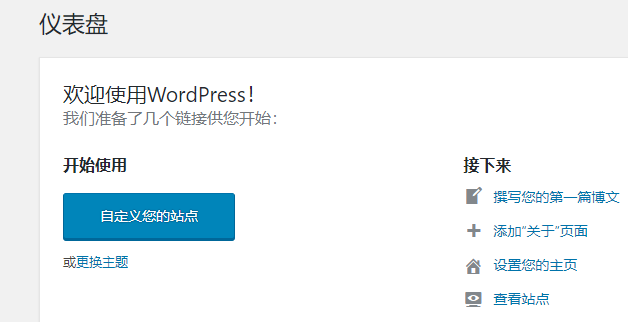
打开http:localhost/wp-admin/install.php开始安装wordpress;根据要求输入信息就可以了
安装成功
三、总结存在的问题
- 如果是自己上传wordpress版本到主机上需要修改对应文件夹(我的是在/usr/share/wordpress)权限到www-data用户下,否则会在安装主题或插件要求输入FTP服务器信息。
- /etc/wordpress下的配置文件应该有config-ip.php文件,与wp-config.php配置文件内容一样;不然也会报没有这个配置文件的错误。
- mysql数据库为root,密码为空。