

碎片是一种可以嵌入在活动当中的UI片段,它可以让程序更加合理和充分的利用大屏幕的空间,在平板上应用广泛。它和活动很像,同样包含布局和拥有自己的生命周期。
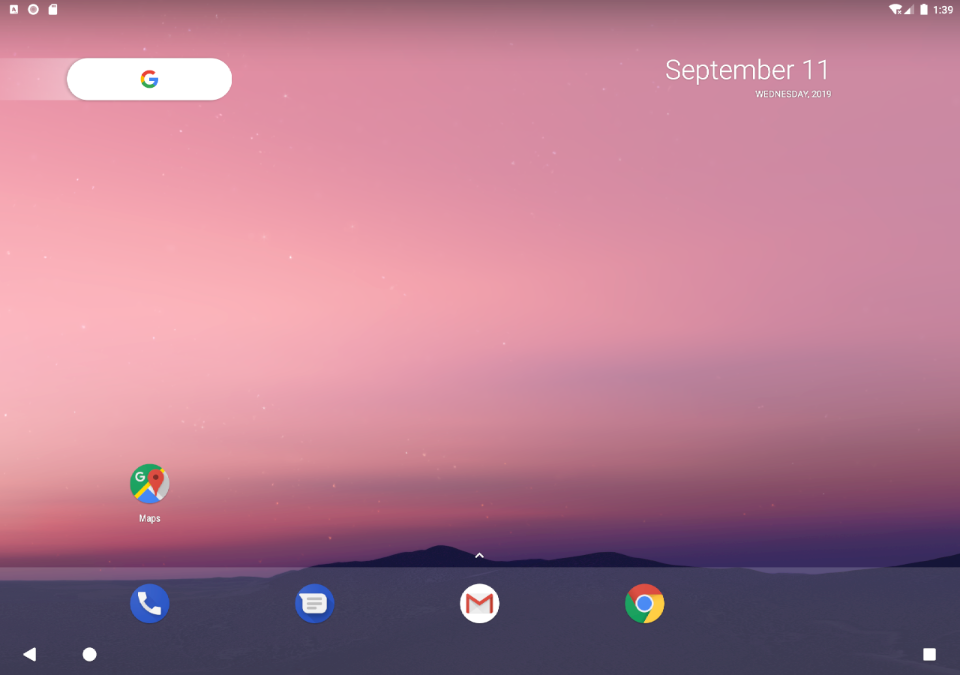
下面我们来学习一下碎片在平板上的应用。首先要创建一个平板模拟器,然后启动模拟大,效果如下
接着新建一个FragmentTest项目。
碎片的简单用法
先来一个最简单的碎片示例来练练手,在一个活动当中添加两个碎片,并让这两个碎片平分屏幕空间。
新建left_fragment.xml,代码如下所示
<?xml version="1.0" encoding="utf-8"?>
<LinearLayout xmlns:android="http://schemas.android.com/apk/res/android"
    android:orientation="vertical"
    android:layout_width="match_parent"
    android:layout_height="match_parent">

    <Button
        android:id="@+id/button"
        android:layout_width="wrap_content"
        android:layout_height="wrap_content"
        android:layout_gravity="center_horizontal"
        android:text="Button"
        />
</LinearLayout>
这个布局非常简单,只放置了一个按钮,并让它水平居中,然后新建右侧碎片布局right_fragment.xml,代码如下所示
<?xml version="1.0" encoding="utf-8"?>
<LinearLayout xmlns:android="http://schemas.android.com/apk/res/android"
    android:orientation="vertical"
    android:layout_width="match_parent"
    android:background="#00ff00"
    android:layout_height="match_parent">

    <TextView
        android:layout_width="wrap_content"
        android:layout_height="wrap_content"
        android:layout_gravity="center_horizontal"
        android:textSize="20sp"
        android:text="This is right Fragment"
        />

</LinearLayout>
可以看到,我们将这个布局的背景色设置成了绿色,并放置了一个TextView用来显示一段文本。
接下来新建一个LeftFragment类,并让它继承自Fragment,代码如下所示
public class LeftFragment extends Fragment {
    @Nullable
    @Override
    public View onCreateView(@NonNull LayoutInflater inflater, @Nullable ViewGroup container, @Nullable Bundle savedInstanceState) {
        View view = inflater.inflate(R.layout.left_fragment, container, false);
        return view;
    }
}
这里仅重写了fragment的onCreate()方法,通过LayoutInflater的inflate()方法把刚创建的left_fragment.xml布局动态加载进来,再用同样的方式创建RightFragment类,代码如下所示
public class RightFragment extends Fragment {
    @Nullable
    @Override
    public View onCreateView(@NonNull LayoutInflater inflater, @Nullable ViewGroup container, @Nullable Bundle savedInstanceState) {
        View view = inflater.inflate(R.layout.right_fragment, container, false);
        return view;
    }
}
基本上代码都是相同的,我相信已经没胡什么解决的必要了。接下来修改activity.xml中的代码,如下所示
<?xml version="1.0" encoding="utf-8"?>
<LinearLayout xmlns:android="http://schemas.android.com/apk/res/android"
    xmlns:app="http://schemas.android.com/apk/res-auto"
    xmlns:tools="http://schemas.android.com/tools"
    android:layout_width="match_parent"
    android:layout_height="match_parent"
    android:orientation="horizontal"
    tools:context=".MainActivity">

    <fragment
        android:id="@+id/left_fragment"
        android:name="com.example.fragmenttest.LeftFragment"
        android:layout_width="0dp"
        android:layout_height="match_parent"
        android:layout_weight="1" />

    <fragment
        android:id="@+id/right_fragment"
        android:name="com.example.fragmenttest.RightFragment"
        android:layout_width="0dp"
        android:layout_height="match_parent"
        android:layout_weight="1" />

</LinearLayout>
可以看到我们这里用了 <fragment> 标签来加载碎片到布局当中, 这里用了android:name 属性来显式指定了要添加的碎片类名,注意一定要类的包名也加上。
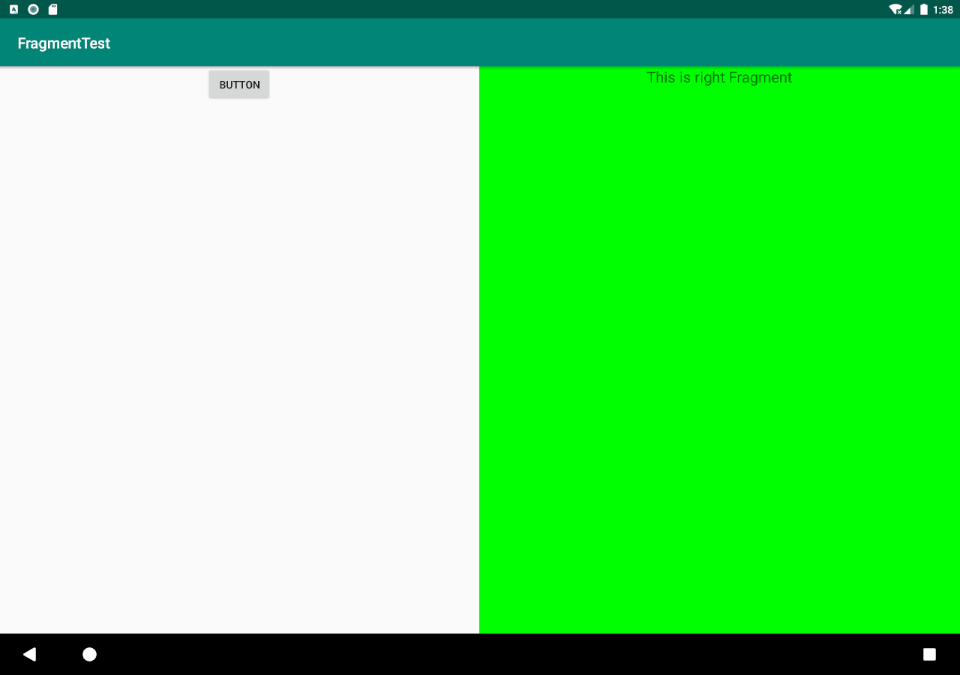
现在运行一下程序,效果如下图所示
动态添加碎片
根据具体情况给程序动态添加碎片,就可以将程序界面定制的更加多样化。 我们在之前的代码的基础上继续完善,新建another_right_fragment.xml布局,代码如下所示
<?xml version="1.0" encoding="utf-8"?>
<LinearLayout xmlns:android="http://schemas.android.com/apk/res/android"
    android:orientation="vertical"
    android:layout_width="match_parent"
    android:background="#ffff00"
    android:layout_height="match_parent">

    <TextView
        android:layout_width="wrap_content"
        android:layout_height="wrap_content"
        android:text="This is another right fragment"
        android:textSize="24sp"
        android:layout_gravity="center_horizontal"
        />

</LinearLayout>
这个布局的代码跟right_fragment.xml中的代码基本相同,只不过背景颜色和显示的文本不一样而已。
接下来新建AnotherRightFragment类,代码如下所示
public class AnotherRightFragment extends Fragment {

    @Nullable
    @Override
    public View onCreateView(@NonNull LayoutInflater inflater, @Nullable ViewGroup container, @Nullable Bundle savedInstanceState) {
        View view = inflater.inflate(R.layout.another_right_fragment, container, false);
        return view;
    }
}
代码同样非常简单,跟之前RightFragment基本相同,只是加载的布局文件不一样。这样另一个碎片就准备好了,接下来就是把它动态加载到活动当中了。
修改activity.xml中的代码,如下所示
<?xml version="1.0" encoding="utf-8"?>
<LinearLayout xmlns:android="http://schemas.android.com/apk/res/android"
    xmlns:app="http://schemas.android.com/apk/res-auto"
    xmlns:tools="http://schemas.android.com/tools"
    android:layout_width="match_parent"
    android:layout_height="match_parent"
    android:orientation="horizontal"
    tools:context=".MainActivity">

    <fragment
        android:id="@+id/left_fragment"
        android:name="com.example.fragmenttest.LeftFragment"
        android:layout_width="0dp"
        android:layout_height="match_parent"
        android:layout_weight="1" />

    <FrameLayout
        android:id="@+id/right_layout"
        android:layout_width="0dp"
        android:layout_height="match_parent"
        android:layout_weight="1"
        />

</LinearLayout>
可以看到,现在将右侧碎片替换成了FrameLayout,这是Android中最简单的一个布局,所有控件默认在布局的左上角,由于这里仅需要在布局中添加一个碎片且不需要任何定位,因此非常适合用FrameLayout。
最后就是修改MainActivity中的代码,如下所示
public class MainActivity extends AppCompatActivity implements View.OnClickListener {

    @Override
    protected void onCreate(Bundle savedInstanceState) {
        super.onCreate(savedInstanceState);
        setContentView(R.layout.activity_main);
        Button button = (Button) findViewById(R.id.button);
        button.setOnClickListener(this);
        replaceFragment(new RightFragment());
    }

    private void replaceFragment(Fragment fragment) {
//        通过getSupportFragmentManager()获取FragmentManager实例
        FragmentManager fragmentManager = getSupportFragmentManager();
//        开启一个事务
        FragmentTransaction transaction = fragmentManager.beginTransaction();
//        替换碎片
        transaction.replace(R.id.right_layout, fragment);
//        提交事务
        transaction.commit();
    }


    @Override
    public void onClick(View view) {
        switch (view.getId()) {
            case R.id.button:
                replaceFragment(new AnotherRightFragment());
                break;
            default:
                break;
        }
    }
}
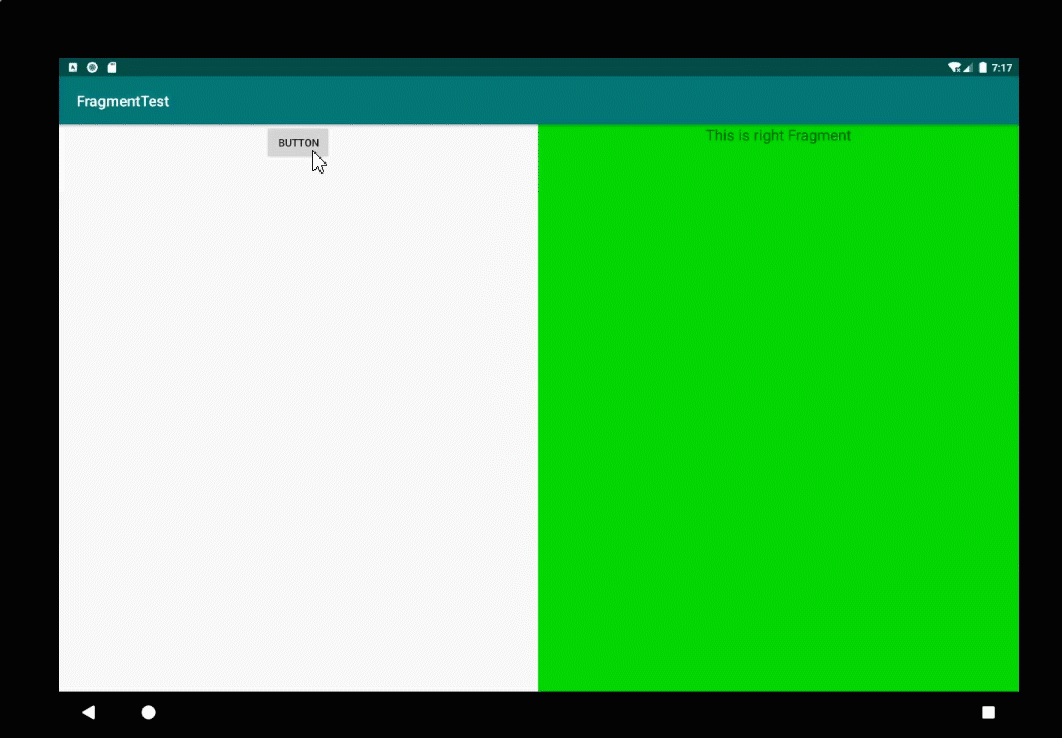
可以看到,首先我们给左侧碎片中的按钮注册了点击事件,然后调用replaceFragment()动态添加RightFragment()碎片。当点击按钮的时候,又会调用replaceFragment()方法将右侧替换成AnotherRightFragment碎片。
重新运行程序,效果如下所示
内容参考自《第一行代码》
