canvas绘制海报插件
其功能包括:
1. 绘制圆形头像
2. 绘制圆角矩形
3. 绘制单行文本
4. 绘制多行文本
5. 绘制base64图片
像平常开发页面一般,根据设计稿标注传入rpx单位的数字就行
使用方法
- const drawD = require('../../utils/canvasDraw.js');
- let draw = new drawD.canvasDraw('shareImg', that); // 参数为canvas-id , 和当前this对象
- draw.XXX 可以调用API中的方法,支持链式调用
注:为保证绘制出来的图片清晰,宽度和高度分别进行了2倍放大
data: {
    width: app.globalData.windowWidth * 2, // canvas 大小
    height: app.globalData.windowHeight * 2,
  },
由于canvas不能处理网络图片,所以要先拿到图片的临时路径, getImagesInfo(imgArr) 传入一个图片字符串数组,调用wx.getImageInfo方法,返回图片的临时路径及宽高等信息
注: 微信头像要使用wx.downloadFile来获取来获取临时路径,并配置域名白名单
let that = this;
let draw = new drawD.canvasDraw('shareImg', that);  // canvas-id  和当前this对象
功能1: 绘制圆形头像
// x 坐标, y 坐标,  圆半径, 图片路径
draw.drawCricleImg(50, 50, 35, logo)
注:x, y, 半径根据设计稿标注的大小传入数字就可以,当设计宽度为750px时
例如: 设计稿中头像距离左边50px,上边50px, 开发页面的时候写的样式就是50rpx, 这里直接传入50就好
原理:
this.ctx.arc(centerX, centerY, r, 0, 2 * Math.PI, false)//画一个圆形裁剪区域
this.ctx.clip()//裁剪
this.ctx.drawImage(logo, x, y, w, w)//绘制图片
功能2: 绘制圆角图片
方法1:
// img, sx, sy, swidth, sheight, x, y, width, height的用法用于drawImage(img, sx, sy, swidth, sheight, x, y, width, height)
// r 圆角半径
// bgColor 背景色
draw.drawFilletImg(img, sx, sy, swidth, sheight, x, y, width, height, r, bgColor = '#fff')
方法2:
// img, x, y, width, height的用法用于drawImage(img, x, y, width, height)
// r 圆角半径
// bgColor 背景色
draw.drawFilletFillImg(img, x, y, width, height, r, bgColor = '#fff')
注: swidth, sheight, width, height 传入的值为字符串 例如: '650px' 或 '650rpx'
sx, sy, x, y 单位均是rpx
原理:

左右两种圆角的部分, 左边是用背景色绘制了四个圆角,右边是用黑色绘制了四个圆角
绘制四个角的方法参考canvasDraw.js中的 roundRect(x, y, w, h, r, c) 方法
功能3: 单行文本
draw.drawText(str, x, y, fontSize, color, align = 'left')
注:x, y, fontSize根据设计稿标注的大小传入数字,单位为rpx
原理:
ctx.setFontSize(fontSize)
ctx.setTextAlign(align);
ctx.setFillStyle(color)
ctx.fillText(str, x, y);
功能4: 多行文本
// 文本, x坐标,y坐标,文本最大宽度, 字体大小,最多显示几行, 颜色,对齐方法,末尾占位符
drawMultiLineText(str, x, y, width, fontSize, maxRow, color = '#000', align = 'left', suffixStr = '...')
#### 注:x, y, width, fontSize根据设计稿标注的大小传入数字,单位为rpx

例如:
drawMultiLineText(activityContent, 50, draw.nowHeight + 20, 650, 26, 3, '#666666')
注:draw.nowHeight (rpx) 可以获得当前绘制的最后一个元素的左下角坐标,相当于已绘制的canvas高度
那绘制下一个元素y坐标为: draw.nowHeight + (距上一个元素的距离)
功能5: 绘制base64图片
draw.drawCode(base64Str) 调用此方法可以生成一个图片的临时路径
例如:
draw.drawCode(base64Str).then((filePath) => {
    ctx.drawImage(filePath, x, y);
});
功能6. drawFinally(callback)
绘制函数,会执行draw()方法,并执行回调,回调中可以调用canvasToPosterImg(destWidth, canvasHeight, callback)将canvas转为图片
功能7. canvasToPosterImg(destWidth, canvasHeight, callback)
// destWidth 生成图片,图片的目标宽度,单位为px
// canvasHeight canvas的高度,单位为px
draw.canvasToPosterImg(destWidth, canvasHeight, callback)
功能8. drawFilletFillRect(x, y, width, height, r, isGrd, drawColor, bgColor = '#fff') 绘制渐变圆角矩形
// 用法同绘制圆角图片
isGrd true | false   是否渐变
drawColor Array    绘制矩形颜色数组,  渐变时数组传两个值,不渐变传一个值
demo1的代码片段
js
// pages/drawPosterTest.js
const drawD = require('../../utils/canvasDraw.js');
const app = getApp();
Page({

  /**
   * 页面的初始数据
   */
  data: {
    width: wx.getSystemInfoSync().windowWidth * 2,
    height: wx.getSystemInfoSync().windowHeight * 2,
    imageWidth: 0,
    imageHeight: 0
  },

  /**
   * 生命周期函数--监听页面加载
   */
  onLoad: function (options) {
    let that = this;
    let draw = new drawD.canvasDraw('poster', that);
    let logo = 'https://avatars0.githubusercontent.com/u/34326830?s=400&u=2e69fbfaf577e896d414788c869e265e0d449a1b&v=4';
    let themeImg = 'https://orangleli.github.io/imagesResources/1.jpg';
    draw.getImagesInfo([themeImg, logo]).then((res) => {
      themeImg = res[0].path;
      logo = res[1].path;
      that.setData({
        imageWidth: res[0].width,
        imageHeight: res[0].height
      });
      that.drawShareImage(draw, themeImg, logo);
    })
  },
  drawShareImage(draw, themeImg, logo){
    let that = this; let drawHeight = 0;
    let x = 0, y = 0;
    let imageWidth = that.data.imageWidth;
    let imageHeight = that.data.imageHeight;

    drawHeight = (650 / imageWidth) * imageHeight;

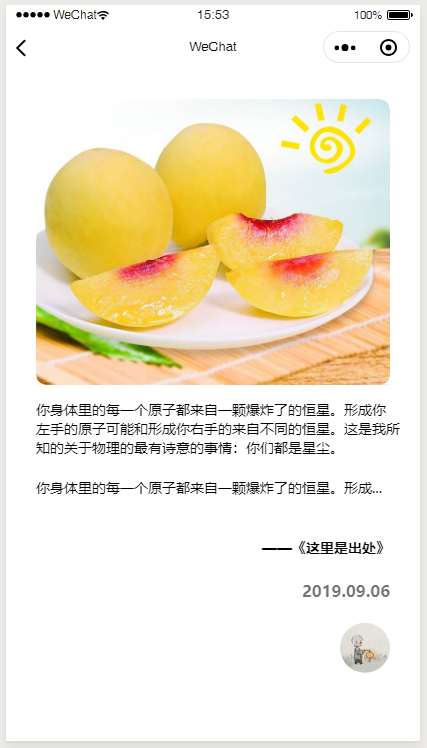
    let part = '你身体里的每一个原子都来自一颗爆炸了的恒星。形成你左手的原子可能和形成你右手的来自不同的恒星。这是我所知的关于物理的最有诗意的事情:你们都是星尘。'

    draw
      .drawFilletFillImg(themeImg, 50, 50, 650, drawHeight, 10)
      .drawMultiLineText(part, 50, draw.nowHeight + 30, 650, 30, 0, '#000')
      .drawMultiLineText(part, 50, draw.nowHeight + 40, 650, 30, 1, '#000')
      .drawText('——《这里是出处》', 650 + 50, draw.nowHeight + 60, 30, '#000', 'right')
      .drawText('2019.09.06', 650 + 50, draw.nowHeight + 30, 32, 'rgba(34,34,34,.64)', 'right')
      .drawCricleImg(650, draw.nowHeight + 10, 25, logo)
      .drawFinally(function (ctx, nowHeight) {
        let canvasHeight = draw.getPx(nowHeight + 30);
        that.setData({
          height: canvasHeight
        })
        draw.drawEndImg(750, canvasHeight, function(res) {
          wx.hideLoading();
          that.setData({
            endImg: res.tempFilePath,
            isFinished: true
          })
        });
      });
  },
})
wxml
<canvas class="posterCanvas offScreen" style="width: {{width}}px;height:{{height}}px;" canvas-id="poster"></canvas>
<image class="poster" src="{{endImg}}" mode='widthFix'></image>
wxss
.posterCanvas{
  background-color: #fff;
}
.offScreen{
  position: fixed;
  top: -99999px;
  left: -99999px;
}
.posterCanvas{
  width: 100%;
}
.poster{
  width: 100%;
  background-color: #fff;
}
说明:
- 此demo1绘制的图片为透明背景色, 可以自行绘制图片背景或者纯色背景
- demo2中有绘制背景色的代码:drawPoster/drawPoster.js/changeBgToWhite()
- 先设置背景色,再进行绘制的方法,会影响圆形头像的绘制,可以自己试一下
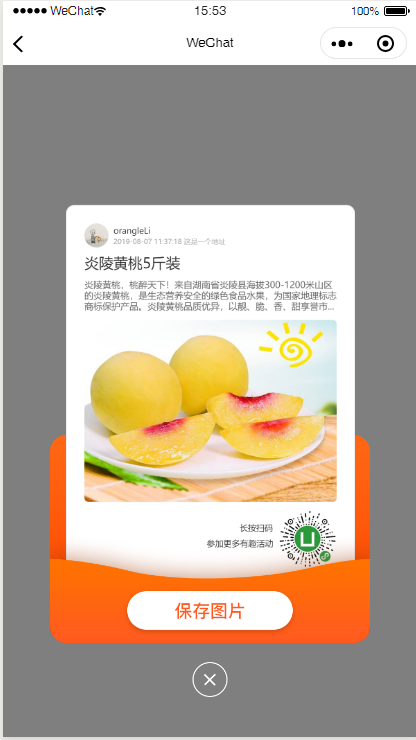
图片保存到相册
demo2中有完整实例
点击保存图片,当wx.saveImageToPhotosAlbum方法进入fail时:
that.setData({
toAuthorize: true
})
显示自定义组件弹框 components/authorizeModal/authorizeModal
这个弹框样式有些丑,emmm...

wx.saveImageToPhotosAlbum({
    filePath: that.data.endImg,
    success: function (re) {
      wx.showToast({
        title: '保存成功',
      });
      that.closeShareModal();
    },
    fail: function (err) {
      console.log(err)
      if (err.errMsg == "saveImageToPhotosAlbum:fail auth deny" || err.errMsg === "saveImageToPhotosAlbum:fail:auth denied") {
        console.log("打开设置窗口");
        that.setData({
          toAuthorize: true
        })
      }
    }
    })
<button open-type="openSetting">
点击 去授权 按钮 打开授权列表页,此按钮绑定toAuthorizeClick点击事件,隐藏自定义组件弹框authorizeModal

最后:
结束 🎉🎉