

MAC 默认的终端 terminal.app 不进行配置的话,非常不友好,即没高亮又没提示。 配置以后就不一样了,比如这样
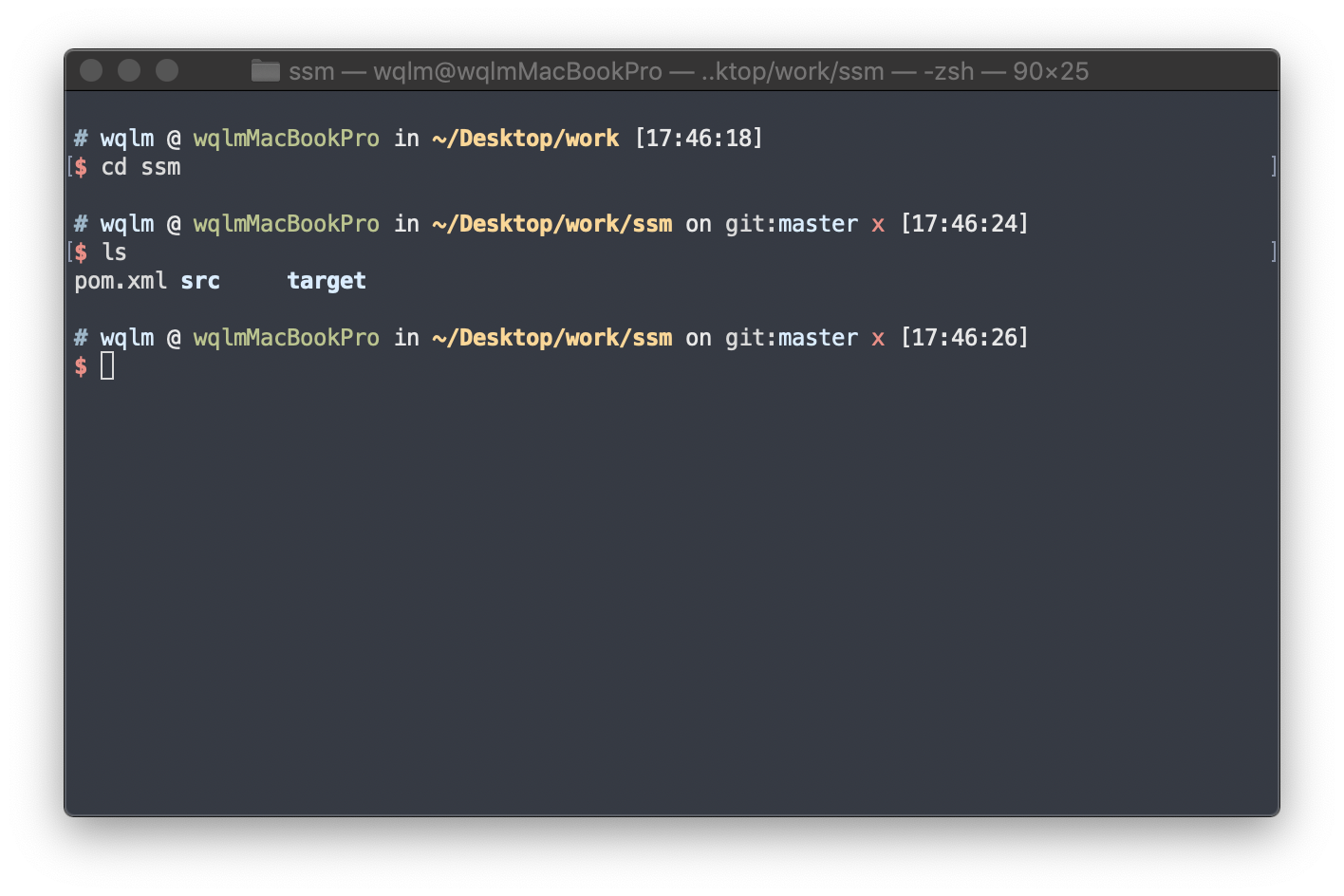
接下来就开始配置吧
zsh
shell 的类型有很多种,mac、linux下默认的是bash,虽然bash的功能已经很强大,但对于以懒惰为美德的程序员来说,bash的提示功能不够强大,界面也不够炫,并非理想工具。而zsh的功能极其强大,上面这些 bash 没有的功能它都有。
安装
查看已安装的 shell
cat /etc/shells
mac 下已经安装好了 zsh, 如果没有安装或者想安装最新的版本,可以通过 brew 安装
查看zsh版本
zsh --version
# 安装 zsh
brew install zsh
切换 shell 为 zsh
# 查看当前使用的 shell
echo $SHELL
# 切换 shell
chsh -s /bin/zsh
切换之后需要退出用户重新登陆
oh-my-zsh
zsh 虽然强大,但是配置很复杂,起初只有极客才在用。直到有了 oh-my-zsh ,只需要简单的安装配置就可以使用 zsh 的各自功能
安装 oh-my-zsh
安装
wget https://github.com/robbyrussell/oh-my-zsh/raw/master/tools/install.sh -O - | sh
mac 上面默认是没有安装 wget 的,鉴于该命令比较常用,推荐还是安装一下
brew install wget
当然你也可以把这个 github.com/robbyrussel… 文件下载到本地,然后
sh install.sh
出现
  ____  / /_     ____ ___  __  __   ____  _____/ /_
 / __ \/ __ \   / __ `__ \/ / / /  /_  / / ___/ __ \
/ /_/ / / / /  / / / / / / /_/ /    / /_(__  ) / / /
\____/_/ /_/  /_/ /_/ /_/\__, /    /___/____/_/ /_/
                        /____/                       ....is now installed!
Please look over the ~/.zshrc file to select plugins, themes, and options.

p.s. Follow us at https://twitter.com/ohmyzsh.

p.p.s. Get stickers and t-shirts at http://shop.planetargon.com.
就说明安装成功了,这时在打开终端,就已经可以看的高亮了
添加 source ~/.bash_profile
zsh 默认是加载 ~/.zshrc , 默认是没有加载用户环境变量的
需要在 ~/.zshrc 中添加一行
source ~/.bash_profile
之后,每次启动控制台窗口都会去加载用户环境变量
更换主题、字体等
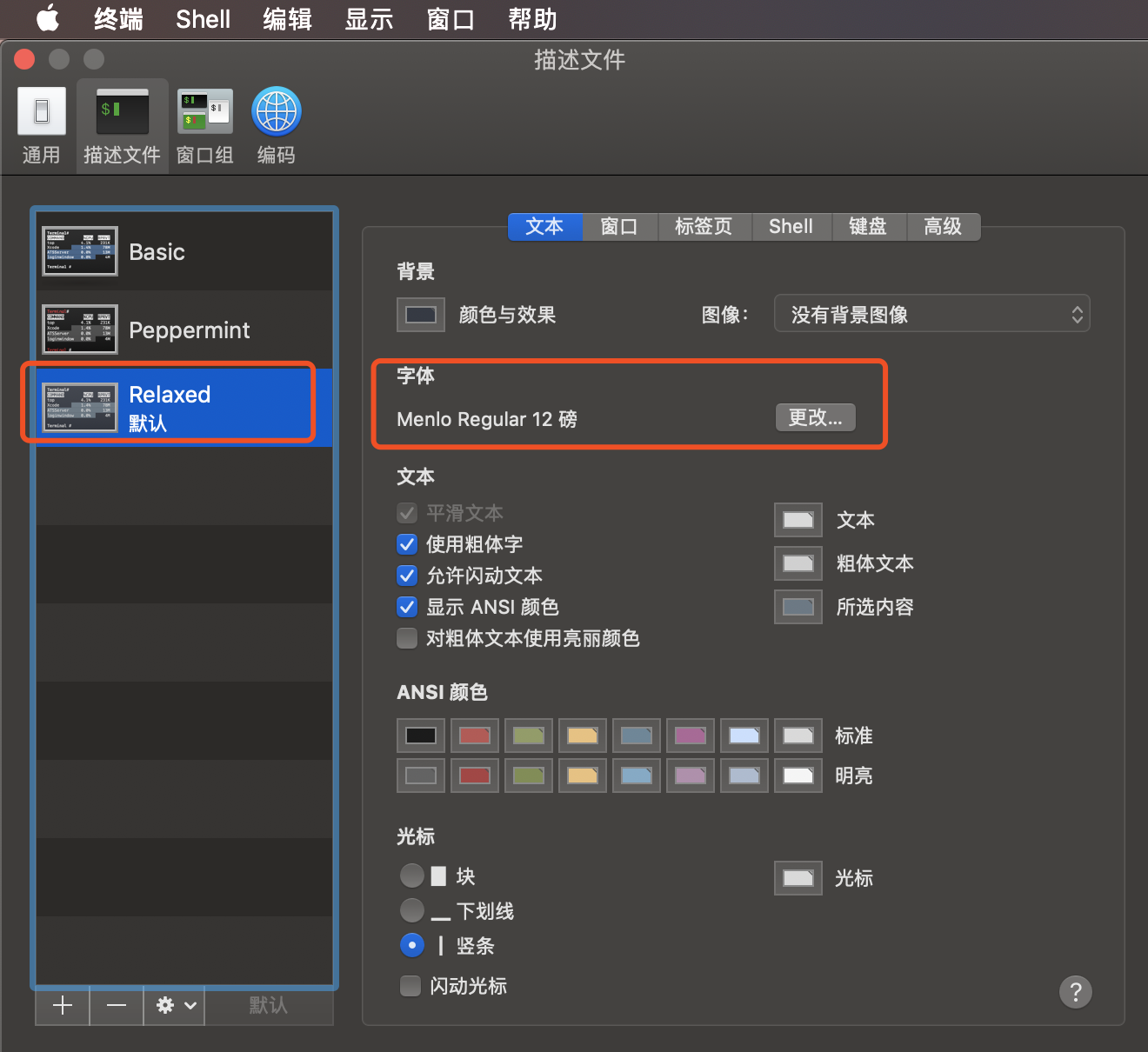
这一环节,就因人而异了,我上面的截图用的是
修改字体、背景
oh-my-zsh 主题
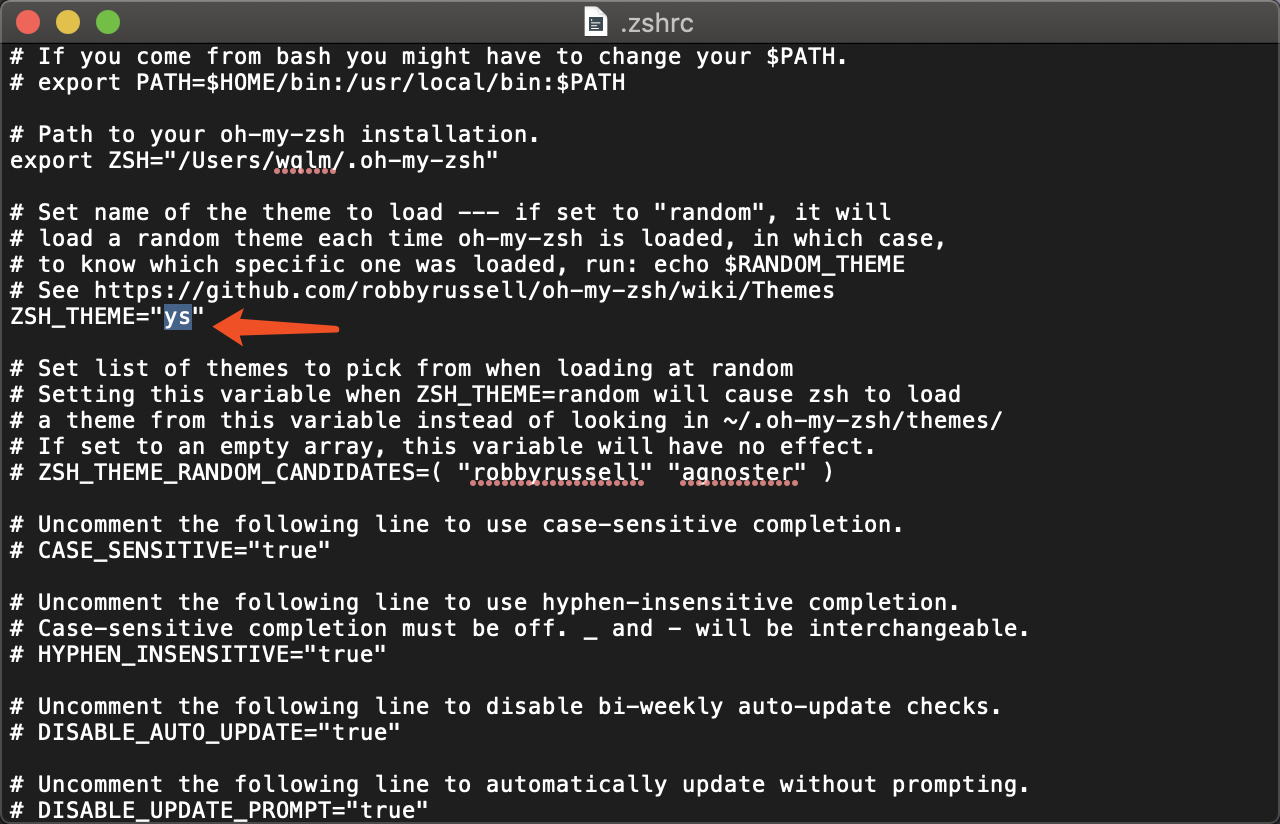
我用的是 ys
#修改主题
vim ~/.zshrc
将ZSH_THEME改成ys
# 更新配置
source ~/.zshrc

