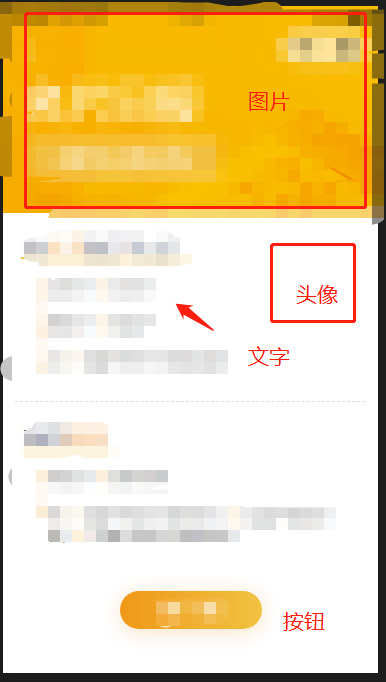
1 编写页面内容,2 绘画出一样的图。3 保存图片
<template>
        <view>
          <canvas class="canvasstyle" canvas-id="shareCanvas" :style="{ width:widths,height:heights }" />
        </view>
        <button :class="['fid-btn', 'shais', isIphoneX?'marBott':'']" form-type="submit" @click="draw()">按钮</button>
</template>

<script>
import { mapGetters } from 'vuex'
export default {
  mpType: 'page',
  config: {
    enablePullDownRefresh: false,
    navigationStyle: 'custom',
    backgroundColor: '#efba29'
  },
  components: {},
  data() {
    return {
    // 像素
      pixelRatio: this.globalData.pixelRatio,
      savedImgUrl: '',
      showErrorLoad: false,
      showPageContainer: false,
      dailylist: {},
      img: '图片地址',
      statusBarHeight: wx.getStorageSync('systemInfo').statusBarHeight,
      systemInfo: wx.getStorageSync('systemInfo'),
      defaultAvatar: this.globalData.defaultAvatar,
      userAvatar: wx.getStorageSync('userInfo').avatarUrl
    }
  },
  computed: {
    ...mapGetters(['showActionLoading']),
    titleBarHeight() {
      const platformReg = /ios/i
      if (platformReg.test(this.systemInfo.platform)) {
        return 44 + 'px'
      } else {
        return 48 + 'px'
      }
    },
    navHeight() {
      return Number(this.systemInfo.statusBarHeight) + Number(this.titleBarHeight.replace(/px/g, '')) + 'px'
    },
    widths() {
      const systemInfo = wx.getSystemInfoSync()
      return Number(systemInfo.windowWidth) + 'px'
    },
    heights() {
      const systemInfo = wx.getSystemInfoSync()
      return Number(systemInfo.windowHeight) + 'px'
    }
  },
  onLoad() {
    先请求数据一次
  },
  onShow() {

  },
  mounted() {

  },
  onHide() {
    this.$actionLoading.hideAll()
  },
  onUnload() {
    this.$actionLoading.hideAll()
    Object.assign(this.$data, this.$options.data())
  },
  methods: {
    goBack() {
      wx.navigateBack()
    },
    formSubmit(e) {
      console.log(e.mp.detail.formId)// 具体使用时删掉
      this.$http.postFormId(e.mp.detail.formId)
    },
    reloadPage() {
      console.log('从错误页面店家触发了重新加载请求')
      this.showErrorLoad = false
      this.showPageContainer = false
      this.gitdaily()
    },
    gitlist() {
    请求数据的方法
    },
    // 获取rpx 与 px 的变化比
    getRatio() {
      let w = 0
      wx.getSystemInfo({
        success: function (res) {
          // 按照750的屏宽
          w = res.windowWidth / 375
        }
      })
      return w
    },
    // 点击按钮触发的方法
    draw() {
      wx.showLoading({
        title: '正在生成中'
      })
      const that = this
      console.log(that.dailylist)
      // 通过使用wx.getImageInfo这个API来下载一个网络图片到本地(并可获取该图片的尺寸等其他信息),然后调用ctx.drawImage方法将图片绘制到画布上,填满画布
      wx.getImageInfo({
        // src: '网络图片地址',
        src: 本地地址,
        success(res) {
          const ctx = wx.createCanvasContext('shareCanvas', this)
          const w = that.getRatio()
          // ctx.fillStyle = 'red'
          ctx.drawImage('本地图片或者网络图片的地址', 0, 0, 375 * w, 414 / 2 * w)
          // ctx.drawImage(res.path, 0, 0, 375 * w, 414 / 2 * w)
          ctx.setTextAlign('left')
          // 文字居中
          ctx.setFillStyle('#fff')
          // 文字颜色:黑色
          ctx.setFontSize(44 * w)
          // 文字字号
          ctx.fillText('画报', 20 * w, 114 * w, 201 * w)
          ctx.beginPath()
          // 实线
          ctx.setLineDash([])
          ctx.moveTo(48 / 2 * w, 270 / 2 * w)
          ctx.lineTo(430 / 2 * w, 270 / 2 * w)
          ctx.lineWidth = 2 * w
          // ctx.strokeStyle = 'rgba(252,248,244,1)'
          ctx.strokeStyle = '#fff'
          ctx.closePath()
          ctx.stroke()
          // 先设置填充色
          // 实心矩形
          // 1. 语法: x坐标, y坐标, 宽度, 高度
          ...
          ...
          ...
          ctx.stroke()
          ctx.save()
          // 绘制头像 //开始绘制
          ctx.beginPath()
          // 先画个圆,前两个参数确定了圆心 (x,y) 坐标  第三个参数是圆的半径  四参数是绘图方向  默认是false,即顺时针
          ctx.arc(596 / 2 * w + 55 / 2, 443 / 2 * w + 55 / 2, 55 / 2 * w, 0, Math.PI * 2, false)
          // 画好了圆 剪切  原始画布中剪切任意形状和尺寸。
          ctx.clip()
          ctx.drawImage(res.path, 596 / 2 * w, 443 / 2 * w, 110 / 2 * w, 110 / 2 * w)
          // 恢复之前保存的绘图上下文 恢复之前保存的绘图问下文即状态 还可以继续绘制
          ctx.restore()
          ctx.draw()
          // ctx.draw()  // 清空之前画布内容
          // ctx.draw(true) // 保留之前
          // const that = this
          // 使用延时让绘画完成
          setTimeout(function () {
            wx.showLoading({
              title: '正在生成中'
            })
            // wx.canvasToTempFilePath和wx.saveImageToPhotosAlbum这两个API保存到手机,要的流程就是先通过wx.canvasToTempFilePath将上绘制的图像生成临时文件的形式,然后再通过wx.saveImageToPhotosAlbum进行保存到系统相册的操作。
            wx.canvasToTempFilePath({
              x: 0,
              y: 0,
              width: 375 * w,
              height: 667 * w,
              destWidth: 375 * w * wx.getSystemInfoSync().pixelRatio,
              destHeight: 667 * w * wx.getSystemInfoSync().pixelRatio,
              // 设定图片质量
              quality: 1,
              canvasId: 'shareCanvas',
              success: function (res) {
                console.log(res, '保存')
                console.log(res.tempFilePath)
                wx.hideLoading()
                wx.saveImageToPhotosAlbum({
                  filePath: res.tempFilePath,
                  success: res => {
                    console.log(res)
                    wx.showModal({
                      content: '图片已保存到手机相册',
                      showCancel: false,
                      confirmText: '知道了',
                      confirmColor: '#333'
                    })
                  },
                  fail: res => {
                    wx.showModal({
                      content: '检测到您没打开保存图片权限,是否去设置打开?',
                      confirmText: '确认',
                      cancelText: '取消',
                      success: function (res) {
                        console.log(res)
                        if (res.confirm) {
                          console.log('用户点击确认')
                          wx.openSetting({
                            success: (res) => { }
                          })
                          // 保存到手机相册
                          wx.saveImageToPhotosAlbum({
                            filePath: res.tempFilePath,
                            success: res => {
                              wx.showModal({
                                content: '图片已保存到手机相册',
                                showCancel: false,
                                confirmText: '知道了',
                                confirmColor: '#333'
                              })
                              console.log(res)
                            }
                          })
                        }
                      }
                    })
                  }
                })
              }
            })
          }, 1000)
        }
      })
    }
  }
}
</script>

<style lang="less" scoped>
.canvasstyle {
  width: 100%;
  height: 100%;
  position: fixed;
  // 隐藏画布
  top: 9999px;
  left: 0;
}
</style>
效果图
ps : 真机下才会显示头像