快捷键
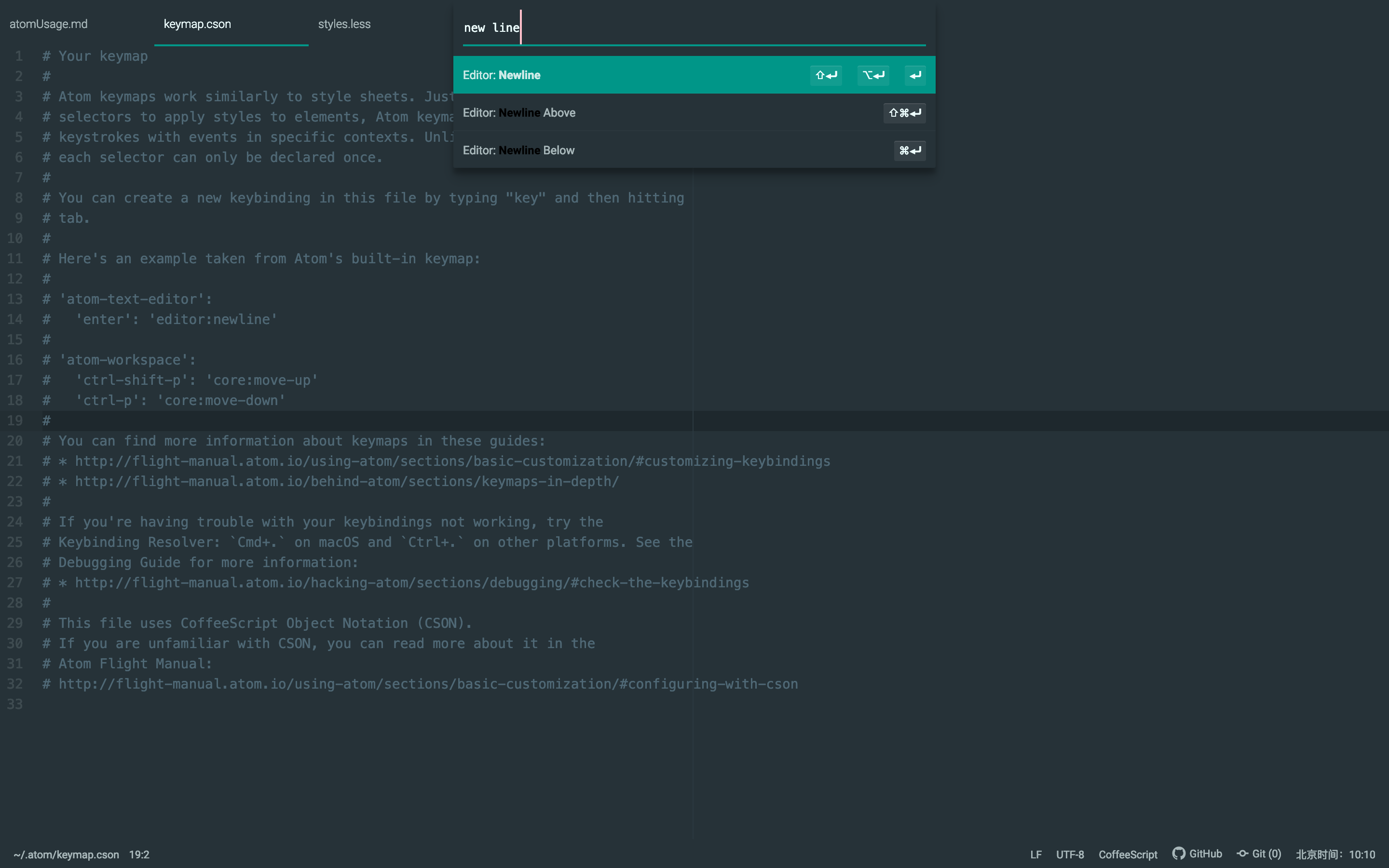
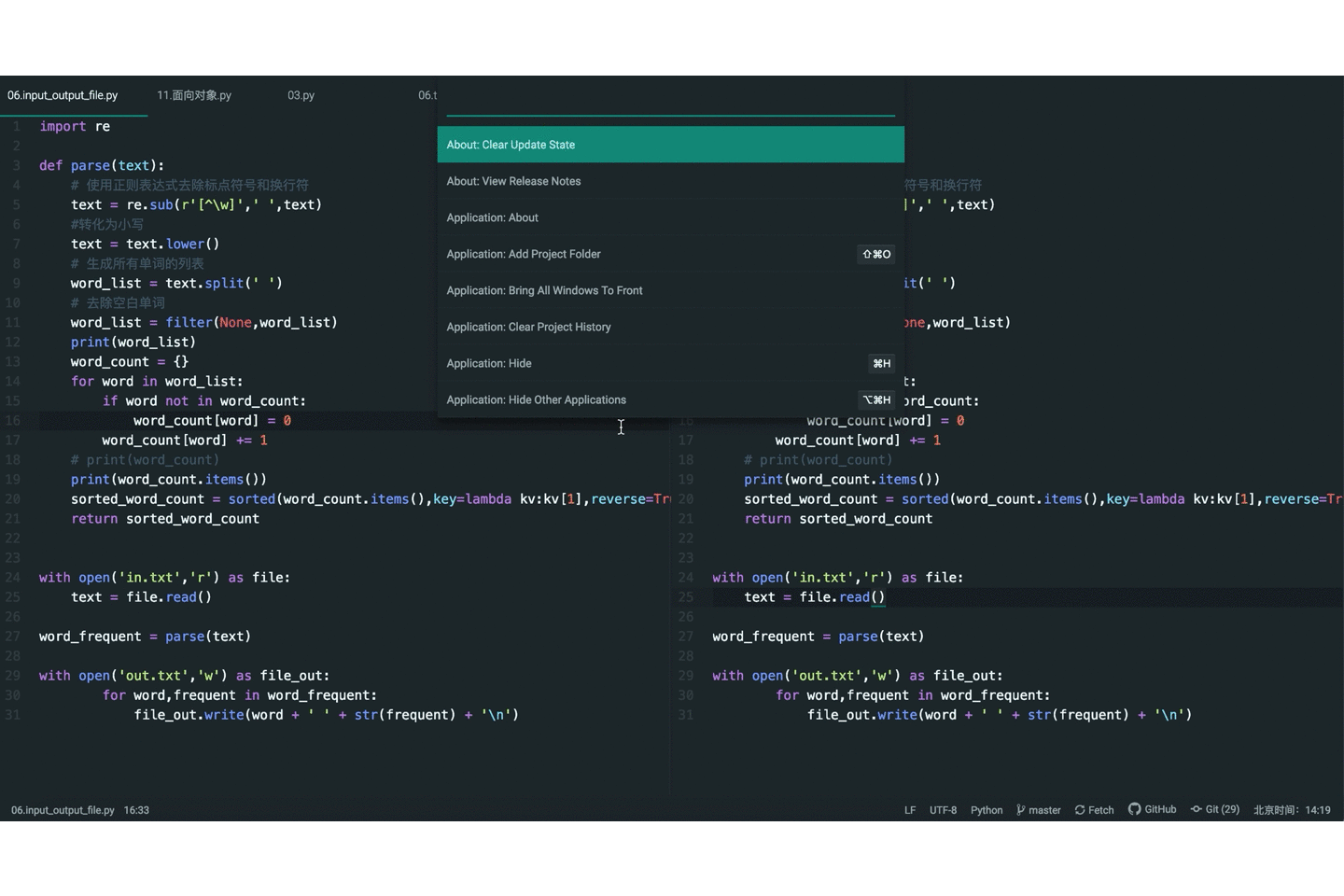
Ctrl + left-移动到单词开头Ctrl + right-移动到单词结尾Home-移动到本行开头End-移动到本行末尾Ctrl+Home- 移动到文件开头Ctrl+End- 移动到文件结尾Ctrl+G- 移动到特定行特定列Ctrl+Shift+P-打开命令面板(里面有所有的快捷命令,包括大量没有绑定快捷键的)
atom支持自定义快捷键:点击头部的
Edit按键->选择Keymap->编辑keymap.cson文件,具体语法参见https://flight-manual.atom.io/using-atom/sections/basic-customization/#customizing-keybindings
Ctrl+Shift+F2-当前行添加书签F2-跳转到下一书签所在的行Shift-F2-向后循环跳转到下一书签所在的行Ctrl+F2-列出当前项目所有书签支持搜索选择跳转Ctrl+R-列出当前文件所有符号支持搜索选择跳转Ctrl+T-列出当前项目所有文件支持搜索选择跳转Shift+Up- Select upShift+Down- Select downShift+Left- Select previous characterShift+Right- Select next characterCtrl+Shift+Left- Select to beginning of word1Ctrl+Shift+Right- Select to end of wordShift+End- Select to end of lineShift+Home- Select to first character of lineCtrl+Shift+Home- Select to top of fileCtrl+Shift+End- Select to bottom of fileCtrl+L- Select the entire lineCtrl+J- Join the next line to the end of the current lineCtrl+Up/Down- Move the current line up or downCtrl+Shift+D- Duplicate the current lineCtrl+K Ctrl+U- Upper case the current wordCtrl+K Ctrl+L- Lower case the current wordAlt+Ctrl+Q-格式化选中区域(editor.preferredLineLength制定最大行长度)Ctrl+Shift+K- Delete current lineCtrl+Backspace- Delete to beginning of wordCtrl+Delete- Delete to end of word
多游标操作
Ctrl+Click- Add a new cursor at the clicked locationAlt+Shift+Up/Down- Add another cursor above/below the current cursorCtrl+D- Select the next word in the document that is the same as the currently selected wordAlt+F3- Select all words in the document that are the same as the currently selected word
光标对齐相关
Ctrl+M-跳转到与光标相邻的括号Alt+Ctrl+,- 选中当前括号内的内容Alt+Ctrl+.- Close the current XML/HTML tag
查找和替换相关
Ctrl+F- 在当前文件内查找Ctrl+Shift+F- 在整个工程内查找
代码块折叠
Alt+Ctrl+[-折叠当前代码块Alt+Ctrl+]-展开当前代码块Alt+Ctrl+Shift+[-折叠全部代码块Alt+Ctrl+Shift+]-展开全部代码块
语法选择器
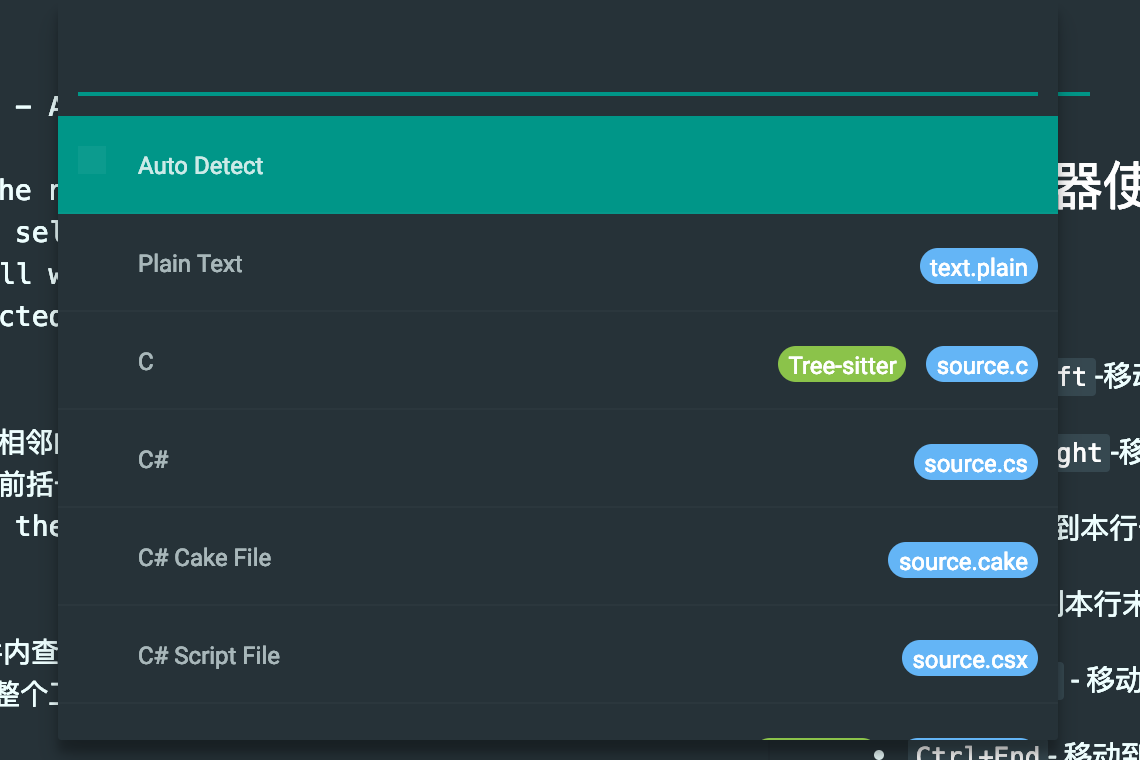
Ctrl+Shift+L-打开语法选择器
Snippets(片段)
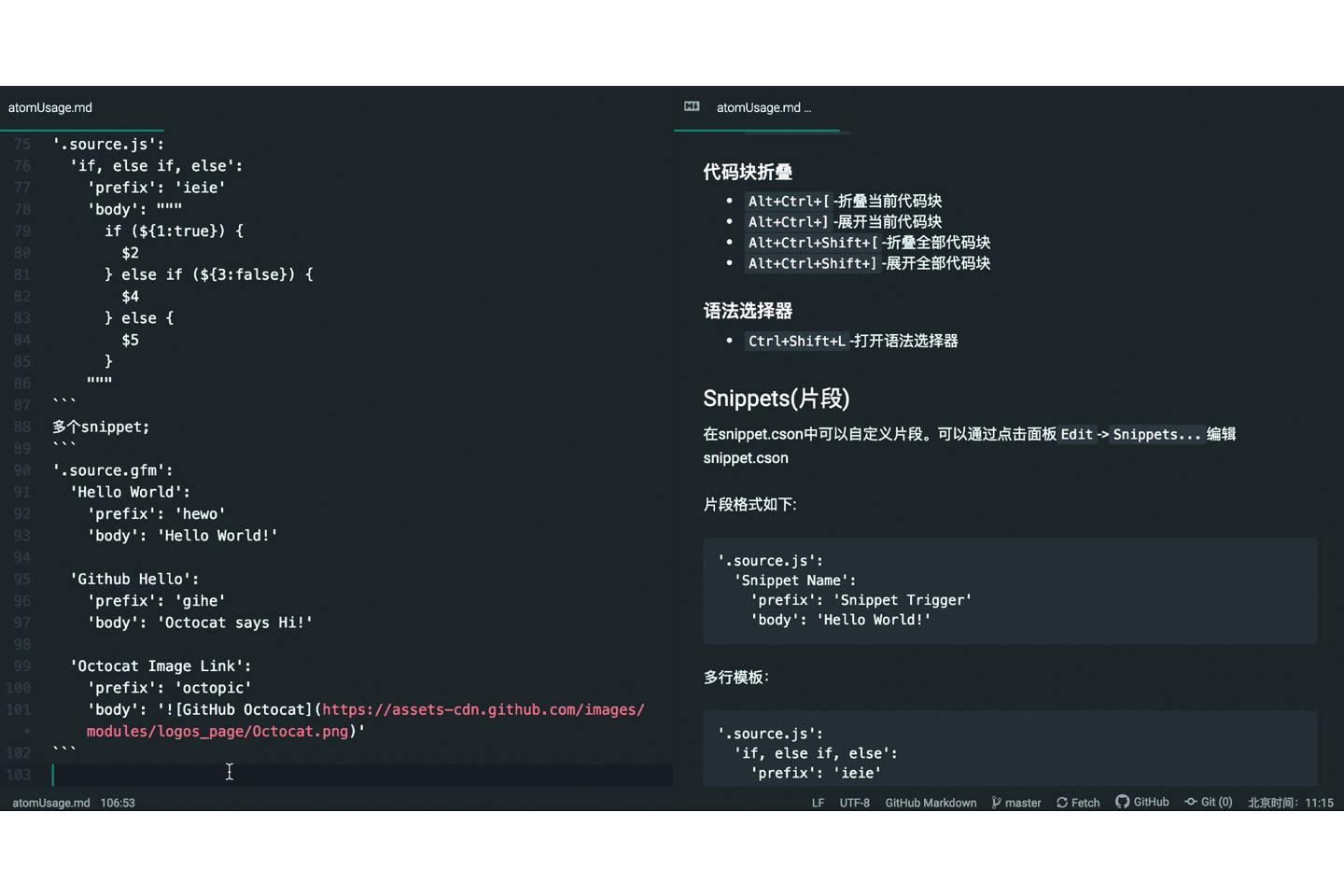
在snippet.cson中可以自定义片段。可以通过点击面板Edit->Snippets...编辑snippet.cson
片段格式如下:
'.source.js':
  'Snippet Name':
    'prefix': 'Snippet Trigger'
    'body': 'Hello World!'
多行模板:
'.source.js':
  'if, else if, else':
    'prefix': 'ieie'
    'body': """
      if (${1:true}) {
        $2
      } else if (${3:false}) {
        $4
      } else {
        $5
      }
    """
多个snippet;
'.source.gfm':
'Hello World':
'prefix': 'hewo'
'body': 'Hello World!'
'Github Hello':
'prefix': 'gihe'
'body': 'Octocat says Hi!'
'Octocat Image Link':
'prefix': 'octopic'
'body': ''
版本管理
Alt+Cmd+Z-分离头指针
分离头指针是一种快速方法,可以放弃所做的任何已保存和暂存的更改,并将文件还原到HEAD提交中的版本。
Cmd+T或Ctrl+T-快速打开项目中的文件Cmd+B或Ctrl+B-快速跳转已打开的窗口Cmd+Shift+B-显示未被追踪和已修改未提交的文件,相当于运行git status的效果
- 使用
git config --global core.editor "atom --wait"命令将atom作为git提交编译器。 Alt+G Down,Alt+G Up-文件版本对比时,跳转到下一个和上一个差异处
基本定制
atom的所有配置文件(样式表和Init脚本除外)都是用cson书写的。cson相比更常见的json的优势是更加语法宽松,更方便写入和读取,无需引用和转义所有内容,具有注释和可读的多行字符串,不必书写逗号,也就是说如果忘记逗号也不会失败。
cson文件格式如下
key:
  key: value
  key: value
  key: [value, value]
就像更常见的JSON一样,CSON的键只能在每个对象上重复一次。如果存在重复的键,则该键值队的最后一次使用会覆盖所有其他键值队。 Atom的配置文件也是如此。
也就是说说,如果你这样写配置文件只有第二个snippet会生效
# Only the second snippet will be loaded
'.source.js':
  'console.log':
    'prefix': 'log'
    'body': 'console.log(${1:"crash"});$2'
'.source.js':
  'console.error':
    'prefix': 'error'
    'body': 'console.error(${1:"crash"});$2'
应该写成这种
# Both snippets will be loaded
'.source.js':
  'console.log':
    'prefix': 'log'
    'body': 'console.log(${1:"crash"});$2'
  'console.error':
    'prefix': 'error'
    'body': 'console.error(${1:"crash"});$2'
快速自定义UI
如果要在不创建发布整个主题的情况下应用快速和脏的个人样式更改,可以将样式添加到〜/ .atom目录中的styles.less文件中。或者可以从Atom>样式表菜单中的编辑器中打开此文件。
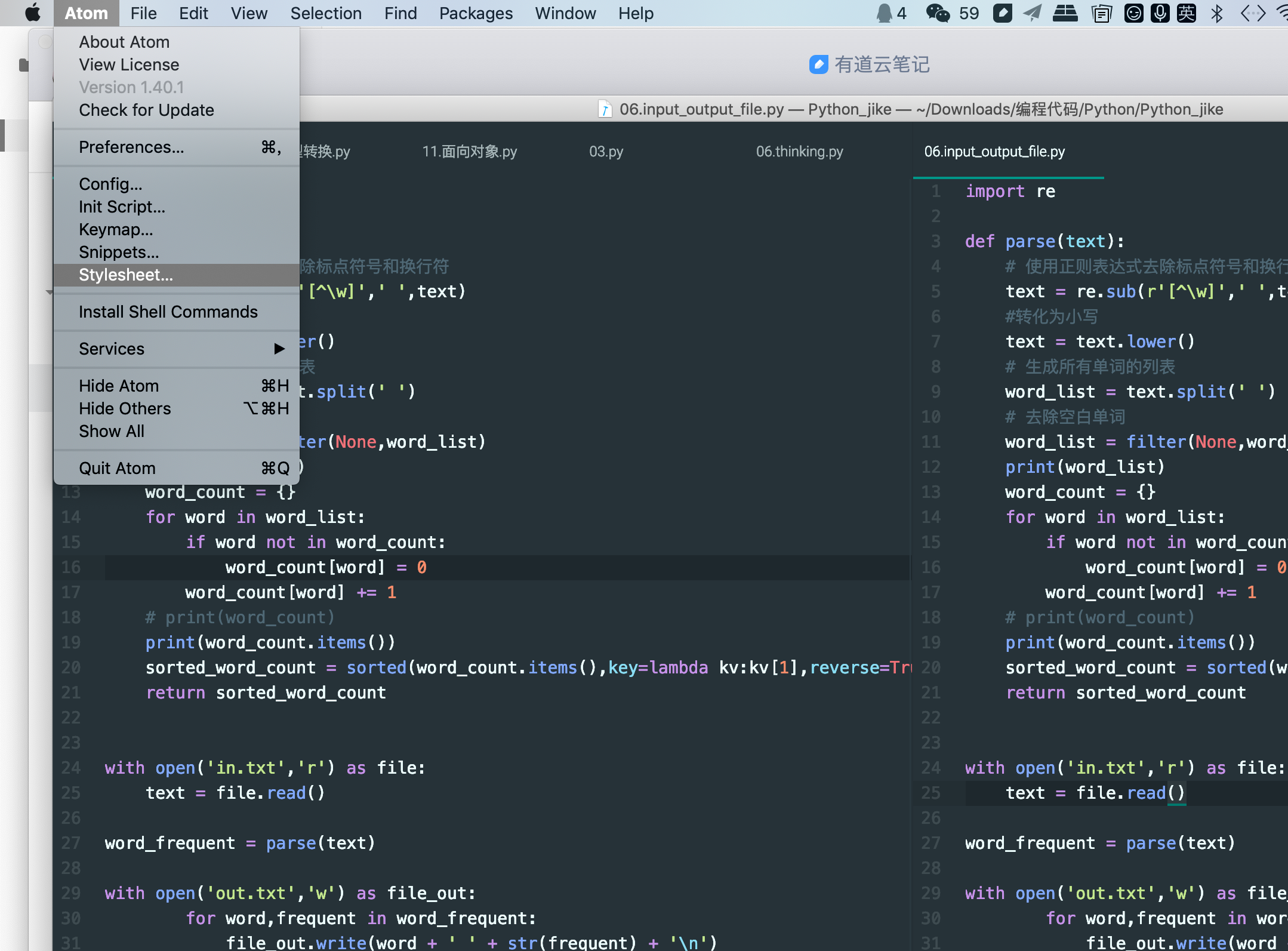
例如,要更改状态栏的颜色,可以将以下规则添加到styles.less文件中:
.status-bar {
  color: white;
  background-color: black;
}
那么问题来了,怎么知道哪些类可以用于自定义样式呢?
查看哪些类可用于样式的最简单方法是通过Developer Tools手动检查DOM。
Alt+Cmd+I可以打开开发者工具。
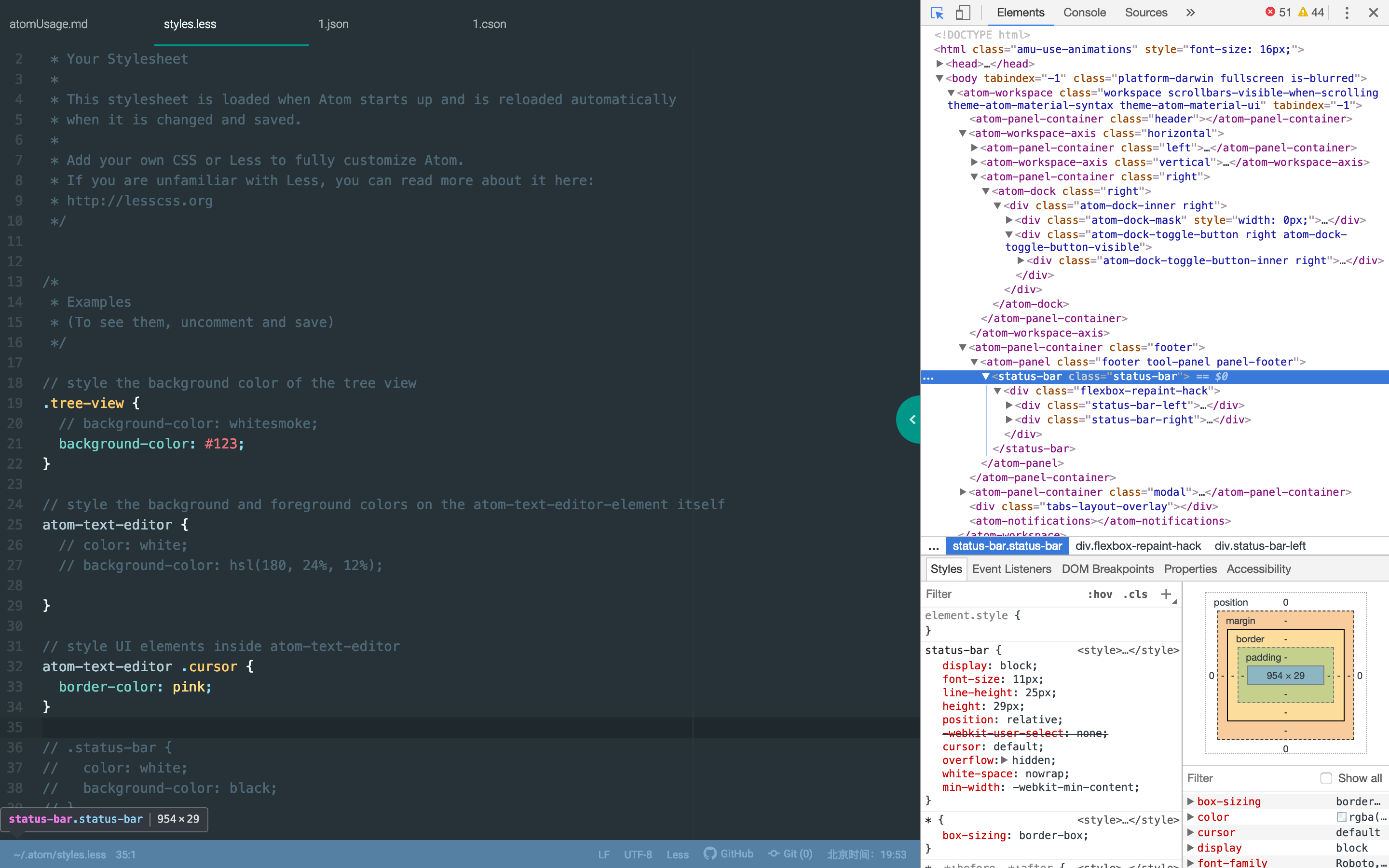
现在就懵逼了,这不就是基于chrome开发的吗? 现在自定义样式就相当于在调less,不熟悉less可以直接使用css也可以。
自定义键盘绑定
键盘⌨️绑定的cson格式大概是这个样子的:
#普通编辑器上下文
'atom-text-editor':
  'enter': 'editor:newline'
#选择列表的迷你输入框
'atom-text-editor[mini] input':
  'enter': 'core:confirm'
Atom键映射使用选择器将键组合与特定上下文中的事件相关联。 自定义键盘映射你可能需要两样东西的辅助,
Cmd+.-调出键盘映射查看器
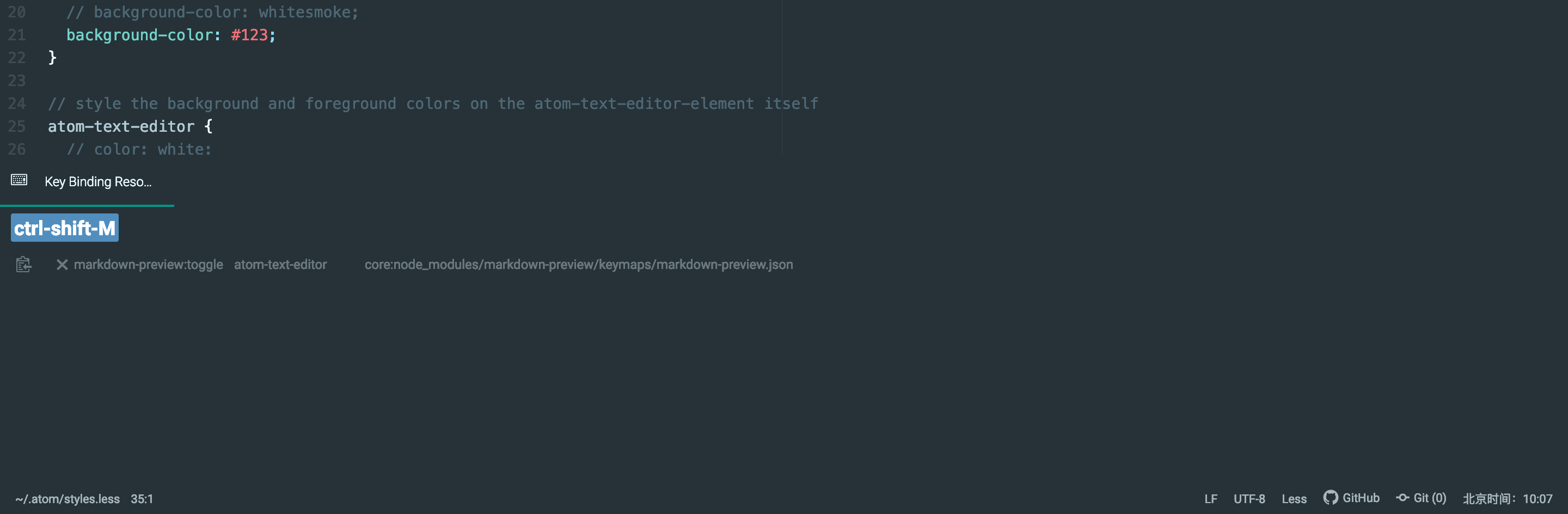
Cmd+Shift+-调出命令查看器