前言 (来抽奖吗?看起来可以不劳而获的那种哦)
微信小程序就像安装了很多的APP的一个文件,相当于把所有的应用集中放在微信小程序的公众号中,想用什么APP,搜索出来就可以用了,微信小程序让应用将无处不在,随时可用,但又无需安装卸载,这就是它作为轻应用的特点。最近接触到了微信小程序,虽然还是处于小白菜阶段,还是抑制不住撸一个小程序。
部分页面效果预览

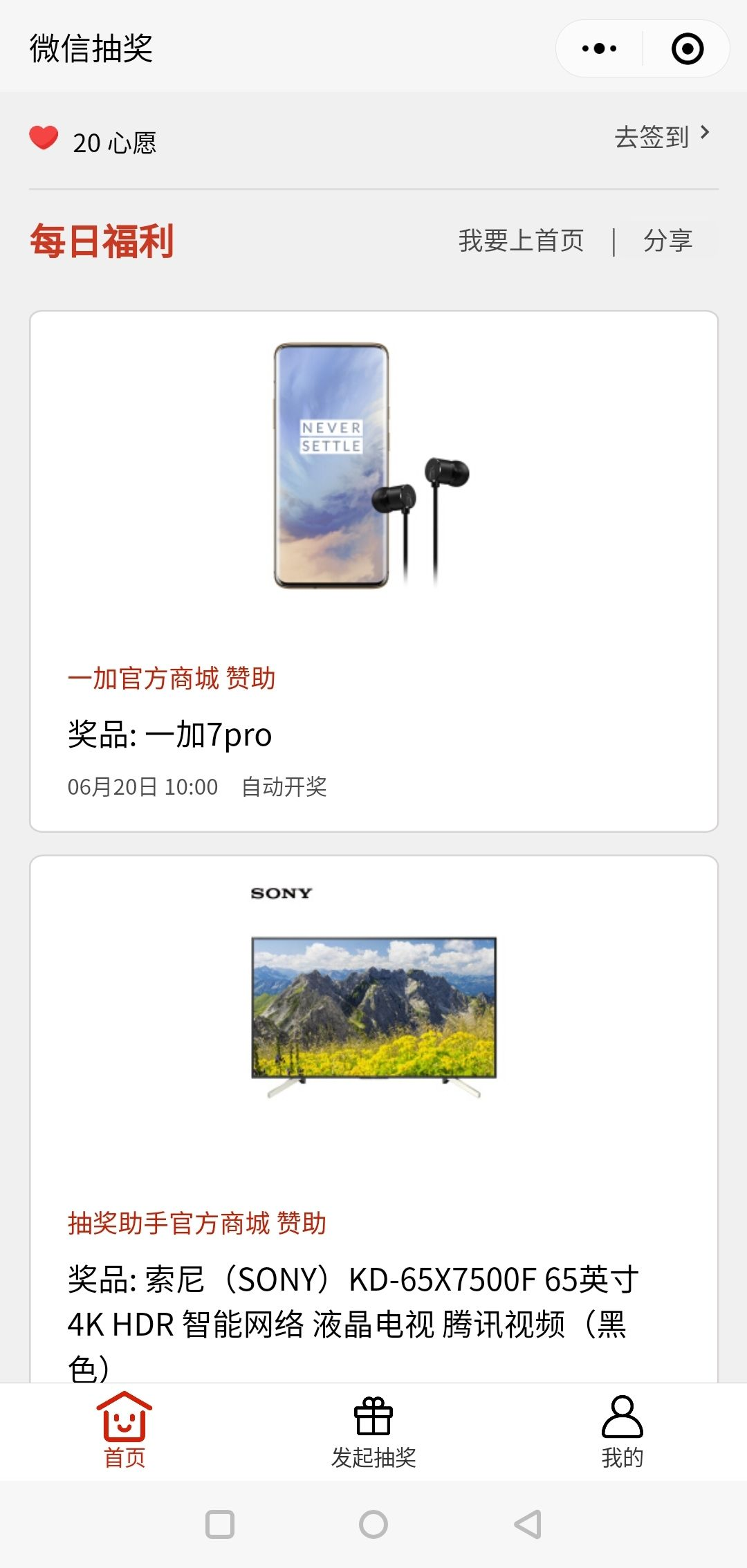
准备阶段
-
编辑工具
VS code + 微信开发者工具
-
注册appid,登录微信开发者工具
-
其它工具
-
页面标注工具 Mark man
-
图标库 Iconfont
-
生成模拟数据与接口 Easy Mock
-
云函数请求接口 Request-Promise
-
组件 WuxUI
-
-
Ok,准备工作做完,现在就是花一点运气去抽奖小程序试试能不能抽到一包纸巾顺便了解一下小程序的页面结构,着手试着去写一个微信小程序
开发阶段
- tabbar跳转问题
一上手就在app.json中配置了三个tabBar,事实证明,鲁莽的小菜鸟总是很容易就会踩到坑,小程序中间的tabBar点击进去之后应该是进入一个页面隐藏tabBar并且左上角可以返回到首页。
这该如何解决呢?用自定义tabBar是一个很好的办法,但是这里一开始是让app.json配置中的中间tabBar的pagePath成为一个过渡页面,然后只要在过渡页面js文件的onLoad生命周期中使用wx.navigateTo去跳转到我需要的页面,还有在页面prizeDraw的onUnload生命周期中用wx.switchTab跳回首页。
app.json :
{
  "tabBar": {
    "list": [
      {
        "pagePath": "pages/index/index",
        "text": "首页",
        "iconPath": "./images/shouye.png",
        "selectedIconPath": "./images/shouye1.png"
      },
      {
        "pagePath": "pages/pageTum/pageTum",
        "text": "发起抽奖",
        "iconPath": "./images/faqichoujiang.png",
        "selectedIconPath": "./images/faqichoujiang1.png"
      },
      {
        "pagePath": "pages/user/user",
        "text": "我的",
        "iconPath": "./images/wode.png",
        "selectedIconPath": "./images/wode1.png"
      }
    ]
}
中间tabBar的pageTum与prizeDraw页面的js配置 :这里又踩到了一个坑,在使用wx.switchTab跳回首页tabBar后,再次点击中间的tabBar就会进入过渡页面pageTum而不会跳到drawPrize页面,这是因为pageTum已经加载了一次,没有彻底关闭的情况下不会再次执行onLoad生命周期。想通了这里,马上把wx.switchTab改成了wx.reLaunch。
  /**
   * pageTum页面
   */
  onLoad: function (options) {
    wx.navigateTo({
      url: '../prizeDraw/prizeDraw'
    })
  }
  /**
   * prizeDraw页面
   */
  onUnload: function () {
    // wx.switchTab({
    //   url: '../index/index'
    // })
    wx.reLaunch({
      url: '../index/index'
    })
  }
- user页面登录,页面间数据联动问题
登录用的是button的open-type="getUserInfo"方式去得到用户的一些基本信息
数据联动是使用微信云开发中的云数据库和云函数,官方文档中有它们的基本用法,使用到的就是一些增删改查。

onGotUserInfo: function (e) {
    // let that = this;
    // console.log(e)
    app.globalData.userName = e.detail.userInfo.nickName,
      db.collection('DrawPrizeInfo').where({
      _openid: 'omuXr4vmJTbXAuIKg04b-LEDnI9I',
    }).get().then(res => {
      console.log('这是全部抽奖信息', res)
      this.setData({
        allDrawNum: res.data.length
      })
    }).catch(err => {
      console.log(err)
    });
    db.collection('initiatedDraw').where({
      _openid: 'omuXr4vmJTbXAuIKg04b-LEDnI9I',
    }).get().then(res => {
      console.log('这是发起抽奖信息', res)
      this.setData({
        launchNum: res.data.length
      })
    }).catch(err => {
      console.log(err)
    })
    this.setData({
      username: app.globalData.userName,
      avatarUrl: e.detail.userInfo.avatarUrl,
      winningNum: app.globalData.winningNum,
      userWishNum: app.globalData.wishNum
    })

  }
allDraw页面 :
 onLoad: function (options) {
    let that = this;
    db.collection('DrawPrizeInfo').where({
      _openid: 'omuXr4vmJTbXAuIKg04b-LEDnI9I'
    }).get({
      success: function (res) {
        console.log(res)
        that.setData({
          prize: res.data.slice()
        })
      }
    })

  }
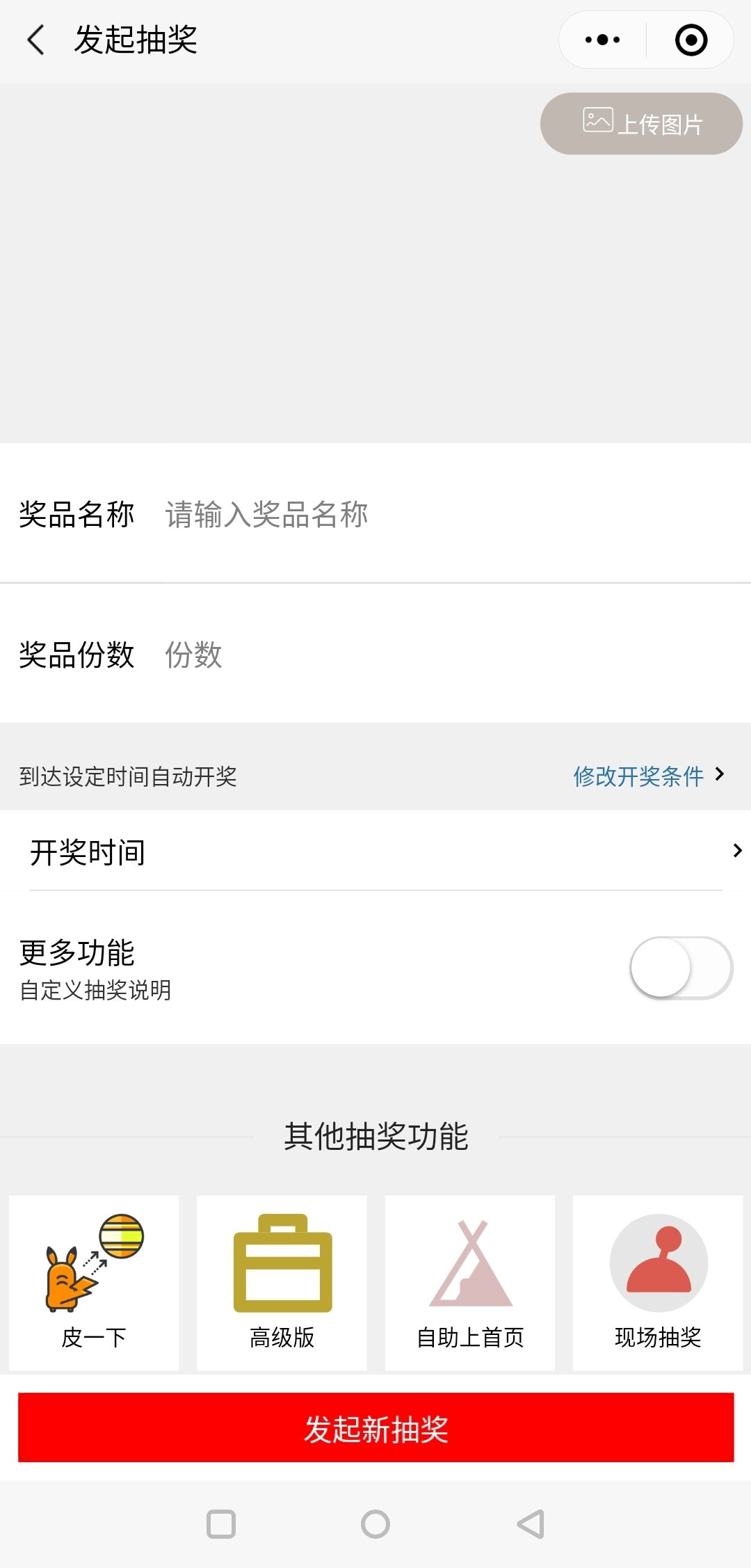
- prizeDraw页面上传图片功能
这里是使用上传至云存储,再add进云数据库,在云数据库中去查找并显示到页面。
doUpload: function () {
    let that = this;
    // 选择图片
    wx.chooseImage({
      count: 1,
      sizeType: ['original', 'compressed'],
      sourceType: ['album', 'camera'],
      success(res) {
        // tempFilePath可以作为img标签的src属性显示图片
        const tempFilePaths = res.tempFilePaths
        console.log(tempFilePaths);
        wx.cloud.uploadFile({
          cloudPath: 'background.png', // 上传至云端的路径
          filePath: tempFilePaths[0], // 临时文件文件路径
        }).then(res => {
          // 返回文件的 ID
          // console.log(res.fileID)
          db.collection('prizeDrawImage').add({
            data: {
              fileID: res.fileID
            }
          }).then(res => {
            console.log('----', res)
            db.collection('prizeDrawImage').where({
              _openid: 'omuXr4vmJTbXAuIKg04b-LEDnI9I'
            }).get().then(res => {
              console.log('加载的图片', res)
              that.setData({
                drawBgUrl: res.data[0].fileID
              })
              console.log('背景图', that.data.drawBgUrl)
            })
          }).catch(error => {
            console.log(error)
          })
        }).catch(error => {
          console.log(error)
        })
      }
    })
  }
- 自定义组件的抽离与使用
组件化思想不是前端特有的,但是在前端组件化的思想是非常重要的,简单来说,组件就是将一段UI样式和其对应的功能作为独立的整体去看待,无论这个整体放在哪里去使用,它都具有一样的功能和样式,从而实现复用,这种整体化的细想就是组件化思想。组件的可复用性可以让我们提高开发效率。
在小程序中,页面许多地方用到比较多的结构就可以抽离出来当组件,而使用组件只需要在 .json 的usingComponents中注册一下,就可以在 wxml 中使用了,这里以首页index.wxml为例 :
<view class="container">
<view class="head">
<view class="top">
<view class="wish" bindtap='goSignIn'>
<image class="heart" src="../../images/heart.png" />
<!-- <view class="wishNum"> -->
<text decode="{{true}}" class="wishNum"> {{wishNum}} 心愿</text>
<!-- </view> -->
</view>
<view class="goSignIn" bindtap='goSignIn'>
<text>去签到</text>
<image class="youjiantou" src="../../images/youjiantou.png" />
</view>
</view>
<view class="below">
<text class='fuli'>每日福利</text>
<view class='below_right'>
<view class="enterIndex" bindtap='upIndex'>
我要上首页
</view>
<text decode="{{true}}"> |</text>
<button open-type='share'>分享</button>
</view>
</view>
</view>
<view class="body">
<!-- 使用自定义case组件 -->
<case prize="{{prize}}" id="case"></case>
</view>
<view class="foot">
<button class='button' open-type="contact" bindcontact="handleContact">
<text>联系客服</text>
<image src='../../images/youjiantou.png' />
</button>
</view>
</view>
case.wxml :
<view class="case" wx:for="{{prize}}" wx:key="index">
<view class="container" bindtap='goParticipate' data-prizeid="{{item.id}}">
<view class="header">
<image src="{{item.indexImgUrl}}" mode="scaleToFill" />
</view>
<view class="bd">
<view class="sponsor">{{item.sponsor}}<text decode="{{true}}"> 赞助</text></view>
<view class="describe">
<text decode="{{true}}">奖品: {{item.describe}}</text>
</view>
<view class="prize-day">{{item.prizeDay}}<text decode="{{true}}"> 自动开奖</text></view>
</view>
</view>
</view>
- 文字可收放,收起时超出一行显示省略号
这里是结构与样式的实现,在文字样式动态添加类名就好了 :

<!--wxml-->
<text class="card-content {{ellipsis?'ellipsis':'unellipsis'}}">{{item.content}}</text>
<view class="img" bindtap="ellipsis">
  <image src="{{ellipsis?'../../images/zhankai.png' : '../../images/shouqi.png'}}" />
</view>
<!--css-->
.card-content {
  display: -webkit-box;
  -webkit-box-orient:vertical;
  text-overflow: ellipsis;
  overflow:hidden;
}
.ellipsis{
  -webkit-line-clamp: 1;
}
.unellipsis{
  -webkit-line-clamp:0;
}
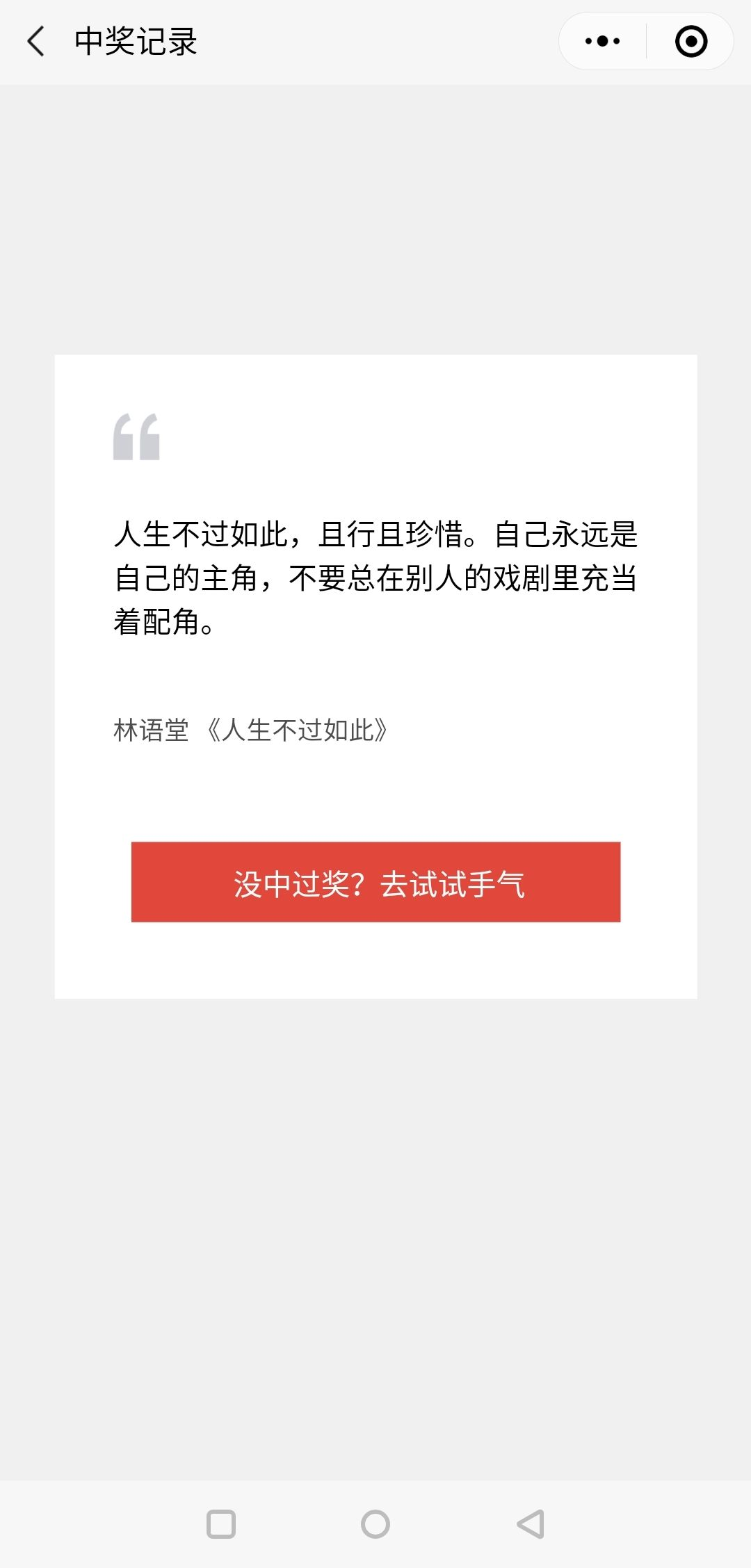
- 中奖记录页面
前言已经介绍了,因为只是看起来不劳而获,并不是真的会中奖,就算是一包纸巾也不会让你中的!别问为什么,那是一段不为人知的历史。
鉴于历史原因,在中奖Record页面,每次进去都会随机出现一些心灵鸡汤或者是美文片段。

<!--record.wxml-->
  <view class="container">
    <view class="card">
      <view class="img">
        <image src="../../images/quotes.png" />
      </view>
      <view class="saying">
        <view class="content">{{content}}</view>
        <view class="author">{{author}}</view>
      </view>
      <view class="try">
        <view class="text" bindtap='goIndex'>
          没中过奖?去试试手气
        </view>
      </view>
    </view>
  </view>
<!--随机出现心灵鸡汤-->
onLoad: function (options) {
    let i = Math.floor(Math.random() * 10);

    this.setData({
      content: this.data.sayings[i].content,
      author: this.data.sayings[i].author
    })
  }
我的总结
- 云函数在更改保存了之后一定一定不能忘记上传并部署,否则bug要找一年。
- 注释要多写,养成多写注释的好习惯,否则睡一觉醒来就容易一脸懵逼的面对自己的代码
- html,css,js 要多写,这样在写页面结构的时候才不会想着一个很酷炫的样式,结果只想到了是以哪个字母开头的单词,只能寻找百度的帮助
- flex布局 要更加熟练,页面布局的时候就不会手忙脚乱
- 组件封装还是要多练习,毕竟组件化开发是很重要的思想,我的思想还是需要再学习
- 学无止境。 因为学习微信小程序学的没有很久,页面布局,组建封装,页面传值等等很多方面我都没有做好,项目也不完善,不过只要肯继续学习,就算写出了一堆的bug,我也得到了成长,慢慢的就一定会变优秀。
最后这是项目地址