流式布局/流式标签在实际开发中的应用还是比较广泛的,今天就此做一个不完全总结,如果你有其他的方案,请告知于我,谢谢!
1 什么是流式布局/标签
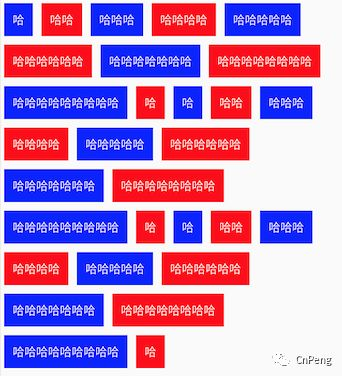
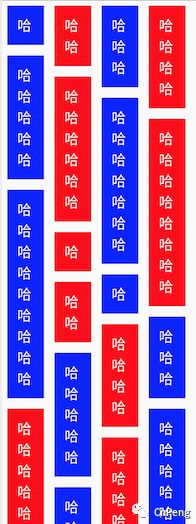
说白了呢,就是一种参差不齐的视图,比如:
-
水平的流式布局
-
垂直的流式布局
-
多条目类型流式布局

2实现方式有哪些?
实现流式布局的方式大致有如下五种:
-
自定义FlowLayout
-
ChipGroups
-
RecyclerView+StaggeredGridLayoutManager
-
RecyclerView+FlexboxLayoutManager
-
RecyclerView+GridLayoutManager+Span
3实现方式分析
(1)、自定义FlowLayout关于自定义FlowLayout,原理就是自定义一个ViewGroup,向里动态的添加条目View。在添加的时候需要动态的计算行数,以及行中剩余宽度是否可以展示目标条目。这种方式网上有很多讲解,此处不再赘述,推荐参考鸿洋大佬的:https://github.com/hongyangAndroid/FlowLayout
(2)、ChipGroupChipGroup,是google官方为我们封装好的一套流式标签组件.ChipGroup 本质上也是自定义的ViewGroup,其中为我们封装了部分条目点击和选中的监听器。
通常情况下,与ChipGroup配套使用的是Chip——也就是ChipGroup中的条目。Chip本身具有选中和点击状态,也可以加入图片,可以修改文本(颜色、字号、字体等)。当然了,因为ChipGroup本质上是一个ViewGroup,所以,我们也可以向其中放置我们需要的任意View。
关于Chip和ChipGroup的使用,可以参考我之前整理的《Android:Chip、ChipGroups、ChipDrawable》链接为:
https://www.jianshu.com/p/d64a75ec7c74
-
xml中使用的示例代码
<com.google.android.material.chip.ChipGroup
android:id="@+id/chipGroup2"
android:layout_width="match_parent"
android:layout_height="wrap_content"
android:layout_marginTop="10dp"
app:checkedChip="@id/chipInGroup2_1"
app:chipSpacing="25dp"
app:singleLine="true"
app:singleSelection="true">
<com.google.android.material.chip.Chip
android:id="@+id/chipInGroup2_1"
style="@style/Widget.MaterialComponents.Chip.Filter"
android:layout_width="wrap_content"
android:layout_height="wrap_content"
android:text="chipInGroup2——1"
android:textAppearance="?android:textAppearanceMedium" />
<com.google.android.material.chip.Chip
android:id="@+id/chipInGroup2_2"
style="@style/Widget.MaterialComponents.Chip.Filter"
android:layout_width="wrap_content"
android:layout_height="wrap_content"
android:text="chipInGroup2——2"
android:textAppearance="?android:textAppearanceMedium" />
</com.google.android.material.chip.ChipGroup>
-
代码中添加Chip到ChipGroup
val chip = Chip(mActivity)
chip.text = "这是代码添加的chip"
ll_parent.addView(chip)
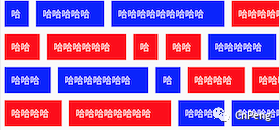
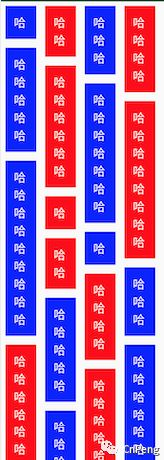
借助StaggeredGridLayoutManager我们可以很方便的实现流式布局/标签。我们只需要构建一个StaggeredGridLayoutManager对象,然后赋值给RecyclerView即可。但是在构建对象时必须指定行或者列,这样就导致内容超过屏幕宽度或者高度时,并不会主动换行——而是优先适配行数或列数,然后滚动显示。
所以,在这中方式下,如果我们想要实现超过宽度或者高度就主动换行的效果就做不到了。
-
示例代码
rv_flowImpl.adapter = mStaggerAndGvAdapter
rv_flowImpl.layoutManager = StaggeredGridLayoutManager(4, orientation)
-
横向效果
-
竖向效果
FlexboxLayoutManager 是另外一种便捷的方式,它继承自 RecyclerView.LayoutManager。它可以实现StaggeredGridLayoutManager不能实现的自动换行效果。
-
示例代码
val flexAdapter = FlowAdapter(mDataList)
rv_flowImpl2.adapter = flexAdapter
val flexLayoutManager = FlexboxLayoutManager(mActviity, FlexDirection.ROW)
flexLayoutManager.flexWrap = FlexWrap.WRAP
rv_flowImpl2.layoutManager = flexLayoutManager
-
实现效果
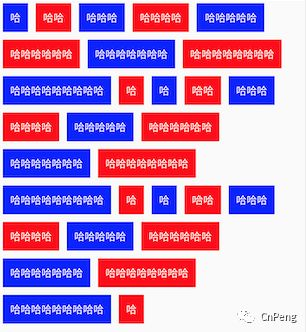
通常情况下,GridLayoutManager用来实现固定列数/行数的网格布局,但是,通过通过调整span的数量就可以控制单个条目占几列/几行。
假设我们要实现一个宽度满屏之后自动换行的流式标签列表,我们将span总数设置为屏幕宽度,那么,每一个条目所占的span即为该条目的宽度(含marign、padding). 基于该理论,就有了下列实现:
-
示例代码
val point = Point()
windowManager.defaultDisplay.getSize(point)
val screenWidth = point.x
val gridLayoutManager = GridLayoutManager(mActviity, screenWidth)
val textPaint = Paint()
//CnPeng 2018/12/10 9:22 AM 配置字体大小,大小需要与条目xml中配置的一致
textPaint.textSize = TypedValue.applyDimension(TypedValue.COMPLEX_UNIT_DIP, 14f, resources.displayMetrics)
//CnPeng 2018/12/7 4:46 PM 注意这个接口匿名对象的构建方式,前面加了个 object:
gridLayoutManager.spanSizeLookup = object : GridLayoutManager.SpanSizeLookup() {
override fun getSpanSize(position: Int): Int {
val spanCount = gridLayoutManager.spanCount;
//条目的padding和margin值。在 xml 中我们设置了margin 为5dp,padding为10dp
val itemMarginAndPadding = TypedValue.applyDimension(TypedValue.COMPLEX_UNIT_DIP, 15f, resources.displayMetrics)
val textWidth = textPaint.measureText(mDataList[position])
val itemWidth: Int = (itemMarginAndPadding * 2 + textWidth).toInt()
//如果文字的宽度超过屏幕的宽度,那么我们就设置为屏幕宽度。由于强转为int可能会丢失精度,所以保险起见+1
return (if (itemWidth > spanCount) spanCount else itemWidth) + 1
}
}
rv_flowImpl.layoutManager = gridLayoutManager
rv_flowImpl.adapter = mStaggerAndGvAdapter
-
实现效果
4完整示例代码-kotlin版
(1)、完整动态效果示意图 (2)、示例代码
-
FlowImplActivity.kt
/**
* CnPeng 2018/12/6 5:35 PM
* 功用:流式布局/标签实现方式的总结
* 说明:
* 1、流式布局/标签的实现方式大致有:
* -- 自定义FlowLayout。链接:https://github.com/hongyangAndroid/FlowLayout
* -- ChipGroups。 链接:https://www.jianshu.com/p/d64a75ec7c74
* -- RecyclerView+StaggerLayoutManager
* -- RecyclerView+FlexLayoutManager 链接:https://mp.weixin.qq.com/s/Mi3cK7xujmEMI_rc51-r4g
* -- RecyclerView+GridLayoutManager+Span 链接:https://blog.csdn.net/zhq217217/article/details/80421646
*
* 2、该DEMO仅演示StaggerLayoutManager、GridLayoutManager、FlexLayoutManager的实现方式
*/
class FlowImplActivity : AppCompatActivity(), View.OnClickListener {
lateinit var mStaggerAndGvAdapter: FlowAdapter
lateinit var mActviity: FlowImplActivity
lateinit var mDataList: List<String>
override fun onCreate(savedInstanceState: Bundle?) {
super.onCreate(savedInstanceState)
setContentView(R.layout.activity_flow_impl)
mActviity = this
initRecyclerView()
initClickEvent()
}
private fun initClickEvent() {
tv_staggerH.setOnClickListener(this)
tv_staggerV.setOnClickListener(this)
tv_flex.setOnClickListener(this)
tv_grid.setOnClickListener(this)
tv_chip.setOnClickListener(this)
}
private fun initRecyclerView() {
mDataList = initTestData()
mStaggerAndGvAdapter = FlowAdapter(mDataList)
rv_flowImpl.adapter = mStaggerAndGvAdapter
initGridLayoutManager()
// initStaggerLayout(true, RecyclerView.VERTICAL)
initFlexLayout()
}
/**
* CnPeng 2018/12/6 6:17 PM
* 功用:模拟数据
* 说明:
*/
private fun initTestData(): List<String> {
val dataList = mutableListOf<String>()
val originStr = "哈哈哈哈哈哈哈哈哈哈"
for (i in 1..30) {
val str = originStr.subSequence(0, if (0 == (i % 10)) {
1
} else {
i % 10
}).toString()
dataList.add(str)
}
return dataList
}
override fun onClick(v: View?) {
val viewId = v?.id
when (viewId) {
R.id.tv_staggerH -> {
initStaggerLayout(false, RecyclerView.HORIZONTAL)
toast("水平Stagger")
}
R.id.tv_staggerV -> {
initStaggerLayout(true, RecyclerView.VERTICAL)
toast("垂直Stagger")
}
R.id.tv_flex -> {
rv_flowImpl.visibility = View.GONE
rv_flowImpl2.visibility = View.VISIBLE
toast("Flex")
}
R.id.tv_chip -> {
val intent = Intent(mActviity, ChipActivity::class.java)
startActivity(intent)
toast("Chip")
}
R.id.tv_grid -> {
initGridLayoutManager()
toast("GridLayout")
}
}
}
private fun initGridLayoutManager() {
val point = Point()
windowManager.defaultDisplay.getSize(point)
val screenWidth = point.x
val gridLayoutManager = GridLayoutManager(mActviity, screenWidth)
val textPaint = Paint()
//CnPeng 2018/12/10 9:22 AM 配置字体大小,大小需要与条目xml中配置的一致
textPaint.textSize = TypedValue.applyDimension(TypedValue.COMPLEX_UNIT_DIP, 14f, resources.displayMetrics)
//CnPeng 2018/12/7 4:46 PM 注意这个接口匿名对象的构建方式,前面加了个 object:
gridLayoutManager.spanSizeLookup = object : GridLayoutManager.SpanSizeLookup() {
override fun getSpanSize(position: Int): Int {
val spanCount = gridLayoutManager.spanCount;
//条目的padding和margin值。在 xml 中我们设置了margin 为5dp,padding为10dp
val itemMarginAndPadding = TypedValue.applyDimension(TypedValue.COMPLEX_UNIT_DIP, 15f, resources.displayMetrics)
val textWidth = textPaint.measureText(mDataList[position])
val itemWidth: Int = (itemMarginAndPadding * 2 + textWidth).toInt()
//如果文字的宽度超过屏幕的宽度,那么我们就设置为屏幕宽度。由于强转为int可能会丢失精度,所以保险起见+1
return (if (itemWidth > spanCount) spanCount else itemWidth) + 1
}
}
rv_flowImpl.layoutManager = gridLayoutManager
rv_flowImpl.adapter = mStaggerAndGvAdapter
mStaggerAndGvAdapter.mIsStaggerVertical = false
}
private fun initStaggerLayout(b: Boolean, orientation: Int) {
rv_flowImpl.adapter = mStaggerAndGvAdapter
rv_flowImpl.layoutManager = StaggeredGridLayoutManager(4, orientation)
mStaggerAndGvAdapter.mIsStaggerVertical = b
rv_flowImpl.visibility = View.VISIBLE
rv_flowImpl2.visibility = View.GONE
}
/**
* CnPeng 2018/12/7 10:10 AM
* 功用:初始化flex视图
* 说明:
* 之所以使用两个RV,是因为使用一个RV的情况下,从Stagger切换到 Flex时会报下列错误:
* java.lang.ClassCastException: androidx.recyclerview.widget.RecyclerView$LayoutParams cannot be cast to com.google.android.flexbox.FlexItem
*/
private fun initFlexLayout() {
val flexAdapter = FlowAdapter(mDataList)
rv_flowImpl2.adapter = flexAdapter
val flexLayoutManager = FlexboxLayoutManager(mActviity, FlexDirection.ROW)
flexLayoutManager.flexWrap = FlexWrap.WRAP
rv_flowImpl2.layoutManager = flexLayoutManager
rv_flowImpl2.visibility = View.GONE
}
}
-
activity_flow_impl.xml
<?xml version="1.0" encoding="utf-8"?>
<androidx.constraintlayout.widget.ConstraintLayout xmlns:android="http://schemas.android.com/apk/res/android"
xmlns:app="http://schemas.android.com/apk/res-auto"
xmlns:tools="http://schemas.android.com/tools"
android:layout_width="match_parent"
android:layout_height="match_parent"
tools:context=".b_work.b04_flow_layout.FlowImplActivity">
<androidx.recyclerview.widget.RecyclerView
android:id="@+id/rv_flowImpl"
android:layout_width="wrap_content"
android:layout_height="wrap_content"
android:visibility="visible"
app:layout_constraintLeft_toLeftOf="parent"
app:layout_constraintTop_toTopOf="parent"
tools:listitem="@layout/item_flow_rv" />
<androidx.recyclerview.widget.RecyclerView
android:id="@+id/rv_flowImpl2"
android:layout_width="match_parent"
android:layout_height="wrap_content"
android:visibility="visible"
app:layout_constraintLeft_toLeftOf="parent"
app:layout_constraintTop_toTopOf="parent"
tools:listitem="@layout/item_flow_rv" />
<TextView
android:id="@+id/tv_staggerV"
android:layout_width="wrap_content"
android:layout_height="wrap_content"
android:layout_margin="5dp"
android:background="@color/c_1b89d8"
android:padding="@dimen/dp10"
android:text="垂直的Stageger"
android:textColor="#fff"
app:layout_constraintBottom_toBottomOf="parent"
app:layout_constraintLeft_toLeftOf="parent"
app:layout_constraintRight_toLeftOf="@id/tv_staggerH" />
<TextView
android:id="@+id/tv_staggerH"
android:layout_width="wrap_content"
android:layout_height="wrap_content"
android:layout_margin="5dp"
android:background="@color/c_1b89d8"
android:padding="@dimen/dp10"
android:text="水平的Stageger"
android:textColor="#fff"
app:layout_constraintBottom_toBottomOf="parent"
app:layout_constraintLeft_toRightOf="@id/tv_staggerV"
app:layout_constraintRight_toLeftOf="@id/tv_flex" />
<TextView
android:id="@+id/tv_flex"
android:layout_width="wrap_content"
android:layout_height="wrap_content"
android:layout_margin="5dp"
android:background="@color/c_1b89d8"
android:padding="@dimen/dp10"
android:text="FlexLayoutManager"
android:textColor="#fff"
app:layout_constraintBottom_toBottomOf="parent"
app:layout_constraintLeft_toRightOf="@id/tv_staggerH"
app:layout_constraintRight_toRightOf="parent" />
<TextView
android:id="@+id/tv_grid"
android:layout_width="wrap_content"
android:layout_height="wrap_content"
android:layout_marginBottom="@dimen/dp10"
android:background="@color/c_1b89d8"
android:padding="@dimen/dp10"
android:layout_margin="5dp"
android:text="GridLayoutManager"
android:textColor="#fff"
app:layout_constraintBottom_toTopOf="@id/tv_staggerV"
app:layout_constraintLeft_toLeftOf="parent" />
<TextView
android:id="@+id/tv_chip"
android:layout_width="wrap_content"
android:layout_height="wrap_content"
android:layout_margin="5dp"
android:background="@color/c_1b89d8"
android:padding="@dimen/dp10"
android:text="Chip和ChipGroups"
android:textColor="#fff"
app:layout_constraintBottom_toBottomOf="@id/tv_grid"
app:layout_constraintLeft_toRightOf="@id/tv_grid"
app:layout_constraintTop_toTopOf="@id/tv_grid" />
</androidx.constraintlayout.widget.ConstraintLayout>
-
FlowAdapter.kt
/**
* 作者:CnPeng
* 时间:2018/12/6
* 功用:流式标签的适配器
* 其他:
*/
class FlowAdapter(dataList: List<String>) : RecyclerView.Adapter<FlowAdapter.ItemHolder>() {
private var mDataList = dataList
var mIsStaggerVertical: Boolean = false
override fun onCreateViewHolder(parent: ViewGroup, viewType: Int): ItemHolder {
val inflater = LayoutInflater.from(parent.context)
val itemView = inflater.inflate(R.layout.item_flow_rv, parent, false)
return ItemHolder(itemView, itemView.tv_content)
}
override fun getItemCount(): Int {
return mDataList.size
}
override fun onBindViewHolder(holder: ItemHolder, position: Int) {
val contentStr = mDataList[position]
holder.textView.text = contentStr
//CnPeng 2018/12/7 10:05 AM StaggeredGridLayoutManager时控制文本垂直显示,其他情况水平显示文本
if (mIsStaggerVertical) {
holder.textView.setEms(1)
} else {
holder.textView.setEms(contentStr.length)
}
if (0 == position % 2) {
holder.itemView.setBackgroundColor(Color.BLUE)
} else {
holder.itemView.setBackgroundColor(Color.RED)
}
}
class ItemHolder(itemView: View, tv: TextView) : RecyclerView.ViewHolder(itemView) {
var textView: TextView = tv
}
public fun isStaggerVertical(flag: Boolean) {
mIsStaggerVertical = flag
//CnPeng 2018/12/10 9:32 AM 在替换LayoutManager的时候,源码中会主动触发notify操作
// notifyDataSetChanged()
}
}
-
item_flow_rv.xml
<?xml version="1.0" encoding="utf-8"?>
<androidx.constraintlayout.widget.ConstraintLayout xmlns:android="http://schemas.android.com/apk/res/android"
xmlns:app="http://schemas.android.com/apk/res-auto"
xmlns:tools="http://schemas.android.com/tools"
android:layout_width="wrap_content"
android:layout_height="wrap_content"
android:layout_margin="5dp"
android:padding="10dp"
tools:background="@color/c_1b89d8">
<TextView
android:id="@+id/tv_content"
android:layout_width="wrap_content"
android:layout_height="wrap_content"
android:textColor="#fff"
app:layout_constraintLeft_toLeftOf="parent"
app:layout_constraintTop_toTopOf="parent"
tools:text="啥呀都是哈" />
</androidx.constraintlayout.widget.ConstraintLayout>
5附录
(1)、项目地址-
项目地址:
https://github.com/CnPeng/CnPengAndroid2
-
文中内容对应项目中的:
bwork.b04flow_layout 包
-
自定义FlowLayout。
https://github.com/hongyangAndroid/FlowLayout
-
ChipGroups。
https://www.jianshu.com/p/d64a75ec7c74
-
RecyclerView+FlexLayoutManager
https://mp.weixin.qq.com/s/Mi3cK7xujmEMI_rc51-r4g
-
RecyclerView+GridLayoutManager+Span
https://blog.csdn.net/zhq217217/article/details/80421646