最近有个需求是给富文本增加一个格式刷功能,因为项目原来采用的的是wangEditor,于是就对wangEditor做了个二次开发。
小小的记录下实现的方式。
实现步骤
其实逻辑非常简单.......
①.点击格式刷,获取光标所在节点的style并保存下来。
②.在格式刷的状态下,获取新的选区,将保存的style赋予选区中的节点
虽然逻辑很简单实现起来还是挺有意思的
1.点击格式刷获取样式
贴一下代码
//这是格式刷对象里面的onClick方法
//这是点击格式刷触发的事件,type可以是'click'和'dblclick'
 onClick: function(e,type) {
// editor是全局的编辑器对象(详情去看wangEditor的源码)
        const editor = this.editor

// 判断选区里面是否有内容,如果有内容则不处理
// 这样处理的原因是:如果选区覆盖了多个节点,如果节点的style不同,无法确定以哪个节点为准
// selection是王老师封装的选区操作(详情去看wangEditor的源码)
        const isSeleEmpty = editor.selection.isSelectionEmpty()
        if (!isSeleEmpty) {
            return
        }

// 判断当前格式刷是否已经被激活
// 如果是激活状态:关闭格式刷
        if (this._active) {
            this._active = false
            editor._brush=false
            editor._dblBrush=false
            this.$elem.removeClass('w-e-active')
            editor.$textContainerElem.removeClass('brush')
            return
        }


// 如果当前状态是未激活
// 将格式刷改成激活状态
        this._active = true
        editor._brush=true
// 如果是双击格式刷触发连续使用格式刷
// 记录双击格式刷状态
        editor._dblBrush=type==='dblclick'?true:false
        this.$elem.addClass('w-e-active')
        editor.$textContainerElem.addClass('brush')

// 获取style
// 先阐述一下获取style的思路:

// 1.因为编辑器里面加粗,斜体,改变字体,改变字号等等功能都是获取选区里面的文字然后插入一段html
// 长这样:<span style="font-weight: bold; font-style: italic;">何处春江无月明!</span>

// 2.但是文字居中就是加在顶级的p标签上
// 长这样:<p style="text-align: center; ">滟滟随波千万里,<span style="font-weight: bold; font-style: italic;">何处春江无月明!</span></p>

// 3.因此在下设计的存储style是一个对象形式
// 长这样:{font-style:"italic",font-weight:"bold",wrap:{text-align:"center"}}
// wrap里面的是指顶级p标签里面的样式

        let containerEle = editor.selection.getSelectionContainerElem()
//获取当前选区所在节点的style
//css方法是我基于wangEditor封装的Dom方法
//下面用到的DOM方法都是可以在源码的dom-core里面找到
        let style = containerEle.css()

//向上整合style
//如果是顶级p标签name将style放在wrap里面,否则直接整合进style
        while (!containerEle.equal(editor.$textElem[0])) {
            containerEle=containerEle.parent()
            if (containerEle.parent().equal(editor.$textElem[0])&&!containerEle.equal(editor.$textElem[0])) {
                style=Object.assign({},style,{wrap:containerEle.css()})
            }
            if(!containerEle.parent().equal(editor.$textElem[0])&&!containerEle.equal(editor.$textElem[0])){
                style=Object.assign({},style,containerEle.css())
            }
        }

//保存style
        editor._style=style
    }
2.将保存的style赋予光标扫过的选区里的节点
贴一下代码
//$textElem是指编辑器可编辑区域(详情请查看源码)
$textElem.on('mouseup', e => {
//这是wangEditor里面事实保存选区的事件
            saveRange()
            $textElem.off('mouseleave', saveRange)
            if (editor._brush) {

//将储存的style转换成字符串形式
                let text
                let style=''
                let wrapStyle=''
                for (const key in editor._style) {
                    if (editor._style.hasOwnProperty(key)) {
                        const element = editor._style[key];
                        if (key==='wrap') {
                            for (const Wkey in element) {
                                if (element.hasOwnProperty(Wkey)) {
                                    const Welement = element[Wkey];
                                    wrapStyle+=`${Wkey}:${Welement};`
                                }
                            }
                        }else{
                            style+=`${key}:${element};`
                        }
                    }
                }


//如果没有刷到内容只是点击了一下编辑框
//直接获取当前选取的顶级p标签,将wrapStyle赋予p标签,同时设置html的内容
                if (editor.selection.isSelectionEmpty()) {
                    // 如果没有选中任何内容
                    let containerElem = editor.selection.getSelectionContainerElem().closest('p')
                    editor.selection.createRangeByElem(containerElem)
                    editor.selection.restoreSelection()
                    text = editor.selection.getSelectionText()
                    if (!text.trim()==='') {
                        containerElem[0].setAttribute('style', wrapStyle);
                    containerElem.html('<span style="' + style + '">' + text + '</span>');
                    }
                    // 折叠选区
                    editor.selection.collapseRange()
                } else {
//如果刷到了内容那么就有两种情况
//1.如果只刷了一行
//2.如果刷了多行
                    let range = editor.selection.getRange()
                    let containerElem = editor.selection.getSelectionContainerElem()
                    if (!containerElem.equal(editor.$textElem[0])) {
// 如果只刷了一行
//跟上面的处理方式相似
                        text = editor.selection.getSelectionText()
                        containerElem.closest('p')[0].setAttribute('style', wrapStyle)
                        editor.cmd.do('insertHTML', `<span style="${style}">${text}</span>`)
                    } else {
// 如果刷了多行
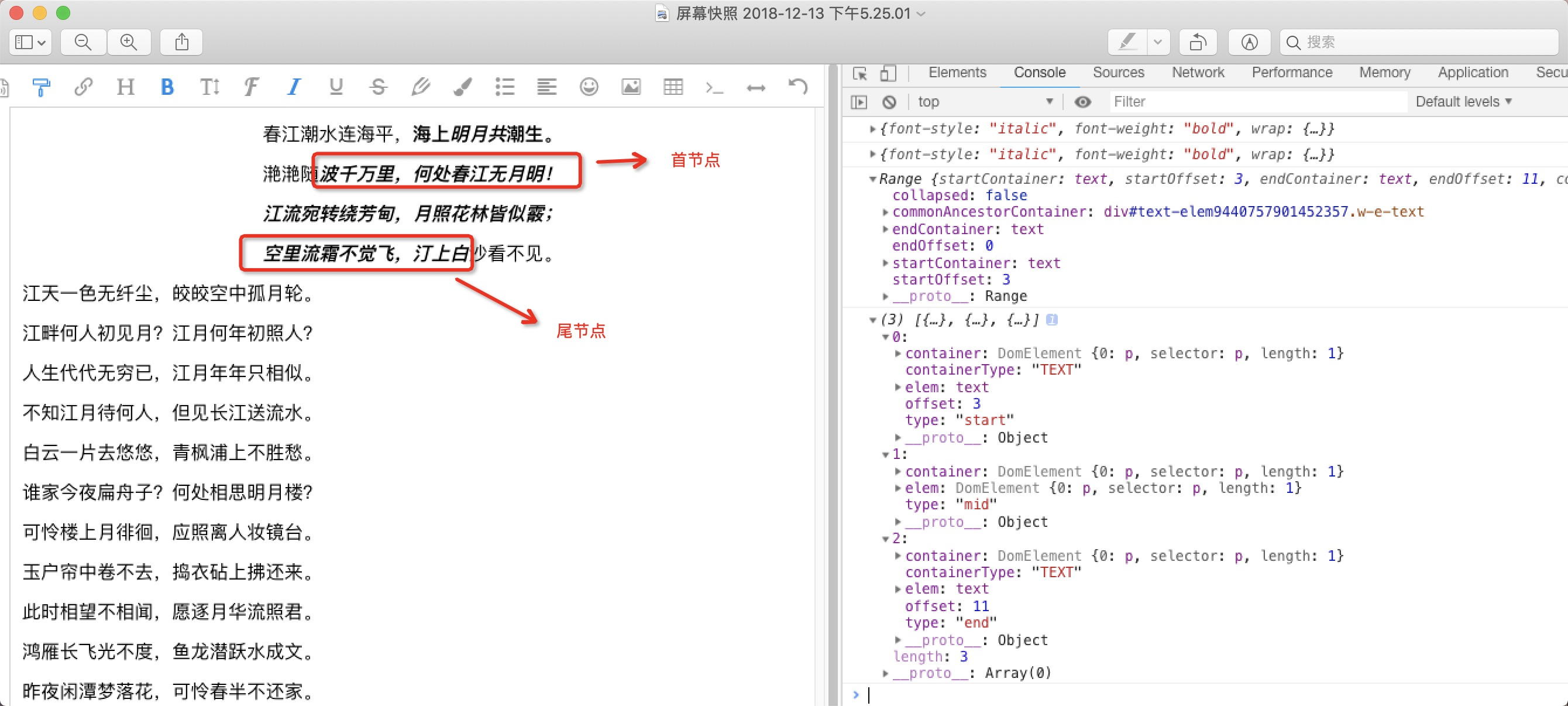
//1.首先起始部分的选区:从起始位置开始到整行结束
//2.末尾部分选区:从整行起始位置开始到选区末尾结束(请看后面的图解)
//3.处理方式:先将选去里面的节点存进数组,然后遍历数组,根据节点创建选区
//如果是首节点,使用range.setStart()方法
//如果是中间节点,则不处理
//如果是末尾节点使用range.setEnd()方法

                        let elements = []
                        let startElem = range.startContainer
                        let startElemCon = $(startElem).closest('p')
                        let endElem = range.endContainer
                        let endElemCon = $(endElem).closest('p')
                        elements.push({
                            type: 'start',
                            elem: startElem,
                            offset: range.startOffset,
                            containerType: range.startContainer.nodeType === 1 ? 'NODE' : 'TEXT',
                            container: startElemCon
                        })
                        while (!startElemCon.next().equal(endElemCon)) {
                            startElemCon = startElemCon.next()
                            elements.push({
                                type: 'mid',
                                elem: startElemCon,
                                container: startElemCon
                            })
                        }
                        elements.push({
                            type: 'end',
                            elem: endElem,
                            offset: range.endOffset,
                            containerType: range.startContainer.nodeType === 1 ? 'NODE' : 'TEXT',
                            container: endElemCon
                        })
                        elements.forEach(element => {
                            let container = $(element.container)
                            let range = editor.selection.createRangeByElem(container, null, true)
                            if (element.type === 'start') {
                                range.setStart(element.elem, element.offset)
                                editor.selection.saveRange(range)
                                editor.selection.restoreSelection()
                                text = editor.selection.getSelectionText()
                                container[0].setAttribute('style', wrapStyle)
                                editor.cmd.do('insertHTML', `<span style="${style}">${text}</span>`)
                            } else if (element.type === 'mid') {
                                text = range.toString()
                                container[0].setAttribute('style', wrapStyle)
                                editor.cmd.do('insertHTML', `<span style="${style}">${text}</span>`)
                            } else if (element.type === 'end') {
                                range.setEnd(element.elem, element.offset)
                                editor.selection.saveRange(range)
                                editor.selection.restoreSelection()
                                text = editor.selection.getSelectionText()
                                container[0].setAttribute('style', wrapStyle)
                                editor.cmd.do('insertHTML', `<span style="${style}">${text}</span>`)
                            }
                        });
                    }
                }


//如果不是双击格式刷 那么退出格式刷
                if (!editor._dblBrush) {
                    editor._brush=false
                    editor.menus.menus.format.$elem.removeClass('w-e-active')
                    editor.$textContainerElem.removeClass('brush')
                }
            }
        })
图片注解
这是html片段
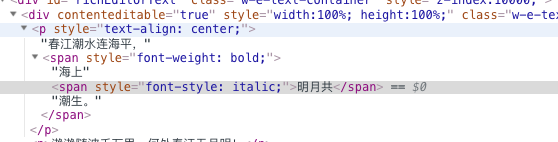
这是点击格式刷存储的style

这是刷过的选区于处理过的节点
第一次发文章有点紧张.....
The End