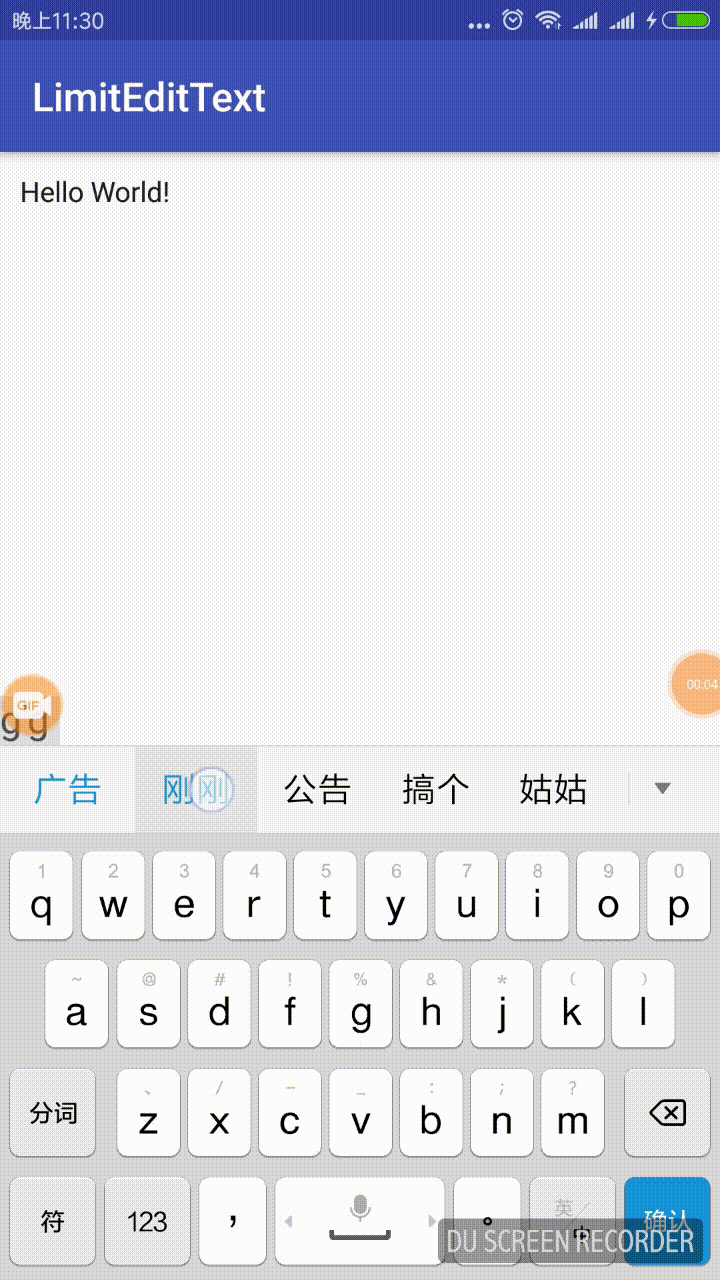
今天带来工作中的一个小安利,产品要求对用户名输入需要限制,只能是数字和字母,符号,不能包含空格和键盘上输入的emoji.开始拿到这个需求,觉得给 EditText 增加一个 addTextChangedListener ,里面做各种判断不就OK 啦!
哈哈,又可以愉快的玩耍咯…
但是回调里面逻辑太多,看着也不爽,不符合我们程序员的气质,简洁大方,干净利落!所以我特意去看了 du 了一下, 结合自己的实际要求,重写了 EditText 的 onCreateInputConnection() 方法,在那里做文章,请看下面源码(如果还有不清楚的,可以留言或者看Github地址)
只需要自定义EditText重写其onCreateInputConnection()方法,然后再定义一个内部类就好,下面代码即拷即用
首先,看看 LimitEditText
class LimitEditText(context: Context, attrs: AttributeSet, defStyleAttr: Int)

    : EditText(context, attrs, defStyleAttr) {


    constructor(context: Context, attrs: AttributeSet) : this(context, attrs, 0)


    /**

     *  输入法

     */

    override fun onCreateInputConnection(outAttrs: EditorInfo?): InputConnection {

        return InnerInputConnection(super.onCreateInputConnection(outAttrs), false)

    }


}

class InnerInputConnection(target: InputConnection, mutable: Boolean)

    : InputConnectionWrapper(target, mutable) {

    // 数字,字母

    private val pattern = Pattern.compile("^[0-9A-Za-z_]\$")

    // 标点

    private val patternChar = Pattern.compile("[^\\w\\s]+")

    // EmoJi

    private val patternEmoJi = Pattern.compile("[\ud83c\udc00-\ud83c\udfff]|[\ud83d\udc00-\ud83d\udfff]|[\u2600-\u27ff]", Pattern.UNICODE_CASE or Pattern.CASE_INSENSITIVE)

    // 英文标点

    private val patternEn = Pattern.compile("^[`~!@#\$%^&*()_\\-+=<>?:\"{},.\\\\/;'\\[\\]]\$")

    // 中文标点

    private val patternCn = Pattern.compile("^[·!#¥(——):;“”‘、,|《。》?、【】\\[\\]]\$")


    // 对输入拦截

    override fun commitText(text: CharSequence?, newCursorPosition: Int): Boolean {

        if (patternEmoJi.matcher(text).find()){

            return false

        }


        if (pattern.matcher(text).matches() || patternChar.matcher(text).matches()) {

            return super.commitText(text, newCursorPosition)

        }

        return false

    }


}
总计60行代码,可以搞定一般需求啦,再来看看其布局用法(xml文件),平时怎么在布局写EditText,还是怎么写!
<?xml version="1.0" encoding="utf-8"?>
<android.support.constraint.ConstraintLayout

    xmlns:android="http://schemas.android.com/apk/res/android"

    xmlns:app="http://schemas.android.com/apk/res-auto"

    xmlns:tools="http://schemas.android.com/tools"

    android:layout_width="match_parent"

    android:layout_height="match_parent"

    tools:context="cn.molue.jooyer.limitedittext.MainActivity">


    <cn.molue.jooyer.limitedittext.LimitEditText

        android:id="@+id/let_main"

        android:layout_width="match_parent"

        android:layout_height="50dp"

        android:layout_margin="10dp"

        android:text="Hello World!"

        app:layout_constraintLeft_toLeftOf="parent"

        app:layout_constraintRight_toRightOf="parent"

        app:layout_constraintTop_toTopOf="parent"/>

</android.support.constraint.ConstraintLayout>
最后来看看在 Activity 中用法,其实和一般普通 EditText 用法一致啦!
class MainActivity : AppCompatActivity() {


    override fun onCreate(savedInstanceState: Bundle?) {

        super.onCreate(savedInstanceState)

        setContentView(R.layout.activity_main)


        // demo 中默认 LimitEditText 只能输入字母数字和标点符号


       // 延时主要是更方便观察

        window.decorView.postDelayed({

            // 注意,获得焦点需要自己再处理下,其实很简单,如下:

            let_main.isFocusable = true

            let_main.isFocusableInTouchMode = true

            let_main.requestFocus()


        },1000)

    }

}
当然,这些限制正则也可以在 LimitEditText 中定义方法,大家需要什么加入什么就好了!
原文发布时间为:2018-11-20
本文来自云栖社区合作伙伴“Android开发中文站”,了解相关信息可以关注“ Android开发中文站 ”。