

一 前言
网页中有很多图片,我们经常需要对图片进行一些基本的加工和处理,常见操作的有裁剪、伸缩、旋转、加水印、格式转换等。
本文将使用开源的技术,主要使用 ImageMagick 和 OpenResty,通过编写少量的 Lua 代码和 Nginx 配置文件修改,来实现一个简单的图片处理服务,ImageMagick 处理图片会略耗资源,因此我们对已经处理过的图片用Redis做缓存,相同的URL请求再次过来时,目标图片会从 Redis 里获取并返回。
二 环境准备
本文所用的环境为滴滴云 Centos 7.4 版本,在搭建之前可以先准备一台云服务器。
三 开源软件安装
3.1 安装 OpenResty
进 OpenResty 的官网 http://openresty.org/cn/download.html 选择一个相对稳定的版本下载,我选择的版本是1.13.6.1。
1) 创建下载目录
|
1 2 |
mkdir -p /root/zhangjie/tools |
2)下载
|
1 2 3 4 |
cd /root/zhangjie/tools wget https://openresty.org/download/openresty-1.13.6.1.tar.gz |
3)解压
|
1 2 |
tar zxvf openresty-1.13.6.1.tar.gz |
4)安装依赖的包
|
1 2 |
yum -y install pcre-devel openssl-devel gcc gcc-c++ curl |
5)编译和安装
|
1 2 3 4 5 6 7 8 |
mkdir -p /opt/app/openresty cd openresty-1.13.6.1 ./configure --prefix=/opt/app/openresty --with-luajit make -j2 make install |
6) 确认安装成功
a) 启动和检查进程
|
1 2 3 4 5 6 7 8 9 |
cd /opt/app/openresty/nginx sbin/nginx ps -ef|grep nginx root 11950 1 0 16:54 ?00:00:00 nginx: master process sbin/nginx nobody 11951 11950 0 16:54 ?00:00:00 nginx: worker process root 11955 2510 0 16:54 pts/000:00:00 grep --color=auto nginx |
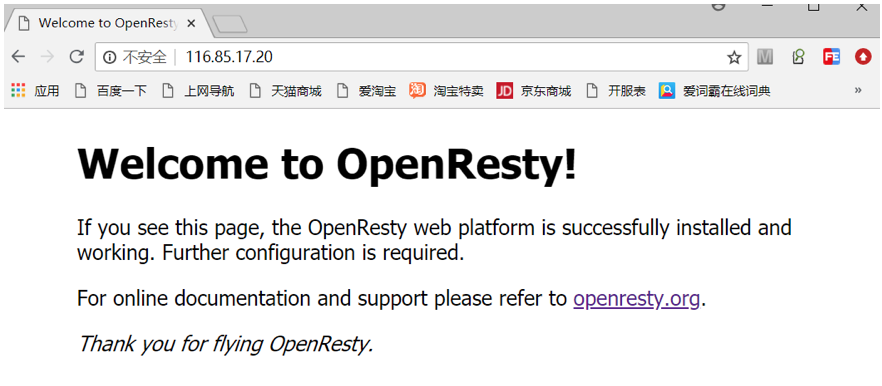
b) Windows下外网IP浏览
在浏览器里打开网址:
|
1 2 |
http://116.85.17.20 |
显示如下图所示的页面,即表示安装成功
c) 检查Lua环境是否装成功
增加配置:
vi conf/nginx.conf
user nobody;
worker_processes 2;
…
http {
|
1 2 3 4 5 6 7 8 9 10 11 12 13 14 15 16 17 |
... server { ... location = /hello_lua { add_header Content-Type text/plain; content_by_lua ' ngx.say("Hello, Lua!") '; } ... } ... |
}
热加载配置:
|
1 2 |
sbin/nginx -s reload |
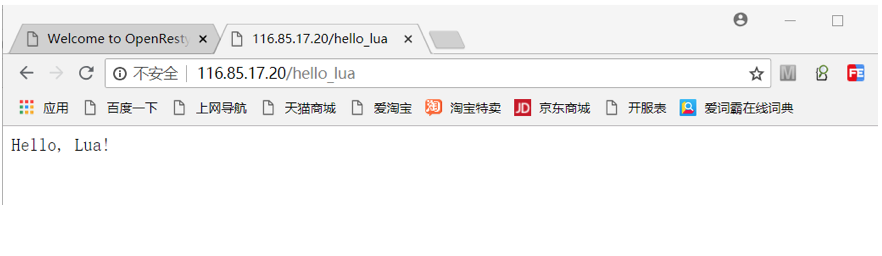
在浏览器里打开网址:
|
1 2 |
http://116.85.17.20/hello_lua |
显示如下图所示的页面,即表示 Lua 支持成功了
3.2 安装 ImageMagick
1) 安装 ImageMagick
|
1 2 |
yum -y install ImageMagick ImageMagick-devel |
2)确认安装成功
|
1 2 3 4 5 6 7 8 9 10 |
mkdir /opt/app/openresty/nginx/test cd /opt/app/openresty/nginx/test wget https://dicloud.didistatic.com/static/dicloudpub/webapp/img/login-banner.54c23bb.png mv login-banner.54c23bb.png didiyun.png convert -resize 100x100 didiyun.png didiyun_dest.png |
最后一行 “convert” 命令执行成功,即表示安装成功。
3.3 获取 Lua 的 Magick 库
1)下载 Lua 的 Magick 库
选用开源的 leafo/magick, github 地址:https://github.com/leafo/magick.git 。
|
1 2 3 4 |
cd /root/zhangjie/tools git clone https://github.com/leafo/magick.git |
2) 确认库功能正常
|
1 2 3 4 |
cd /root/zhangjie/tools/magick cp /opt/app/openresty/nginx/test/didiyun.png . |
编写测试用的 Lua 程序 image_convert_test.lua:
|
1 2 3 4 5 |
[root@10-255-0-25 magick]# cat image_convert_test.lua local magick = require("magick") magick.thumb("didiyun.png", "100x100", "didiyun_dest.png") |
执行命令:
|
1 2 |
/opt/app/openresty/luajit/bin/luajit image_convert_test.lua |
无报错并且有 “didiyun_dest.png” 文件生成,则证明库功能正常。
注意:
这里必须用 “/opt/app/openresty/luajit/bin” 目录下的检测 luajit,因为后面步骤中 Nginx 用的是此路径下的 luajit。
3)拷贝程序到 OpenResty Lua 库目录下
|
1 2 |
cp -r /root/zhangjie/tools/magick/magick /opt/app/openresty/lualib |
这样 OpenResty 查找依赖的 Lua 程序会找到。
3.4 安装 Redis
1)安装 Redis
|
1 2 |
yum -y install redis |
2) 修改 Redis 配置文件
安装完后,如果要修改 Redis 配置文件,可以编辑 redis.conf,redis.conf:
|
1 2 |
/etc/redis.conf |
这里用默认的配置就行了,不需要修改。
3) 启动 Redis Server
|
1 2 |
systemctl start redis.service |
4) 启动 Redis Client
|
1 2 3 4 5 6 7 8 9 10 11 |
[root@10-255-0-25 dc2-user]# redis-cli 127.0.0.1:6379> 127.0.0.1:6379> keys * (empty list or set) 127.0.0.1:6379> 127.0.0.1:6379> set mykey didiyun OK 127.0.0.1:6379> get mykey "didiyun" 127.0.0.1:6379> |
出现以上输出,即表示 Redis 安装成功了。
5)设置 Redis 为开机自动启动
执行:
|
1 2 |
systemctl enable redis.service |
四 编写代码
4.1 准备工作
1)修改 Nginx 日志等级
为了方便 Lua 调试输出看日志,修改 Nginx 中的日志等级,在 “nginx.conf” 中,去掉以下行配置前的注释符 “#”,去掉后为:
|
1 2 |
error_log logs/error.log info; |
2)创建图片源数据目录
图片源数据目录:
|
1 2 |
mkdir -p /opt/app/openresty/nginx/image |
拷贝图片:
|
1 2 |
cp /opt/app/openresty/nginx/test/didiyun.png /opt/app/openresty/nginx/image |
3)创建 Lua 逻辑代码目录
Lua 处理逻辑代码目录:
|
1 2 |
mkdir -p /opt/app/openresty/nginx/image_processor |
4)增加 Nginx 图片后缀识别及 Lua 程序调用配置
在 nginx.conf 的 server 域增加配置(以 png 和 jpg 两种格式为例):
|
1 2 3 4 5 |
location ~ .*\.(png|jpg)?$ { add_header Content-Type text/plain; content_by_lua_file image_processor/image_convert.lua; } |
4.2 编码
1)image_convert.lua 编写
实现了图片的裁剪,拉伸缩放和旋转三种功能。
|
1 2 3 4 5 6 7 8 9 10 11 12 13 14 15 16 17 18 19 20 21 22 23 24 25 26 27 28 29 30 31 32 33 34 35 36 37 38 39 40 41 42 43 44 45 46 47 48 49 50 51 52 53 54 55 56 57 58 59 60 61 62 63 64 65 66 67 68 69 70 71 72 73 74 75 76 77 78 79 80 81 82 83 84 85 86 87 88 89 90 |
local redis = require "resty.redis" local magick = require("magick") local redis_client = redis:new() local args = ngx.req.get_uri_args() local image_service = args['s'] ngx.log(ngx.INFO, "uri:", ngx.var.uri) ngx.log(ngx.INFO, "image service:", image_service) redis_client:set_timeout(1000) local ok,err = redis_client:connect('127.0.0.1',6379) if not ok then ngx.log(ngx.ERR, "connect redis failed!") ngx.say("connect redis failed!") ngx.exit(0) end local source = '/opt/app/openresty/nginx/image'..ngx.var.uri ngx.log(ngx.INFO, "source:", source) if image_service == nil then -- 获取原图 local file = io.open(source); local source_image = file:read("*all") file:close() ngx.log(ngx.INFO, "get source image!") ngx.say(source_image) elseif image_service == "thumb" then -- thumb 裁切(缩放) local img = assert(magick.load_image(source)) -- args local image_action = args['a'] -- get from cache local cache_key = image_service..ngx.var.uri..image_action local res, err = redis_client:get(cache_key) if getmetatable(res) ~= nil then -- cache hit ngx.log(ngx.INFO, image_service, ", cache hit! cache key: ", cache_key) ngx.say(res) ngx.exit(0) end -- cache miss local output = nil ngx.log(ngx.INFO, image_service, ", source: ", source, ", args, image action: ", image_action) -- ngx.say("start thumb...") imageblob = magick.thumb(source, image_action, output) -- set to cache redis_client:set(cache_key, imageblob) if not ok then ngx.log(ngx.ERR, "cache set failed! err:", err) else ngx.log(ngx.INFO, "cache set OK!") end -- response ngx.say(imageblob) elseif image_service == "resize" then -- 图片拉伸 -- args, 目标宽和高 local width = tonumber(args['w']) local height = tonumber(args['h']) -- source info local img = assert(magick.load_image(source)) ngx.log(ngx.INFO, "source width:", img:get_width(), "source height:", img:get_height()); ngx.log(ngx.INFO, image_service, ", arg, width:", width, ", height:", height) -- ngx.say("start resize...") img:resize(width, height) ngx.say(img:get_blob()) elseif image_service == "rotate" then -- 图片旋转 -- args, 旋转度数 local degrees = tonumber(args['d']) local img = assert(magick.load_image(source)) img:rotate(degrees) ngx.say(img:get_blob()) else ngx.say("unknow image service!") end |
注意:
a)例子中仅做了 “thumb” 处理图片的缓存,”resize” 和 “rotate” 缓存开发思路一样;
b)为了代码简洁 Redis 并未采用连接池的方式。
c)leafo/magick 库中还有很多功能,可以添加更多代码,支持更丰富的图片处理功能。
2)检查配置和重启 Nginx
检查 Nginx 配置文件,输出 “syntax is ok” 表示配置文件正确:
|
1 2 3 4 5 |
[root@10-255-0-25 nginx]# /opt/app/openresty/nginx/sbin/nginx -t nginx: the configuration file /opt/app/openresty/nginx/conf/nginx.conf syntax is ok nginx: configuration file /opt/app/openresty/nginx/conf/nginx.conf test is successful |
重启 Nginx:
|
1 2 |
sbin/nginx -s reload |
4.3 Url 中 Query 参数说明
| 服务名 | 参数 | 参数说明 |
| 无 | 无 | 不填任何参数表示获取原图 |
| thumb | a | 动作, 如:”64×64!”, “500×300%2B50%2B120″(即”500×300+50+120″,URL中“+”需要转义) |
| resize | w | 图片的目标宽度 |
| h | 图片的目标高度 | |
| rotate | d | 图片旋转的度数 |
五 例子
5.1 测试并使用
在浏览器先后打开网址:
|
1 2 3 4 5 6 |
http://116.85.17.20/didiyun.png http://116.85.17.20/didiyun.png?s=thumb&a=64x64! http://116.85.17.20/didiyun.png?s=thumb&a=500x300%2B50%2B120 http://116.85.17.20/didiyun.png?s=resize&w=800&h=800 http://116.85.17.20/didiyun.png?s=rotate&d=90 |
即能看到原图、裁切、缩放和旋转的效果。
注意:
若页面出现报错,可以看 Nginx 的 error.log 日志排查和解决。
六 参考资料
参考网址:
http://www.imagemagick.org
https://github.com/leafo/magick
http://openresty.org/cn
本文作者:张杰
