关键词:Android 、CI、Runner、GitLab、fastlane
最新版 GitLab 已经集成 GitLab CI,可以通过 GitLab Runner 执行相关任务并将执行结果返回给 GitLab。
GitLab CI 与 Runner 的关系?
GitLab 每一个项目都自带一个 GitLab CI 系统,而 GitLab Runner 就是配合 GItLab CI 执行任务存在的。例如一个项目默认分支 push 了 commit,GitLab CI 就会收到通知,然后根据配置下发任务给指定的 Runner,Runner 执行完毕再将结果反馈给 CI。一个项目对应一个 CI,一个 CI 可对应多个 Runner。
fastlane 主要提供一种简单的方式,来自动化实现测试部署、发布 iOS 和 Android App。
配置 fastlane
安装和初始化
确保 Xcode 命令行工具已安装
xcode-select --install
先安装
sudo gem install fastlane -NV
进入到项目根目录后,初始化
fastlane init
之后 fastlane 会开始预处理,并要求回答三个问题。主要是第一个问题,输入项目包名,后面第二个问题直接按回车键,第三个问题按 n 键即可快速完成。
如果没有配置过 ANDROID_HOME 环境变量,请先配置(~/.bashrc,~/.bash_profile,~/.profile 或者 ~/.zshrc)
export ANDROID_HOME=/Users/***/Library/Android/sdk
export PATH=$ANDROID_HOME:$PATH
编写 Fastlane
初始化执行完成后,fastlane 会在当前项目根目录创建 ./fastlane 目录,里面最重要的就是 fastlane/Fastfile 文件,它主要用于定义 fastlane 需要如何执行任务。
Fastlane 可以定义一些 lanes,类似任务。
示例:
lane :beta do
  # 执行 gradle 命令
  gradle(task: "clean assembleRelease")
  # 使用 slack 通知
  slack(
    slack_url: "https://hooks.slack.com/services/***/***",
    message: "message."
  )
end
上述片段定义了一个 beta lane,用于执行 gradle 命令并使用 slack 通知。
然后执行:
fastlane beta
fastlane 便会根据 Fastlane 里配置的 lane 执行。
错误处理:
error do |lane, exception, options|
  slack(
    slack_url: "https://hooks.slack.com/services/***/***",
    message: "failure.",
    success: false,
    payload: { "Error Info" => exception.error_info.to_s }
  )
end
最佳实践
- 配置编码环境
根据使用系统的 shell profile,~/.bashrc,~/.bash_profile,~/.profile 或者 ~/.zshrc
export LC_ALL=en_US.UTF-8
export LANG=en_US.UTF-8
- 使用 Gemfile
- 运行
[sudo] bundle update然后添加./Gemfile和./Gemfile.lock文件至版本库 - 每次运行 fastlane,使用
bundle exec fastlane [lane]命令 - 在使用 CI 时,第一步先运行
[sudo] bundle install命令 - 更新 fastlane,使用
[sudo] bundle update fastlane命令即可
- 版本控制
将以下文件添加到版本控制忽略文件内(如 .gitignore)
fastlane/report.xml
fastlane/Preview.html
fastlane/screenshots
fastlane/test_output
fastlane/README.md
配置 GitLab Runner
安装 GitLab Runner(macOS)
- 下载二进制文件
sudo curl --output /usr/local/bin/gitlab-runner https://gitlab-runner-downloads.s3.amazonaws.com/latest/binaries/gitlab-runner-darwin-amd64
- 赋予执行权限
sudo chmod +x /usr/local/bin/gitlab-runner
注册 GitLab Runner(macOS)
在注册一个 Runner 之前,先要获得 token。
两种类型 Runner 的区别?
GitLab Runner 有专用 Runner 和共享 Runner 两种类型。共享 Runner 是 GitLab 提供的,无需自行安装注册就能使用,但可能需要排队等待,而且有使用限制。专用 Runner 是由用户自行安装注册的,可以项目专用,也可以多项目共享使用,可以看作私有 Runner。
在对应 Project -> Settings -> CI / CD -> Runners -> Specific Runners 里可以找到
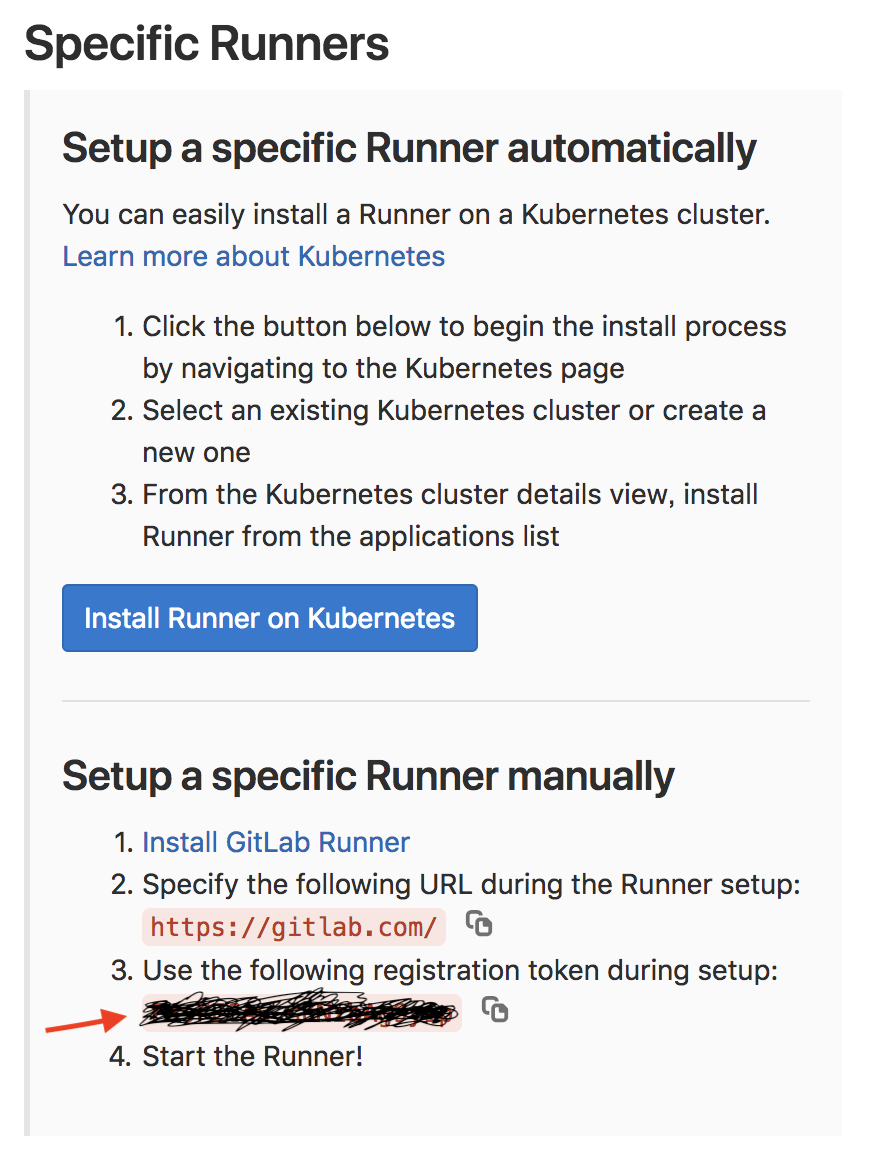
下面注册流程要用
- 执行一下命令
gitlab-runner register
- 输入 GitLab 实例 URL
Please enter the gitlab-ci coordinator URL (e.g. https://gitlab.com )
https://gitlab.com
- 输入刚刚获取的 token
Please enter the gitlab-ci token for this runner
xxx
- 输入 Runner 的描述
Please enter the gitlab-ci description for this runner
[hostame] android-runner
- 输入 Runner tags
Tags 主要用于区别不同任务,不同环境等
Please enter the gitlab-ci tags for this runner (comma separated):
my-tag,another-tag
- 输入 Runner 执行方式
Please enter the executor: ssh, docker+machine, docker-ssh+machine, kubernetes, docker, parallels, virtualbox, docker-ssh, shell:
shell
安装并启动服务
cd ~
gitlab-runner install
gitlab-runner start
Runner 已经安装完成,在系统重启之后将会运行。
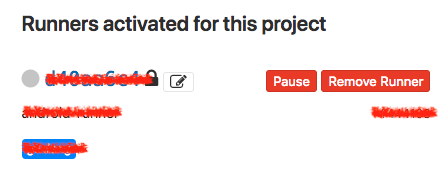
运行之后就能在刚刚获得 token 的页面下方看到 Runner 实例了。
配置 GitLab CI
官方文档:Configuration of your jobs with .gitlab-ci.yml | GitLab
GItLab CI 的行为由配置文件 .gitlab-ci.yml 控制,该文件位于项目根目录下。
# 定义全局变量
# 指定网络代理
variables:
  http_proxy: "http://127.0.0.1:port"
  https_proxy: "http://127.0.0.1:port"
  LC_ALL: "en_US.UTF-8"
  LANG: "en_US.UTF-8"

# 预先执行脚本
before_script:
  - bundle install

# 定义任务执行阶段
# 在这里仅执行 beta 任务
stages:
  - beta

# build job
beta:
  stage: beta # 指定任务阶段
  tags: # 指定执行任务的 Runner
    - my-tag
  only: # 仅 git tag 更新时执行任务
    - tags
  script: # 任务执行脚本,运行 fastlane
    - bundle exec fastlane beta
  artifacts: # 任务构建输出,指定需要保留的文件,之后可以在 GitLab Web 端下载
    paths:
      - app/build/outputs/
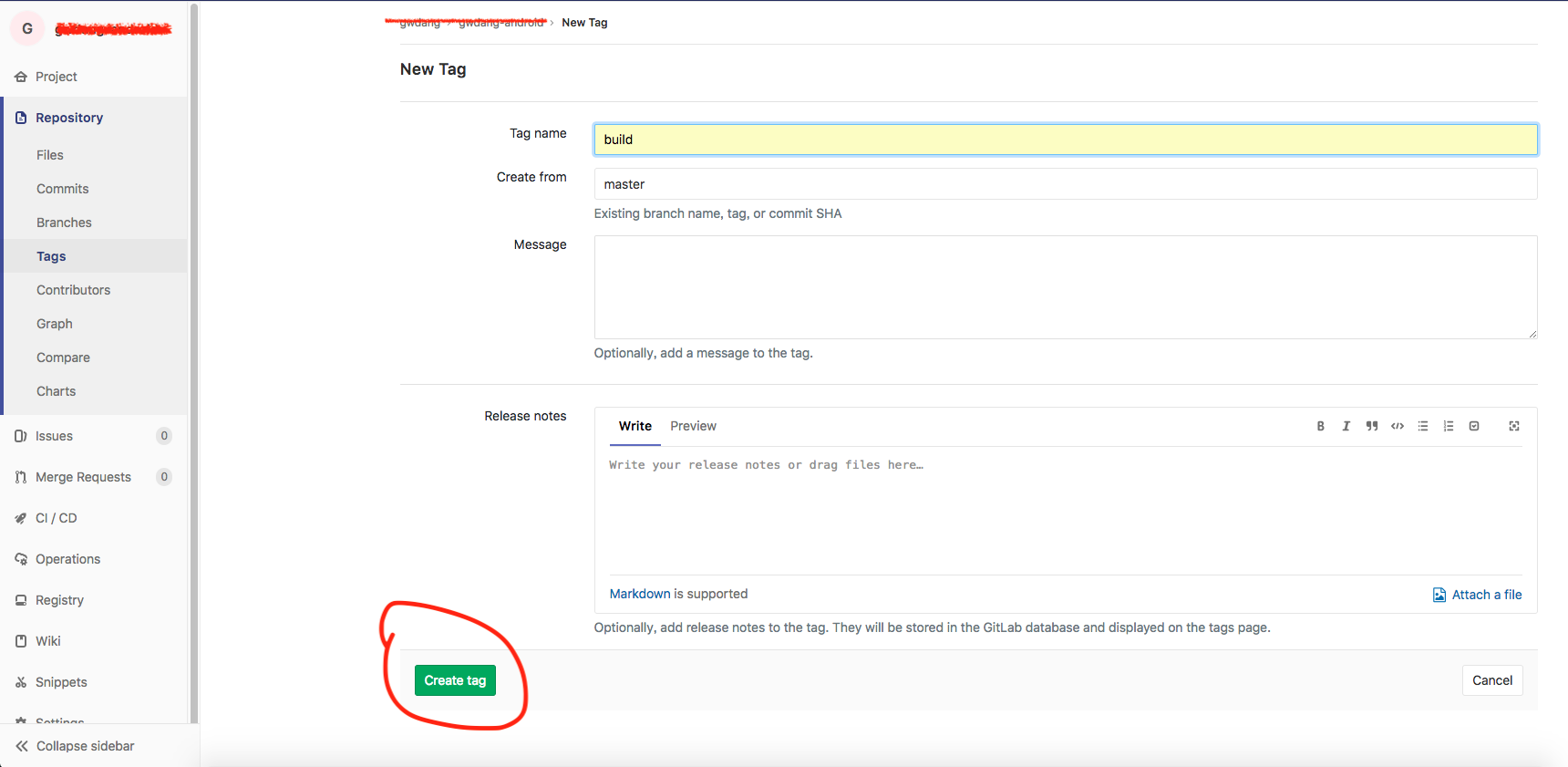
配置文件编写完后,推送到 GitLab,从 GitLab Web 端创建一个 tag,CI 就会自动运行了。
测试效果
-
新建一个 Tag
-
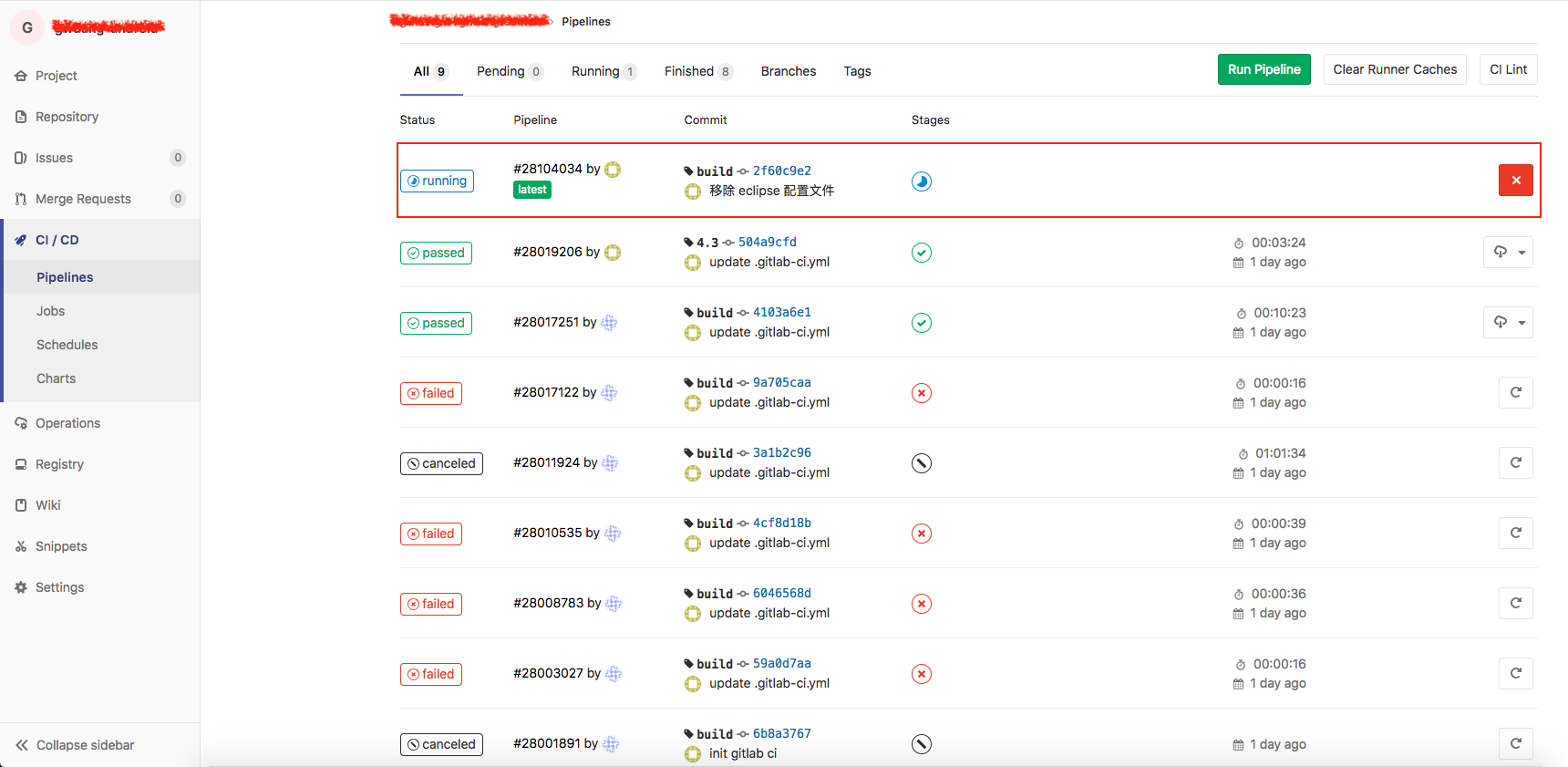
CI 就会自动运行了
-
等待任务执行完毕,就可以下载到构建输出文件了