

MVP介绍
- MVP 即Model-View-Presenter
- Model:这一层主要是处理具体的业务逻辑
- View:View主要负责UI层数据展示,用户交互,和MVC里边的View含义基本一直,Activity、Fragment和xml,都属于View层,一般负责加载UI,具体的操作由其持有的Prosenter去处理。
- Presenter:连接Model层和View层,View层的指令经由Presenter发给Model层去处理,然后再将Model处理完的东西反馈给View,
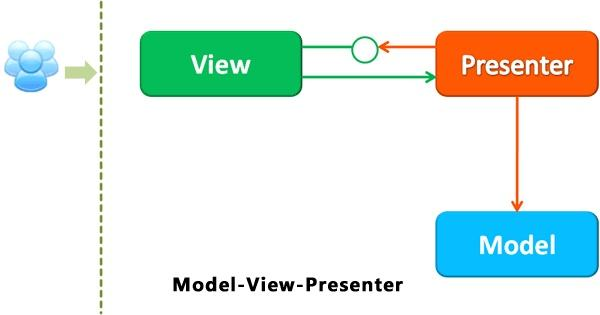
MVP有什么优点?
可以更好的将业务逻辑和UI剥离开,松散耦合,Activity和Fragment的View层只负责UI的展示,其他无关的东西全都交由Presenter完成。
MVP模式的代码实现
View interface主要是为了给Presenter提供更新UI的方法
/**
 * Created with Android Studio.
 *
 * @author Kimger
 * @email kimger@onetos.cc
 * @date 2018-7-12  20:04
 */
public interface MvpView {
    void showLoading();
    void hideLoading();
    void showData(String data);
    void showFailureMessage(String msg);
    void showErrorMessage(String msg);
}
Callback 主要是为了把Model处理完的数据和事件回调给Presenter,然后由Presenter去通知UI更新
/**
 * Created with Android Studio.
 *
 * @author Kimger
 * @email kimger@onetos.cc
 * @date 2018-7-12  20:00
 */
public interface MvpCallback {
    void onSuccess(String data);
    void onFail(String failMsg);
    void onError(String errorMsg);
    void onComplete();
}
Model处理具体的数据操作,比如查询数据库,网络请求等...
/**
 * Created with Android Studio.
 *
 * @author Kimger
 * @email kimger@onetos.cc
 * @date 2018-7-12  20:01
 */
public class MvpModel {
    /**
     * 模拟获取网络接口数据
     * @param param 请求参数
     * @param callback 数据回调结构
     */
    public static void TestHttp(final String param, final MvpCallback callback){
        new Handler().postDelayed(new Runnable() {
            @Override
            public void run() {
                if ("success".equals(param)){
                    callback.onSuccess("请求的网络数据成功!!");
                    return;
                }else if ("fail".equals(param)){
                    callback.onFail("请求的网络数据失败!!");
                    return;
                }else if ("error".equals(param)){
                    callback.onError("错误!!");
                    return;
                }
                callback.onComplete();
            }
        },5000);
    }

}
Presetner负责沟通View和Model,完成Model数据向View的更新,以及View的命令向Model的执行
/**
 * Created with Android Studio.
 *
 * @author Kimger
 * @email kimger@onetos.cc
 * @date 2018-7-12  20:06
 */
public class MvpPresenter {
    private MvpView mView;

    public MvpPresenter(MvpView view) {
        mView = view;
    }
    public void getData(String params){
        //显示正在加载进度条
        mView.showLoading();
        //调用Model请求数据
        MvpModel.TestHttp(params, new MvpCallback() {
            @Override
            public void onSuccess(String data) {
                mView.showData(data);
                mView.hideLoading();
            }

            @Override
            public void onFail(String msg) {
                mView.showFailureMessage(msg);
                mView.hideLoading();
            }

            @Override
            public void onError(String msg) {
                mView.showErrorMessage(msg);
                mView.hideLoading();
            }

            @Override
            public void onComplete() {
                mView.hideLoading();
            }
        });
    }
}
然后是Acitivity的相关操作,也就是实际UI层操作,这里需要去实现之前定义的MVPView的接口,方便Presetner去通知View层的UI更新操作
public class MainActivity extends AppCompatActivity implements MvpView{
    private PopupWindow mPopupWindow;
    private TextView text;
    private MvpPresenter mMvpPresenter;
    private AnimationDrawable mDrawable;
    private View mPopView;
    private ImageView mImageView;

    @Override
    protected void onCreate(Bundle savedInstanceState) {
        super.onCreate(savedInstanceState);
        setContentView(R.layout.activity_main);
        text = findViewById(R.id.text);
        mPopupWindow = new PopupWindow(this);
        mPopView = LayoutInflater.from(this).inflate(R.layout.pop_view, null);
        mPopupWindow.setContentView(mPopView);
        mImageView = mPopView.findViewById(R.id.imageView);
        mDrawable = (AnimationDrawable) mImageView.getDrawable();
        mMvpPresenter = new MvpPresenter(this);

    }

    public void getData(View view){
        mMvpPresenter.getData("success");
    }
    public void getDataForFailure(View view){
        mMvpPresenter.getData("fail");
    }
    public void getDataForError(View view){
        mMvpPresenter.getData("error");
    }

    @Override
    public void showLoading() {
        if (mPopupWindow != null) {
            mPopupWindow.showAtLocation(getWindow().getDecorView(), Gravity.TOP|Gravity.LEFT,getScreenWidth(this)
                            /2-50,
                    getScreenHeight(this)/2);
            mDrawable.start();

        }
    }

    @Override
    public void hideLoading() {
        if (mPopupWindow != null) {
            mDrawable.stop();
            mPopupWindow.dismiss();
        }
    }

    @Override
    public void showData(String data) {
        text.setText(data);
    }

    @Override
    public void showFailureMessage(String msg) {
        Toast.makeText(this, msg, Toast.LENGTH_SHORT).show();
        text.setText(msg);
    }

    @Override
    public void showErrorMessage(String msg) {
        Toast.makeText(this, "网络请求出现异常", Toast.LENGTH_SHORT).show();
        text.setText("网络请求出现异常");
    }

    /**
     * 获取屏幕高度(px)
     */
    public static int getScreenHeight(Context context) {
        DisplayMetrics displayMetrics = context.getResources().getDisplayMetrics();
        return displayMetrics.heightPixels;
    }
    /**
     * 获取屏幕宽度(px)
     */
    public static int getScreenWidth(Context context) {
        DisplayMetrics displayMetrics = context.getResources().getDisplayMetrics();
        return displayMetrics.widthPixels;
    }

}
acitivity 的layout文件
<?xml version="1.0" encoding="utf-8"?>
<RelativeLayout
    xmlns:android="http://schemas.android.com/apk/res/android"
    xmlns:tools="http://schemas.android.com/tools"
    android:layout_width="match_parent"
    android:layout_height="match_parent"
    tools:context=".MainActivity"
    android:orientation="vertical">

    <TextView
        android:id="@+id/text"
        android:layout_width="match_parent"
        android:layout_height="match_parent"
        android:text="操作执行结果"/>
    <LinearLayout
        android:gravity="center_horizontal"
        android:layout_alignParentBottom="true"
        android:layout_width="match_parent"
        android:layout_height="wrap_content"
        android:orientation="vertical">
        <Button
            android:onClick="getData"
            android:text="获取网络数据成功"
            android:layout_width="match_parent"
            android:layout_height="wrap_content"/>
        <Button
            android:onClick="getDataForFailure"
            android:text="获取数据失败"
            android:layout_width="match_parent"
            android:layout_height="wrap_content"/>
        <Button
            android:text="获取数据异常"
            android:onClick="getDataForError"
            android:layout_width="match_parent"
            android:layout_height="wrap_content"/>
    </LinearLayout>

</RelativeLayout>
