概要:本文通过示例,讲解了 NET Core2.0 静态文件目录的相关知识,并附带解析,适合新手,并附带了完整的项目代码。(项目通过 vs2017 初始化的 ASP.NET Core 应用程序,之后选择***空项目***)
示例代码
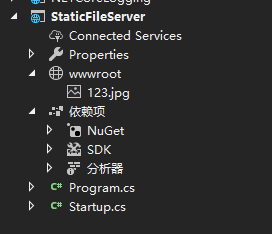
项目结构
program.cs文件
using System;
using System.Collections.Generic;
using System.IO;
using System.Linq;
using System.Threading.Tasks;
using Microsoft.AspNetCore;
using Microsoft.AspNetCore.Hosting;
using Microsoft.Extensions.Configuration;
using Microsoft.Extensions.Logging;

namespace StaticFileServer
{
    public class Program
    {
        public static void Main(string[] args)
        {
            BuildWebHost(args).Run();
        }

        public static IWebHost BuildWebHost(string[] args) =>
            WebHost.CreateDefaultBuilder(args)
                .UseKestrel()
                .UseContentRoot(Directory.GetCurrentDirectory())  // 设置当前目录的内容
                .UseIISIntegration()
                .UseUrls("http://*:5000") // 使 项目在 5000端口被访问
                .UseStartup<Startup>()
                .Build();
    }
}
Startup.cs 文件
using System;
using System.Collections.Generic;
using System.Linq;
using System.Threading.Tasks;
using Microsoft.AspNetCore.Builder;
using Microsoft.AspNetCore.Hosting;
using Microsoft.AspNetCore.Http;
using Microsoft.AspNetCore.StaticFiles;
using Microsoft.Extensions.DependencyInjection;
using Microsoft.Extensions.FileProviders;

namespace StaticFileServer
{
    public class Startup
    {
        // This method gets called by the runtime. Use this method to add services to the container.
        // For more information on how to configure your application, visit https://go.microsoft.com/fwlink/?LinkID=398940
        public void ConfigureServices(IServiceCollection services)
        {

        }

        // This method gets called by the runtime. Use this method to configure the HTTP request pipeline.
        public void Configure(IApplicationBuilder app, IHostingEnvironment env)
        {
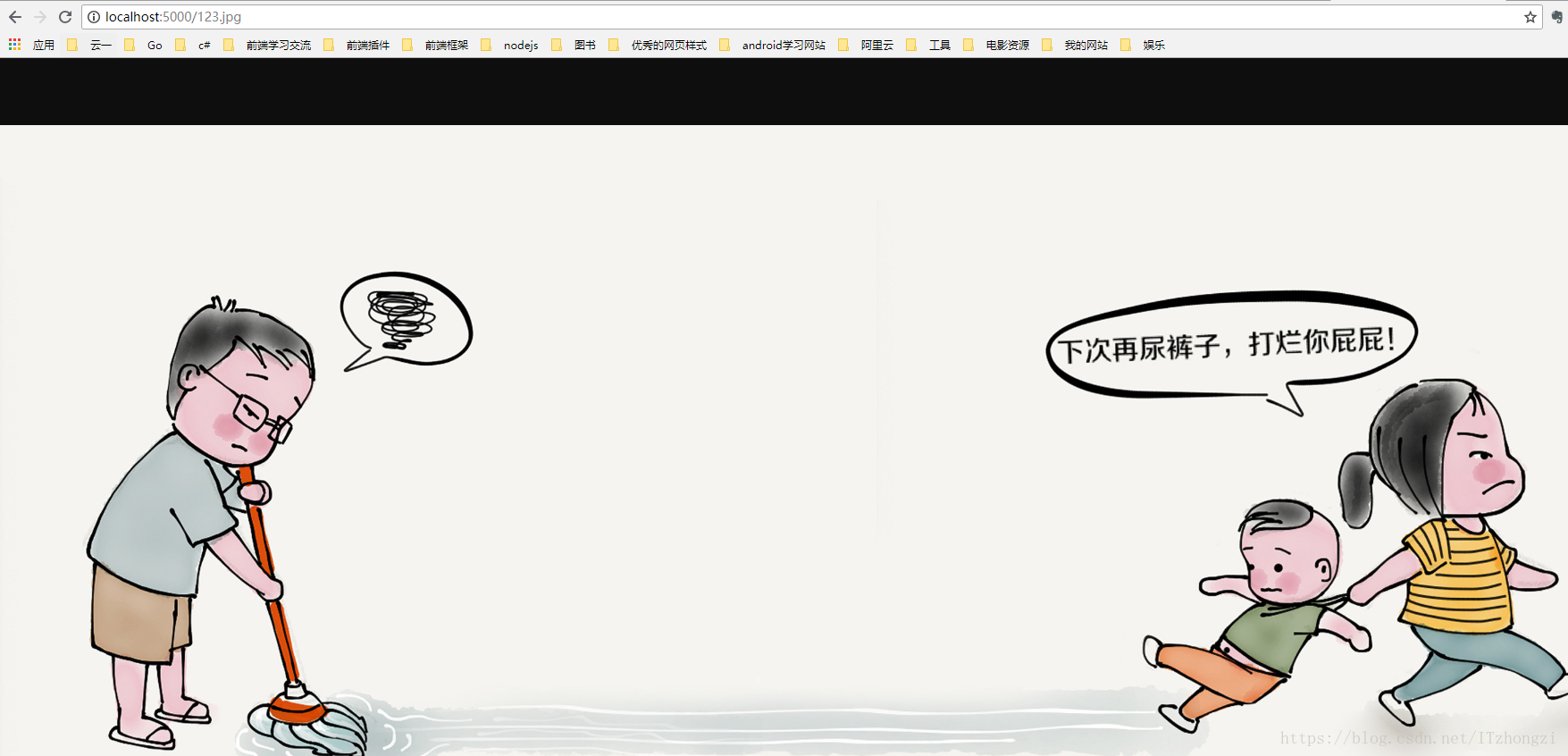
            app.UseStaticFiles(); // 使用默认文件夹 wwwroot 仅仅shi wwwroot对外可见

            app.Run(async (context) =>
            {
                await context.Response.WriteAsync("hello jesus");
            });
        }
    }
}
 // This method gets called by the runtime. Use this method to configure the HTTP request pipeline.
        public void Configure(IApplicationBuilder app, IHostingEnvironment env)
        {
            var staticfile = new StaticFileOptions();
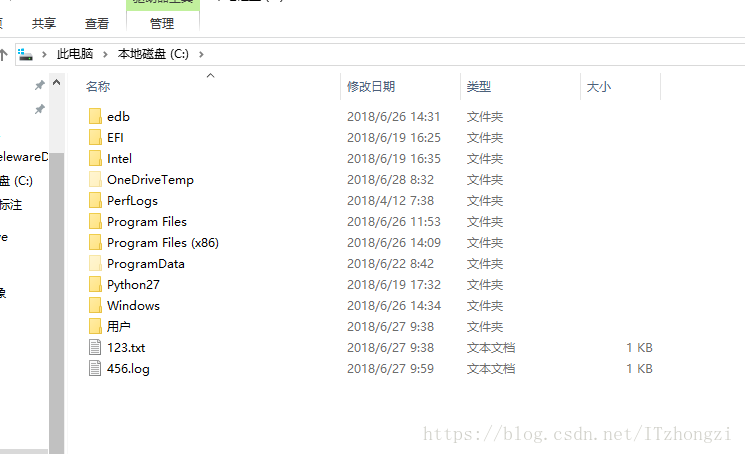
            staticfile.FileProvider = new PhysicalFileProvider(@"C:\"); // 指定目录,这里指的是C盘,也可以指定其他目录
            app.UseStaticFiles(staticfile);  // 使用默认文件夹 wwwroot 仅仅shi wwwroot对外可见

            app.Run(async (context) =>
            {
                await context.Response.WriteAsync("hello jesus");
            });
        }
// This method gets called by the runtime. Use this method to configure the HTTP request pipeline.
        public void Configure(IApplicationBuilder app, IHostingEnvironment env)
        {
            var staticfile = new StaticFileOptions();
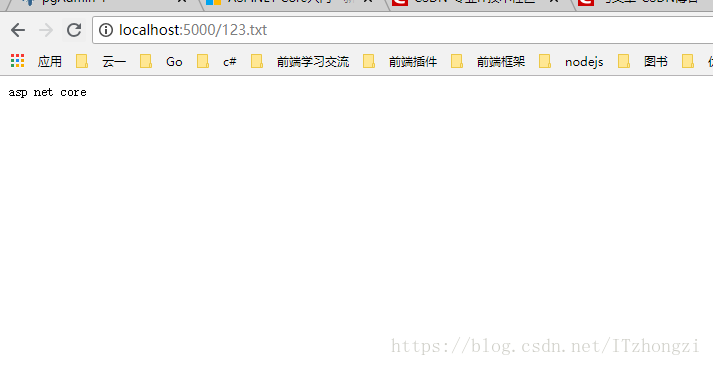
            staticfile.FileProvider = new PhysicalFileProvider(@"C:\"); // 指定目录,这里指的是C盘,也可以指定其他目录

                // 设置 对应的文件类型(防止Mime type没事别出来,打不开或出现404错误)
                staticfile.ServeUnknownFileTypes = true;
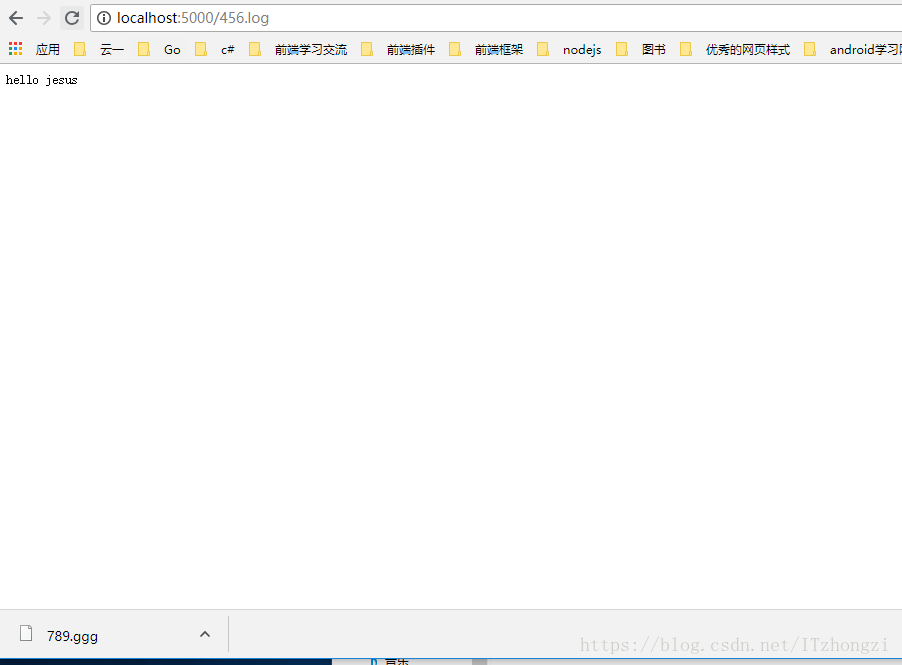
                staticfile.DefaultContentType = "application/x-msdownload";// 设置默认 MIME TYPE
                var provider = new FileExtensionContentTypeProvider();
                provider.Mappings.Add(".log", "text/plain"); // 手动设置对应的 MIME TYPE
                staticfile.ContentTypeProvider = provider;

            app.UseStaticFiles(staticfile); // 使用默认文件夹 wwwroot 仅仅shi wwwroot对外可见
            // 设置 指定目录的文件 可以被访问 end

            app.Run(async (context) =>
            {
                await context.Response.WriteAsync("hello jesus");
            });
        }
 public void ConfigureServices(IServiceCollection services)
        {
            services.AddDirectoryBrowser(); // 使目录可以被浏览 (浏览所有的文件以及文件夹)
        }
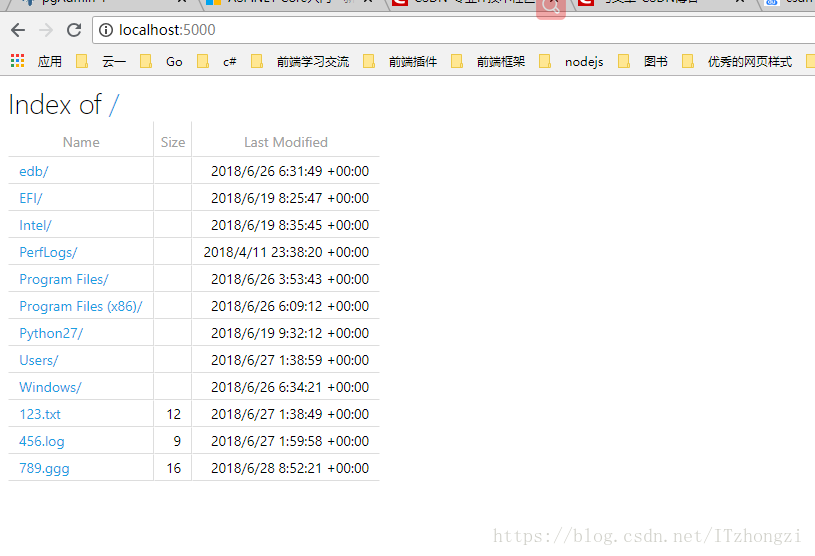
在Configure 函数中增加 中间键 和 具体的目录,在这里我们让 c盘下的所有目录可以被访问
 // 设置 目录可浏览  start
            var dir = new DirectoryBrowserOptions();
            dir.FileProvider = new PhysicalFileProvider(@"C:\");
            app.UseDirectoryBrowser(dir);
            // 设置 目录可浏览  end
这样我们就可以访问c盘中的任意目录了,效果如下:
Startup.cs 文件最终代码如下:
using System;
using System.Collections.Generic;
using System.Linq;
using System.Threading.Tasks;
using Microsoft.AspNetCore.Builder;
using Microsoft.AspNetCore.Hosting;
using Microsoft.AspNetCore.Http;
using Microsoft.AspNetCore.StaticFiles;
using Microsoft.Extensions.DependencyInjection;
using Microsoft.Extensions.FileProviders;

namespace StaticFileServer
{
    public class Startup
    {
        // This method gets called by the runtime. Use this method to add services to the container.
        // For more information on how to configure your application, visit https://go.microsoft.com/fwlink/?LinkID=398940
        public void ConfigureServices(IServiceCollection services)
        {
            services.AddDirectoryBrowser(); // 使目录可以被浏览 (浏览所有的文件以及文件夹)
        }

        // This method gets called by the runtime. Use this method to configure the HTTP request pipeline.
        public void Configure(IApplicationBuilder app, IHostingEnvironment env)
        {
            // 设置 目录可浏览  start
            var dir = new DirectoryBrowserOptions();
            dir.FileProvider = new PhysicalFileProvider(@"C:\");
            app.UseDirectoryBrowser(dir);
            // 设置 目录可浏览  end

            // 设置 指定目录的文件 可以被访问 start
            var staticfile = new StaticFileOptions();
            staticfile.FileProvider = new PhysicalFileProvider(@"C:\"); // 指定目录,这里指的是C盘,也可以指定其他目录

                // 设置 对应的文件类型(防止Mime type没事别出来,打不开或出现404错误)
                staticfile.ServeUnknownFileTypes = true;
                staticfile.DefaultContentType = "application/x-msdownload";// 设置默认 MIME TYPE
                var provider = new FileExtensionContentTypeProvider();
                provider.Mappings.Add(".log", "text/plain"); // 手动设置对应的 MIME TYPE
                staticfile.ContentTypeProvider = provider;

            app.UseStaticFiles(staticfile); // 使用默认文件夹 wwwroot 仅仅shi wwwroot对外可见
            // 设置 指定目录的文件 可以被访问 end

            app.Run(async (context) =>
            {
                await context.Response.WriteAsync("hello jesus");
            });
        }
    }
}