

vue实践06-项目实践
vue-cli创建项目
项目采用Webpack+Vue-router的架构方式,在命令行中,进入项目目录,使用npm install 安装package.json里项目的依赖包。如果你网速较慢的话,可以使用淘宝镜像的cnpm来进行安装。 查看是否安装正确。在命令行中输入 npm run dev ,如果能在浏览器中正常打开页面,说明安装正确。
mkdir myPos
cd myPos
vue init webpack
cnpm install
npm run dev
本博客代码所在github:https://github.com/dumingcode/myPos.git
编写独立的侧边栏导航组件
这节课我们要快速撸一个侧边栏组件出来。组件的作用就是在可以复用,想在那个页面使用都可以,并且像写html标签一样简单。
建立leftNav.vue文件:
我们在src/components目录下,先新建一个common和page文件夹。
- common文件夹用来放共用组件,下面写的leftNav.vue组件就放到这里。
- page文件夹用来放我们的页面模板组件,页面的模板文件放到这里。 在common文件夹下,新建leftNav.vue文件。 开始动手写代码: 建立好文件后,我们先给components来个基本组件结构,你可以复制粘贴也可以手写。
<template>
  <div class="left-nav">

  </div>
</template>

<script>
export default {
  name: 'leftNav',
  data () {
    return {
    }
  }
}
</script>
<style>

</style>
开始写html结构,我们用列表li来代表导航。菜单栏有收银、店铺、商品、会员、统计。我们编写的html结构如下
<template>
  <div class="left-nav">
 <ul>
        <li>
            <i class="icon iconfont icon-wodezichan"></i>
            <div>收银</div>
        </li>

        <li>
            <i class="icon iconfont icon-dianpu"></i>
            <div>店铺</div>
        </li>

        <li>
            <i class="icon iconfont icon-hanbao"></i>
            <div>商品</div>
        </li>

         <li>
            <i class="icon iconfont icon-huiyuanqia"></i>
            <div>会员</div>
        </li>


        <li>
            <i class="icon iconfont icon-tongji"></i>
            <div>统计</div>
        </li>
</ul>
  </div>
</template>
注意:这里你也许和我使用的图标不一样,请自行改成你图标用的代码,不要无脑拷贝,图标会显示不出来。
components(组件)基本结构写好后,开始动手写CSS样式,让我们的组件变的好看。
<style>
    .left-nav{
       color:#fff;
       font-size:10px;
       height:100%;
       background-color: #1D8ce0;
       float:left;
       width:5%;
    }
    .iconfont{
       font-size:24px;
    }
    .left-nav ul{
        padding:0px;
        margin: 0px;
    }
    .left-nav li{
        list-style: none;
        text-align: center;
        border-bottom:1px solid #20a0ff;
        padding:10px;
    }
</style>
编写完CSS样式,这个组件算是大体写好了,以后根据需求我们会在组件里添加标签。但是现在还没有这个需求,所以暂时不添加。
把leftNav组件放到模板中,先用import在App.vue中引入leftNav组件。
import leftNav from '@/components/common/leftNav'
引入后在vue的构造器里添加components属性,并放入我们的leftNav组件
export default {
  name: 'App',
   components:{
    leftNav
  }
}
这样组件就算在也页面引入成功了,接下来我们就可以在<template>区域里愉快的使用它(<leftNav></leftNav>)。App.vue全部代码如下所示:
<template>
  <div id="app">
    <!--左侧导航-->

        <leftNav></leftNav>

    <!--操作区域-->
    <div class="main">
      <router-view></router-view>
    </div>
  </div>
</template>


<script>
import leftNav from '@/components/common/leftNav'
export default {
  name: 'App',
   components:{
    leftNav
  }
}
</script>

<style>
#app {
  font-family: 'Microsoft YaHei','Avenir', Helvetica, Arial, sans-serif;
  -webkit-font-smoothing: antialiased;
  -moz-osx-font-smoothing: grayscale;
  text-align: left;
  color: #2c3e50;
   height:100%;
}

.main{
  float:left;
  width:95%;
  background-color: #EFF2F7;
  height:100%;
  overflow: auto;

}
</style>
使用Element ui
Element是一套为开发者、设计师和产品经理准备的基于Vue2.0的组件库,提供了配套设计资源,帮助你的网站快速成型。其实还有另外一套类似的ui组件iview。
- 安装element
cnpm install element-ui --save - 完整引入element 在main.js文件中添加代码如下:
// The Vue build version to load with the `import` command
// (runtime-only or standalone) has been set in webpack.base.conf with an alias.
import Vue from 'vue'
import App from './App'
import router from './router'
import ElementUI from 'element-ui'
import 'element-ui/lib/theme-default/index.css'

Vue.config.productionTi
Vue.use(ElementUI)

/* eslint-disable no-new */
new Vue({
    el: '#app',
    router,
    components: { App },
    render: h => h(App),
    template: '<App/>'
})
以上代码便完成了Element的引入。需要注意的是,样式文件需要单独引入。
3. 用Element的el-row的布局
在Pos.vue里添加模版布局:
<template>
  <div class="pos">
    <div>
        <el-row >
            <el-col :span='7'>
            我是订单栏
            </el-col>
            <!--商品展示-->
            <el-col :span="17">
             我是产品栏
            </el-col>
        </el-row>
    </div>
  </div>
</template>

<script>
export default {
  name: 'Pos',
  data () {
    return {
    }
  }
}
</script>
<style scoped>
</style>
- 解决100%高的问题 在页面中使用了Element组件,这样他会自动给我们生产虚拟DOM,我们无法设置高度100%; 这时候可以利用javascript,来设置100%高度问题。先要给我们的标签上添加一个id,我们这里把ID设置为 order-list。然后在vue构造器里使用mounted钩子函数来设置高度。
 mounted:function(){
      var orderHeight=document.body.clientHeight;
      document.getElementById("order-list").style.height=orderHeight+'px';
  }
- vue文件格式化(美观)
我是利用vscode IDE 开发的,提供一个格式化vue文件的方法。
1.安装 vetur
2.在User Setting中增加设置:
"vetur.format.defaultFormatter.html": "js-beautify-html"
3.搞定
格式化快捷键:Alt+Shift+F
利用Element快速布局
el-tabs标签页组件
用Element里提供的el-tabs组件可以快速制作我们的tabs标签页效果,具体使用方法可以到Element的官网查看API。 基本用法很简单,可以直接在模板中引入标签,标签里边用来代表每个每个标签页。
<el-tabs>
      <el-tab-pane label="点餐">
       点餐
      </el-tab-pane>
      <el-tab-pane label="挂单">
      挂单
      </el-tab-pane>
      <el-tab-pane label="外卖">
      外卖
     </el-tab-pane>
</el-tabs>
el-table组件制作表格
需要在点餐的tab标签页里放入表格,把点选的食品放入到待结账列表里,可以使用Element的内置组件el-table。如果你对el-table不了解, 可以去Element官网去查看一下。我这里不作太多的解释,先把代码贴过来,然后根据代码在讲解。
<el-table :data="tableData" border show-summary style="width: 100%" >

    <el-table-column prop="goodsName" label="商品"  ></el-table-column>
    <el-table-column prop="count" label="量" width="50"></el-table-column>
    <el-table-column prop="price" label="金额" width="70"></el-table-column>
    <el-table-column  label="操作" width="100" fixed="right">
        <template scope="scope">
            <el-button type="text" size="small">删除</el-button>
            <el-button type="text" size="small">增加</el-button>

        </template>
    </el-table-column>
</el-table>
采用了五列布表格, 在第1行中的:data是用来绑定数据源的, border代表表格有边框效果。 tableData中的值为方便取数,暂时写成固定的,代码如下:
  data() {
    return {
      tableData: [
        {
          goodsName: "可口可乐",
          price: 8,
          count: 1
        },
        {
          goodsName: "香辣鸡腿堡",
          price: 15,
          count: 1
        },
        {
          goodsName: "爱心薯条",
          price: 8,
          count: 1
        },
        {
          goodsName: "甜筒",
          price: 8,
          count: 1
        }
      ]
    };
  }
此时可以运行npm run dev看下运行效果。
el-button 按钮组件
需要在点餐表格的下方放入三个功能性按钮,分别是挂单按钮、删除按钮、结账按钮。同样使用Element里的组件,进行快速写入。el-button 的type属性是设置按钮样式的,为了学些和区分我们这里用三个属性来设置按钮。
<el-button type="warning" >挂单</el-button>
<el-button type="danger" >删除</el-button>
<el-button type="success" >结账</el-button>
到这里我们左边最重要的订单操作区域就布局完成了,接下来我们布局右侧的商品布局。
利用Element快速布局之二
先给出完成布局之后的页面效果,引用技术胖老师博客的图片。
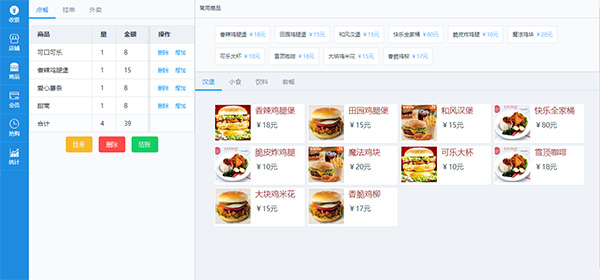
常用商品区域布局
在<el-col :span=17>标签里增加一个层,然后在层内进行布局。因为里边的商品实际意义上是列表,所以用无序列表<li>来布局商品。贴出布局的html代码。
<div class="often-goods">
    <div class="title">常用商品</div>
    <div class="often-goods-list">

        <ul>
            <li>
                <span>香辣鸡腿堡</span>
                <span class="o-price">¥15元</span>
            </li>

        </ul>
    </div>
</div>
有了基本html结构后,需要增加一些css样式来美化页面:
 .title{
       height: 20px;
       border-bottom:1px solid #D3DCE6;
       background-color: #F9FAFC;
       padding:10px;
   }
   .often-goods-list ul li{
      list-style: none;
      float:left;
      border:1px solid #E5E9F2;
      padding:10px;
      margin:5px;
      background-color:#fff;
   }
  .o-price{
      color:#58B7FF;
   }
为了页面更逼近真实效果,我们在Vue的构造器里临时加一个数组,用作常用商品使用。声明的变量叫oftenGoods。for循环代码如下:
  <el-col :span="17">
          <div class="often-goods">
            <div class="title">常用商品</div>
              <div v-for="item in oftenGoods" class=" often-goods-list ">

                <ul>
                <li>
                  <span>{{ item.goodsName }}</span>
                  <span class="o-price ">¥{{ item.price }}元</span>
                </li>
                </ul>

            </div>
          </div>
        </el-col>
often-goods数组代码如下:
oftenGoods:[
          {
              goodsId:1,
              goodsName:'香辣鸡腿堡',
              price:18
          }, {
              goodsId:2,
              goodsName:'田园鸡腿堡',
              price:15
          }, {
              goodsId:3,
              goodsName:'和风汉堡',
              price:15
          }, {
              goodsId:4,
              goodsName:'快乐全家桶',
              price:80
          }, {
              goodsId:5,
              goodsName:'脆皮炸鸡腿',
              price:10
          }, {
              goodsId:6,
              goodsName:'魔法鸡块',
              price:20
          }, {
              goodsId:7,
              goodsName:'可乐大杯',
              price:10
          }, {
              goodsId:8,
              goodsName:'雪顶咖啡',
              price:18
          }, {
              goodsId:9,
              goodsName:'大块鸡米花',
              price:15
          }, {
              goodsId:20,
              goodsName:'香脆鸡柳',
              price:17
          }

      ]
商品类布局
商品的上半部分就布局完成了,现在需要布局下半部分,我们在下半部分先添加一个tabs的标签样式。
<div class="goods-type">

    <el-tabs>
        <el-tab-pane label="汉堡">
            汉堡
        </el-tab-pane>
            <el-tab-pane label="小食">
            小食
        </el-tab-pane>
        <el-tab-pane label="饮料">
            饮料
        </el-tab-pane>
        <el-tab-pane label="套餐">
            套餐
        </el-tab-pane>

    </el-tabs>
</div>
制作商品的无序列表:
<el-tab-pane label="汉堡">
                <ul class='cookList'>
                  <li>
                    <span class="foodImg"><img src="http://7xjyw1.com1.z0.glb.clouddn.com/pos001.jpg" width="100%"></span>
                    <span class="foodName">香辣鸡腿堡</span>
                    <span class="foodPrice">¥20.00元</span>
                  </li>
                </ul>
              </el-tab-pane>
针对商品无序列表添加css样式
.cookList li{
       list-style: none;
       width:23%;
       border:1px solid #E5E9F2;
       height: auot;
       overflow: hidden;
       background-color:#fff;
       padding: 2px;
       float:left;
       margin: 2px;

   }
   .cookList li span{

        display: block;
        float:left;
   }
   .foodImg{
       width: 40%;
   }
   .foodName{
       font-size: 18px;
       padding-left: 10px;
       color:brown;

   }
   .foodPrice{
       font-size: 16px;
       padding-left: 10px;
       padding-top:10px;
   }
有了基本的样式,我们可以在Vue的构造器里添加汉堡类的数据。声明一个type0Goods的数据,数据格式如下:
type0Goods: [
        {
          goodsId: 1,
          goodsImg: "http://7xjyw1.com1.z0.glb.clouddn.com/pos001.jpg",
          goodsName: "香辣鸡腿堡",
          price: 18
        },
        {
          goodsId: 2,
          goodsImg: "http://7xjyw1.com1.z0.glb.clouddn.com/pos002.jpg",
          goodsName: "田园鸡腿堡",
          price: 15
        },
        {
          goodsId: 3,
          goodsImg: "http://7xjyw1.com1.z0.glb.clouddn.com/pos004.jpg",
          goodsName: "和风汉堡",
          price: 15
        },
        {
          goodsId: 4,
          goodsImg: "http://7xjyw1.com1.z0.glb.clouddn.com/pos003.jpg",
          goodsName: "快乐全家桶",
          price: 80
        },
        {
          goodsId: 5,
          goodsImg: "http://7xjyw1.com1.z0.glb.clouddn.com/pos003.jpg",
          goodsName: "脆皮炸鸡腿",
          price: 10
        },
        {
          goodsId: 6,
          goodsImg: "http://7xjyw1.com1.z0.glb.clouddn.com/pos004.jpg",
          goodsName: "魔法鸡块",
          price: 20
        },
        {
          goodsId: 7,
          goodsImg: "http://7xjyw1.com1.z0.glb.clouddn.com/pos001.jpg",
          goodsName: "可乐大杯",
          price: 10
        },
        {
          goodsId: 8,
          goodsImg: "http://7xjyw1.com1.z0.glb.clouddn.com/pos003.jpg",
          goodsName: "雪顶咖啡",
          price: 18
        },
        {
          goodsId: 9,
          goodsImg: "http://7xjyw1.com1.z0.glb.clouddn.com/pos002.jpg",
          goodsName: "大块鸡米花",
          price: 15
        },
        {
          goodsId: 20,
          goodsImg: "http://7xjyw1.com1.z0.glb.clouddn.com/pos002.jpg",
          goodsName: "香脆鸡柳",
          price: 17
        }
      ]
通过添加循环将静态数据展现到页面上。
 <el-tab-pane label="汉堡">
               <ul  class=" cookList ">
                  <li v-for="item in type0Goods">
                    <span class="foodImg"><img :src="item.goodsImg" width="100%"></span>
                    <span class="foodName">{{ item.goodsName}}</span>
                    <span class="foodPrice">¥{{ item.price}}元</span>
                  </li>
                </ul>
              </el-tab-pane>
使用Axios远程获取数据
开始学习Axios的知识,并把商品数据从远端读取到页面上。
安装Axios
npm install axios --save
引入Axios,在Pos.vue页面引入Axios,由于使用了npm来进行安装,所以这里不需要填写路径。
import axios from 'axios'
服务端拉取常用商品数据
感谢技术胖老师提供的server程序。远端服务器地址:http://jspang.com/DemoApi/oftenGoods.php。使用Axios的get 方式来获得数据,把axios的方法写到了created钩子。
  created(){
      axios.get('http://jspang.com/DemoApi/oftenGoods.php')
      .then(response=>{
         console.log(response);
         this.oftenGoods=response.data;
      })
      .catch(error=>{
          console.log(error);
          alert('网络错误,不能访问');
      })
  },
拉取分类商品数据:
远端服务器地址:http://jspang.com/DemoApi/typeGoods.php。
  //读取分类商品列表
      axios.get('http://jspang.com/DemoApi/typeGoods.php')
      .then(response=>{
         console.log(response);
         //this.oftenGoods=response.data;
         this.type0Goods=response.data[0];
         this.type1Goods=response.data[1];
         this.type2Goods=response.data[2];
         this.type3Goods=response.data[3];

      })
      .catch(error=>{
          console.log(error);
          alert('网络错误,不能访问');
      })
页面上里有循环展示商品详情代码如下:
<el-tab-pane label="汉堡">
               <ul  class=" cookList ">
                  <li v-for="item in type0Goods">
                    <span class="foodImg"><img :src="item.goodsImg" width="100%"></span>
                    <span class="foodName">{{ item.goodsName}}</span>
                    <span class="foodPrice">¥{{ item.price}}元</span>
                  </li>
                </ul>
                <ul  class=" cookList ">
                  <li v-for="item in type1Goods">
                    <span class="foodImg"><img :src="item.goodsImg" width="100%"></span>
                    <span class="foodName">{{ item.goodsName}}</span>
                    <span class="foodPrice">¥{{ item.price}}元</span>
                  </li>
                </ul>
                <ul  class=" cookList ">
                  <li v-for="item in type2Goods">
                    <span class="foodImg"><img :src="item.goodsImg" width="100%"></span>
                    <span class="foodName">{{ item.goodsName}}</span>
                    <span class="foodPrice">¥{{ item.price}}元</span>
                  </li>
                </ul>
                <ul  class=" cookList ">
                  <li v-for="item in type3Goods">
                    <span class="foodImg"><img :src="item.goodsImg" width="100%"></span>
                    <span class="foodName">{{ item.goodsName}}</span>
                    <span class="foodPrice">¥{{ item.price}}元</span>
                  </li>
                </ul>
              </el-tab-pane>
后面继续学习订单操作里需要的功能,比如点击商品,添加到左边的订单栏里,增加,删除商品,模拟订单提交到后台。
订单模块代码
本节要完成的任务是实现页面左侧的订单列表页面的添加操作。
在vue的构造器里加入methods方法,在methods方法里再加入addOrderList方法。这个方法的作用是点击右侧的商品,然后把商品添加到左边的列表里。
addOrderList(goods) {
      this.totalCount = 0; //汇总数量清0
      this.totalMoney = 0;
      let isHave = false;
      //判断是否这个商品已经存在于订单列表
      for (let i = 0; i < this.tableData.length; i++) {
        console.log(this.tableData[i].goodsId);
        if (this.tableData[i].goodsId == goods.goodsId) {
          isHave = true; //存在
        }
      }
      //根据isHave的值判断订单列表中是否已经有此商品
      if (isHave) {
        //存在就进行数量添加
        let arr = this.tableData.filter(o => o.goodsId == goods.goodsId);
        arr[0].count++;
        //console.log(arr);
      } else {
        //不存在就推入数组
        let newGoods = {
          goodsId: goods.goodsId,
          goodsName: goods.goodsName,
          price: goods.price,
          count: 1
        };
        this.tableData.push(newGoods);
      }

      //进行数量和价格的汇总计算
      this.tableData.forEach(element => {
        this.totalCount += element.count;
        this.totalMoney = this.totalMoney + element.price * element.count;
      });
    }
在我们的商品上绑定方法,来进行调用添加方法,增加代码如下:@click="addOrderList(goods)"。
  <li v-for="item in type0Goods" @click="addOrderList(item)">
                    <span class="foodImg"><img :src="item.goodsImg" width="100%"></span>
                    <span class="foodName">{{ item.goodsName}}</span>
                    <span class="foodPrice">¥{{ item.price}}元</span>
                  </li>


 <div v-for="item in oftenGoods" class=" often-goods-list " @click="addOrderList(item)">
              <ul>
                <li>
                  <span>{{ item.goodsName }}</span>
                  <span class="o-price ">¥{{ item.price }}元</span>
                </li>
              </ul>
            </div>
订单列表中增加按钮
商品中绑定addOrderList方法是非常容易的,如果在订单列表中绑定是需要特殊处理一下的,需要用到template的scope值,让后进行绑定。
<el-button type="text" size="small" @click="addOrderList(scope.row)">增加</el-button>
删除单个商品
在veu构造器methods属性里增加一个delSingleGoods方法,并接收goods对象为参数,用数组的filter可以轻松删除数组中单个的商品。
//删除单个商品
      delSingleGoods(goods){
        console.log(goods);
        this.tableData=this.tableData.filter(o => o.goodsId !=goods.goodsId);

      },
将统计代码写成一个函数,增加商品或删除商品的时候都会调用。
   //汇总数量和金额
    getAllMoney() {
      this.totalCount = 0;
      this.totalMoney = 0;
      if (this.tableData) {
        this.tableData.forEach(element => {
          this.totalCount += element.count;
          this.totalMoney = this.totalMoney + element.price * element.count;
        });
      }
    }
删除代码html调用实例
<el-button type="text" size="small" @click="delSingleGoods(scope.row)">删除</el-button>
删除全部订单商品
此部分代码直接将商品表清空。
//删除所有商品
        delAllGoods() {
            this.tableData = [];
            this.totalCount = 0;
            this.totalMoney = 0;
        },
模拟结账
因为模拟结账需要Post数据到后台,我的服务器又不能提供这样的借口给大家,所以我只说制作思路,大家可以在自己的服务器上去实现。
1、设置我们Aixos的Pos方法。
2、接受返回值进行处理。
3、如果成功,清空现有构造器里的tableData,totalMoney,totalCount数据。
4、进行用户的友好提示。
第三步和第四步的方法如下所示:
checkout() {
    if (this.totalCount!=0) {
        this.tableData = [];
        this.totalCount = 0;
        this.totalMoney = 0;
        this.$message({
            message: '结账成功,感谢你又为店里出了一份力!',
            type: 'success'
        });

    }else{
        this.$message.error('不能空结。老板了解你急切的心情!');
    }

}
感谢
文章最后感谢技术胖老师的分享,本文实际上是按着老师的blog敲出来的,通过老师的课程初步对vue.js有了了解,后面通过实践慢慢积累经验。
